
Introduction
The Doslnlya XR-4 is a professional 4-channel DJ mixer designed for various audio applications including live streaming, recording, karaoke, and DJ mixing. It features built-in DSP effects, Bluetooth 5.0 connectivity, USB recording capabilities, and +48V phantom power for condenser microphones. This manual provides detailed instructions for setting up, operating, and maintaining your XR-4 mixer.
Product Features
- 4-Channel Mixing Input: Supports dual XLR microphones, stereo line inputs, and USB audio.
- OTG Direct Connection: Enables lossless live streaming, recording, karaoke, and DJ mixing with mobile phones and computers (OTG adapter sold separately).
- Multiple Power Supply Modes: Operates with 5V/2A power sources such as laptops, USB power adapters, or power banks, suitable for outdoor use.
- Dual Monitoring System: Features two 6.5mm headphone monitoring interfaces for real-time audio monitoring and precise control.
- 99 DSP Sound Effects: Integrated professional-grade reverb and digital effects for diverse atmospheric scenes.
- Loopback Function: Mixes computer sound card output with external audio sources for zero-latency live sound synthesis.
- +48V Phantom Power & PAD Attenuation: Available on dual microphone channels for driving condenser microphones and managing input levels.
- Independent Adjustment Knobs: Provides vocal enhancement, noise reduction, and high-fidelity stereo output.
- Compact Industrial Design: Portable black body (18 × 16.7 × 4cm) with clear functional zoning and power safety protection.
Setup Guide
1. Power Connection
Connect the mixer to a 5V/2A USB power source using the provided USB cable. This can be a laptop, a USB power adapter, or a power bank. Ensure the power source meets the 5V/2A requirement for stable operation.

Figure 1: Power supply and various device connections to the mixer.
2. Audio Input Connections
- Microphones: Connect XLR microphones to MIC1 or MIC2 inputs. For condenser microphones, activate the +48V phantom power switch.
- Stereo Line Inputs: Connect instruments or other audio devices to the STEREO (CH3/4) inputs using 1/4-inch TRS cables.
- USB Audio: Connect the mixer to a computer via USB for digital audio input and output.

Figure 2: Detailed view of mixer input and output connections.
3. Output Connections
- Main Output: Connect to active speakers or an amplifier using the MAIN L/R outputs.
- Headphones: Connect 6.5mm headphones to the PHONE jack for monitoring.
Operating Instructions
1. Controls Overview
Familiarize yourself with the mixer's controls:
- GAIN: Adjusts the input sensitivity for each channel.
- HIGH/LOW EQ: Two-band equalizer for adjusting treble and bass frequencies.
- EFF: Sends signal to the internal DSP effects processor.
- LEVEL: Adjusts the output volume for each channel.
- PROGRAM: Selects one of the 99 DSP effects.
- EFF RET: Adjusts the return level of the effects.
- MAIN L/R: Controls the overall main output volume.
- PHONE: Adjusts the headphone monitoring volume.

Figure 3: Mixer control layout and functions.
2. Bluetooth Pairing
To connect a Bluetooth device:
- Press the MODE button on the mixer's digital display section until "Bluetooth" mode is selected.
- On your mobile phone or tablet, search for available Bluetooth devices and select "XR-4".
- Once paired, you can stream audio wirelessly to the mixer.

Figure 4: Bluetooth 5.0 connectivity for wireless audio streaming.
3. USB Playback and Recording
The mixer supports USB flash drive playback and direct USB recording to a computer.
- USB Playback: Insert a USB flash drive into the USB port. Use the MODE button to select USB playback.
- USB Recording: Connect the mixer to a computer via USB. The mixer acts as a sound card, allowing you to record mixed audio directly to your computer.

Figure 5: USB and OTG playback/recording functionality.
4. DSP Effects
The XR-4 mixer includes 99 digital signal processing (DSP) effects.
- Use the PROGRAM knob to browse through the available effects (1-99).
- Press the PROGRAM knob to select an effect.
- Adjust the EFF knob on individual channels to send audio to the effects processor.
- Use the EFF RET knob to control the overall level of the applied effect.

Figure 6: DSP effects selection and control.
5. +48V Phantom Power
For condenser microphones, activate the +48V phantom power switch located near the MIC1 and MIC2 inputs. Ensure dynamic microphones are not connected when phantom power is active, as this may cause damage.

Figure 7: Activating +48V phantom power.
6. Monitoring
Connect headphones to the 6.5mm PHONE jack to monitor the mixed audio in real-time. Adjust the PHONE volume knob to set the desired monitoring level.

Figure 8: Headphone monitoring setup.
7. Live Streaming and Recording (OTG)
The mixer supports direct connection to mobile phones and computers for live streaming and recording via OTG (On-The-Go) functionality. An OTG adapter is required for mobile device connections and is sold separately.

Figure 9: Computer and mobile phone recording function.
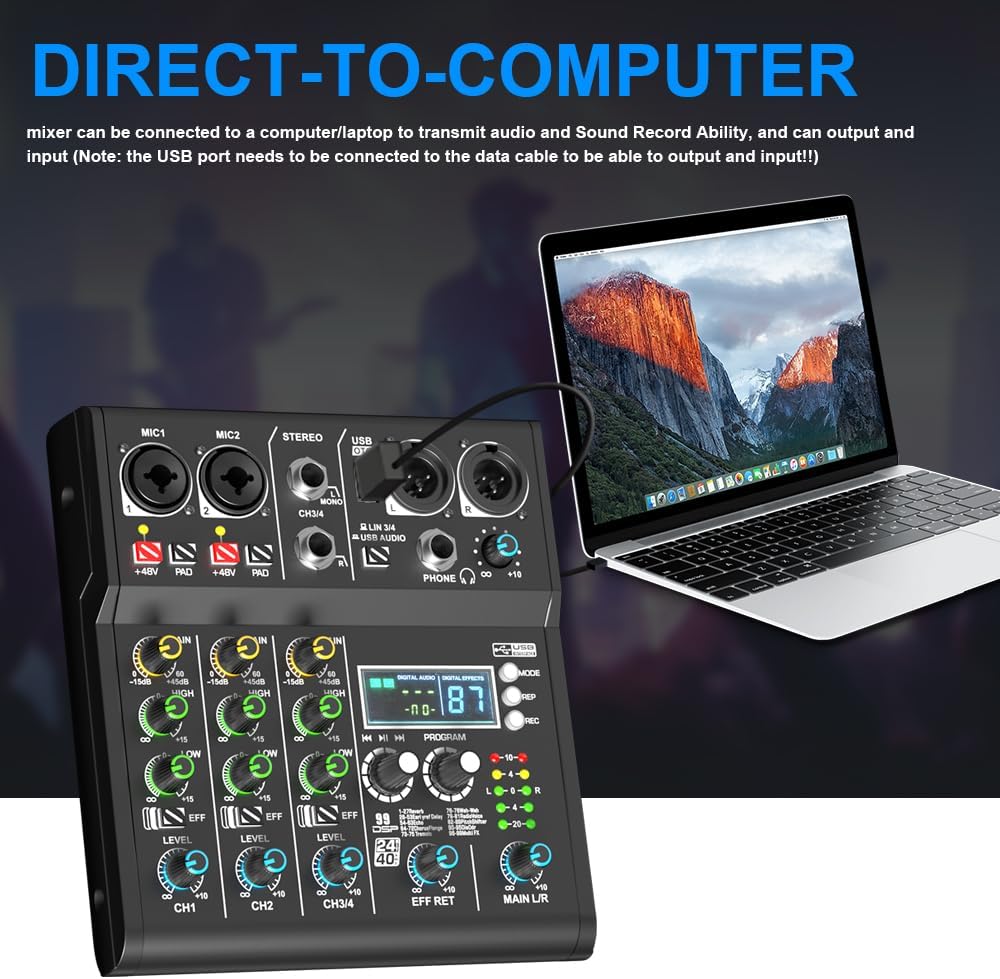
Figure 10: Direct-to-computer connection for recording.
Maintenance
To ensure the longevity and optimal performance of your Doslnlya XR-4 mixer, follow these maintenance guidelines:
- Cleaning: Use a soft, dry cloth to clean the exterior of the mixer. Avoid using abrasive cleaners, solvents, or waxes.
- Storage: Store the mixer in a cool, dry place away from direct sunlight, extreme temperatures, and high humidity.
- Handling: Handle the mixer with care. Avoid dropping it or subjecting it to strong impacts.
- Ventilation: Ensure proper ventilation around the mixer to prevent overheating. Do not block any ventilation openings.
- Power Off: Always power off the mixer and disconnect it from the power source when not in use or during cleaning.
Troubleshooting
If you encounter issues with your XR-4 mixer, refer to the following common troubleshooting steps:
- No Sound Output:
- Check all cable connections to ensure they are secure.
- Verify that the main output level and individual channel levels are turned up.
- Ensure connected speakers or headphones are powered on and functioning correctly.
- Check the input source (microphone, instrument, USB, Bluetooth) is active and sending a signal.
- Microphone Not Working:
- For condenser microphones, ensure +48V phantom power is activated.
- Check microphone cable integrity.
- Adjust the GAIN knob for the microphone channel.
- Bluetooth Connection Issues:
- Ensure the mixer is in Bluetooth mode.
- Make sure the Bluetooth device is within range and not connected to another device.
- Try restarting both the mixer and the Bluetooth device.
- USB Recording Problems:
- Ensure the USB cable is properly connected to both the mixer and the computer.
- Verify that the mixer is selected as the audio input device in your computer's sound settings and recording software.
- Check that the USB port on your computer is providing sufficient power.
- Distorted Sound:
- Reduce the GAIN levels on input channels to prevent clipping (indicated by red peak lights).
- Lower the main output level.
- Check for faulty cables or connections.
Specifications
| Feature | Specification |
|---|---|
| Brand | Doslnlya |
| Model Number | XR-4 |
| Number of Channels | 4 |
| Product Dimensions (D x W x H) | 1.57" x 7.09" x 1.57" |
| Connectivity Technology | Bluetooth 5.0, USB |
| Power Source | USB, Power Bank (5V/2A) |
| Audio Input | XLR, 1/4" TRS |
| Output Connector Type | XLR (Main), 6.5mm (Headphones) |
| DSP Effects | 99 built-in effects |
| Phantom Power | +48V (on MIC channels) |
Product Overview Video
Video 1: An overview of the Doslnlya XR-4 4-Channel Audio Mixer, demonstrating its features and connectivity options.
Warranty and Support
The Doslnlya XR-4 mixer comes with a 30-day return and exchange policy. For further support or inquiries, please refer to the seller's contact information or the official Doslnlya website.