
1. Introduction
This manual provides comprehensive instructions for the safe and effective use of the DIYPHONE QUICK 2008 700W Digital Hot Air Rework Station. This device is designed for precise desoldering and soldering tasks, featuring a digital LCD display, adjustable airflow, and an automatic sleep function for enhanced safety and component longevity. Please read this manual thoroughly before operation and retain it for future reference.
2. Safety Instructions
Always observe the following safety precautions to prevent injury or damage to the equipment:
- Ensure the power supply matches the specifications (110V, 700W).
- Operate the station in a well-ventilated area to avoid inhaling fumes.
- The hot air gun produces high temperatures. Avoid direct contact with the nozzle or heated components.
- Always place the hot air gun in its holder when not in use. The automatic sleep function will activate.
- Do not use the station near flammable materials or gases.
- Keep children and unauthorized personnel away from the workstation.
- Disconnect power before cleaning or maintenance.
- Use only original or approved replacement parts and accessories.
3. Product Overview and Components
The QUICK 2008 Rework Station consists of a main control unit, a hot air gun, and various accessories.

Figure 3.1: The DIYPHONE QUICK 2008 Hot Air Rework Station, including the main unit, hot air gun, four nozzles, and a magnetic heat insulation pad.

Figure 3.2: Detailed view of the QUICK 2008 Rework Station with key components labeled, including the real-time temperature display, 3 working channels (CH1, CH2, CH3), air volume adjustment knob, temperature adjustment buttons, independent air gun switch, stainless steel outlet, magnetic control switch, and upgraded brushless fan.
Main Control Unit Features:
- LCD Display: Shows real-time temperature and airflow settings.
- Channel Selection (CH1/CH2/CH3): Allows saving and quickly recalling three preset temperature and airflow configurations.
- Air Volume Adjustment Knob: Controls the intensity of the hot air flow.
- Temperature Adjustment Buttons: Fine-tune the desired temperature.
- Independent Air Gun Switch: Powers the hot air gun on or off.
Hot Air Gun Features:
- Stainless Steel Outlet: Durable and heat-resistant.
- Magnetic Control Switch: Activates the automatic sleep function when placed in the holder.
- Brushless Fan: Provides quiet operation and long service life.
- Ergonomic Design: Comfortable for extended use.
Included Accessories:
- 4 Nozzles (3mm, 6mm, 9mm, 12mm)
- 1 Magnetic Heat Insulation Pad
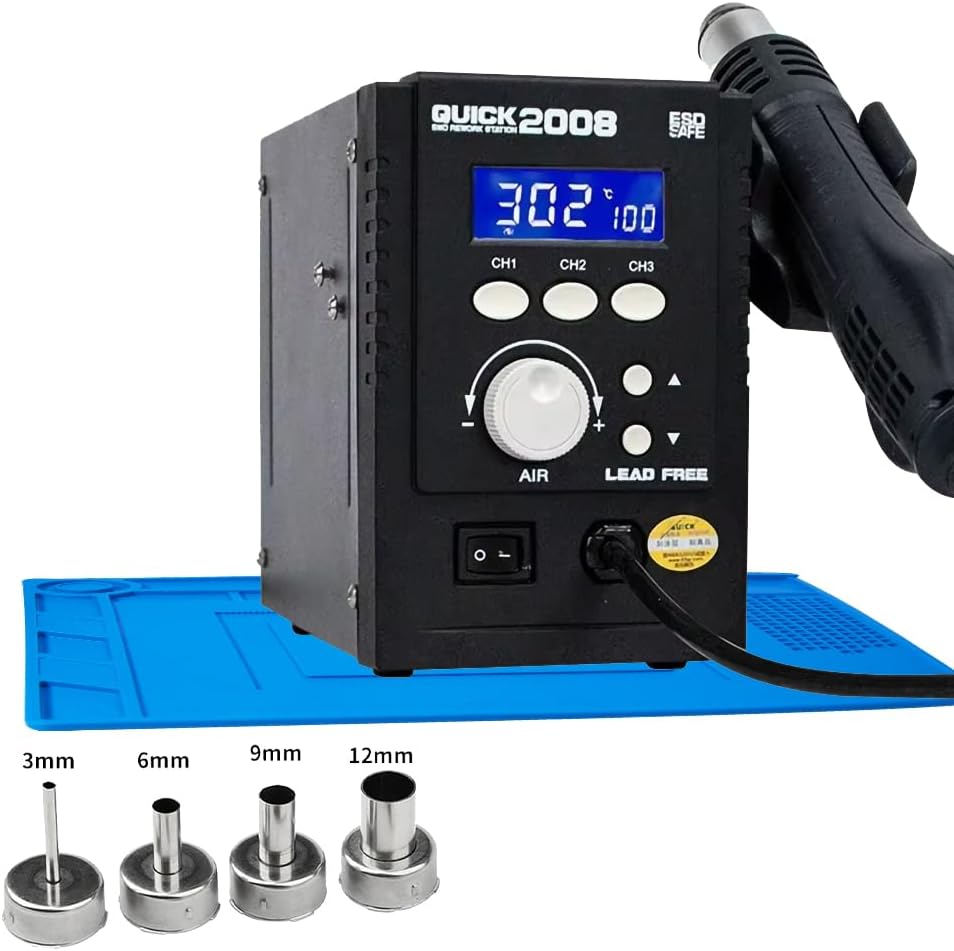
Figure 3.3: The four included nozzles (3mm, 6mm, 9mm, 12mm) for various applications.
4. Setup
- Unpacking: Carefully remove all components from the packaging. Inspect for any damage.
- Placement: Place the main control unit on a stable, heat-resistant surface. Ensure adequate ventilation around the unit.
- Connect Hot Air Gun: Plug the hot air gun cable into the designated port on the main unit.
- Attach Nozzle: Select the appropriate nozzle for your task and firmly attach it to the hot air gun outlet.
- Power Connection: Connect the power cord to the main unit and then to a grounded electrical outlet.
- Position Holder: Ensure the hot air gun holder is securely attached to the side of the main unit or a stable surface, allowing the gun to rest safely when not in use. The handle position can be interchanged for left or right-handed use.

Figure 4.1: The hot air gun holder can be positioned on either the left or right side of the main unit for user convenience.
5. Operating Instructions
5.1 Powering On/Off
- Flip the main power switch on the front of the unit to the 'ON' position. The LCD display will illuminate.
- To power off, flip the main power switch to the 'OFF' position.
5.2 Setting Temperature and Airflow
- Temperature Adjustment: Use the '▲' (up) and '▼' (down) buttons next to the LCD display to set the desired temperature. The temperature range is typically between 100°C and 500°C.
- Airflow Adjustment: Rotate the 'AIR' knob to adjust the airflow intensity. Turn clockwise for increased airflow, counter-clockwise for decreased airflow.
- Channel Presets (CH1/CH2/CH3): Press one of the CH buttons (CH1, CH2, or CH3) to recall a saved temperature and airflow setting. To save a new setting, adjust the temperature and airflow to your desired levels, then press and hold the desired CH button until a confirmation beep or display change occurs.
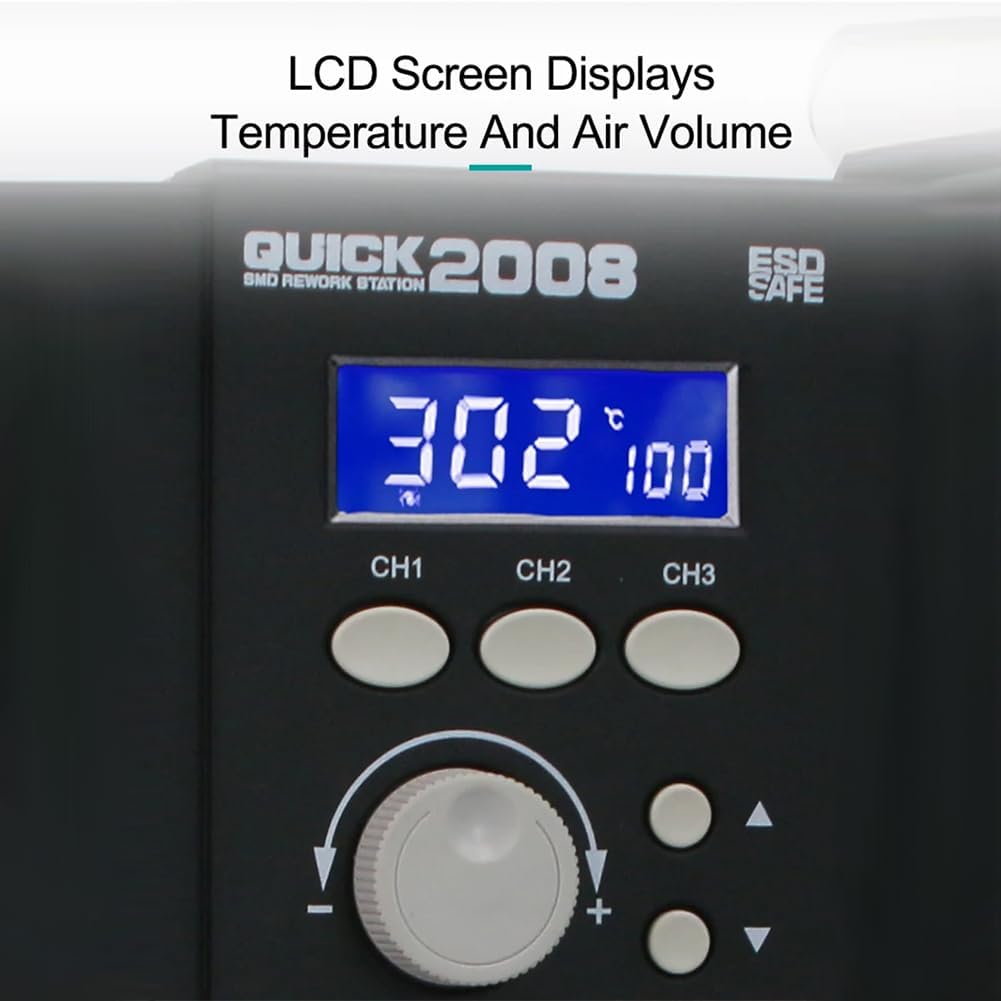
Figure 5.1: The LCD screen clearly displays the set temperature and airflow values.
5.3 Automatic Sleep Function
The QUICK 2008 features an intelligent automatic sleep function. When the hot air gun is placed back into its holder, the magnetic control switch detects its presence, and the unit automatically reduces the temperature to a safe level and enters standby mode. This prolongs the life of the heating element and ensures safety. When the gun is lifted from the holder, it quickly returns to the last set operating temperature.

Figure 5.2: The magnetic control switch initiates the automatic sleep function when the hot air gun is placed in its holder, causing the temperature to drop.
5.4 Automatic Cold Air Design
Upon entering sleep mode or powering off, the system automatically blows cold air to cool down the heating element. This protects the heating core and extends its lifespan.

Figure 5.3: The automatic cold air design ensures the heating element cools down properly, extending its operational life.
6. Maintenance
- Cleaning: Regularly clean the exterior of the unit and the hot air gun with a soft, dry cloth. Ensure the unit is unplugged and cool before cleaning.
- Nozzle Care: Clean nozzles periodically to prevent blockages. Ensure they are free of solder residue.
- Air Vents: Keep the air intake and exhaust vents on the main unit and hot air gun clear of dust and debris to ensure proper cooling and airflow.
- Storage: Store the rework station in a dry, dust-free environment when not in use.
- Heating Element Replacement: If the heating element requires replacement, consult a qualified technician or contact customer support.
7. Troubleshooting
- No Power: Check the power cord connection and the main power switch. Ensure the outlet is functional.
- No Heat/Low Heat: Verify the temperature setting. Ensure the hot air gun is properly connected. If the issue persists, the heating element may need inspection.
- No Airflow/Weak Airflow: Check the airflow knob setting. Ensure air vents are not blocked. If the fan is not operating, contact support.
- Automatic Sleep Not Activating: Ensure the hot air gun is correctly seated in its holder and the magnetic switch is making proper contact.
- Error Codes: If the LCD displays an error code, refer to the specific error code documentation (if provided separately) or contact customer support with the displayed code.
8. Specifications
| Feature | Specification |
|---|---|
| Brand | DIYPHONE |
| Model Number | Quick 2008 |
| Power Source | Corded Electric |
| Voltage | 110 Volts |
| Wattage | 700 watts |
| Display Type | LCD |
| Included Components | 1 x QUICK 2008 Hot Air Rework Station, 1x Magnetic Heat Insulation Pad, 4x Nozzles, 1x manual |
| UPC | 794414192825 |
| ASIN | B0DN9WX9LC |
9. Warranty and Support
For warranty information or technical support, please refer to the product packaging or contact DIYPHONE customer service directly. Keep your purchase receipt as proof of purchase.