
1. Introduction
The MASSII DDC-001 Digital Teaching Clock is designed to assist users in time management and daily routines. It features a clear display, voice-speaking time, multiple alarms, custom reminders, a to-do list, and a sleep trainer function. This manual provides detailed instructions for its setup, operation, and maintenance.
2. Package Contents
Upon opening the package, please verify that all the following items are included:
- 1x MASSII DDC-001 Digital Teaching Clock
- 1x Table Stand
- 1x Remote Control
- 1x User Manual (this document)
- 1x Power Adapter with 1.5m Cord
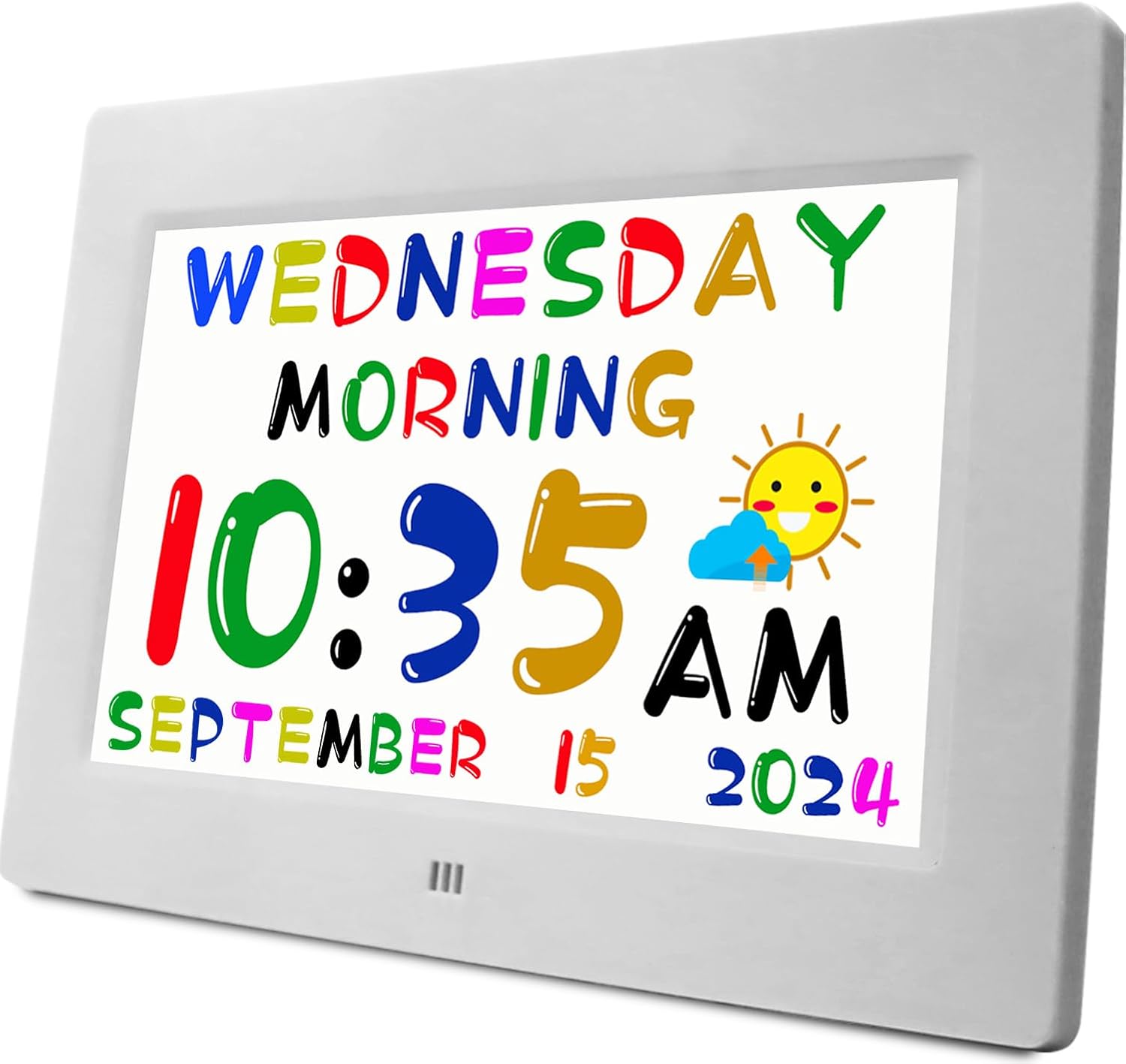
Image: The MASSII DDC-001 Digital Teaching Clock with its included table stand, remote control, and power adapter.
3. Setup
3.1 Powering On
- Connect the power adapter to the clock's power input port.
- Plug the power adapter into a standard electrical outlet. The clock will power on automatically.
3.2 Initial Time and Date Settings
The clock is designed with automatic Daylight Saving Time (DST) adjustment. However, initial setup of time zone and date may be required. Refer to the on-screen prompts or use the remote control to navigate the settings menu.
3.3 Remote Control Operation
The included remote control allows for convenient adjustment of settings and features from a distance. Ensure the remote has batteries installed and point it towards the clock's sensor.

Image: The remote control for the MASSII DDC-001 clock, showing navigation and power buttons.
4. Operating Instructions
4.1 Display Modes
The clock offers multiple display themes to suit user preference:
- Simplified UI: Displays time, day, and date in a clear, easy-to-read format.
- Advanced UI: Provides more detailed information or a different visual layout.
- Analog Clock UI: Presents time in an analog clock face format, aiding in learning traditional time-telling.

Image: Examples of the Simplified, Advanced, and Analog Clock user interfaces available on the display.
4.2 Setting Alarms and Custom Reminders
The clock supports up to 24 alarms with voice speaking and 20 custom reminders. These can be set for daily, weekly, or specific dates.
- Access the 'Alarms' or 'Reminders' menu using the remote control or physical buttons.
- Select 'Add New' to create a new alarm or reminder.
- Set the time, frequency (daily, weekly, specific date), and choose a voice message or custom text for reminders.
- Confirm your settings.

Image: The clock displaying a voice reminder, indicating it's time to wake up, with a child in bed.
4.3 To-Do List Functionality
The integrated to-do list allows users to manage daily tasks and schedules.
- Navigate to the 'To-Do List' menu.
- Add new tasks with specific times.
- Mark tasks as completed directly on the display or via the remote control.

Image: The clock screen showing a 'To-do List' with various scheduled activities and checkboxes for completion.
4.4 Sleep Trainer Function
The sleep trainer helps establish consistent sleep routines by signaling morning and night.
- Set specific time points for 'morning' and 'night' in the settings.
- The clock will automatically adjust its brightness (brighten for morning, dim for night) according to these settings.

Image: The clock demonstrating its auto high brightness for daytime display and auto dimming for night display.
5. Maintenance
5.1 Cleaning
To clean the clock, gently wipe the screen and casing with a soft, dry, or slightly damp cloth. Avoid using abrasive cleaners, solvents, or aerosol sprays, as these can damage the display or finish.
5.2 Storage
When not in use for extended periods, store the clock in a cool, dry place away from direct sunlight and extreme temperatures.
6. Troubleshooting
If you encounter issues with your MASSII DDC-001 Digital Teaching Clock, please refer to the following common solutions:
- Clock not turning on: Ensure the power adapter is securely connected to both the clock and a working electrical outlet.
- Display is blank or frozen: Disconnect the power adapter, wait 10 seconds, then reconnect it to perform a soft reset.
- Alarms/Reminders not sounding: Check the volume settings in the clock's menu. Ensure the alarm/reminder is enabled and set for the correct time and frequency.
- Remote control not working: Verify that the remote control has working batteries and that there are no obstructions between the remote and the clock's sensor.
- Incorrect time/date: Access the settings menu to manually adjust the time zone and date if automatic DST adjustment is not functioning as expected.
If problems persist after attempting these steps, please contact customer support.
7. Specifications
| Feature | Detail |
|---|---|
| Brand | MASSII |
| Model Number | DDC-001 |
| Display Type | Digital |
| Product Dimensions | 8.03"W x 5.75"H |
| Power Source | Plug-in cord (Electrical) |
| Special Features | Calendar Display, Daylight Saving, Hourly Chime, Programmable, Talking Time and Date |
| Material | Plastic (Frame), 1280*800 HD (Display) |
| Mounting Type | Tabletop |
| Item Weight | 0.47 Kilograms (1.04 pounds) |
| Color | White (Kids-white variant) |
8. Warranty and Support
8.1 Warranty Information
MASSII provides a 365-day warranty for the DDC-001 Digital Teaching Clock, covering manufacturing defects and malfunctions under normal use. In case of quality issues, a free replacement will be provided.
8.2 Customer Support
For technical assistance, warranty claims, or any questions regarding your MASSII DDC-001 Digital Teaching Clock, please refer to the contact information provided with your purchase or visit the official MASSII website.