
Yoidesu Yoidesuqwh12vbkxm
Yoidesu 108 Key Mechanical Keyboard User Manual
Model: Yoidesuqwh12vbkxm
Product Overview
The Yoidesu 108 Key Mechanical Keyboard is a versatile gaming keyboard designed for a wide range of operating systems, including Android and HarmonyOS. It features multiple connectivity options, vibrant RGB backlighting, and a durable design for enhanced user experience.
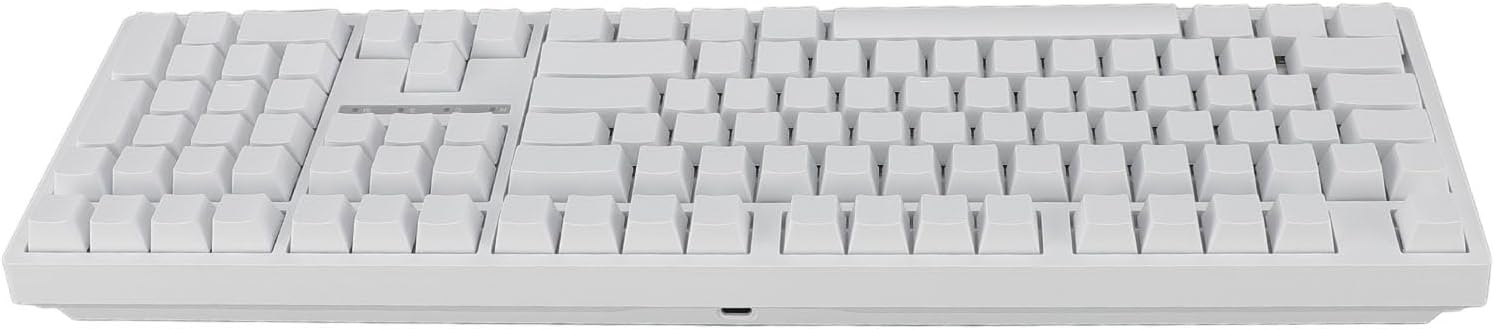
Image: Top-down view of the Yoidesu 108 Key Mechanical Keyboard, showcasing its full layout and white color.
Its compact design, featuring an optimized 108-key layout, ensures all essential functions of a full-sized keyboard are retained while maintaining portability, making it suitable for both home and travel use.

Image: The Yoidesu 108 Key Mechanical Keyboard positioned on a desk, emphasizing its compact and streamlined design.
Key Features:
- Three Mode Connectivity: Supports 2.4G wireless, Bluetooth 3.0/5.0, and Type-C wired connections for flexible use across various devices.
- Compact 108 Key Layout: Optimized design retaining full functionality while being portable.
- Vibrant RGB Dynamic Backlighting: Customizable lighting effects with adjustable speed and brightness.
- Efficient Power Management: Built-in 3000mAh rechargeable Li-ion battery with simultaneous charging in wired mode.
- Full Key Anti-Ghosting: Ensures accurate and swift responses even with multiple simultaneous key presses.
- Hot-Swappable Keys: Allows for easy replacement of key switches.
- Wide Compatibility: Compatible with Windows (2000, ME, Vista, 7, 8, 10), HarmonyOS, and Android.
Package Contents
Before proceeding with setup, please ensure all items listed below are present in your package:
- 1 x Mechanical Keyboard
- 1 x USB Adapter (for 2.4G wireless connection)
- 2 x Replacement Switches
- 1 x Data Cable (Type-C)
- 1 x Keycap Puller
- 1 x Manual (this document)

Image: The Yoidesu mechanical keyboard displayed alongside its accessories, including the USB-C cable, USB wireless adapter, two spare key switches, and a keycap puller.
Setup Instructions
The Yoidesu mechanical keyboard supports three connection modes: 2.4G wireless, Bluetooth, and wired (Type-C).
1. Wired Connection (Type-C)
- Locate the Type-C port on the keyboard, typically on the top edge.
- Connect one end of the provided Type-C data cable to the keyboard's port.
- Connect the other end of the data cable to an available USB port on your computer or device.
- The keyboard is plug-and-play and should be recognized automatically by your system.

Image: A close-up view of the USB Type-C port located on the side of the keyboard, used for wired connection and charging.
2. 2.4G Wireless Connection
- Ensure the keyboard is charged or connected via Type-C cable initially.
- Locate the 2.4G USB adapter included in the package.
- Plug the USB adapter into an available USB port on your computer or device.
- Switch the keyboard to 2.4G wireless mode (refer to the keyboard's function keys or switch for mode selection, usually indicated by an icon or LED).
- The keyboard should automatically pair with the adapter.
3. Bluetooth Connection
- Ensure the keyboard is charged.
- Switch the keyboard to Bluetooth mode (refer to the keyboard's function keys or switch for mode selection).
- On your device (computer, tablet, smartphone), enable Bluetooth and search for new devices.
- Select "Yoidesu Keyboard" or a similar name from the list of available Bluetooth devices.
- Follow any on-screen prompts to complete the pairing process.
Note: The keyboard supports Bluetooth 3.0 and 5.0. For optimal performance, ensure your device's Bluetooth version is compatible.
Adjusting Keyboard Angle
The keyboard features adjustable feet on its underside to customize the typing angle for ergonomic comfort.

Image: A close-up view of the adjustable flip-out feet on the bottom of the keyboard, allowing users to change the typing angle.
Operating Instructions
Switching Connection Modes
To switch between 2.4G, Bluetooth, and wired modes, use the designated switch or key combination on the keyboard. Refer to the specific markings on your keyboard for exact instructions. An indicator light usually confirms the active mode.
RGB Backlighting Control
The keyboard features dynamic RGB backlighting with multiple modes. Use the function keys (Fn) combined with specific keys (e.g., Fn + directional arrows, Fn + Ins/Home/PgUp/PgDn) to:
- Change lighting effects/patterns.
- Adjust brightness levels.
- Control animation speed.
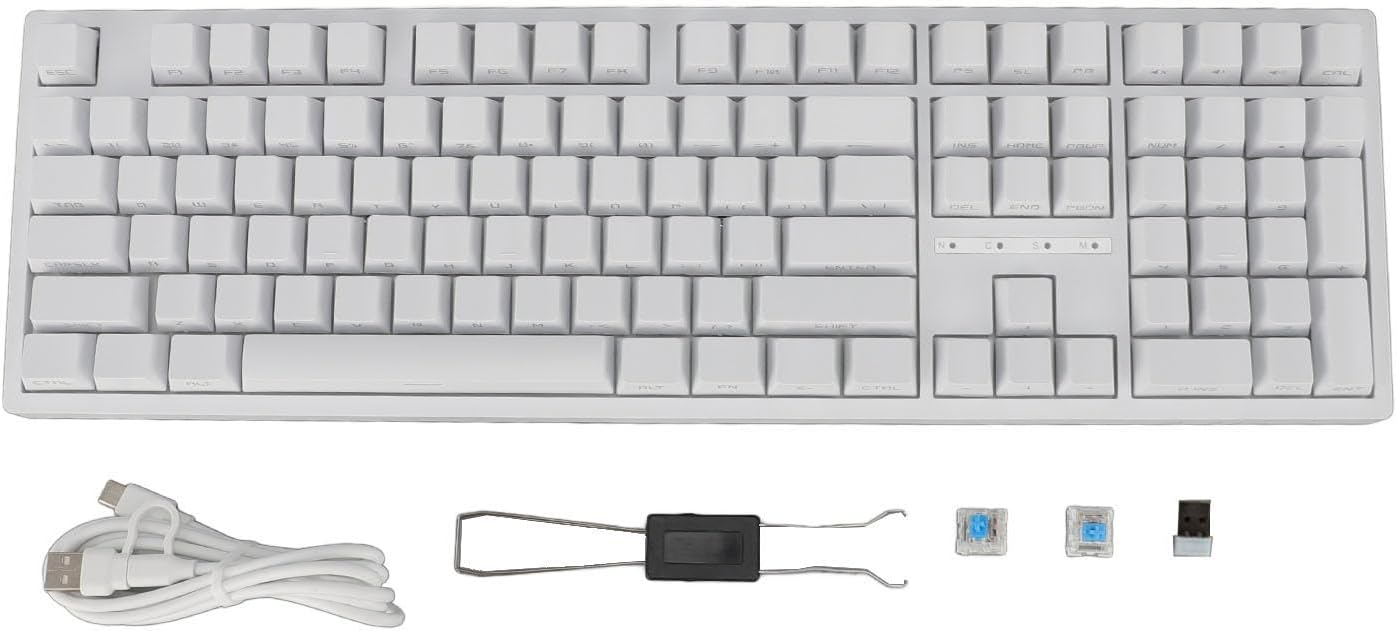
Image: The Yoidesu keyboard showcasing its vibrant RGB dynamic backlighting, with light visible through the translucent keycaps.
Detailed instructions for specific lighting controls may be found on the keyboard's keycaps or in a quick-start guide if provided.
Hot-Swappable Key Switches
This keyboard supports full key hot-swapping, allowing you to easily replace individual key switches without soldering. To replace a switch:
- Use the provided keycap puller to gently remove the keycap from the desired switch.
- Use the provided switch puller (if separate) or the keycap puller's switch-pulling end to carefully grip and pull the switch straight up from the PCB.
- Align the pins of the new switch with the holes on the PCB and gently push it down until it clicks into place. Ensure the pins are not bent.
- Re-attach the keycap.

Image: A close-up view demonstrating the removal of a keycap and a blue mechanical switch from the keyboard, highlighting the hot-swappable feature.
Maintenance
Cleaning the Keyboard
- Disconnect the keyboard from your device before cleaning.
- Use a soft, lint-free cloth slightly dampened with water or a mild cleaning solution to wipe the surface of the keyboard and keycaps.
- For dust and debris between keys, use compressed air or a small brush.
- Avoid spraying liquids directly onto the keyboard.
Battery Care
- The keyboard is equipped with a built-in 3000mAh Li-ion battery.
- Charge the keyboard using the provided Type-C cable connected to a USB power source (e.g., computer USB port, wall adapter).
- When in wired mode, the keyboard charges simultaneously.
- Avoid fully discharging the battery frequently to prolong its lifespan.
Troubleshooting
Keyboard Not Responding
- Wired Mode: Ensure the Type-C cable is securely connected to both the keyboard and the device. Try a different USB port or cable.
- 2.4G Wireless Mode: Ensure the USB adapter is properly inserted and the keyboard is switched to 2.4G mode. Try re-pairing by unplugging and re-plugging the adapter.
- Bluetooth Mode: Check if Bluetooth is enabled on your device and the keyboard is in pairing mode. Remove the keyboard from your device's Bluetooth list and re-pair. Ensure the keyboard battery is charged.
- Battery: If using wireless modes, ensure the keyboard battery is sufficiently charged. Connect the Type-C cable to charge.
Keys Not Registering / Ghosting Issues
- The keyboard features full key anti-ghosting, which prevents most key registration issues during rapid typing or gaming.
- If a specific key is not working, it might be a faulty switch. Utilize the hot-swappable feature to replace the switch with one of the provided spare switches.
- Ensure no debris is lodged under the keycap or switch.
Backlighting Not Working / Incorrect
- Ensure the keyboard is powered on and not in a low-power state.
- Check the brightness settings using the function key combinations.
- Cycle through different lighting modes to see if any work.
Specifications
| Attribute | Detail |
|---|---|
| Item Type | 108 Key Mechanical Keyboard |
| Material | ABS |
| Color | White |
| Keycap | Transparent Side |
| Key Switch | Blue Switch |
| Connection Modes | 2.4G, Bluetooth 3.0, Bluetooth 5.0, Type-C Wired |
| Lighting | RGB Multiple Backlit Modes |
| Key Conflict | Full Key Anti-Ghosting |
| Battery Capacity | Built-in 3000mAh Li-ion Battery |
| Ergonomics | Supported (Adjustable Feet) |
| Hot-swappable | Full Key Hot-Swappable |
| Padding | Dual Layer Padding (Interlayer Cotton, Bottom Cotton) |
| Compatible Systems | Windows (2000, ME, Vista, 7, 8, 10), HarmonyOS, Android |
| Model Number | Yoidesuqwh12vbkxm |
| Item Weight | 2.57 pounds |
| Package Dimensions | 18.9 x 7.09 x 1.97 inches |
Warranty and Support
For warranty information and technical support, please refer to the official Yoidesu website or contact their customer service. Keep your purchase receipt for warranty claims.
You can visit the Yoidesu store on Amazon for more information and products: Yoidesu Amazon Store
Ask a question about this manual
Ask about setup, troubleshooting, compatibility, parts, safety, or missing instructions. Manuals+ will review the question and use this page’s manual context to help answer it.