
1. Introduction
The CHROX X96Q PRO+ is an advanced Android 14.0 TV Box designed to transform your television into a smart entertainment hub. Featuring an H728 Quad-Core ARM Cortex-A55 processor and Mali G31 MP2 GPU, it delivers high-performance media playback, including 8K and 4K resolutions. This device supports dual-band Wi-Fi (2.4G/5.8GHz), Bluetooth 4.1, and offers various connectivity options for a comprehensive multimedia experience.
2. Package Contents
Please verify that all items listed below are included in your package:
- 1 x CHROX X96Q PRO+ TV Box
- 1 x Remote Control
- 1 x HD Cable (HDMI)
- 1 x Power Adapter (DC 5V/2A)
- 1 x User Manual

Image: Contents of the CHROX X96Q PRO+ TV Box package, including the TV box, remote control, HDMI cable, power adapter, and user manual.
3. Setup Guide
3.1 Connecting the TV Box
- Connect to TV: Use the provided HDMI cable to connect the HDMI port on the TV Box to an available HDMI input on your television.
- Power Connection: Plug the power adapter into the DC 5V port on the TV Box, then connect the adapter to a power outlet.
- Network Connection (Optional):
- Ethernet: For a wired connection, connect an Ethernet cable from your router to the LAN port on the TV Box.
- Wi-Fi: For a wireless connection, you will configure Wi-Fi after initial power-on.
- Connect Peripherals (Optional): Insert USB devices such as a mouse, keyboard, or external storage into the available USB 2.0 or USB 3.0 ports.

Image: Diagram showing the various ports and dimensions of the CHROX X96Q PRO+ TV Box, including USB 2.0, USB 3.0, Ethernet, HD (HDMI), Audio, Optical, DC/5V, and Card slot.
3.2 Initial Power On
After connecting all necessary cables, the TV Box should power on automatically. If not, press the power button on the device or the remote control. Select the correct HDMI input on your television to display the TV Box interface.
4. Operating Instructions
4.1 User Interface Navigation
Use the provided remote control to navigate the Android 14.0 interface. The directional buttons allow you to move between icons and menus, the 'OK' button confirms selections, and the 'Back' button returns to the previous screen. A connected USB mouse or keyboard can also be used for easier navigation and text input.
4.2 Network Connection
To access online content, connect your TV Box to the internet.
- Wi-Fi: Go to Settings > Network > Wi-Fi. Select your desired network from the list, enter the password if prompted, and connect. The device supports dual-band 2.4G and 5.8GHz Wi-Fi for stable and fast connections.
- Ethernet: If an Ethernet cable is connected, the device should automatically detect and connect to the wired network. Verify the connection status in Settings > Network > Ethernet.

Image: Illustration highlighting the Wi-Fi 6 technology of the CHROX X96Q PRO+ TV Box, indicating faster speed and lower latency compared to Wi-Fi 5.
4.3 Media Playback
The CHROX X96Q PRO+ supports high-resolution video playback:
- 8K/4K Resolution: Enjoy ultra-high-definition content with support for up to 8Kx4K @60fps output.
- Video Decoding: Compatible with H.265 HEVC, H.264 AVC, and VP9 codecs for efficient and high-quality video streaming.
- HDR Support: Experience enhanced color and contrast with HDR technology.
4.4 Multi-screen Interaction
Share content from your mobile devices to your TV screen using the built-in multi-screen features:
- Airplay: For iOS devices.
- DLNA: For compatible devices and media servers.
- Miracast: For Android devices.
Ensure your mobile device and the TV Box are connected to the same Wi-Fi network for these features to function.

Image: Depiction of multi-screen interaction, showing a smartphone and laptop casting content to a TV via the CHROX X96Q PRO+ TV Box using Airplay, DLNA, and Miracast.
4.5 3D Display
The TV Box supports 3D display, offering an immersive viewing experience with compatible 3D content and a 3D-enabled television.
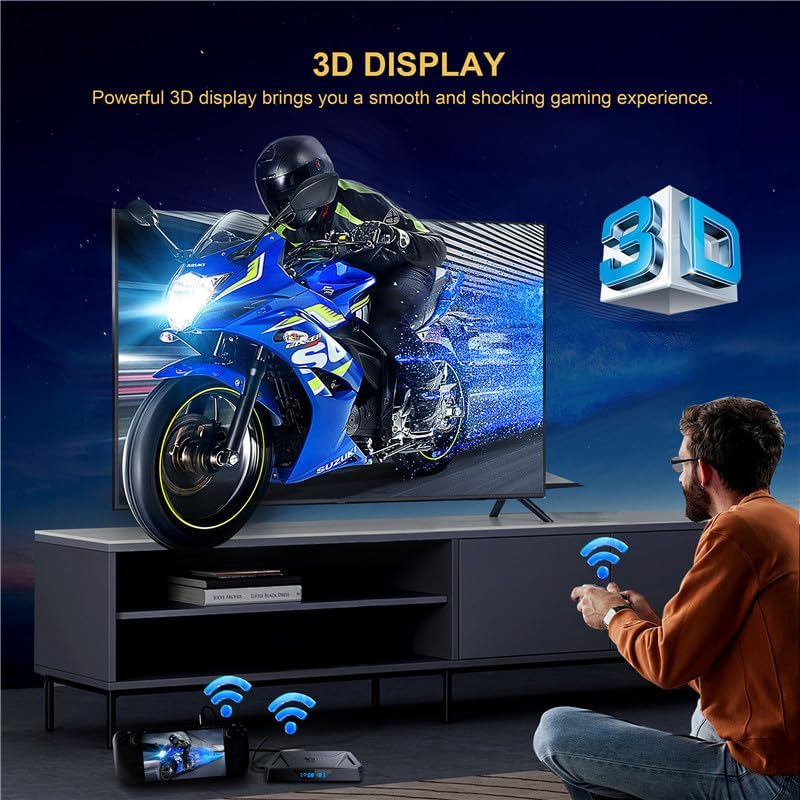
Image: A person playing a 3D game on a TV, demonstrating the 3D display capability of the CHROX X96Q PRO+ TV Box.
4.6 External Device Connectivity
Expand your storage and connectivity options:
- USB Ports: Connect USB flash drives, external hard drives (up to 1TB), game controllers, or other USB peripherals.
- Micro SD Card Slot: Insert a Micro SD card (up to 64GB) to expand storage for apps and media.
5. Maintenance
5.1 Software Updates (OTA)
The TV Box supports Over-The-Air (OTA) updates. When connected to the internet, the device can automatically download and install the latest firmware updates to improve performance and add new features. It is recommended to keep your device updated for optimal functionality.
5.2 Cleaning
To clean the device, use a soft, dry cloth. Avoid using liquid cleaners or abrasive materials, as they may damage the surface or internal components.
6. Troubleshooting
- No Power: Ensure the power adapter is securely connected to the TV Box and a working power outlet. Try a different outlet.
- No Signal on TV: Verify the HDMI cable is properly connected to both the TV Box and the TV. Ensure your TV is set to the correct HDMI input source.
- Wi-Fi Connection Issues: Check if your router is working correctly. Restart the TV Box and your router. Re-enter the Wi-Fi password in settings.
- Remote Control Not Responding: Check the batteries in the remote control and replace them if necessary. Ensure there are no obstructions between the remote and the TV Box.
- Apps Not Working: Ensure the device has a stable internet connection. Try clearing the app's cache or reinstalling the app.
7. Specifications
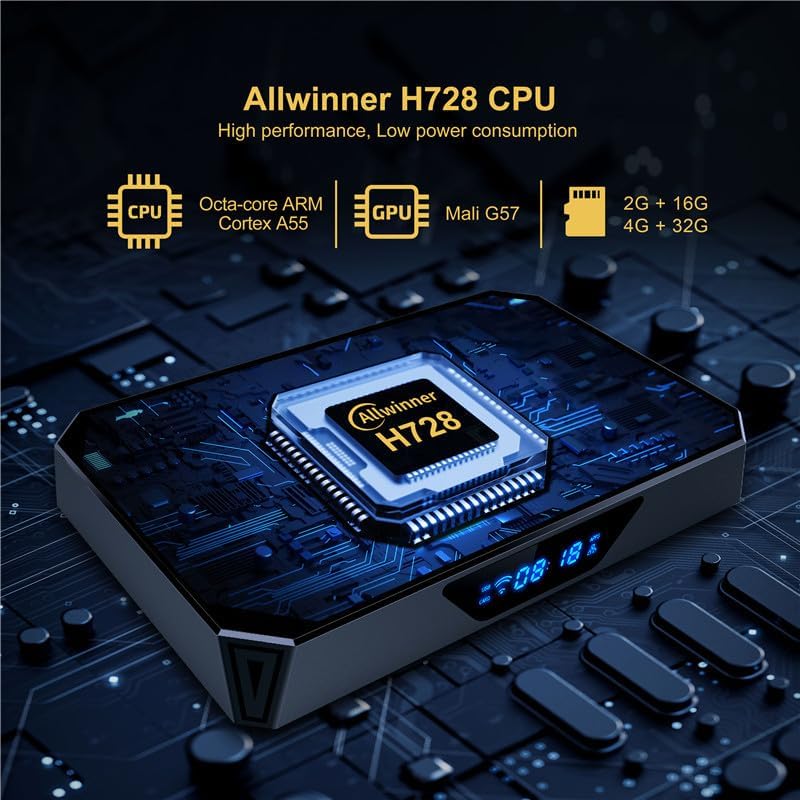
Image: Close-up of the CHROX X96Q PRO+ TV Box highlighting the Allwinner H728 CPU, Octa-core ARM Cortex A55, and Mali G57 GPU.
| Feature | Description |
|---|---|
| Operating System | Android 14.0 |
| CPU | H728 Quad-Core ARM Cortex-A55 64-bit |
| GPU | Mali G31 MP2 |
| RAM | 4 GB |
| Internal Storage (FLASH) | 64 GB |
| Wi-Fi | 2.4G / 5.8GHz Dual-Band |
| Bluetooth | BT4.1 |
| Ethernet | 10/100/1000M RJ-45 |
| HDMI Output | HDMI 2.0, supports 8Kx4K @60fps max resolution |
| USB Ports | 1 x USB 2.0, 1 x USB 3.0 |
| Card Slot | Micro SD (up to 64GB) |
| Video Decoder | H.265 HEVC/MVC, H.264 AVC/MVC, VP9, VP8 |
| Special Features | 8K Resolution, HDR, 3D Display, Multi-screen (Airplay, DLNA, Miracast) |
| Supported Internet Services | Netflix, Hulu, Amazon Prime Video |
8. Warranty and Support
For any questions or issues regarding your CHROX X96Q PRO+ TV Box, please contact the seller, MYYGZQ. They are committed to resolving your problem within 24 hours. Please refer to your purchase documentation for specific warranty terms and contact details.