
1. Product Overview
This manual provides detailed instructions for the installation and operation of your SIXWIN P1-2G+64G Android Car Stereo. This unit is specifically designed for Subaru Outback and Legacy models manufactured between 2010 and 2014. It features a 9.7-inch touch screen, Android 13 operating system, and integrates various modern car audio functionalities.
Important Note: This car stereo is compatible only with basic vehicle versions. It is not suitable for vehicles equipped with a Harman Kardon sound system. Please verify your vehicle's audio system before installation.

Image 1.1: Visual representation of the car stereo before and after installation in a compatible Subaru dashboard. Also shows incompatible wiring for Harman Kardon systems.
2. Setup and Installation
2.1. Package Contents
Before beginning installation, ensure all components are present in the package:
- SIXWIN P1-2G+64G Android Car Stereo Unit
- AHD Rear Camera
- Microphone
- Power Cable Harness
- RCA Cable Set
- 2 USB Cables
- Camera Input Cable
- Installation Tool
- GPS Antenna
- User Manual (this document)
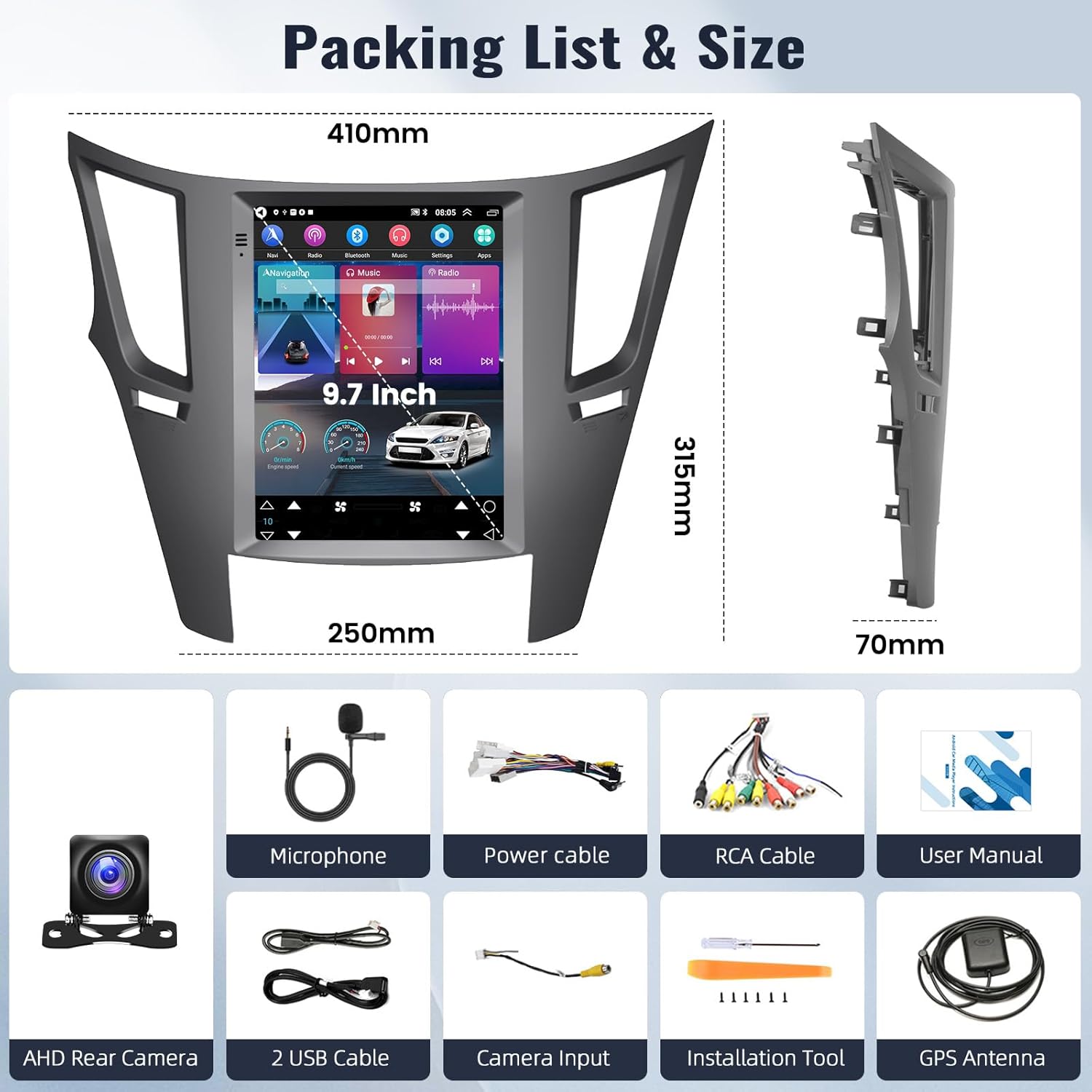
Image 2.1: Detailed view of the packing list and included accessories.
2.2. Pre-Installation Checks
- Verify vehicle compatibility: This unit is for Subaru Outback/Legacy 2010-2014 models without Harman Kardon sound systems.
- Disconnect the vehicle's battery to prevent electrical shorts during installation.
- Familiarize yourself with your vehicle's existing wiring and dashboard layout.
2.3. Wiring Connections
Connect the provided wiring harness to the car stereo and the vehicle's factory wiring. Ensure all connections are secure. Refer to the wiring diagram provided with the power cable harness for specific connections.
Troubleshooting Tip: If the unit powers off when the key is turned to the 'run' position, try disconnecting any additional power cables that might be causing excessive power draw. One user reported success by unplugging a specific orange/pink colored cable from the main harness.
2.4. Mounting the Unit
Carefully integrate the 9.7-inch display into your vehicle's dashboard. Use the provided installation tools and ensure a secure fit. Avoid applying excessive force.
3. Basic Operation
3.1. Power On/Off
The unit powers on automatically with the vehicle's ignition. To manually power off or restart, refer to the on-screen controls or the physical power button if available.
3.2. Touchscreen Interface
The 9.7-inch capacitive touchscreen allows for intuitive control. Navigate through menus, select applications, and adjust settings by tapping and swiping.

Image 3.1: Demonstration of the 9.7-inch 1080P touchscreen in use.
4. Key Features and Functions
4.1. Wireless Apple CarPlay & Android Auto
Connect your smartphone wirelessly or via USB to access Apple CarPlay or Android Auto. This allows for seamless integration of navigation, music, calls, and messages directly on the car stereo display. Voice control via Siri or Google Assistant is supported.
- For Apple CarPlay: Connect via Bluetooth, then open the "Zlink5" app on the car stereo.
- For Android Auto: Download the Android Auto app on your phone, connect via Bluetooth, then open the "Zlink5" app on the car stereo.
Note: Samsung phones are not supported for Android Auto mirror link functionality.
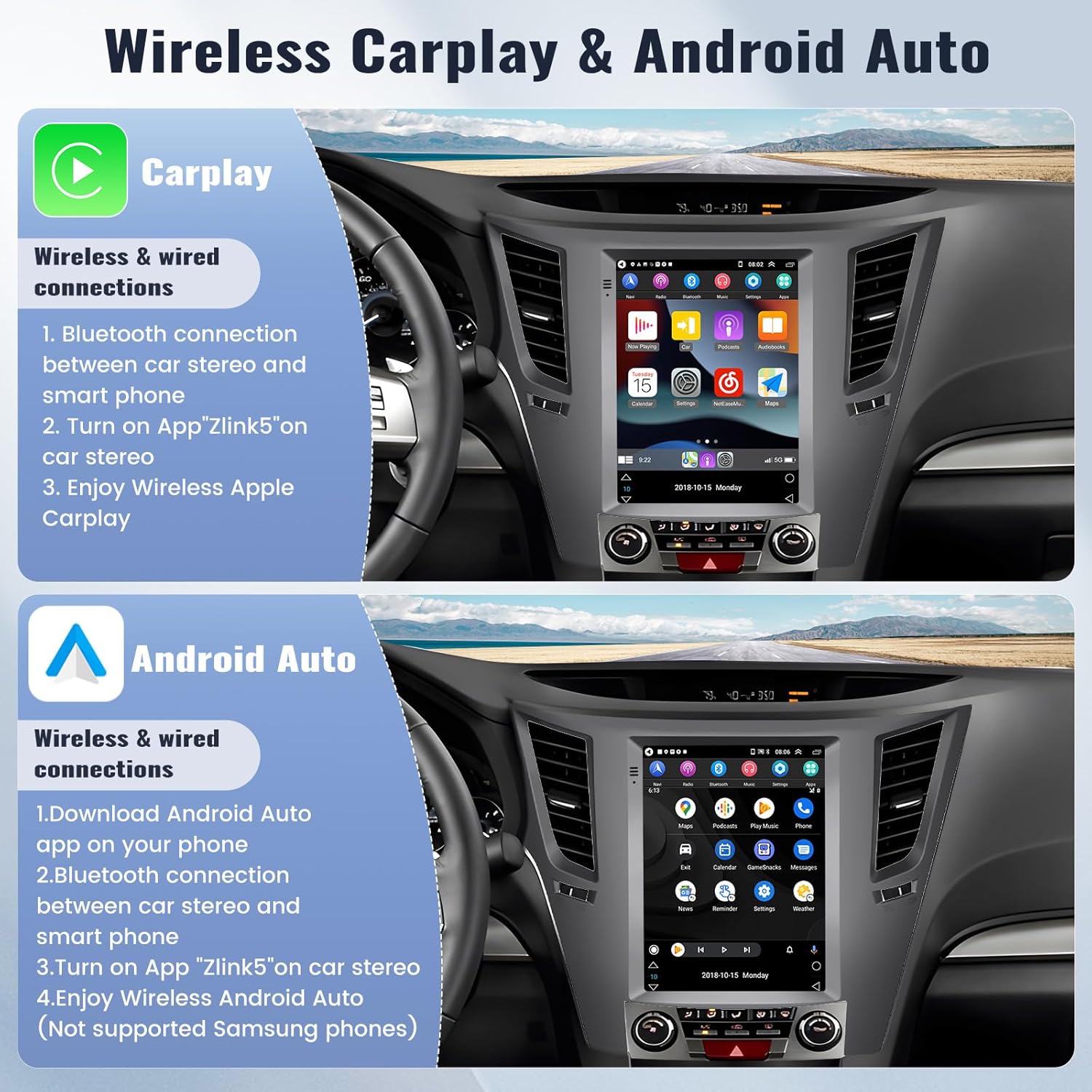
Image 4.1: Wireless Apple CarPlay and Android Auto functionality.
4.2. Bluetooth Functionality
The built-in Bluetooth module enables hands-free calling and wireless music streaming. Pair your phone to make and receive calls safely and enjoy your music library.
- Hands-free calling with external microphone support for clear audio.
- Bluetooth music player with auto-loading phonebooks.
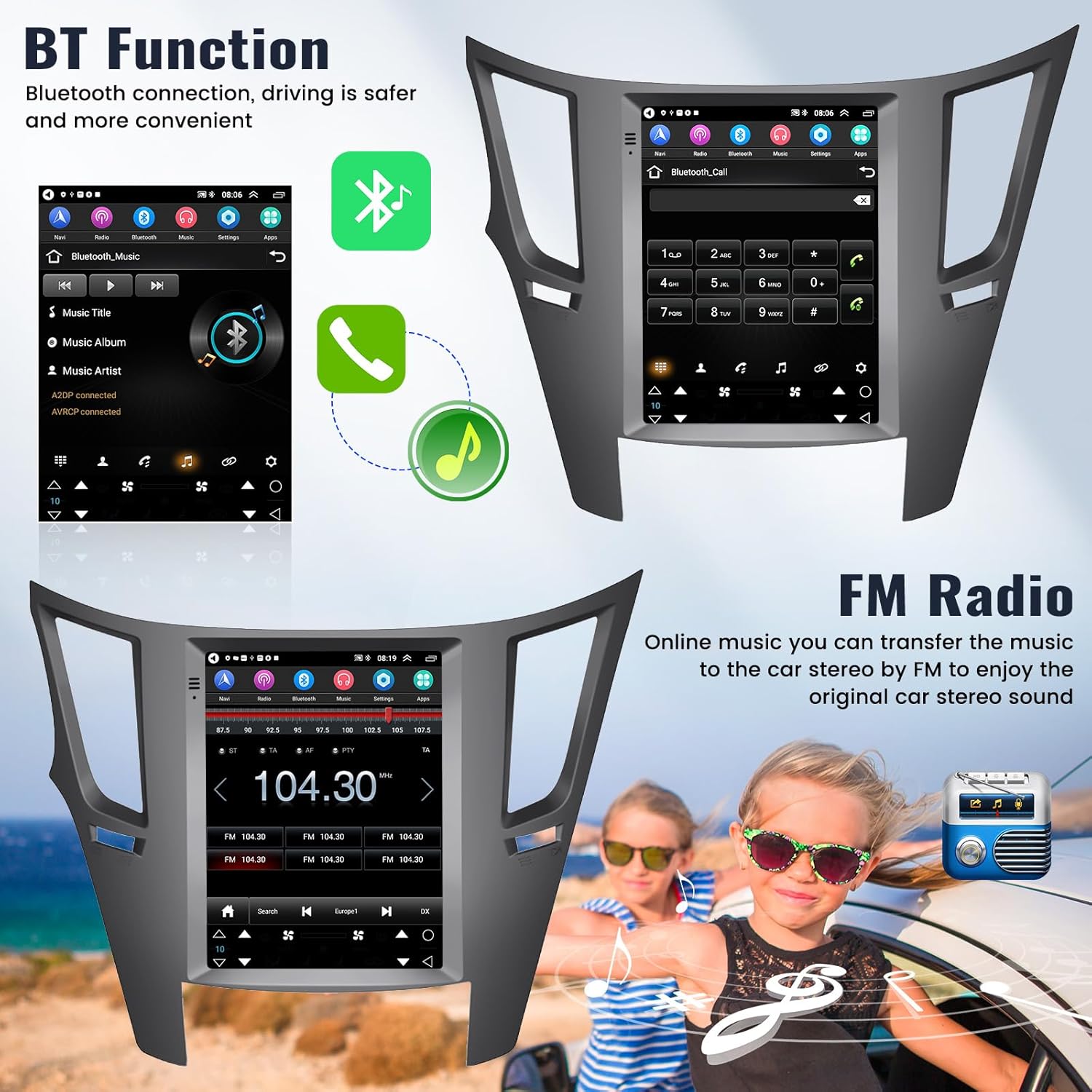
Image 4.2: Bluetooth call and music functions, and FM radio interface.
4.3. GPS Navigation & WiFi Connectivity
Utilize the integrated GPS for navigation. The unit supports both online and offline maps. The pre-installed "Here We Go" app allows for offline map downloads. Connect to WiFi to access the Google Play Store for additional apps like YouTube, TikTok, and Spotify.

Image 4.3: GPS navigation and WiFi app access.
4.4. FM Radio & Hi-Fi Audio
Enjoy your favorite radio stations with the built-in FM tuner (87.50-108.0 MHz), offering 18 preset stations. The EQ Hi-Fi function provides high-fidelity sound for an immersive audio experience.
Image 4.4: Hi-Fi audio equalizer settings.
4.5. Backup Camera & Steering Wheel Control (SWC)
The included backup camera automatically displays a rear view on the screen when reversing, enhancing safety and ease of parking. The unit also supports your vehicle's existing steering wheel controls, allowing you to manage radio functions without taking your hands off the wheel. SWC settings can be configured in the system menu.

Image 4.5: Backup camera display and steering wheel control setup.
4.6. Split Screen Function
The split screen feature allows you to run two applications simultaneously, such as navigation and music playback, for enhanced multitasking.
5. Maintenance
- Screen Cleaning: Use a soft, lint-free cloth to clean the touchscreen. Avoid abrasive cleaners or solvents.
- Software Updates: Periodically check for software updates via the system settings to ensure optimal performance and access to new features.
- General Care: Keep the unit free from dust and extreme temperatures.
6. Troubleshooting
| Problem | Possible Cause | Solution |
|---|---|---|
| Unit does not power on. | Loose power connection, blown fuse, incorrect wiring. | Check all power cable connections. Inspect vehicle fuses. Ensure the main power harness is correctly installed. |
| Unit powers off when car starts. | Excessive power draw or incorrect accessory wiring. | Refer to Section 2.3 Wiring Connections for a specific troubleshooting tip regarding an orange/pink cable. Ensure all connections are correct and not overloading the circuit. |
| No sound from speakers. | Speaker wires disconnected, volume too low, incorrect audio settings. | Check speaker wire connections. Adjust volume. Verify audio output settings. |
| CarPlay/Android Auto not connecting. | Bluetooth not paired, "Zlink5" app not open, incompatible phone (Samsung for Android Auto). | Ensure Bluetooth is enabled and paired. Open the "Zlink5" app. Confirm phone compatibility. Try wired connection. |
| Poor FM radio reception. | Antenna not connected, weak signal area. | Ensure the radio antenna is securely connected. In some areas, signal strength may vary. |
| Steering Wheel Controls not working. | SWC wiring incorrect, not configured in settings. | Verify SWC wiring. Access the system settings to configure and map the steering wheel buttons. |
7. Product Specifications
- Model Name: P1-2G+64G
- Operating System: Android 13
- Memory: 2GB RAM + 64GB ROM
- Screen Size: 9.7 Inches
- Display Type: LED, Capacitive Touchscreen (1080P Full HD)
- Vehicle Compatibility: Subaru Outback Legacy 2010-2014 (Basic Version)
- Connectivity: Wireless Apple CarPlay, Android Auto, Bluetooth, WiFi, USB
- Navigation: Built-in GPS (supports online/offline maps, Here We Go app)
- Audio: FM Radio (87.50-108.0 MHz, 18 presets), Hi-Fi EQ Function
- Additional Features: Backup Camera Input, Steering Wheel Control (SWC) Support, Split Screen Function
- Human-Interface Input: Touchscreen, Push Button, Voice
- Product Dimensions: 1"L x 1"W x 1"H (Note: These dimensions appear to be placeholder/generic, refer to actual unit for precise measurements)
8. Warranty Information
SIXWIN products are covered by a manufacturer's warranty. For specific warranty terms and conditions, please refer to the documentation included with your purchase or contact customer support.
Return Policy: This product typically has a 30-day return policy for refunds or replacements, subject to retailer terms.
9. Customer Support
For technical assistance, installation guidance, or any questions regarding your SIXWIN Android Car Stereo, please contact our customer support team.
- Email Support: mangjiwujp@163.com or sixwin_vip@163.com
- Online help and user manual are available.

Image 9.1: SIXWIN customer support contact information.
