
1. Introduction and Overview
The ANTELA Mini 10A Type F WiFi Smart Plug allows you to control your electronic devices remotely, set schedules, monitor energy consumption, and integrate with voice assistants like Amazon Alexa and Google Home. Its compact design ensures it does not obstruct adjacent outlets on power strips.
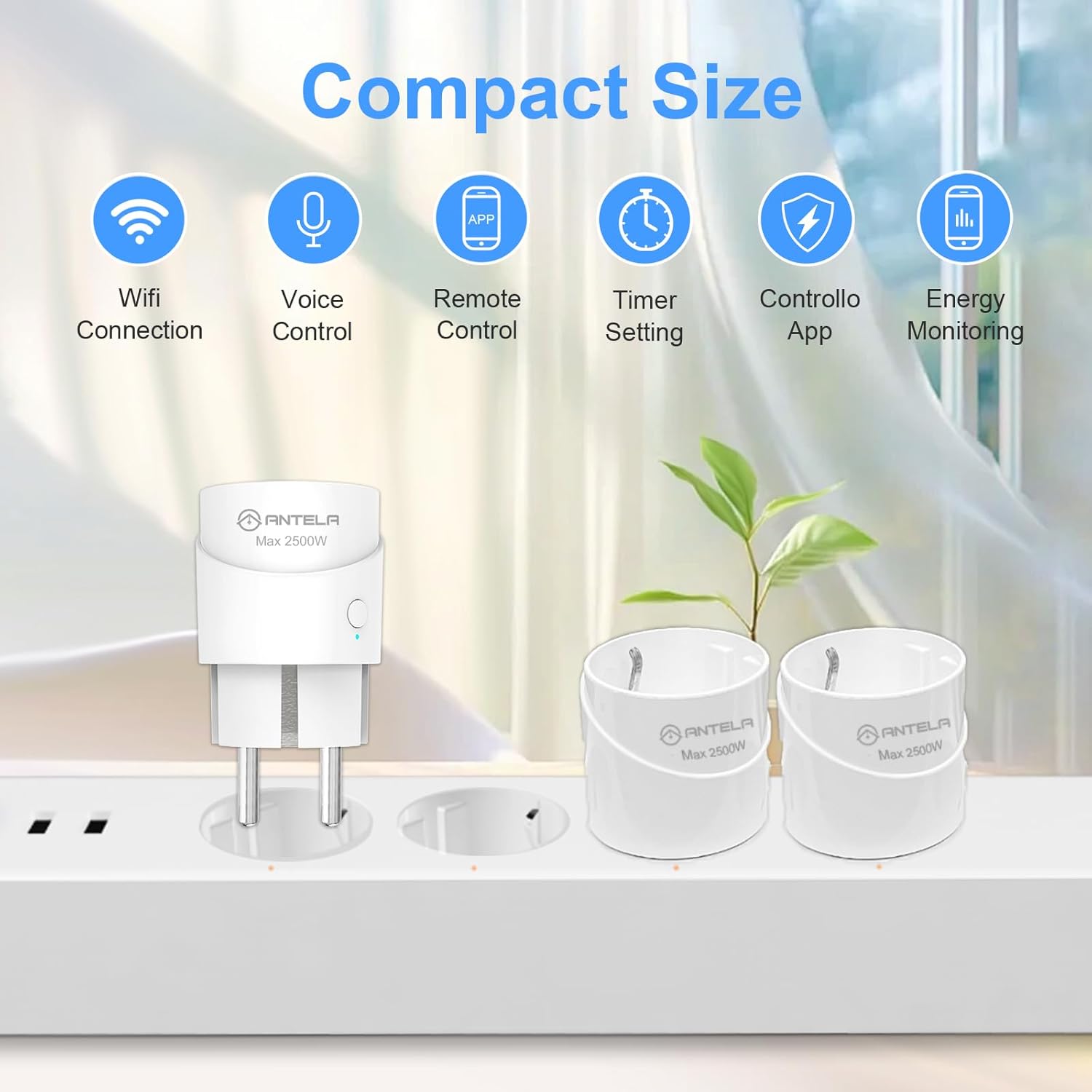
Image 1.1: The ANTELA Mini Smart Plug demonstrating its compact size and key features.
2. Safety Information
Please read and understand all safety instructions before using this product. Failure to follow these instructions may result in electric shock, fire, or other hazards.
- This device is designed for indoor use only.
- Do not exceed the maximum load of 10A / 2500W.
- Ensure the plug is fully inserted into the power outlet.
- Do not disassemble or modify the device.
- Keep away from water and high humidity environments.
- Equipped with a flame-retardant PC shell and child safety shrapnel.
- Features built-in protection against short circuits, overcurrent (12A overload protection), overvoltage (280V AC), undervoltage (90V AC), and surge (L-N 1KV).

Image 2.1: Overview of the smart plug's safety protection mechanisms.
3. Specifications
| Feature | Specification |
|---|---|
| Manufacturer | ANTELA |
| Model Number | F1s206-EU-new |
| Dimensions (L x W x H) | 4.3 x 7.6 x 4.3 cm |
| Weight | 90 grams |
| Color | White |
| Material | Plastic |
| Max Power | 2500 Watts |
| Max Current | 10 Amperes |
| Operating Voltage | 250 Volts |
| Switch Type | Push-button |
| Electrical Plug Type | Type F (Surface Mount) |
| Certifications | CE |
| Components Included | WiFi Smart Plug |
| Battery Required | No |
| Operating Mode | ON-ON-OFF |
| Connectivity | 2.4 GHz WiFi only |

Image 3.1: Physical dimensions of the ANTELA Mini Smart Plug.
4. Setup Instructions
4.1. App Download and Installation
- Download the Smart Life or Tuya Smart app from your smartphone's app store (Google Play Store for Android or Apple App Store for iOS).
- Register or log in to your account.
4.2. Device Pairing
- Plug the ANTELA Smart Plug into a power outlet.
- Ensure your smartphone is connected to a 2.4 GHz WiFi network. The smart plug is not compatible with 5 GHz WiFi networks.
- Open the Smart Life/Tuya Smart app. The app may automatically detect the new device via Bluetooth for initial pairing.
- Follow the on-screen instructions in the app to add the device. You will be prompted to enter your 2.4 GHz WiFi network name and password.
- If automatic detection fails, manually add the device by selecting "Electrical Outlet" or "Smart Plug" from the device list in the app and follow the pairing mode instructions (e.g., pressing and holding the power button on the plug until the indicator light blinks).
5. Operating Instructions
5.1. Manual Control
- Press the physical button on the smart plug to manually turn the connected appliance ON or OFF.
5.2. App Control
Control your smart plug from anywhere using the Smart Life or Tuya Smart app.
- Open the Smart Life/Tuya Smart app on your smartphone.
- Select the desired smart plug from your device list.
- Tap the ON/OFF button within the app to toggle the power state of the connected appliance.

Image 5.1: Remote control of the smart plug via the Smart Life app.
6. Voice Control Integration
The ANTELA Smart Plug is compatible with Amazon Alexa and Google Home for convenient voice control.
6.1. Connecting to Alexa/Google Home
- Ensure your smart plug is successfully paired with the Smart Life/Tuya Smart app.
- Open the Amazon Alexa app or Google Home app.
- Navigate to the "Skills & Games" section (Alexa) or "Works with Google" section (Google Home).
- Search for and enable the "Smart Life" or "Tuya Smart" skill/service.
- Link your Smart Life/Tuya Smart account when prompted.
- Discover devices. Your smart plug should now appear in your Alexa or Google Home device list.
6.2. Voice Commands
Once connected, you can use voice commands such as:
- "Alexa, turn on [device name]."
- "Hey Google, turn off [device name]."
- "Alexa, set [device name] to 50% (if applicable)."
Note: This smart plug is not compatible with Apple HomeKit.
7. Scheduling and Timer Functions
Automate your appliances by setting schedules, timers, or countdowns through the Smart Life/Tuya Smart app.
7.1. Setting a Schedule
- In the app, select your smart plug.
- Tap on the "Schedule" or "Timer" option.
- Set specific times for the plug to turn ON or OFF, and choose the days of the week for repetition.
- Save your settings.
7.2. Setting a Countdown Timer
- In the app, select your smart plug.
- Tap on the "Countdown" option.
- Set a duration after which the plug will change its current state (e.g., turn off after 1 hour).
- Save your settings.

Image 7.1: Example of setting schedules and timers in the app.
8. Energy Monitoring
The ANTELA Smart Plug allows you to monitor the energy consumption of connected devices directly through the Smart Life/Tuya Smart app.
- In the app, select your smart plug.
- Look for the "Energy Monitoring" or "Electricity Statistics" section.
- View real-time power usage, current, voltage, and historical energy consumption data (daily, monthly, yearly).
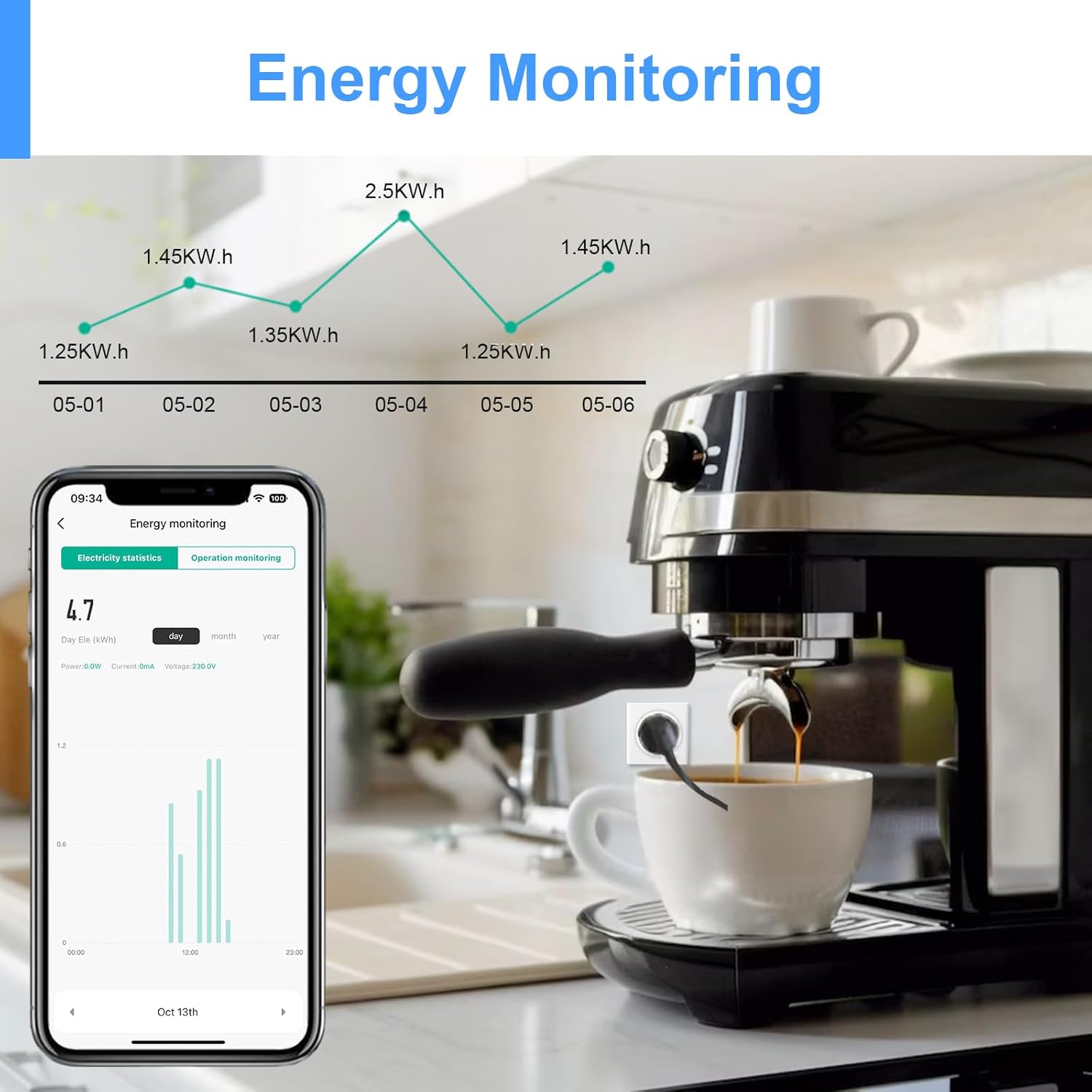
Image 8.1: Monitoring energy consumption of an appliance via the app.
9. Family Sharing
You can share control of your smart plug with family members or other users through the Smart Life/Tuya Smart app.
- In the app, select your smart plug.
- Go to the device settings (usually represented by a pencil icon or three dots).
- Look for the "Share Device" or "Family Management" option.
- Add family members by entering their Smart Life/Tuya Smart account details. They will then have access to control the device.

Image 9.1: Sharing device control with family members.
10. Troubleshooting
- Device not connecting to WiFi: Ensure your router is broadcasting a 2.4 GHz WiFi signal. The smart plug does not support 5 GHz WiFi. Move the plug closer to your router during setup.
- Pairing issues: If initial pairing fails, try resetting the smart plug (refer to app instructions for specific reset methods, usually pressing and holding the power button). Ensure Bluetooth is enabled on your phone during the initial pairing phase.
- Voice control not working: Verify that the Smart Life/Tuya Smart skill is enabled in your Alexa or Google Home app and that your accounts are correctly linked. Ensure the device name in the voice assistant app matches the name you are using in your commands.
- App not responding: Check your internet connection. Close and reopen the app. If the issue persists, try reinstalling the app.
- Energy monitoring data not updating: Data updates may have a slight delay (e.g., every 30 seconds). Ensure the device is actively connected and operating.
11. Warranty and Support
For warranty information, please refer to the documentation provided at the time of purchase or contact ANTELA customer support directly. Spare parts availability information is currently unavailable.
If you encounter any issues not covered in this manual, please contact ANTELA customer service for assistance.


