
1. Product Overview
The MOFII Wireless Keyboard and Mouse Combo offers a full-size keyboard with a retro typewriter design and a matching wireless mouse. This 2.4GHz wireless set is designed for comfortable and efficient use across various operating systems and devices.
- Retro Design: Features round keycaps inspired by classic typewriters, providing a unique aesthetic.
- Ergonomic Comfort: Includes an ergonomic foldable stand and anti-slip pads for comfortable typing during extended use.
- 2.4GHz Wireless Connection: Utilizes a single 2-in-1 nano USB receiver for both the keyboard and mouse, offering a working range of up to 35 feet (10 meters).
- Enhanced Productivity: The keyboard includes a spacious numeric keypad, 3 indicator lights, and 12 multimedia shortcut keys for efficient control of media and common functions.
- Power Efficiency: Both the keyboard and mouse operate on 1 AA battery each and feature an automatic sleep mode after 5 minutes of inactivity to conserve battery life.
- Broad Compatibility: Compatible with Windows 7/8/10/11/XP/Vista/Server, Chrome OS, and Linux. Suitable for desktops, Chromebooks, PCs, laptops, and other computers.
2. Setup Guide
Follow these steps to set up your MOFII Wireless Keyboard and Mouse Combo:
2.1. Battery Installation
- For the Mouse:
Locate the battery compartment on the underside of the mouse. Open the cover and insert one AA battery, ensuring correct polarity (+/-). Close the battery cover.

Image: The underside of the wireless mouse, illustrating the battery compartment and the slot for the USB receiver.
- For the Keyboard:
Locate the battery compartment on the underside of the keyboard. Open the cover and insert one AA battery, ensuring correct polarity (+/-). Close the battery cover.

Image: The underside of the wireless keyboard, showing the battery compartment and the adjustable foldable stand.
2.2. Connecting the USB Receiver
- The 2-in-1 nano USB receiver is typically stored in the battery compartment of the mouse. Carefully remove it.
- Plug the USB receiver into an available USB port on your computer (PC, laptop, desktop, Chromebook, etc.).
- Your computer should automatically detect and install the necessary drivers. No additional software installation is required.
- Once the receiver is connected, the keyboard and mouse should be ready for use.
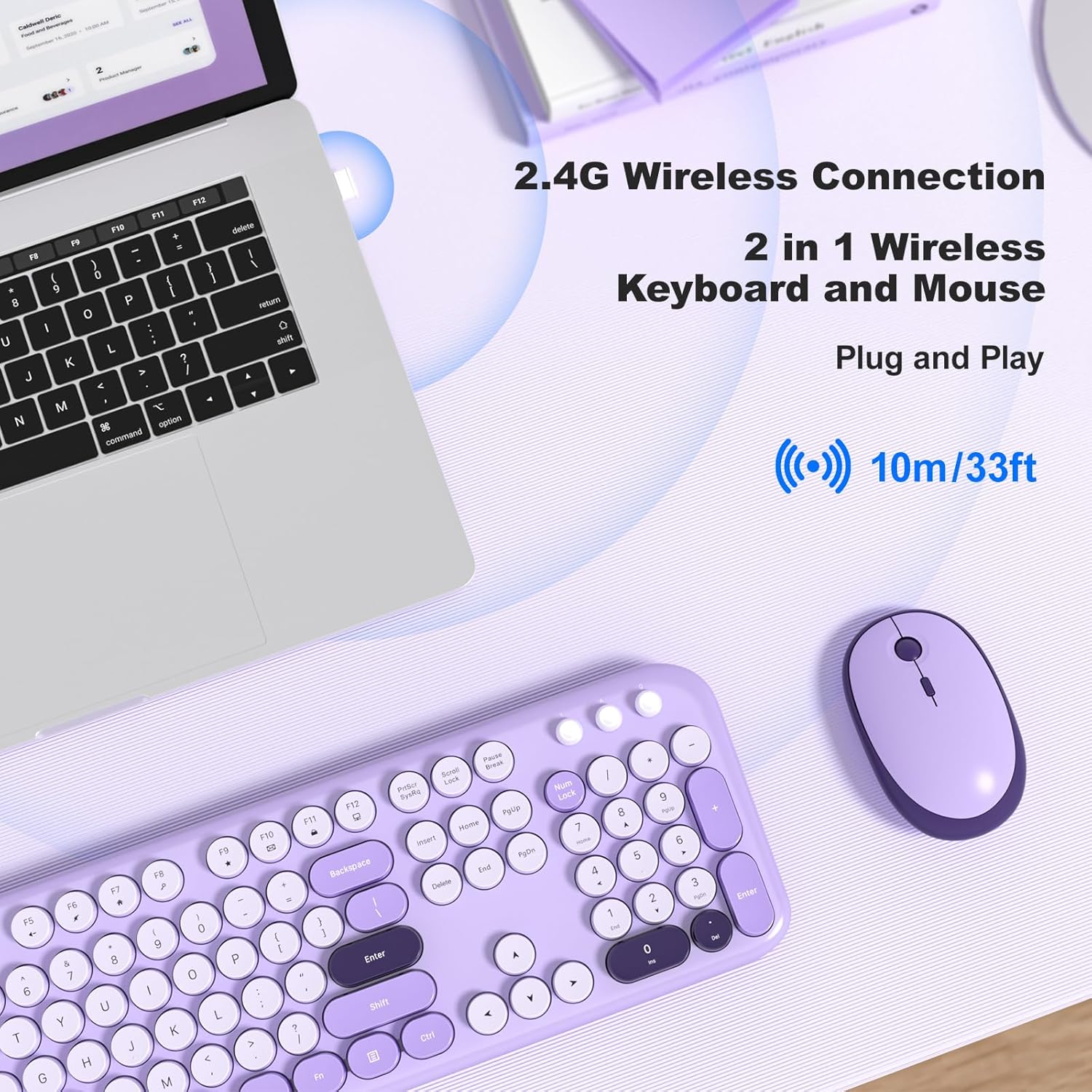
Image: A MOFII wireless keyboard and mouse in violet, shown connected to a laptop via a single 2.4G wireless USB receiver.
3. Operating Instructions
3.1. Basic Keyboard Functions
The keyboard features a standard QWERTY layout with a full numeric keypad. Simply type as you would with any standard keyboard.

Image: A close-up view of the MOFII wireless keyboard, highlighting its round, retro-style keycaps and full-size layout.
3.2. Multimedia Shortcut Keys
The keyboard includes 12 multimedia shortcut keys (F1-F12) that can be accessed by pressing the Fn key simultaneously with the desired function key. These keys allow for quick control of various computer functions:
- Fn + F1: Media Player
- Fn + F2: Volume Down
- Fn + F3: Volume Up
- Fn + F4: Mute
- Fn + F5: Previous Track
- Fn + F6: Next Track
- Fn + F7: Play/Pause
- Fn + F8: Stop
- Fn + F9: Home Page
- Fn + F10: Email
- Fn + F11: My Computer
- Fn + F12: Calculator

Image: A visual representation of the keyboard's multimedia hotkeys (F1-F12) and their functions.
3.3. Mouse DPI Adjustment
The wireless mouse features adjustable DPI settings to control cursor sensitivity. You can cycle through different DPI levels (800, 1200, 1600) by pressing the DPI button located on the top of the mouse, usually behind the scroll wheel.
Image: The wireless mouse, highlighting its adjustable DPI settings (800/1200/1600) and silent click feature.
3.4. Auto Sleep Mode
To conserve battery life, both the keyboard and mouse will automatically enter sleep mode after approximately 5 minutes of inactivity. To wake them up:
- Keyboard: Press any key.
- Mouse: Click any button or move the mouse.

Image: A visual guide demonstrating how the keyboard and mouse enter auto-sleep mode and how to wake them up.
4. Maintenance
Proper maintenance ensures the longevity and optimal performance of your MOFII Wireless Keyboard and Mouse Combo:
- Cleaning: Use a soft, dry cloth to wipe down the surfaces of the keyboard and mouse. For stubborn dirt, a slightly damp cloth with mild soap can be used, ensuring no liquid enters the device.
- Keycap Cleaning: The keycaps are removable for easier cleaning. Gently pull them off to clean underneath, then carefully press them back into place.
- Battery Replacement: Replace AA batteries in both the keyboard and mouse when performance degrades or the indicator lights suggest low power. Always use fresh, high-quality batteries.
- Storage: When not in use for extended periods, remove the batteries to prevent leakage and store the devices in a cool, dry place.

Image: The MOFII wireless keyboard with several keycaps removed, demonstrating the removable keycap feature for maintenance.
5. Troubleshooting
If you encounter issues with your keyboard and mouse combo, refer to the following common solutions:
| Problem | Possible Cause | Solution |
|---|---|---|
| Keyboard/Mouse not responding | Low battery, USB receiver disconnected, incorrect pairing. | Replace batteries. Ensure USB receiver is securely plugged into a working USB port. Re-plug the receiver. |
| Lag or intermittent connection | Interference, distance from receiver, low battery. | Move closer to the receiver (within 35 feet). Ensure no large metal objects are between the devices and receiver. Replace batteries. |
| Mouse cursor erratic or not moving smoothly | Dirty sensor, unsuitable surface, incorrect DPI setting. | Clean the mouse sensor with a soft cloth. Use the mouse on a clean, non-reflective surface or a mouse pad. Adjust DPI settings using the DPI button. |
| Multimedia keys not working | Incorrect key combination, software conflict. | Ensure you are pressing the Fn key simultaneously with the desired function key. Check your operating system's settings for media key conflicts. |
6. Specifications
| Feature | Detail |
|---|---|
| Brand | MOFII |
| Model (ASIN) | B0DN63S2D9 |
| Color | Violet |
| Connectivity Technology | 2.4GHz Wireless (USB Receiver) |
| Special Feature | Round Keycaps, Ergonomic Design |
| Compatible Devices | Laptop, Personal Computer, Tablet |
| Operating System | Chrome OS, Linux, Windows 7/8/10/11/XP/Vista/Server |
| Batteries Required | Yes (1x AA for keyboard, 1x AA for mouse) |
| Number of Keys (Keyboard) | 104 |
| Keyboard Layout | QWERTY |
| Keyboard Description | Membrane |
| Mouse DPI Settings | 800 / 1200 / 1600 |

Image: A diagram illustrating the precise dimensions of both the MOFII wireless keyboard and mouse.
7. Warranty and Support
The MOFII Wireless Keyboard and Mouse Combo comes with a 12-month (1 year) warranty from the date of purchase. This warranty covers manufacturing defects and ensures product quality.
For any questions, technical assistance, or warranty claims, please contact MOFII customer support through the retailer where the product was purchased or refer to the official MOFII website for contact information.
Please retain your proof of purchase for warranty validation.


