
SIXWIN A3960
SIXWIN Single Din Car Stereo User Manual
Model: A3960
Introduction
Thank you for choosing the SIXWIN Single Din Car Stereo. This manual provides detailed instructions for the installation, operation, and maintenance of your new car stereo system. Please read this manual thoroughly before use to ensure proper installation and optimal performance.
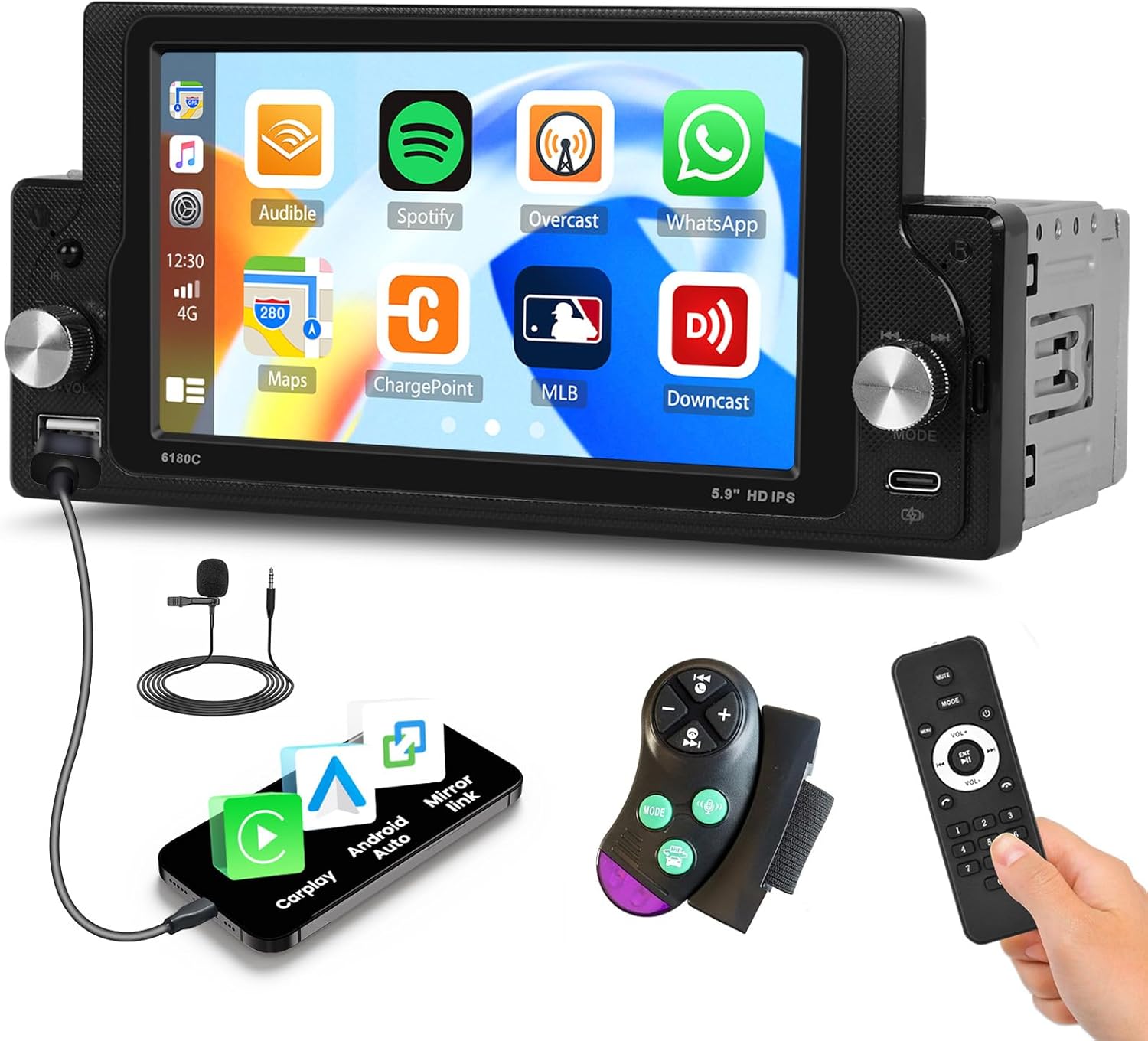
Image: The SIXWIN Single Din Car Stereo, showcasing its 6-inch touchscreen, physical knobs, and included accessories such as a microphone and remote controls.
What's in the Box
Verify that all components are present before beginning installation:
- SIXWIN Single Din Car Stereo (with 6-inch touchscreen)
- Power Cable
- Horn Cable
- Microphone
- User Manual (this document)
- Steering Wheel Control Remote
- Standard Remote Control
Product Features
6-Inch Single Din Touchscreen
This car stereo features a responsive 6-inch touchscreen display for intuitive control and navigation. It includes two physical knobs for convenient volume adjustment and mode selection.
Wired CarPlay & Android Auto
Connect your smartphone via USB to access Apple CarPlay or Android Auto. This allows for seamless integration of navigation, music, calls, and messages directly on the stereo's display, keeping you focused on the road.

Image: The car stereo screen displaying the user interface for both Apple CarPlay and Android Auto, showing various application icons like Maps, Music, and Phone.
Mirror Link Functionality
The Mirror Link feature allows you to project your smartphone's screen directly onto the car stereo display. This is compatible with both Android and iPhone devices (note: some Samsung devices may not be supported).

Image: A visual representation of the Mirror Link feature, showing an Android phone and an iPhone connected and mirroring their displays to the car stereo.
Bluetooth Connectivity
Enjoy hands-free calling and wireless music streaming with the integrated Bluetooth module. Easily pair your smartphone to make and receive calls, and play your favorite audio tracks.

Image: The car stereo displaying its Bluetooth interface, alongside a smartphone showing music playback and a call screen, illustrating wireless connectivity.
FM Radio
Tune into your favorite FM radio stations with 18 preset memory slots. Stay informed with news, traffic updates, and enjoy music while driving.

Image: The car stereo screen showing the FM radio interface, with frequency display and station preset options.
Steering Wheel Control Support
Control essential functions like volume, track skipping, and call answering directly from your vehicle's steering wheel controls (if supported by your vehicle and properly wired). This enhances driving safety and convenience.
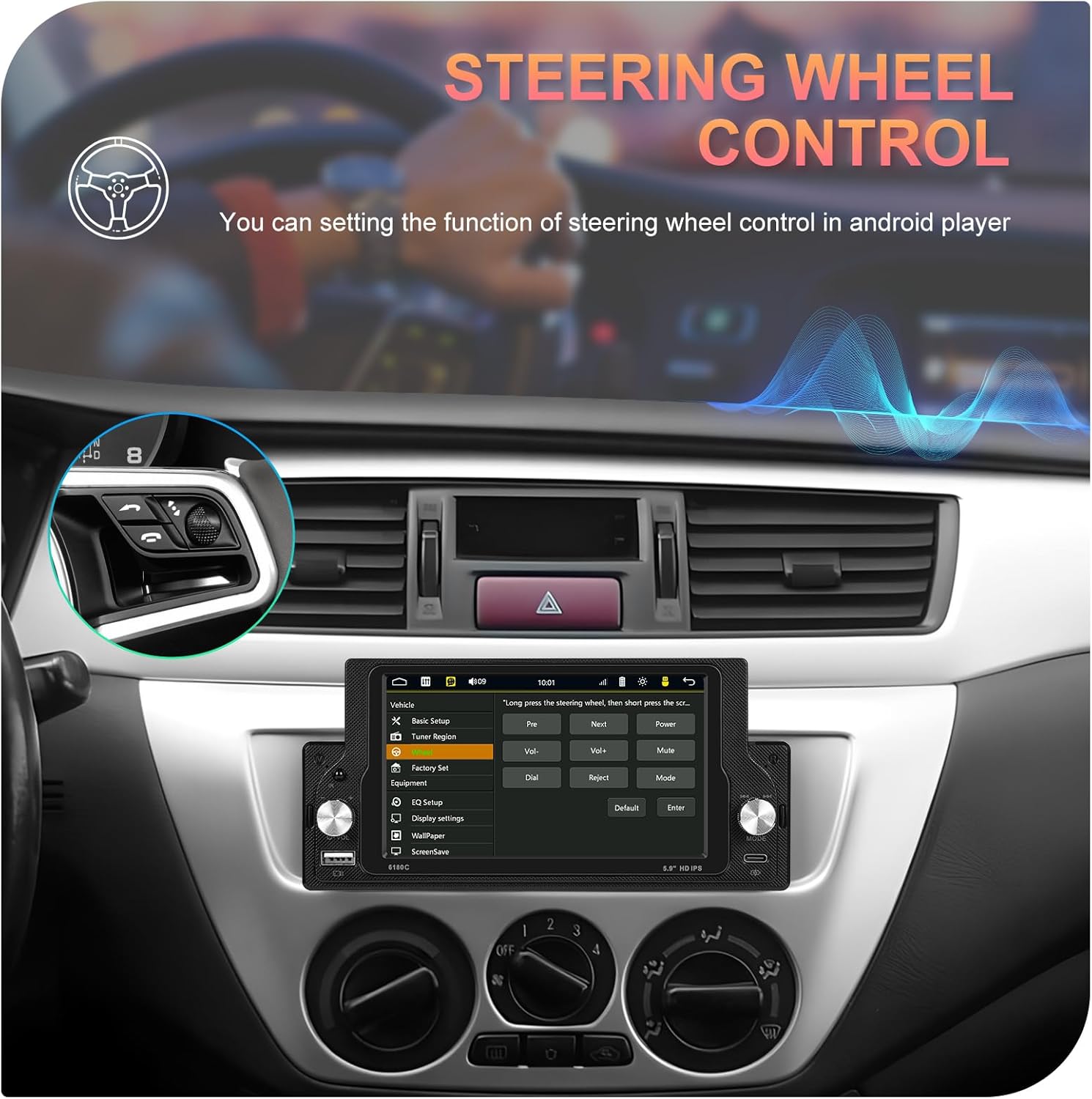
Image: A car interior view focusing on the steering wheel and the installed car stereo, demonstrating how steering wheel controls can be used to operate the unit.
USB Type-C Fast Charge
Equipped with a USB Type-C port that supports fast charging (5V_2A current) for your mobile devices, allowing you to charge your phone while driving. It also supports USB flash drive playback.

Image: The car stereo's front panel highlighting the USB Type-C port, with a smartphone connected and displaying a charging indicator.
Multi-Band EQ Mode
Customize your audio experience with the multi-band equalizer. Adjust frequencies for super bass, bass, heavy bass, midrange, mid-treble, and super treble to achieve clear and immersive sound.

Image: The car stereo screen showing the graphical interface of the multi-band equalizer, with sliders for various frequency adjustments.
Rear View Camera Support (Optional)
Enhance parking safety by connecting an optional rear view camera. The stereo automatically displays the camera feed with parking lines when the vehicle is in reverse.

Image: The car stereo screen displaying a simulated rear view camera feed with dynamic parking guidelines, indicating support for an optional backup camera.
Installation & Setup
Pre-Installation Checklist
- Ensure your vehicle has a single DIN opening.
- Disconnect the vehicle's negative battery terminal before starting.
- Gather necessary tools: wire strippers, crimpers, electrical tape, screwdriver.
- Obtain a vehicle-specific wiring harness adapter if needed.
Wiring Diagram
Refer to the detailed wiring diagram included with your product packaging for specific connections. Common connections include:
- Yellow: Constant 12V (Battery)
- Red: Switched 12V (Accessory/Ignition)
- Black: Ground
- Orange/White: Illumination
- Blue: Power Antenna/Amplifier Remote Turn-On
- Speaker Wires: Typically color-coded (e.g., White/White-Black for Front Left, Gray/Gray-Black for Front Right, Green/Green-Black for Rear Left, Purple/Purple-Black for Rear Right).
Mounting the Unit
Secure the stereo into your vehicle's single DIN dash opening using the provided mounting brackets and screws. Ensure it is firmly seated to prevent vibration.

Image: A side-by-side comparison showing a car dashboard before and after the installation of the SIXWIN Single Din Car Stereo, illustrating the improved aesthetic and functionality.
Initial Power-On
After all connections are made and verified, reconnect the vehicle's negative battery terminal. Power on the stereo and perform a basic function check (e.g., radio, volume).
Operating Instructions
Basic Operation
- Power On/Off: Press the power button/knob.
- Volume Control: Rotate the volume knob or use the remote control.
- Mode Selection: Press the MODE button to switch between Radio, Bluetooth, USB, CarPlay/Android Auto, etc.
CarPlay / Android Auto
- Connect your iPhone or Android phone to the USB port using a certified USB cable.
- The stereo will automatically detect and launch CarPlay or Android Auto.
- Use the touchscreen to navigate apps, make calls, send messages, and use navigation.
Bluetooth Pairing
- Go to the Bluetooth menu on the stereo.
- Enable Bluetooth on your smartphone and search for available devices.
- Select "SIXWIN A3960" (or similar name) from the list on your phone.
- Confirm the pairing code if prompted.
FM Radio Operation
- Select FM mode.
- Use the seek buttons to automatically scan for stations.
- Press and hold a preset button to save the current station.
USB Playback
- Insert a USB flash drive into the USB port.
- The stereo will automatically switch to USB mode and begin playing compatible media files.
Maintenance
- Cleaning the Screen: Use a soft, lint-free cloth to gently wipe the touchscreen. Do not use abrasive cleaners or solvents.
- General Cleaning: Keep the unit free from dust and debris. Use a soft, dry cloth for the body of the stereo.
- Firmware Updates: Check the manufacturer's website periodically for any available firmware updates to ensure optimal performance and compatibility.
Troubleshooting
| Problem | Possible Cause | Solution |
|---|---|---|
| No Power | Incorrect wiring; Blown fuse; Loose connection. | Check power and ground connections. Verify vehicle and stereo fuses. Ensure all wires are securely connected. |
| No Sound | Speaker wires disconnected; Volume too low; Mute function active. | Check speaker wire connections. Increase volume. Deactivate mute. |
| Bluetooth Not Connecting | Bluetooth not enabled on phone/stereo; Incorrect pairing process. | Ensure Bluetooth is on for both devices. Delete previous pairings and re-pair. |
| CarPlay/Android Auto Not Launching | Faulty USB cable; Phone not compatible; Software issue. | Use a certified USB cable. Ensure your phone's OS is updated. Restart both phone and stereo. |
| Poor Radio Reception | Antenna not connected; Weak signal area. | Check antenna connection. Try moving to an area with better signal. |
Specifications
| Feature | Detail |
|---|---|
| Model Number | A3960 |
| Display Size | 6 Inch Touch Screen |
| Connectivity | Wired CarPlay, Wired Android Auto, Mirror Link, Bluetooth, FM Radio, USB Type-C |
| USB Charging | Type-C Fast Charge (5V_2A) |
| Audio Output Mode | Stereo |
| Controller Type | Touchscreen |
| Item Weight | 2.2 pounds |
| Product Dimensions | 1 x 1 x 1 inches (approximate) |
Warranty & Support
SIXWIN products are designed for reliability and performance. For specific warranty details, please refer to the warranty card included with your product or contact customer support.
Customer Support
For online help, technical assistance, or any inquiries regarding your SIXWIN Single Din Car Stereo, please contact us via email:
Email: sixwin_vip@163.com
Our support team is available to assist you with any questions or issues you may encounter.
Ask a question about this manual
Ask about setup, troubleshooting, compatibility, parts, safety, or missing instructions. Manuals+ will review the question and use this page’s manual context to help answer it.