
Brook Gen5X
Brook Gaming Gen5X Fighting Board Instruction Manual
Model: Gen5X
Brand: Brook
1. Introduction
The Brook Gaming Gen5X Fighting Board is a high-performance, multi-platform circuit board designed for custom arcade sticks and fight pads. It offers universal compatibility with PlayStation 5, Xbox Series X|S, Nintendo Switch, and PC, providing lightning-fast response times and advanced features for competitive gaming.
This manual provides essential information for setting up, operating, and maintaining your Gen5X Fighting Board. For detailed wiring diagrams and the latest firmware updates, please refer to the official Brook Gaming website.
2. Product Overview

Figure 2.1: The Brook Gaming Gen5X Fighting Board, including its packaging and accompanying stickers. This image displays the main components of the board and its overall presentation.
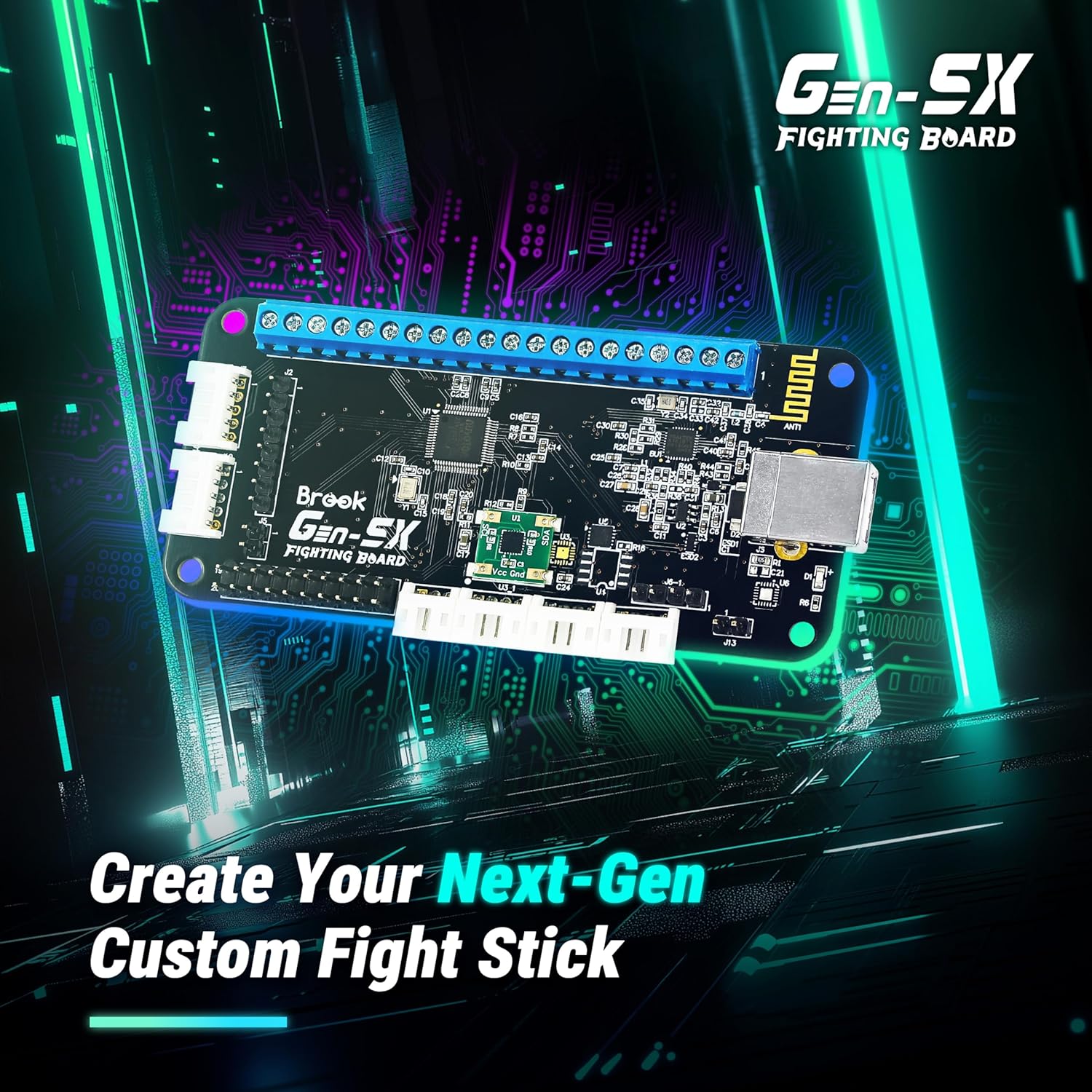
Figure 2.2: The Gen5X Fighting Board positioned against a circuit board background, emphasizing its role in creating custom fight sticks for next-generation gaming.

Figure 2.3: The Gen5X Fighting Board shown alongside various gaming consoles, illustrating its broad compatibility with PS5, Xbox Series X|S, Nintendo Switch, and PC.

Figure 2.4: A custom fight stick featuring illuminated buttons with vibrant RGB lighting, demonstrating the board's support for customizable lighting effects.

Figure 2.5: A custom fight stick integrated with an OLED display, which allows users to clearly view and control various settings and configurations.

Figure 2.6: A custom fight stick with a transparent overlay of a traditional joystick, highlighting the board's flexibility in supporting various input methods, including joystick control.

Figure 2.7: The Gen5X Fighting Board depicted with abstract speed lines, symbolizing its capability for extreme speed and minimized input delay in gaming.

Figure 2.8: A custom fight stick with an overlay illustrating different SOCD (Simultaneous Opposing Cardinal Directions) cleaning modes, indicating the board's support for precise input handling in fighting games.

Figure 2.9: The Gen5X Fighting Board shown with icons representing its advanced assist features: Turbo functionality, various Joystick Control Modes (LS/DPAD/RS), and Touchpad emulation.
3. Setup Instructions
The Gen5X Fighting Board is designed for integration into custom arcade controllers. Basic soldering and wiring knowledge may be required depending on your specific build.
3.1 Component Identification
Familiarize yourself with the various connection points on the Gen5X board, including:
- Screw terminals for button and joystick inputs.
- USB port for console/PC connection.
- Connectors for optional OLED display and RGB LEDs.
3.2 Wiring
Connect your arcade buttons, joystick, and any additional components (such as an OLED display or RGB LEDs) to the appropriate terminals on the Gen5X board. Ensure all connections are secure and correctly polarized where applicable.
Important: Refer to the official Brook Gaming website for detailed, up-to-date wiring diagrams specific to your desired configuration (e.g., standard arcade layout, Hitbox-style, etc.).
3.3 Initial Connection & Firmware Update
- Connect the Gen5X Fighting Board to your PC using a standard USB cable.
- Visit the official Brook Gaming website to download the latest firmware for the Gen5X.
- Follow the provided instructions on the website to update the board's firmware. Regular firmware updates ensure compatibility with new consoles and games, and address potential issues.
- After updating, disconnect the board from your PC. It is now ready for use with your desired gaming platform.
4. Operating Instructions
The Gen5X Fighting Board offers various modes and features to enhance your gaming experience.
4.1 Platform Compatibility
The board automatically detects the connected platform (PS5, Xbox Series X|S, Nintendo Switch, PC). No manual switching is typically required.
4.2 SOCD Cleaning Modes
The Gen5X supports multiple SOCD (Simultaneous Opposing Cardinal Directions) cleaning modes, crucial for fighting games to prevent conflicting directional inputs. These modes can typically be configured via specific button combinations or software tools. Consult the official Brook Gaming website for detailed instructions on how to switch between modes (e.g., Up Priority, Neutral, Last Priority, Bypass).
4.3 Advanced Features
- Turbo Functionality: Configure buttons for rapid-fire inputs. Adjustable hit rates (e.g., 05, 10, 15, 20, 25 hits/sec) are available.
- Joystick Control Modes: Switch between Left Stick (LS), D-Pad (DPAD), and Right Stick (RS) emulation for your directional inputs, providing flexibility for different game types.
- Touchpad Emulation: For PlayStation platforms, the board supports touchpad emulation, allowing access to in-game functions that require touchpad input.
- RGB-LED Effects: Customize the lighting of connected RGB LEDs with 5 preset effects to personalize your fight stick's appearance.
- OLED Display Support: If an OLED display is connected, it can show real-time settings, input status, and mode indicators, including whether eSports-compliant settings are active.
For detailed instructions on activating and configuring these advanced features, refer to the comprehensive guide available on the Brook Gaming official website.
5. Maintenance
Proper maintenance ensures the longevity and optimal performance of your Gen5X Fighting Board.
- Keep Clean: Regularly clean the board and its connections with a soft, dry cloth. Avoid using liquid cleaners or abrasive materials.
- Firmware Updates: Periodically check the Brook Gaming website for new firmware releases. Updating the firmware is crucial for maintaining compatibility and resolving potential issues.
- Environmental Conditions: Store and operate the board in a dry environment, away from extreme temperatures, humidity, and direct sunlight.
- Handle with Care: Avoid dropping the board or subjecting it to physical shock, which can damage internal components.
6. Troubleshooting
If you encounter issues with your Gen5X Fighting Board, try the following troubleshooting steps:
6.1 Common Issues & Solutions
- Board Not Responding / Glitching:
Solution: Disconnect the board from the console/PC, wait a few seconds, and then reconnect it. Ensure the USB cable is securely connected. Perform a firmware update to the latest version, as many reported issues are resolved through software improvements. - Incorrect Directional Input (e.g., 'Up' input when pressing 'Down'):
Solution: This can sometimes be related to SOCD cleaning settings or a specific firmware bug. First, ensure your firmware is up-to-date. If the issue persists, try cycling through the SOCD cleaning modes (refer to the official website for button combinations). Verify that your joystick or directional buttons are wired correctly and functioning properly. - Buttons Not Registering:
Solution: Check all wiring connections from the buttons to the board's screw terminals. Ensure wires are securely fastened and not loose. Test individual buttons to isolate the problem. - No Power / LED Indicators Off:
Solution: Verify the USB connection to the console/PC. Try a different USB port or cable. Ensure the console/PC is powered on.
6.2 Further Assistance
If the problem persists after attempting the above solutions, please visit the official Brook Gaming support page on their website for more detailed troubleshooting guides, FAQs, and contact information for technical support.
7. Specifications
| Feature | Specification |
|---|---|
| Brand | Brook |
| Model Name | Gen5X |
| Hardware Platform | PlayStation 5, Xbox Series S, PC, Nintendo Switch, Xbox Series X |
| Connectivity Technology | USB |
| Operating System | Linux |
| CPU Manufacturer | ARM |
| Number of Processors | 1 |
| Item Weight | 1.16 ounces |
| Package Dimensions | 4.8 x 3.03 x 1.06 inches |
| Color | Black |
| Country of Origin | Taiwan |
| Date First Available | November 15, 2024 |
8. Warranty and Support
For information regarding the product warranty, please refer to the official Brook Gaming website or the documentation included with your purchase. Warranty terms and conditions may vary by region.
For technical support, frequently asked questions, and the latest drivers and firmware, please visit the official Brook Gaming support portal:
Related documentsGen5X


Ask a question about this manual
Ask about setup, troubleshooting, compatibility, parts, safety, or missing instructions. Manuals+ will review the question and use this page’s manual context to help answer it.