
BORN4SHIP D467
BORN4SHIP D467 Bluetooth Thermal Shipping Label Printer User Manual
Model: D467
Introduction
This manual provides detailed instructions for the setup, operation, maintenance, and troubleshooting of your BORN4SHIP D467 Bluetooth Thermal Shipping Label Printer. Please read this manual thoroughly before using the device to ensure proper functionality and to maximize its lifespan.
What's Included
Upon opening the package, please verify that all the following items are present:
- 1 x BORN4SHIP D467 Shipping Label Printer
- 1 x User Manual
- 1 x USB Flash Driver (containing drivers and software)
- 1 x USB Cable
- 1 x Power Adapter
- 20 Pages 4x6 Labels (for initial testing)
Setup Guide
1. Physical Connection
- Connect the power adapter to the printer's power port and then to a power outlet.
- For USB connection: Connect the USB cable from the printer to your computer.
2. Loading Labels
The D467 printer uses thermal labels with a width of 1.5" to 4.3". Ensure labels are loaded correctly for optimal printing.

Image: Proper label loading into the thermal printer. This image illustrates the inkless thermal printing mechanism and how labels are fed into the device, emphasizing no paper jams.
- Open the top cover of the printer.
- Place the label roll onto the spindle, ensuring the labels feed from the bottom and the printable side faces up.
- Adjust the label guides to fit the width of your labels snugly.
- Close the top cover.
3. Software and Driver Installation
The printer supports both Bluetooth and USB connectivity. Installation methods vary by operating system.
For Bluetooth (iOS/Android):
- Download the "Ezlabel" app from your device's app store (Apple App Store for iOS, Google Play Store for Android).
- Enable Bluetooth on your mobile device.
- Open the "Ezlabel" app and follow the in-app instructions to pair with your D467 printer.
For USB (Windows, Mac OS, Chrome OS):
- Insert the provided USB Flash Driver into your computer.
- Locate and install the appropriate drivers for your operating system (Windows 7 and later, Mac OS, Chrome OS).
- Note: Mac OS exclusively operates through USB connection; Bluetooth printing is not supported for Mac OS.
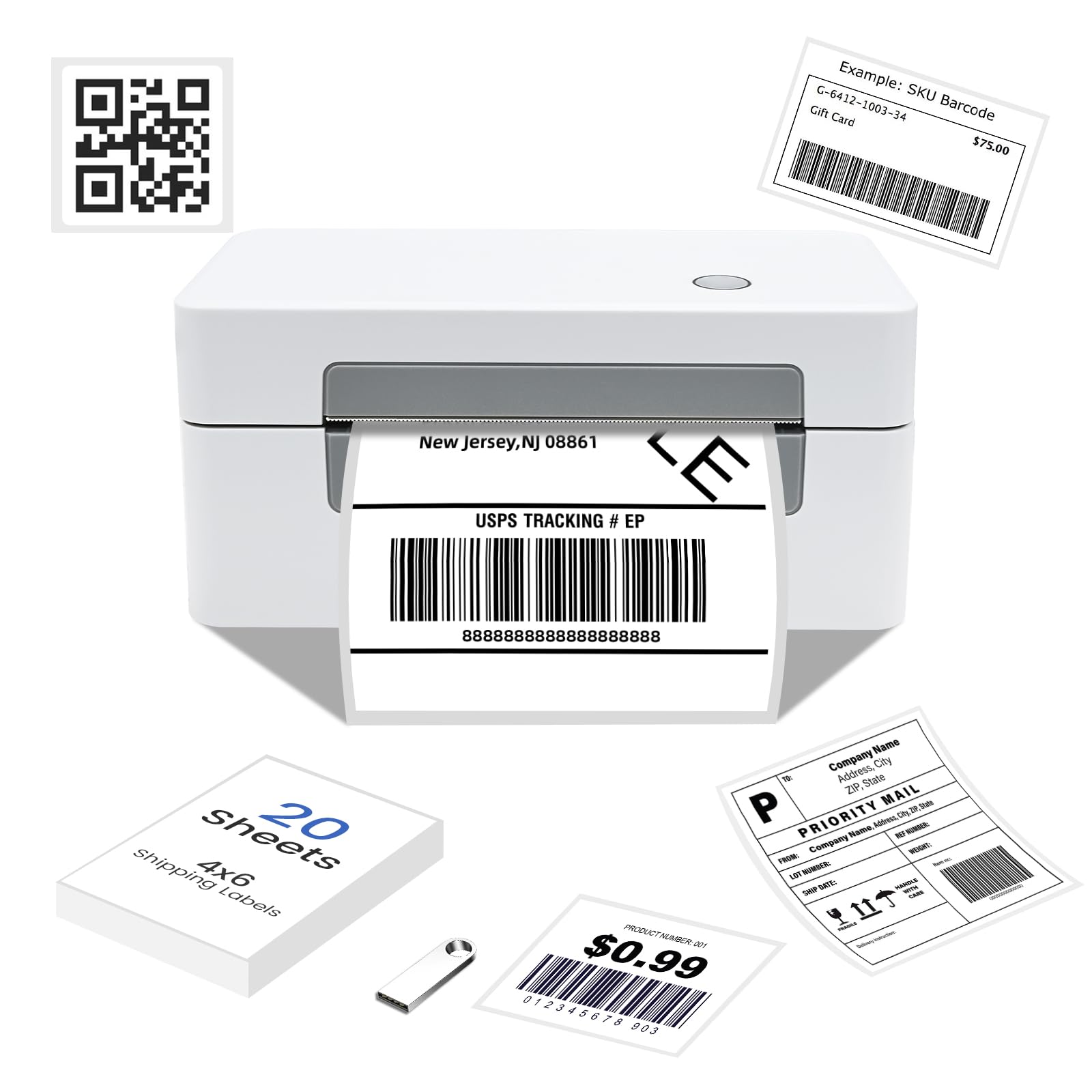
Image: Connectivity options for the D467 printer, highlighting both Bluetooth and USB connections across various operating systems. This image clarifies which devices support each connection type.
4. Printer Calibration
After loading labels, it is recommended to calibrate the printer to ensure accurate label detection and printing alignment.
- With the printer powered on and labels loaded, press and hold the feed button until the printer emits a beep or flashes an indicator light.
- Release the button. The printer will feed a few blank labels to detect the label size.
- Perform a test print to confirm calibration.
Operating Instructions
Printing via Bluetooth (iOS/Android)
- Ensure your printer is powered on and paired with the "Ezlabel" app on your mobile device.
- Open the document or image you wish to print within the "Ezlabel" app.
- Select print options such as label size and quantity.
- Initiate the print command from the app.
Printing via USB (Windows/Mac OS/Chrome OS)
- Ensure your printer is connected to your computer via USB and the drivers are installed.
- Open the document or label file on your computer.
- Go to "File" > "Print" (or equivalent) in your application.
- Select the BORN4SHIP D467 printer from the list of available printers.
- Adjust print settings (e.g., paper size, orientation) to match your label dimensions (e.g., 4x6 inches).
- Initiate the print command.
Supported Label Types and Sizes
The D467 printer is versatile and supports thermal labels with a width ranging from 1.5 inches to 4.3 inches. Common applications include:
- 4x6 inch shipping labels
- Mailing labels
- Address labels
- Package labels
- Office labels
- Barcode labels
- Product labels
- Envelope labels
- Food labels

Image: Examples of various label sizes (1.5" to 4.3" width) compatible with the D467 printer, including 4x6 shipping labels. This image highlights the printer's flexibility for different label applications.

Image: Diverse label applications including envelope labels, barcode labels, food labels, and product labels, demonstrating the printer's versatility for various business needs.
Platform Compatibility
The D467 printer is designed for broad compatibility with major shipping and e-commerce platforms:
- Shipping Platforms: FedEx, UPS, USPS, DHL, EasyPost, Canada Post, etc.
- Marketplaces: Amazon, Shopify, Etsy, eBay, Walmart, Wish, Lazada, AliExpress, etc.

Image: Comprehensive list of compatible shipping and sales platforms, illustrating the printer's wide integration capabilities for various business operations.
Printing Performance
The D467 printer offers high-speed and clear printing:
- Speed: Up to 180mm/s, capable of printing approximately 72 labels per minute.
- Resolution: 203 DPI (dots per inch) for clear and scannable labels.
- Technology: Thermal printing, requiring no ink or toner.

Image: Demonstration of high printing speed and clarity, showing crisp, scannable shipping labels produced by the D467 printer.
Maintenance
Regular maintenance ensures the longevity and optimal performance of your thermal label printer.
Cleaning the Print Head
- Turn off the printer and disconnect the power cable.
- Open the top cover to access the print head.
- Gently wipe the print head with a lint-free cloth dampened with isopropyl alcohol. Allow it to dry completely before closing the cover and powering on the printer.
- Frequency: Clean the print head after every few rolls of labels or if print quality degrades.
General Care
- Keep the printer in a clean, dust-free environment.
- Avoid exposing the printer to direct sunlight or extreme temperatures.
- Use only high-quality thermal labels recommended for your printer.
- Do not use abrasive cleaners or solvents on any part of the printer.
Troubleshooting
This section addresses common issues you might encounter with your D467 printer.
| Problem | Possible Cause | Solution |
|---|---|---|
| Printer not powering on | Power cable not connected; Power outlet faulty | Ensure power cable is securely connected to printer and outlet. Test outlet with another device. |
| Labels not feeding or printing blank | Labels loaded incorrectly; Printer not calibrated; Incorrect label type | Reload labels correctly (printable side up). Perform printer calibration. Ensure you are using thermal labels. |
| Poor print quality (faded, unclear) | Dirty print head; Low-quality labels; Incorrect print density settings | Clean the print head as described in the Maintenance section. Use recommended thermal labels. Adjust print density settings in your printer preferences. |
| Bluetooth connection issues | Printer not in pairing mode; Bluetooth disabled on device; "Ezlabel" app not installed/updated | Ensure printer is discoverable. Enable Bluetooth on your mobile device. Reinstall or update the "Ezlabel" app. Restart both printer and device. |
| USB connection not detected | USB cable faulty; Drivers not installed or corrupted; Incorrect USB port | Try a different USB cable or port. Reinstall printer drivers from the provided USB Flash Driver. Restart your computer and printer. |
| Labels not centering correctly | Incorrect label settings in software; Printer not calibrated | Verify label size and margins in your printing software. Perform printer calibration. |
| App issues on specific devices (e.g., Samsung Z Fold) | App compatibility issues with specific screen resolutions/aspect ratios | Check for app updates. If issues persist, try using a different compatible mobile device or connect via USB to a computer. |
Specifications
| Feature | Detail |
|---|---|
| Model Name | D467 Bluetooth Shipping Label Printer |
| Brand | BORN4SHIP |
| Printing Technology | Thermal Shipping Label Printer |
| Connectivity Technology | Bluetooth, USB |
| Printer Output | Monochrome |
| Maximum Media Size | 4 x 6 inch (supports 1.5" to 4.3" width) |
| Max Copy Speed (Black and White) | 72 ppm (pages per minute) / 180mm/s |
| Print Resolution | 203 DPI |
| Hardware Interface | USB |
| Product Dimensions | 8D x 20W x 8H Centimeters (approx. 8 x 19.99 x 8 cm) |
| Item Weight | 1.3 kg (1 kg 300 g) |
| UPC | 717813672842 |
Warranty and Support
Customer Support
For technical assistance, troubleshooting beyond this manual, or inquiries regarding your BORN4SHIP D467 printer, please refer to the contact information provided with your purchase or visit the official BORN4SHIP website. The included USB Flash Driver may contain additional support resources.
Warranty Information
Specific warranty details are typically provided with your product documentation or can be found on the manufacturer's official website. Please retain your proof of purchase for warranty claims.
Ask a question about this manual
Ask about setup, troubleshooting, compatibility, parts, safety, or missing instructions. Manuals+ will review the question and use this page’s manual context to help answer it.