
1. Introduction
Welcome to the user manual for your ANYSECU T60 F41 4G LTE POC Network Radio. This device is designed for reliable and efficient communication, leveraging 4G LTE networks for Push-to-Talk over Cellular (POC) functionality. Running on Android 8.1, it supports popular applications like Zello and Real PTT, offering versatile communication options.
Please read this manual thoroughly before operating your device to ensure proper usage, optimal performance, and longevity.
2. Product Overview
2.1 Key Features
- Operating system: Android 8.1
- Processor: MT6739 Cortex A53 quad core, 1.5GHz; GPU: PowerVR GE8100, 570MHz
- Compatibility: Works with Zello, Real PTT, and other Android applications
- Connectivity: 4G LTE, Wi-Fi
- Display: 2.4-inch screen
- Memory: 1GB RAM, 8GB ROM
- Battery: 4600mAh (included)
- Design: Dust-proof and anti-drop design
- Charging: Type-C USB Port

Figure 1: The ANYSECU T60 radio highlighting its main features including Type-C USB port, 4600mAh battery, 2.4-inch screen, and Android 8.1 operating system.

Figure 2: Visual representation of the ANYSECU T60's display size (2.4 inches), RAM (1GB), and ROM (8GB).
2.2 Package Contents
The standard package includes:
- ANYSECU T60 Radio Body
- Battery
- Antenna
- Charger Cable (Type-C USB)
- Charger Adapter
2.3 Device Layout

Figure 3: Front view of the ANYSECU T60 radio, displaying the screen with a contact list, the PTT button, and the numeric keypad. The antenna is visible at the top.
3. Setup
3.1 Battery Installation
- Ensure the device is powered off.
- Locate the battery compartment cover on the back of the radio.
- Gently slide or lift the cover to remove it.
- Insert the provided 4600mAh battery, aligning the contacts correctly.
- Replace the battery compartment cover, ensuring it clicks securely into place.
3.2 SIM Card and SD Card Installation (Optional)
The T60 supports 4G LTE connectivity. If you plan to use cellular data for POC applications, you will need to install a SIM card.
- With the battery removed, locate the SIM card slot(s).
- Insert your Nano-SIM card into the designated slot, ensuring correct orientation.
- If using an external SD card for additional storage, insert it into the SD card slot.
- Reinstall the battery and cover.
3.3 Initial Charging
Before first use, fully charge the device battery.
- Connect the Type-C USB charger cable to the radio's charging port.
- Connect the other end of the cable to the provided charger adapter.
- Plug the charger adapter into a standard wall outlet.
- The charging indicator on the device will show charging status. Allow several hours for a full charge.
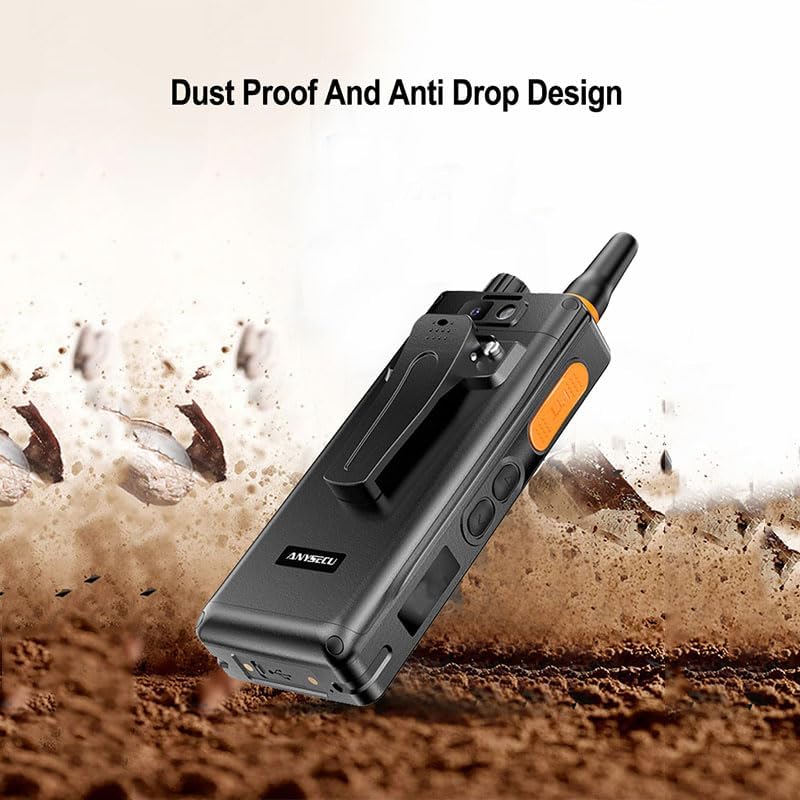
Figure 4: The ANYSECU T60 radio placed in an optional charging station, demonstrating simultaneous charging of the radio and a separate battery.
4. Operating Instructions
4.1 Power On/Off
- To Power On: Press and hold the Power button (usually on the side or top) until the screen illuminates.
- To Power Off: Press and hold the Power button until the power options menu appears. Select "Power Off" and confirm.
4.2 Basic Navigation
The T60 operates like an Android smartphone with a physical keypad. Use the navigation keys and the touchscreen (if applicable) to move through menus and select options.
- Directional Pad: Use the central directional pad for menu navigation.
- OK/Confirm Button: The center button of the directional pad is typically used to confirm selections.
- Back Button: Returns to the previous screen.
- Home Button: Returns to the main home screen.
4.3 Using Push-to-Talk (PTT) Applications
The ANYSECU T60 is optimized for Push-to-Talk over Cellular (POC) applications like Zello and Real PTT.

Figure 5: The ANYSECU T60 radio superimposed on a world map, emphasizing its "Worldwide Intercom" feature, supporting single and group calls anywhere.

Figure 6: Two ANYSECU T60 radios illustrating support for popular PTT applications like Zello, Real PTT, and Echolink, powered by Android 8.1.
- Install Application: Download and install your preferred PTT application (e.g., Zello, Real PTT) from the Google Play Store or by sideloading the APK.
- Login/Register: Open the application and log in with your existing account or register a new one.
- Configure PTT Button: Most PTT applications allow you to map the dedicated PTT button on the side of the T60. Go to the application's settings and find the "Push-to-Talk button" or "Hardware button" mapping option. Select the T60's PTT button.
- Join Channels/Contacts: Join relevant channels or add contacts within the PTT application.
- Initiate Call: To transmit, press and hold the dedicated PTT button. Speak clearly into the microphone. Release the button to listen.
Note: Ensure you have an active internet connection (Wi-Fi or 4G LTE) for POC applications to function.
4.4 Wi-Fi and Network Settings
To connect to Wi-Fi or manage cellular data:
- Go to Settings from the home screen or app drawer.
- Select Network & Internet.
- For Wi-Fi: Toggle Wi-Fi on, then select your desired network and enter the password if prompted.
- For Mobile Network: Ensure Mobile data is enabled. You can also configure APN settings if required by your carrier.
5. Maintenance
5.1 Cleaning the Device
- Use a soft, lint-free cloth to wipe the screen and body of the radio.
- For stubborn marks, slightly dampen the cloth with water or a mild, non-abrasive cleaner.
- Avoid using harsh chemicals, solvents, or abrasive materials, as they can damage the device's finish.
- Ensure all ports are dry before charging or connecting accessories.
5.2 Battery Care
- Do not expose the battery to extreme temperatures (hot or cold).
- Avoid fully discharging the battery frequently. Charge it before it drops to very low levels.
- If the device will not be used for an extended period, charge the battery to about 50% before storing it.
- Use only the original or certified compatible charger and cable.
5.3 Environmental Considerations
The T60 features a dust-proof and anti-drop design, but it is not fully waterproof.

Figure 7: The ANYSECU T60 radio shown in a rugged, dusty environment, highlighting its dust-proof and anti-drop design for durability.
- Avoid exposing the device to direct sunlight for prolonged periods.
- Keep the device away from excessive moisture or liquids.
- Do not drop or subject the device to severe impacts, despite its anti-drop design.
6. Troubleshooting
| Problem | Possible Cause | Solution |
|---|---|---|
| Device won't power on | Low or dead battery; Battery not installed correctly; Software crash. | Charge the battery; Reinstall the battery; Perform a forced restart (hold power button for 10-15 seconds). |
| Cannot connect to Wi-Fi | Incorrect password; Out of range; Router issue. | Verify password; Move closer to router; Restart router and device. |
| PTT application not working | No internet connection; Application not logged in; PTT button not mapped. | Check Wi-Fi/4G connection; Log into the app; Configure PTT button in app settings. |
| Poor audio quality | Weak signal; Microphone/speaker obstruction; Software issue. | Move to an area with better signal; Clean microphone/speaker grilles; Restart device. |
| Device is slow/unresponsive | Too many apps running; Low storage; Software glitch. | Close background apps; Clear cache/uninstall unused apps; Restart device. |
If the problem persists after trying these solutions, please contact customer support.
7. Specifications
| Feature | Detail |
|---|---|
| Model Number | T60 |
| Operating System | Android 8.1 |
| Processor | MT6739 Cortex A53 quad core, 1.5GHz |
| GPU | PowerVR GE8100, 570MHz |
| RAM | 1GB |
| ROM | 8GB |
| Screen Display | 2.4 inches |
| Battery Capacity | 4600mAh |
| Connectivity | 4G LTE, Wi-Fi |
| Frequency Range | 700-2600 MHz |
| Tuner Technology | POC |
| Water Resistance Level | Not Water Resistant |
| Item Weight | 1 pound |
| Package Dimensions | 6.89 x 4.13 x 2.56 inches |

Figure 8: Product dimensions of the ANYSECU T60 radio, indicating its height, width, and thickness.
8. Warranty Information
The ANYSECU T60 radio body comes with a 1-year warranty from the date of purchase. This warranty covers manufacturing defects and malfunctions under normal use.
The warranty does not cover:
- Damage caused by misuse, abuse, accident, or neglect.
- Unauthorized repairs or modifications.
- Normal wear and tear.
- Damage from liquids or extreme environmental conditions (beyond specified resistance).
Please retain your proof of purchase for warranty claims.
9. Customer Support
For technical assistance, warranty claims, or any questions regarding your ANYSECU T60 radio, please contact your retailer or the manufacturer directly.
Please have your product model number (T60) and purchase date ready when contacting support.
For additional resources and updates, visit the official ANYSECU website (if available, link would be here).
