
Introduction
The Behringer GO CAM Wireless Digital Clip-On Microphone System is designed for content creators seeking high-quality, portable audio solutions. This system offers multi-device compatibility, extended wireless range, and advanced noise reduction, making it ideal for interviews, vlogs, live streams, and more. This manual provides detailed instructions for setting up, operating, and maintaining your GO CAM Wireless system to ensure optimal performance.
What's in the Box
Upon unboxing your Behringer GO CAM Wireless system, please verify that all the following components are included:
- Transmitter (Tx)
- Receiver (Rx)
- USB Charging Cable
- TRS to TRS Audio Cable for Camera
- TRRS to TRS Audio Cable for Phones
- USB Type-C Earphones
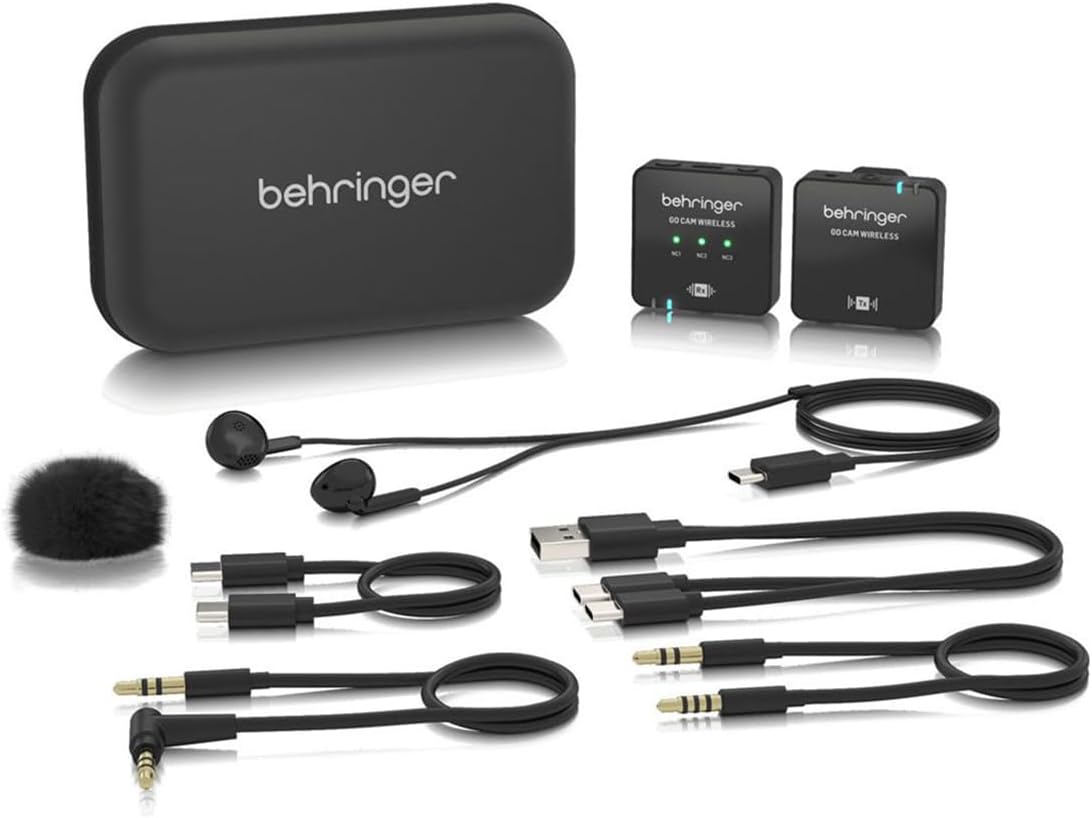
Figure 1: System Components. This image displays all items included in the Behringer GO CAM Wireless package. Visible are the compact transmitter and receiver units, a USB charging cable, two audio cables (one TRS to TRS for cameras, one TRRS to TRS for smartphones), a pair of USB Type-C earphones, and a small furry windscreen for the microphone.
Product Overview
Familiarize yourself with the key components and their functions.

Figure 2: Receiver (Left) and Transmitter (Right) Front View. This image shows the front faces of the Behringer GO CAM Wireless receiver and transmitter. The receiver (left) features three green LED indicators for noise reduction levels (NC1, NC2, NC3) and an 'Rx' symbol indicating its receiving function. The transmitter (right) displays an 'Tx' symbol, indicating its transmitting function. Both units are compact and black.

Figure 3: Receiver and Transmitter Angled View. This image provides an angled perspective of both the receiver and transmitter units. The receiver (left) shows its side, revealing a dB level switch and a 3.5mm headphone jack for real-time monitoring. The transmitter (right) displays its USB-C charging port and power button on its side. Both units have a sleek, black design.

Figure 4: Top and Bottom View with Clip. This image shows the top and bottom surfaces of the Behringer GO CAM Wireless units. Both units feature an integrated clip for easy attachment to clothing or camera hot shoes. The transmitter's top surface reveals the built-in omnidirectional microphone and a USB-C port. The receiver's top surface shows its audio output and monitoring ports.
Setup
Initial Charging
Before first use, fully charge both the transmitter and receiver units.
- Connect the supplied USB Charging Cable to the USB-C port on both the transmitter and receiver.
- Plug the other end of the USB cable into a standard USB power adapter (not included) or a computer's USB port.
- The charging indicator LED will illuminate during charging and turn off when fully charged. A full charge takes approximately 1.5 hours.
Connecting to Devices
The GO CAM Wireless system is compatible with various devices.
- For Cameras/DSLRs: Use the supplied TRS to TRS audio cable. Connect one end to the receiver's output jack and the other end to your camera's microphone input.
- For Mobile Devices/Tablets: Use the supplied TRRS to TRS audio cable. Connect the TRRS end to your mobile device's headphone/microphone jack and the TRS end to the receiver's output jack.
- For Audio Recorders: Use the appropriate cable (TRS to TRS or TRRS to TRS) depending on your recorder's input type.
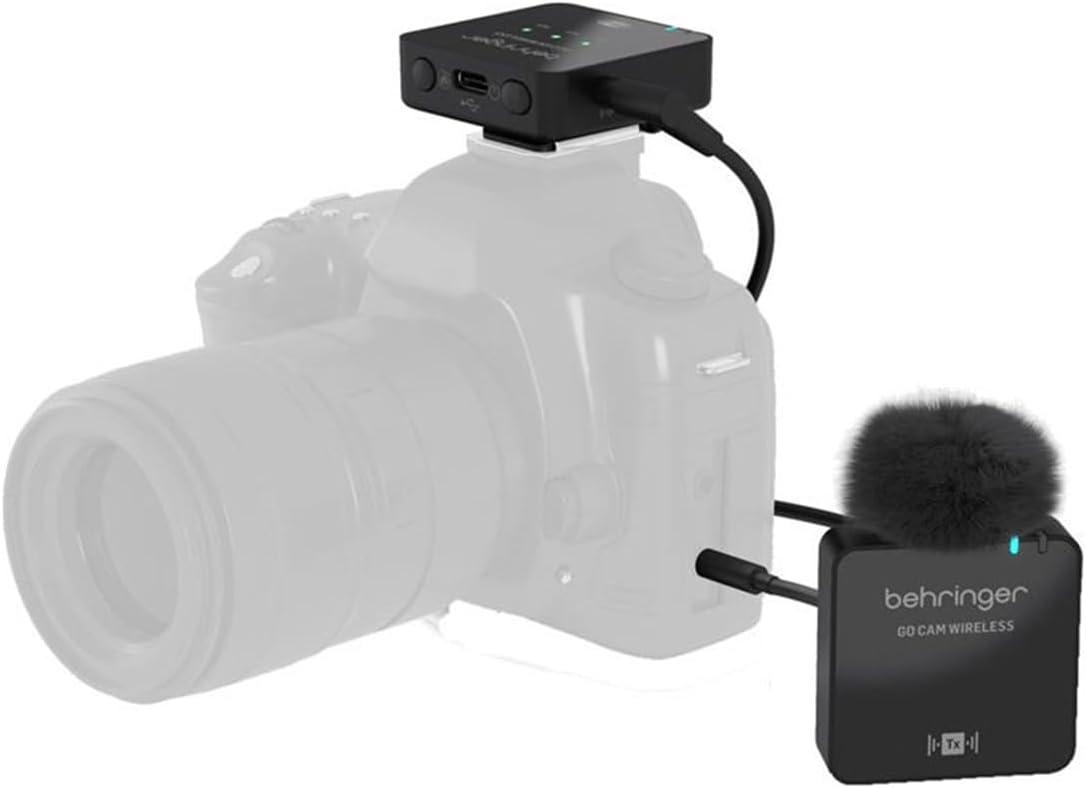
Figure 5: System Connected to a Camera. This image illustrates the Behringer GO CAM Wireless system in use with a camera. The receiver unit is shown mounted on the camera's hot shoe and connected to its microphone input via an audio cable. The transmitter unit, with its furry windscreen attached, is positioned separately, indicating its wireless connection to the receiver.
Operating Instructions
Powering On/Off and Pairing
- Press and hold the power button on both the transmitter (Tx) and receiver (Rx) units until the indicator lights illuminate.
- The units will automatically pair within a few seconds. A solid blue light on both units indicates a successful connection.
- To power off, press and hold the power button on each unit until the lights turn off.
Using the Microphone
- The transmitter features a built-in omnidirectional microphone, designed to capture sound from all directions.
- Clip the transmitter securely to your clothing, ideally near your mouth, for optimal voice capture. The integrated shirt clip allows for hands-free operation.
- For outdoor use or in windy conditions, attach the supplied furry windscreen to the transmitter's microphone to reduce wind noise.
Noise Reduction
The receiver unit features a 3-level noise reduction switch (NC1, NC2, NC3) to minimize background noise.
- NC1: Light noise reduction, suitable for quiet environments.
- NC2: Medium noise reduction, for moderately noisy environments.
- NC3: Strong noise reduction, for very noisy environments.
- Adjust the switch based on your recording environment to achieve the clearest audio.
Real-Time Monitoring
Connect the supplied USB Type-C earphones or your own 3.5mm headphones to the receiver's headphone jack to monitor your audio in real-time. This allows you to check audio levels and clarity during recording.
Battery Life and Charging
The GO CAM Wireless system is equipped with long-lasting batteries for extended use.
- Transmitter Battery Life: Up to 30 hours of continuous operation.
- Receiver Battery Life: Up to 8 hours of continuous operation.
- Recharge Time: Approximately 1.5 hours for a full charge using the USB charging cable.
- It is recommended to fully charge both units before each important recording session.
Maintenance
Proper care will extend the life and performance of your GO CAM Wireless system.
- Cleaning: Use a soft, dry cloth to clean the units. Do not use liquid cleaners or solvents.
- Storage: Store the system in a cool, dry place away from direct sunlight and extreme temperatures.
- Handling: Avoid dropping the units or exposing them to excessive shock or vibration.
- Water Exposure: The units are not waterproof. Avoid exposure to water or high humidity.
Troubleshooting
If you encounter issues with your GO CAM Wireless system, refer to the following common problems and solutions:
| Problem | Possible Cause | Solution |
|---|---|---|
| No sound or low volume |
|
|
| Poor audio quality / Static |
|
|
| Units not powering on |
|
|
Specifications
Detailed technical specifications for the Behringer GO CAM Wireless system:
- Model Name: GO CAM WIRELESS
- Manufacturer: Behringer
- Connectivity Technology: Bluetooth (Wireless Digital)
- Connector Type: 3.5 mm Jack, USB Type-C
- Microphone Form Factor: Lavalier (Clip-On Transmitter)
- Polar Pattern: Omnidirectional (Built-in Microphone)
- Wireless Range: Up to 30 meters (100 feet)
- Noise Reduction: 3-level switch (NC1, NC2, NC3)
- Transmitter Battery Life: Up to 30 hours
- Receiver Battery Life: Up to 8 hours
- Recharge Time: Approx. 1.5 hours
- Battery Type: Lithium Polymer
- Item Weight: Approx. 30 grams (each unit)
- Compatible Devices: Camcorder, Camera, PA System, Personal Computer, Smartphone
- UPC: 644216661107
Warranty and Support
Behringer products are designed for reliability and performance. For information regarding warranty coverage, technical support, or service, please visit the official Behringer website or contact their customer support. Keep your proof of purchase for warranty claims.
Online Resources: For the latest manuals, FAQs, and software updates, please refer to the Behringer support page.


