
1. Introduction
Thank you for choosing the Redragon M61 SE Rapid Trigger Magnetic Switch Gaming Keyboard. This manual provides detailed instructions for setting up, operating, and maintaining your new keyboard. The M61 SE is designed for high-performance gaming, featuring magnetic switches, adjustable actuation points, an 8000Hz polling rate, and customizable RGB lighting.
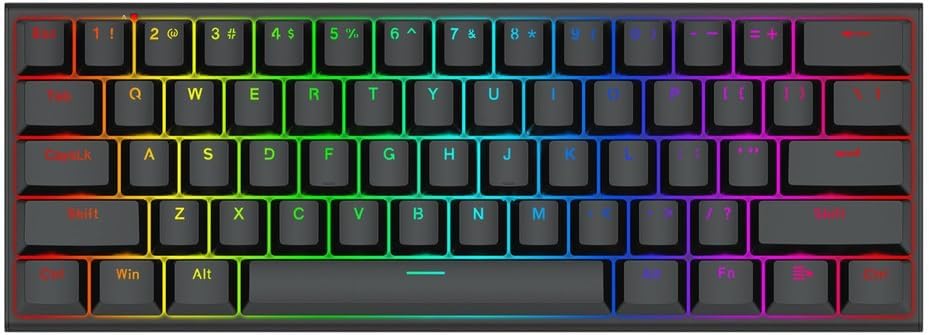
Image 1.1: Redragon M61 SE Gaming Keyboard. This image displays the compact 61-key layout of the keyboard with its vibrant RGB backlighting active.
Key Features:
- Magnetic Switches: Offers precise and rapid key response.
- Adjustable Actuation: Customize actuation points from 0.1mm to 4.0mm across 40 levels.
- 8000Hz Polling Rate: Ensures ultra-fast response times for competitive gaming.
- N-Key Rollover: Guarantees all simultaneous key presses are registered accurately.
- Customizable RGB Backlighting: Up to 20 full-color lighting effects.
- Ergonomic Design: Reduces wrist strain during extended use.
- 61-Key Layout: Compact 60% form factor saves desk space.

Image 1.2: Overview of Redragon M61 SE key features. This graphic highlights features such as magnetic switches, 8000Hz polling rate, ergonomic design, 2-color keycaps, 61-key layout, Hall switches, N-key rollover, adjustable triggers, and a metal cover.
Product Variations:
The Redragon M61 SE is available in different color options to suit your preference.

Image 1.3: Redragon M61 SE in black and white color variants. This image illustrates the stylish two-color design options available for the keyboard.
Ergonomic Design:
The keyboard features an ergonomic angle designed to reduce strain on your wrists, ensuring comfort during prolonged typing or gaming sessions.

Image 1.4: Side view of the Redragon M61 SE, showcasing its ergonomic angle designed for comfortable use.
2. Setup
2.1 Package Contents
Before proceeding, please ensure all items are present in the package:
- Redragon M61 SE Gaming Keyboard
- USB-C to USB-A Cable (Wired connection)
- User Manual (This document)
- Keycap Puller (May be included for maintenance)
- Switch Puller (May be included for maintenance)
2.2 Connecting the Keyboard
- Locate the USB-C port on the Redragon M61 SE keyboard.
- Connect one end of the provided USB-C cable to the keyboard's USB-C port.
- Connect the other end of the USB-A cable to an available USB port on your computer.
- The keyboard will be automatically detected by your operating system. No additional drivers are typically required for basic functionality.
- For advanced customization (actuation points, macros, RGB lighting), please download the dedicated Redragon software from the official Redragon website.
3. Operating Instructions
3.1 Basic Keyboard Functions
The Redragon M61 SE features a compact 61-key layout. Many functions are accessed via the Function (Fn) key combined with other keys.

Image 3.1: The 61-key design of the Redragon M61 SE, demonstrating its compact size compared to a full-size keyboard, saving approximately 30% desk space.
Function Key Combinations (Examples):
- Fn + [Key]: Accesses secondary functions printed on the keycaps.
- Fn + Win: Locks/unlocks the Windows key.
- Fn + Backspace: Delete function.
- Fn + P: Print Screen.
- Fn + ;: Home.
- Fn + ': End.
- Fn + ,: Page Up.
- Fn + .: Page Down.
- Fn + Arrow Keys: Adjust volume or media playback (specific combinations may vary, refer to keycap legends).
Refer to the keycap legends for all available Fn key combinations.
3.2 Magnetic Switches and Rapid Trigger
The M61 SE utilizes magnetic switches, which detect key presses based on magnetic fields rather than physical contact. This allows for adjustable actuation points and the Rapid Trigger feature.

Image 3.2: Diagram illustrating the components of the adjustable magnetic shaft (switch) including the dustproof top cover, magnetic column, spring, and bottom cover. It also shows the adjustable actuation range from 0.1mm to 4.0mm.
- Rapid Trigger: This feature allows a key to reactivate instantly upon reset, without needing to return to its full resting position. This provides a significant advantage in fast-paced games.
- Adjustable Actuation: The distance a key needs to be pressed to register an input can be customized. This is configured via the Redragon software.
4. Customization
The Redragon M61 SE offers extensive customization options through its dedicated software. Please download the latest software from the official Redragon website for full functionality.
4.1 Software Features
- Actuation Point Adjustment: Fine-tune the actuation distance for each key from 0.1mm to 4.0mm in 40 steps.
- Macro Programming: Create and assign complex macros to any key.
- RGB Lighting Control: Choose from up to 20 pre-set lighting effects, customize colors, brightness, and speed.
- Key Remapping: Reassign key functions to suit your preferences.
- Profile Management: Save and switch between multiple custom profiles for different games or applications.

Image 4.1: Close-up view of the Redragon M61 SE keyboard showcasing its vivid full-color RGB lighting effects, which can be customized via software.
5. Maintenance
5.1 Cleaning the Keyboard
- Disconnect the keyboard from your computer before cleaning.
- Use a soft, lint-free cloth slightly dampened with water or a mild cleaning solution to wipe the keycaps and chassis.
- Avoid spraying liquids directly onto the keyboard.
- For cleaning between keycaps, use compressed air to remove dust and debris.
5.2 Keycap and Switch Care
The M61 SE features durable PBT two-color injection molded keycaps, which are resistant to wear and shine.

Image 5.1: Close-up of the Redragon M61 SE's PBT two-color injection molded keycaps, highlighting their texture and durability.
- If you need to remove keycaps, use a keycap puller to avoid damage. Pull straight up with gentle, even force.
- The magnetic switches are not designed for user replacement. Do not attempt to remove or modify the switches.
6. Troubleshooting
| Problem | Possible Solution |
|---|---|
| Keyboard not responding |
|
| RGB lighting not working or incorrect |
|
| Keys not registering or double-typing |
|
| Software not detecting keyboard |
|
7. Specifications
| Feature | Detail |
|---|---|
| Brand | Redragon |
| Model Name | M61 SE |
| Keyboard Description | Mechanical Gaming Keyboard |
| Connectivity Technology | Wired (USB-C) |
| Switch Type | Magnetic Switches |
| Actuation Point | Adjustable from 0.1mm to 4.0mm (40 levels) |
| Polling Rate | 8000Hz |
| Key Rollover | N-Key Rollover |
| Backlight | Full-color RGB (up to 20 effects) |
| Keycap Material | PBT Two-color Injection Molded |
| Layout | 61-key (60% TKL) English Layout |
| Ergonomics | Yes |
| Compatible Devices | PC |
| Dimensions | Approx. 32 x 17 x 5.5 cm |
| Weight | Approx. 838 g |
8. Warranty and Support
For warranty information and technical support, please visit the official Redragon website or contact their customer service. Keep your purchase receipt as proof of purchase.
Official Redragon Website: www.redragonzone.com


