
Makeid L1
Makeid L1 Label Maker Machine User Manual
Model: L1
1. Introduction
This manual provides comprehensive instructions for the Makeid L1 Label Maker Machine. The Makeid L1 is a portable and rechargeable label maker designed for organizing office, home, and school environments. It is compatible with 9mm, 12mm, and 16mm waterproof tapes and utilizes Bluetooth connectivity for easy operation via a mobile application.

Figure 1: Makeid L1 Label Maker Machine and included label tapes. The compact, light green device is shown alongside four rolls of white and green label tape.
2. Specifications
| Feature | Detail |
|---|---|
| Brand | Makeid |
| Model Name | L1 |
| Product Dimensions | 2 x 2 x 1 inches (approx. 5.08 x 5.08 x 2.54 cm) |
| Connectivity Technology | Bluetooth |
| Printing Technology | Thermal |
| Printer Output | Monochrome |
| Maximum Print Speed | 20 Pages per second (Monochrome) |
| Special Feature | Portable |
| Compatible Tape Widths | 9mm, 12mm, 16mm |
| DPI Resolutions | 203 DPI, 300 DPI (selectable via app) |
3. Setup
3.1. Unboxing and Initial Charge
Upon unboxing your Makeid L1 Label Maker, ensure all components are present: the label maker unit, and included label tapes. It is recommended to fully charge the device before first use. Connect the provided charging cable to the label maker and a suitable USB power source. The charging indicator light will confirm charging status.
3.2. Installing Label Tape
- Open the tape compartment cover on the Makeid L1 device.
- Insert a Makeid compatible label tape roll into the compartment, ensuring the tape feeds correctly through the output slot.
- Close the tape compartment cover securely.
3.3. App Installation and Bluetooth Connection
The Makeid L1 operates via a dedicated mobile application.
- Download the App: Search for "Makeid" in your device's app store (compatible with Android and iOS).
- Turn on Bluetooth: Ensure Bluetooth is enabled on your mobile device. If prompted by the app, allow Bluetooth access.
- Select Model: Open the Makeid app. In the app interface, select "L1" as your label maker model.
- Confirm Connection: The app will search for available devices. Select your Makeid L1 (e.g., "L1S22H01804") from the list and confirm the connection. A successful connection will be indicated in the app.

Figure 2: Step-by-step guide for Bluetooth connection. This image illustrates the process within the Makeid app: turning on Bluetooth, selecting the L1 model, and confirming the device connection.
4. Operating Instructions
4.1. Designing Labels
The Makeid app provides extensive customization options for your labels.
- Text Input: Enter your desired text.
- Font Selection: Choose from multiple font styles available in the app.
- Symbols & Emojis: Add numbers, symbols, and emojis to enhance your labels.
- Icons & Graphics: Incorporate various icons and graphics for specific purposes (e.g., kitchen, office, personal items).
- Label Types: The app supports both continuous labels and die-cut labels, allowing for versatile classification.
- Resolution Selection: You can select between 203 DPI and 300 DPI printing resolutions within the app for desired print quality.

Figure 3: Versatile printing options within the Makeid app. The image displays the mobile app interface with various font selections, icons, and examples of customized labels for different uses.

Figure 4: Dual printing capabilities for continuous and die-cut labels. This image shows examples of labels printed in different sizes and formats, including continuous labels for files and die-cut labels for containers.
4.2. Printing Labels
Once your label design is complete in the app, initiate the printing process.
- Review your label design on the app screen.
- Press the "Print" button within the app.
- The label maker will print the label using thermal technology, ensuring clear and precise output.
- After the label emerges, use the built-in cutter by pressing the designated button to cleanly cut the tape.
4.3. Applying Labels
Makeid labels feature an easy-peel-and-stick design.
- Carefully peel the backing from the printed label.
- Apply the label to a clean, dry surface.
- The labels are waterproof, fade-resistant, and designed to leave no sticky residue upon removal.

Figure 5: Easy-to-use backing removal. This image shows a hand peeling the protective backing from a printed label, highlighting the ease of application.

Figure 6: Efficient labeling for various applications. This image displays several practical uses for the labels, including personal item identification, business product pricing, kitchen organization, and cautionary notes.

Figure 7: Organizing with Makeid labels. This image illustrates how the labels can be used to manage household items, inspire crafts, organize food storage, and label files, reducing clutter.
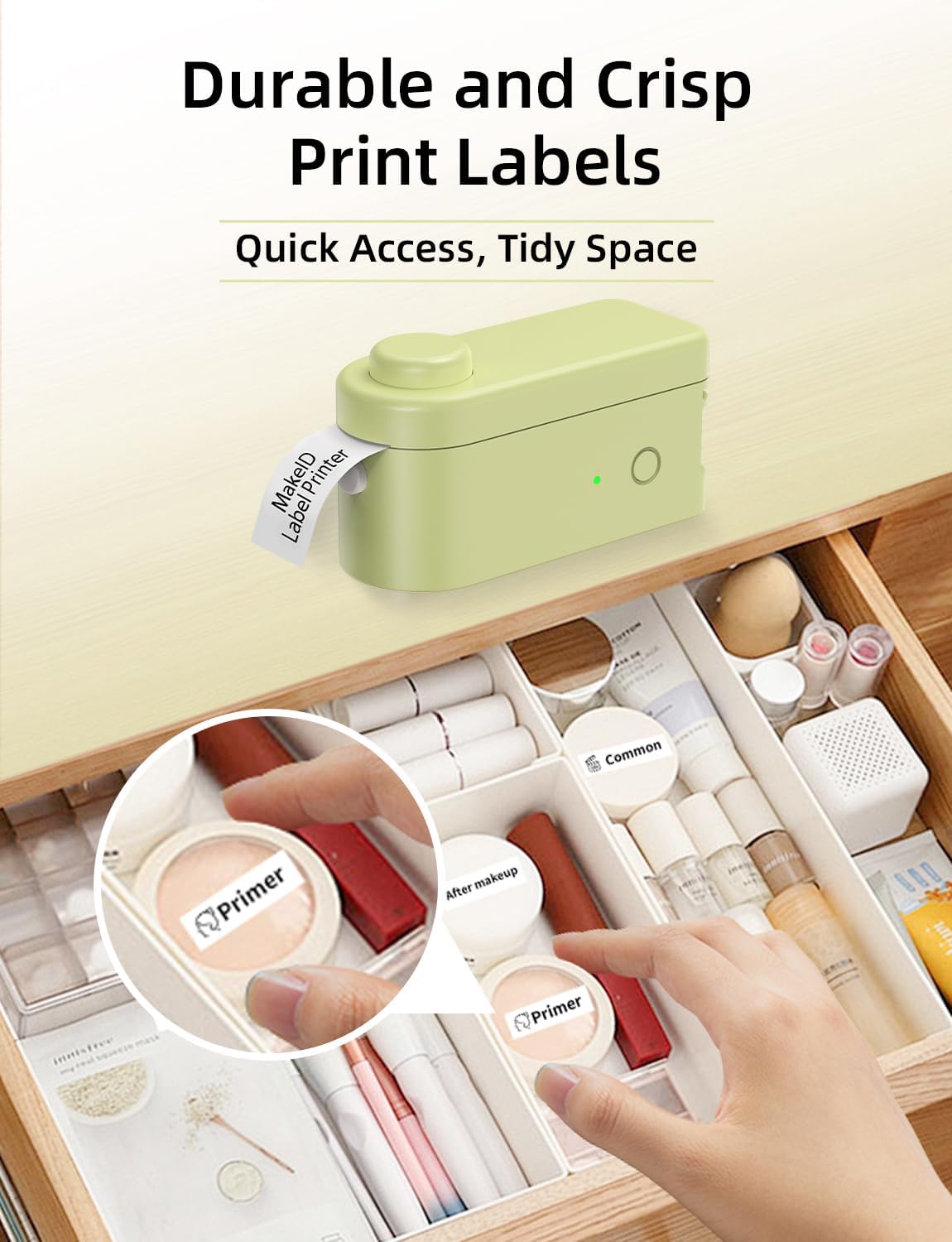
Figure 8: Durable and crisp print labels for organization. This image shows the label maker in action, printing a label that is then applied to an item within a drawer organizer, demonstrating clear and lasting print quality.
5. Maintenance
5.1. Cleaning the Print Head
To ensure optimal print quality, periodically clean the thermal print head.
- Turn off the label maker and disconnect it from any power source.
- Open the tape compartment.
- Gently wipe the print head with a soft, lint-free cloth dampened with isopropyl alcohol. Do not use abrasive materials or harsh chemicals.
- Allow the print head to dry completely before closing the compartment and resuming use.
5.2. Tape Care and Storage
Store label tapes in a cool, dry place away from direct sunlight and extreme temperatures to preserve their quality and adhesive properties.

Figure 9: Properties of Makeid 6-layer laminated tape. This diagram illustrates the layered structure of the tape and highlights its key features: waterproof, scratch-resistant, anti-fading, and oil-proof, ensuring durability.
6. Troubleshooting
| Problem | Possible Cause | Solution |
|---|---|---|
| Device not connecting via Bluetooth | Bluetooth is off on mobile device; App permissions not granted; Device not selected in app. | Ensure Bluetooth is on. Grant necessary app permissions. Re-select the L1 model in the app and confirm connection. |
| Poor print quality / Faded prints | Low battery; Dirty print head; Incorrect tape installation; Expired tape. | Charge the device. Clean the print head (refer to Maintenance section). Reinstall tape correctly. Replace with new tape if old. |
| Tape not feeding or jamming | Tape incorrectly installed; Obstruction in tape path. | Open compartment and re-install tape, ensuring it's properly seated. Check for any debris and remove carefully. |
| Label not cutting cleanly | Cutter blade dull or obstructed. | Ensure the label has fully exited the printer before pressing the cut button. If issues persist, contact customer support. |
7. Warranty Information
Please refer to the warranty card included with your product packaging for specific warranty terms and conditions. Typically, Makeid products come with a limited warranty covering manufacturing defects from the date of purchase. Keep your proof of purchase for warranty claims.
8. Customer Support
For further assistance, technical support, or inquiries regarding your Makeid L1 Label Maker, please visit the official Makeid website or contact their customer service department. You can often find FAQs and troubleshooting guides on the manufacturer's support page.
Manufacturer: Makeid
Online Store: Makeid Store on Amazon
Related documentsL1


Ask a question about this manual
Ask about setup, troubleshooting, compatibility, parts, safety, or missing instructions. Manuals+ will review the question and use this page’s manual context to help answer it.