
1. Setup
1.1 Package Contents
Verify that all items are present in your Shimbol CP5 package:
- Shimbol CP5 5-inch Selfie Monitor
- Magnetic Silicone Case (Pink)
- USB-C Charging Cable
- Bluetooth Remote Control
- TF Card (16GB)
- User Manual
- After-sales Service Card

Image: Shimbol CP5 package contents including the monitor, case, cables, remote, and TF card.
1.2 Device Overview
Familiarize yourself with the physical components of your Shimbol CP5 monitor:
- Screen Rotation Button: Rotates the display 180 degrees (Android devices rotate 90 degrees counter-clockwise).
- Shutter Button: Controls photo capture or video recording when connected via Bluetooth.
- Power Button: Press to turn on, long press for three seconds to turn off.
- USB-C Port: For charging the device.
- 3.5mm Audio Jack: For real-time audio monitoring.
- TF Card Slot: For external recording and playback.

Image: Side view of the Shimbol CP5 monitor showing the screen rotation, shutter, and power buttons.

Image: Bottom view of the Shimbol CP5 monitor showing the USB-C port, 3.5mm audio jack, and TF card slot.
1.3 Initial Charging
Before first use, fully charge the Shimbol CP5 using the provided USB-C cable and a compatible power adapter. The built-in 2000mAh rechargeable battery offers up to 3.5 hours of usage.

Image: Diagram illustrating the 2000mAh built-in rechargeable battery of the Shimbol CP5.
2. Operating
2.1 Power On/Off
- To turn on: Press the Power button briefly.
- To turn off: Press and hold the Power button for three seconds.
2.2 Connecting to Android Devices
The Shimbol CP5 can connect wirelessly to Android devices for real-time monitoring. Ensure your Android device supports 'Wireless Projection' or 'Screen Mirroring'.
- Turn on the Shimbol CP5 monitor.
- On the CP5, navigate to the WLAN interface. This will display a QR code and network details (SSID, PIN).
- On your Android phone, open the 'Wireless Projection' or 'Screen Mirroring' function. If you cannot find it directly, go to Settings > More connections > Easy Projection (or similar, depending on your phone model) and enable 'Wireless Projection'.
- Select the CP5 device name (e.g., 'cp5_0000641') from the list of available devices to connect.
- Confirm the connection on your phone. The CP5 screen will now mirror your Android device.
Video: Demonstrates how to connect the Shimbol CP5 to Android devices for screen mirroring.
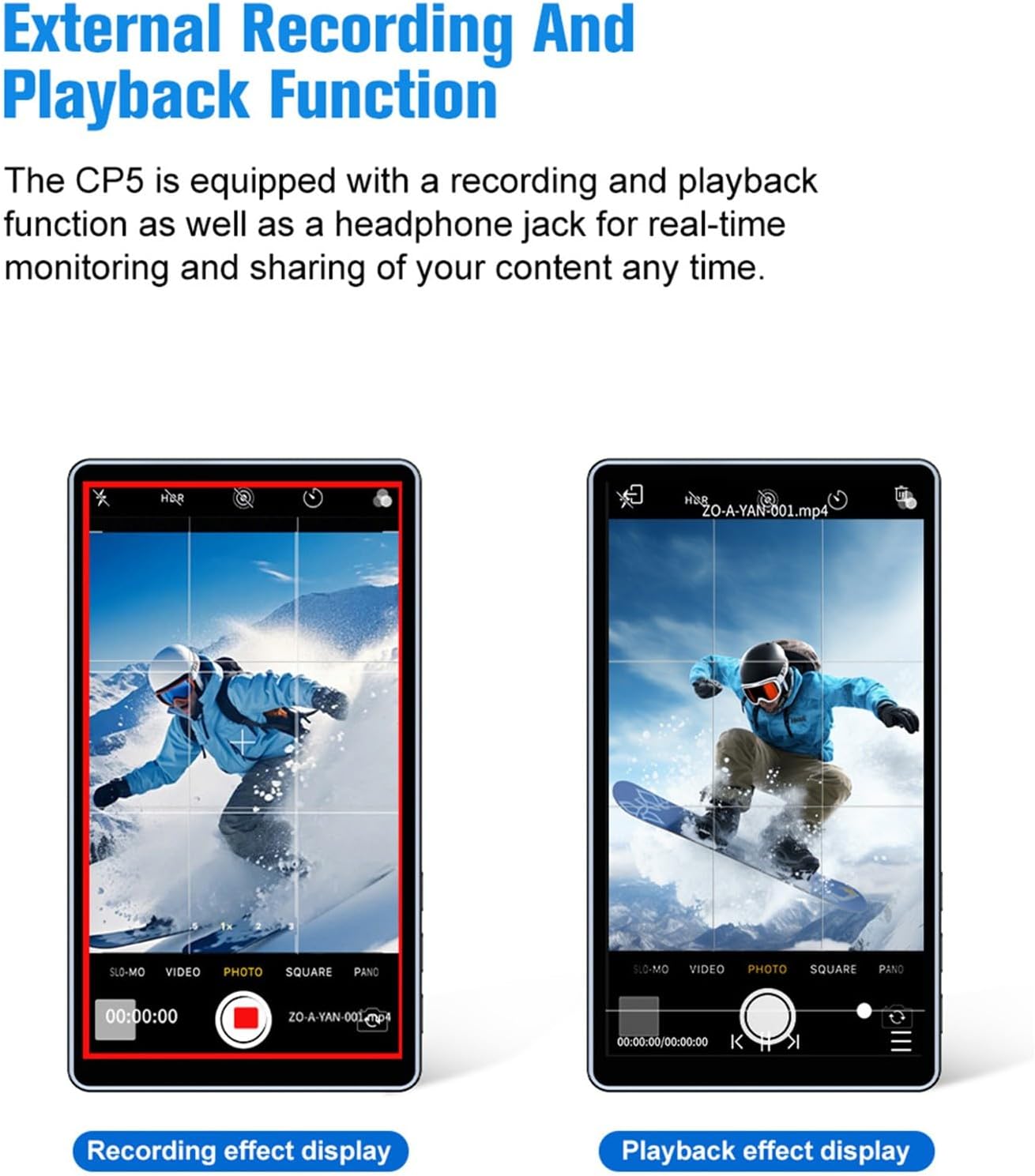
Image: Chart showing compatible Android phone models (Huawei, Xiaomi, OPPO, VIVO, Samsung Galaxy) and notes on 4K shooting support and Google Pixel incompatibility.
2.3 Connecting to Apple Devices
The Shimbol CP5 can connect wirelessly to Apple devices for real-time monitoring.
- Turn on the Shimbol CP5 monitor.
- On the CP5, navigate to the WLAN interface. This will display a QR code and network details.
- Use your iPhone camera to scan the QR code displayed on the CP5 to connect to its Wi-Fi network.
- Once connected, open the iPhone's Screen Mirroring function (swipe down from the top-right corner for Control Center).
- Select the CP5 device name (e.g., 'cp5_0000641') from the list to initiate screen mirroring.
- The CP5 screen will now mirror your iPhone display. To disconnect, tap 'Stop Mirroring' on your iPhone.
Video: Demonstrates how to connect the Shimbol CP5 to Apple devices for screen mirroring.
Image: Chart showing compatible Apple phone models (iPhone whole series) and notes on 4K shooting support.
2.4 Bluetooth Remote Control
The included Bluetooth remote control allows for convenient photo and video capture without touching your phone.
- Ensure your CP5 is connected to your phone via screen mirroring.
- On your phone, go to Settings > Bluetooth and pair with the device named 'SHIMBOL_XXXXXX'.
- Open your phone's camera application.
- Press the Shutter button on the CP5 or the Bluetooth remote to control photo capture or video recording.

Image: The Shimbol CP5 monitor displaying a phone's camera feed, with an inset showing the Bluetooth remote control for capturing moments.
2.5 Screen Features
The CP5 offers various screen features to enhance your shooting experience.
2.5.1 Ratio Marker & Grid
You can select different aspect ratios (16:9 and 4:3) and grid lines (9-grid or 16-grid) to assist with shot composition. These settings do not affect the final image quality or transmission size.
2.5.2 Playback & Screen Capture
The CP5 supports external recording and playback functions. You can record the screen content directly to a TF card inserted into the monitor. The recording frame does not affect the final video output.

Image: Two phone screens, one showing a recording effect display with a red record button, and the other showing a playback effect display with video controls.
2.5.3 Mirror Function
Tap the Mirror function icon on the CP5 to horizontally flip the screen display. Tap it again to restore the original orientation. This is useful for self-monitoring.

Image: Various usage scenarios for the Shimbol CP5, including group photos, live streaming, and selfies, demonstrating its versatility.

Image: Illustration of the Shimbol CP5 automatically switching between vertical and horizontal shooting modes based on phone orientation.

Image: Visual comparison of 480P and 1080P resolution on a 5-inch screen, highlighting the clarity of the Shimbol CP5's Full HD display.

Image: A hand interacting with the Shimbol CP5's touch screen, emphasizing its 500nits brightness for outdoor visibility.

Image: Diagram showing a phone and the Shimbol CP5 monitor wirelessly connected over a distance of up to 50 meters in an open environment.
3. Maintenance
3.1 Cleaning
To clean the screen and body of the Shimbol CP5, use a soft, lint-free cloth. For stubborn smudges, slightly dampen the cloth with water or a screen-safe cleaning solution. Avoid harsh chemicals or abrasive materials.
3.2 Storage
When not in use, store the monitor in its magnetic silicone case to protect it from scratches and impacts. Keep the device in a cool, dry place away from direct sunlight and extreme temperatures.
3.3 Battery Care
To prolong battery life, avoid fully discharging the battery frequently. Charge the device regularly, even if not in constant use. If storing for an extended period, charge the battery to approximately 50%.
4. Troubleshooting
- No Power: Ensure the device is fully charged. If the issue persists, try a different USB-C cable and power adapter.
- Connection Issues (Wi-Fi/Screen Mirroring):
- Verify that the CP5 is in WLAN mode and displaying the QR code/network details.
- Ensure your phone's Wi-Fi is enabled and connected to the CP5's network.
- For Apple devices, confirm Screen Mirroring is selected. For Android, ensure Wireless Projection is active.
- Restart both the CP5 and your phone.
- Bluetooth Remote Not Working:
- Check if the remote's battery is charged.
- Ensure Bluetooth is enabled on your phone and the remote is paired.
- Confirm the camera app is open on your phone.
- Screen Lag/Delay: While the CP5 has ultra-low latency, environmental factors (e.g., strong Wi-Fi interference, long distances) can affect performance. Try reducing the distance between the phone and the monitor or moving to an area with less interference.
- Screen Not Responding to Touch: Restart the device. If the problem continues, ensure the screen is clean and free of moisture.
5. Specifications
| Feature | Specification |
|---|---|
| Product Dimensions | 6.3 x 2.76 x 1.97 inches |
| Item Weight | 10.6 ounces (0.3 Kilograms) |
| Item Model Number | CP5 |
| Batteries | 1 Nonstandard Battery (2000mAh) |
| Wireless Communication Technologies | WiFi, Bluetooth |
| Connectivity Technologies | Bluetooth, Wi-Fi |
| Other Display Features | Wireless |
| Color | Pink |
| Manufacturer | Shimbol |
| Compatible Devices | Smartphone, Tablet |
| Folded Size | 4.88 inches (l) x 2.69 inches (w) x 0.38 inches (h) |
6. Warranty and Support
For warranty information and technical support, please refer to the After-sales Service Card included in your package or visit the official Shimbol website. Keep your proof of purchase for any warranty claims.


