
1. Introduction
Thank you for purchasing the STEREN Compact Foldable Bluetooth Keyboard. This device is designed for portability and convenience, allowing you to work wirelessly with various compatible devices. Please read this manual carefully to ensure proper use and maintenance of your keyboard.
2. Safety Information
- Do not expose the keyboard to extreme temperatures, humidity, or direct sunlight.
- Avoid dropping or subjecting the keyboard to strong impacts.
- Keep out of reach of children.
- Do not attempt to disassemble or repair the keyboard yourself. This will void the warranty.
- Use only the provided charging cable or a certified equivalent.
3. Package Contents
- 1 x STEREN Compact Foldable Bluetooth Keyboard (Model COM-672)
- 1 x USB Charging Cable
- 1 x Instruction Manual
4. Product Overview
The STEREN Compact Foldable Bluetooth Keyboard features a QWERTY layout and a foldable design for easy transport. It connects wirelessly via Bluetooth and is powered by a rechargeable battery.
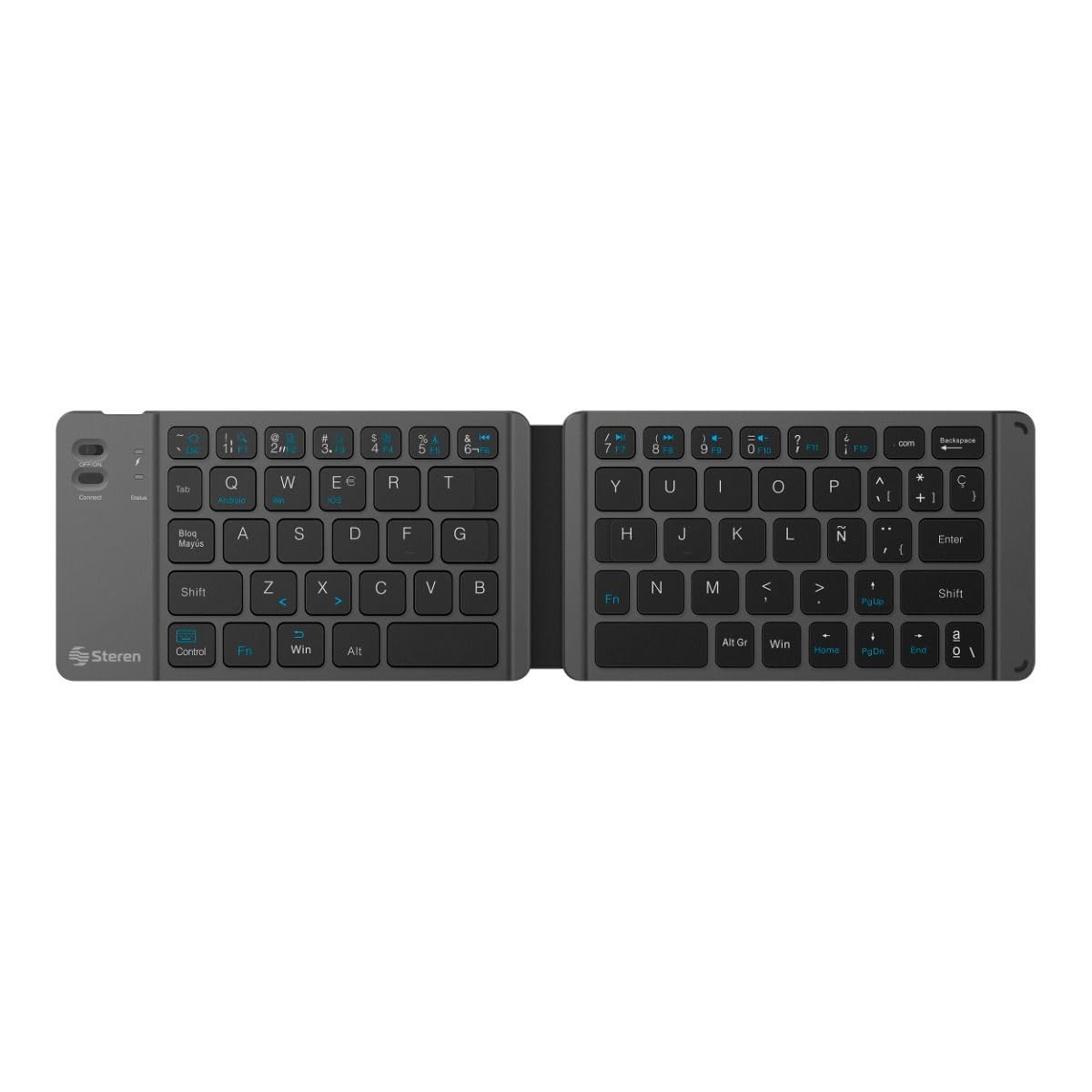
Image 1: The STEREN Compact Foldable Bluetooth Keyboard in its closed, folded position, showcasing its compact design.

Image 2: Side view of the folded keyboard, highlighting the Micro USB charging port located on the left side.
5. Setup
5.1. Charging the Keyboard
- Locate the Micro USB charging port on the side of the folded keyboard (refer to Image 2).
- Connect the small end of the USB charging cable to the keyboard's Micro USB port.
- Connect the larger end of the USB charging cable to a USB power source (e.g., computer USB port, USB wall adapter).
- The charging indicator light will illuminate (color may vary) to show that the keyboard is charging.
- Once fully charged, the indicator light will change or turn off. Disconnect the charging cable.
A full charge provides extended usage time. The keyboard features a rechargeable battery.
5.2. Bluetooth Pairing
To connect your keyboard to a device:
- Unfold the keyboard. This action typically powers on the keyboard.
- Activate Bluetooth on your device (PC, laptop, tablet, or smartphone).
- On your device, search for available Bluetooth devices.
- Select 'STEREN Keyboard' or a similar name from the list of found devices.
- If prompted, enter the pairing code displayed on your device's screen using the STEREN keyboard and press Enter.
- Once paired, the keyboard is ready for use. The Bluetooth connection has an operating range of up to 10 meters.
6. Operating Instructions
6.1. Basic Usage
Simply type as you would on a standard keyboard. The keyboard features a QWERTY layout.
6.2. Compatibility
This keyboard is compatible with various operating systems on PCs, laptops, tablets, and smartphones.
6.3. Power Management
The keyboard automatically powers on when unfolded and powers off when folded, thanks to its magnetic fixation system. This helps conserve battery life.
7. Maintenance and Care
- Cleaning: Use a soft, dry cloth to clean the keyboard surface. For stubborn dirt, slightly dampen the cloth with water or a mild cleaning solution. Do not use harsh chemicals or abrasive materials.
- Storage: When not in use, fold the keyboard to protect the keys and conserve battery. Store in a cool, dry place away from direct sunlight.
- Battery Care: To prolong battery life, avoid fully discharging the keyboard frequently. Charge it regularly, even if not in constant use.
8. Troubleshooting
- Keyboard not turning on: Ensure the keyboard is unfolded. Check if the battery is charged. Connect to a power source to charge.
- Cannot pair with device:
- Ensure Bluetooth is enabled on your device.
- Make sure the keyboard is in pairing mode (unfolded).
- Check if the keyboard is already paired with another device. Disconnect from other devices if necessary.
- Move the keyboard closer to your device (within 10 meters).
- Restart both the keyboard (fold and unfold) and your device.
- Keys not responding: Check the Bluetooth connection. Ensure the keyboard is charged.
- Lag or delayed input: Ensure there are no obstructions between the keyboard and your device. Reduce interference from other wireless devices.
9. Specifications
| Feature | Detail |
|---|---|
| Brand | STEREN |
| Model | COM-672 |
| Connectivity Technology | Bluetooth |
| Compatible Devices | PC, Laptop, Tablet, Smartphone |
| Keyboard Layout | QWERTY |
| Special Feature | Foldable |
| Power Source | Rechargeable Battery |
| Material | Plastic |
| Color | Black |
| Dimensions (L x W x H, folded) | 22mm x 180mm x 90mm |
| Operating Range | Up to 10 meters |
10. Warranty Information
STEREN guarantees this product for a period of one year on all its components and labor, against any manufacturing and operating defects, starting from the date of purchase. The product must not show signs of tampering or improper handling to be eligible for warranty service.
Please retain your purchase receipt as proof of purchase for warranty claims.
11. Customer Support
For technical assistance, warranty claims, or further information, please contact STEREN customer support through their official website or the contact details provided with your purchase documentation.

