
Quican IDW19
Quican Smart Watch IDW19 User Manual
Model: IDW19
Introduction
Thank you for choosing the Quican Smart Watch IDW19. This manual provides essential information for setting up, operating, and maintaining your new smartwatch. Please read it carefully to ensure optimal performance and longevity of your device.
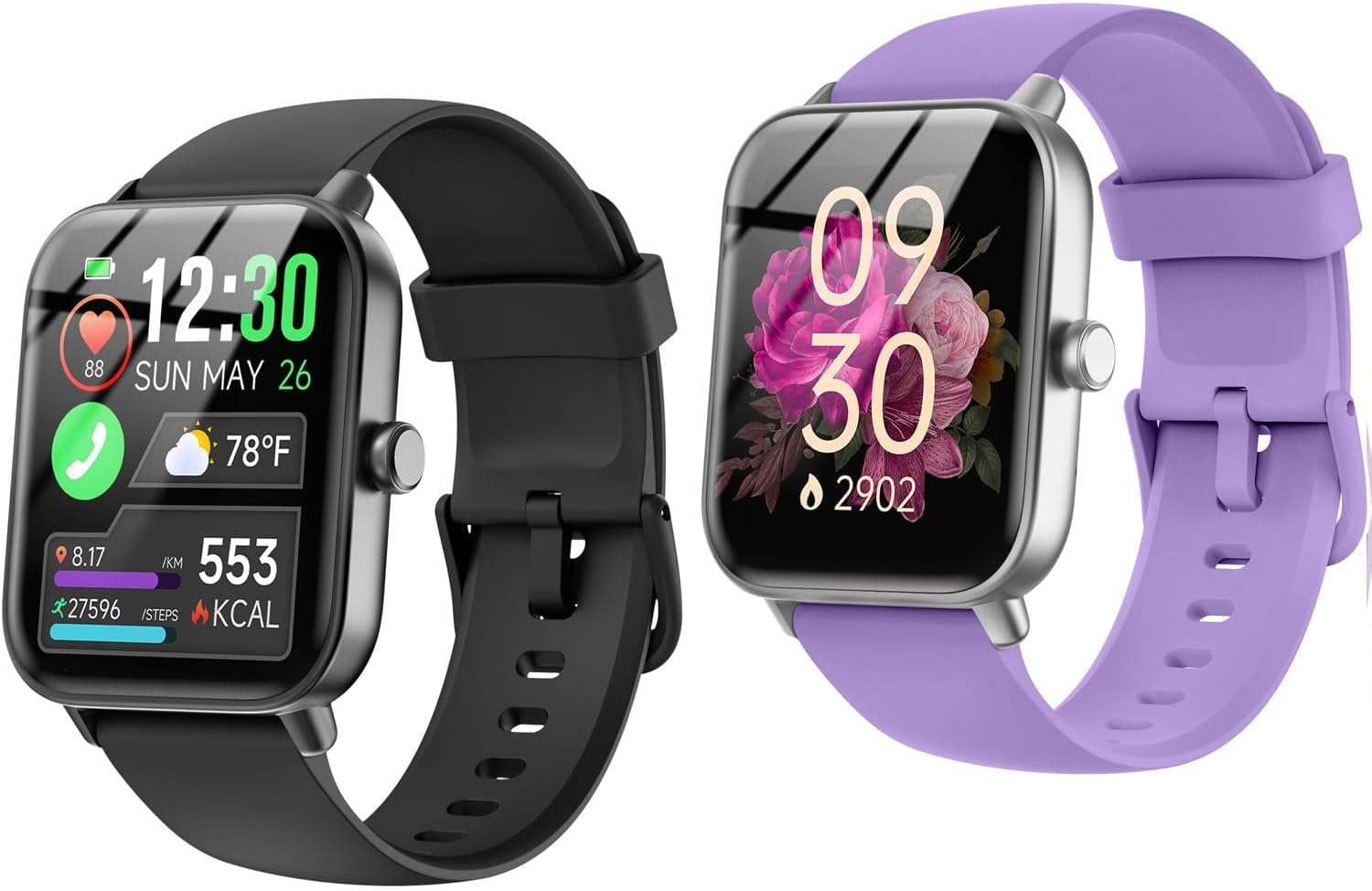
Image: The Quican Smart Watch IDW19 in black and purple variants, showcasing its display.
Setup
1. Charging the Smart Watch
Before first use, fully charge your Quican Smart Watch. Connect the magnetic charging cable to the charging points on the back of the watch and plug the USB end into a standard USB power adapter (not included). A full charge typically takes approximately 2.5 hours.

Image: The Quican Smart Watch IDW19 on its charger, illustrating its long battery life and quick charging capability.
2. App Installation and Pairing
To unlock all features, download the companion app on your smartphone. Scan the QR code provided in the watch's packaging or search for the app name (usually mentioned in the quick start guide) in your phone's app store (compatible with Android and iOS). Once installed:
- Enable Bluetooth on your smartphone.
- Open the app and follow the on-screen instructions to create an account or log in.
- Select 'Add Device' or 'Pair Device' within the app.
- The app will search for your IDW19 Smart Watch. Select it from the list to initiate pairing.
- Confirm the pairing request on both your phone and the watch if prompted.
Operating Your Smart Watch
Basic Navigation
The IDW19 features a 1.8-inch HD touch screen. Swipe left, right, up, or down to navigate through menus and features. Press the side button to return to the home screen or wake the device.
Bluetooth Call Functionality
With Bluetooth 5.3, you can make and answer calls directly from your watch when connected to your phone.
- Making Calls: Access the dial pad or frequent contacts list on your watch to initiate a call.
- Answering Calls: When a call comes in, you can answer or reject it directly from the watch screen.

Image: Demonstration of the Bluetooth call feature on the Quican Smart Watch, showing dial pad, incoming call, call history, and frequent contacts.
Alexa Voice Control & Message Notifications
The watch integrates with Alexa, allowing you to inquire about news, weather, and set alarms using voice commands. It also provides vibration reminders for SMS, Email, and various social media notifications (Facebook, WhatsApp, Instagram, Twitter, Telegram, TikTok).

Image: The Quican Smart Watch displaying Alexa voice commands and various social media app notifications.
Sports Modes & Health Monitoring
The IDW19 supports over 100 sports modes, accurately recording steps, calories, and distance. It features 7 high-performance optical sensors for continuous 24/7 health monitoring, including heart rate, SpO2 (blood oxygen), stress level, and detailed sleep tracking (deep sleep, light sleep, wakefulness).

Image: The Quican Smart Watch highlighting its 100+ sports modes and IP68 waterproof capability during various activities.
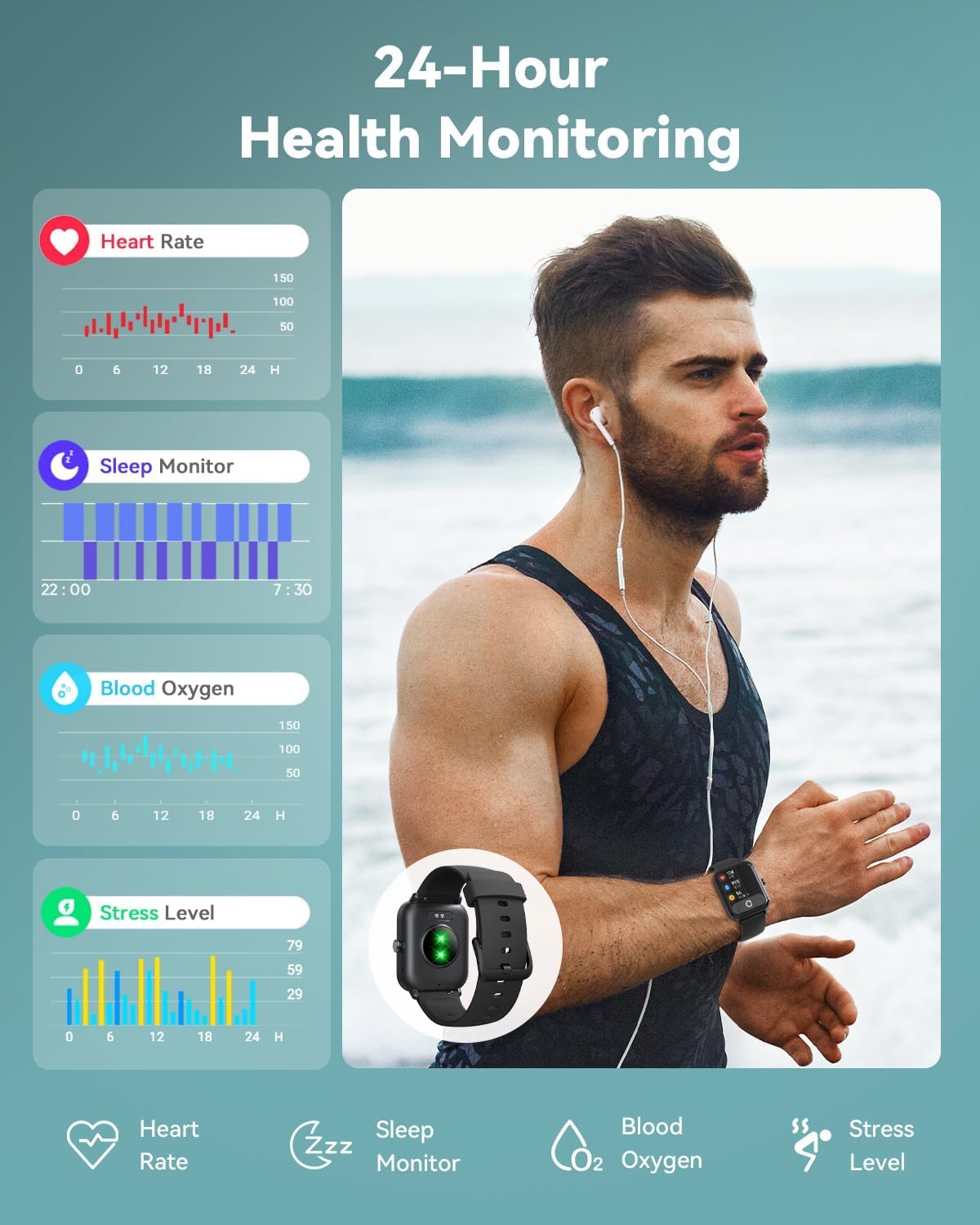
Image: Visual representation of the 24-hour health monitoring features of the Quican Smart Watch, including heart rate, sleep, blood oxygen, and stress level tracking.
Additional Features
The Quican Smart Watch IDW19 offers a range of other convenient features:
- Weather forecasts
- Stopwatch and Timer
- Alarms
- Sedentary Reminder and Water Drinking Reminders
- Flashlight
- Music and Camera control
- Motion Recognition
- Breather guide
- Find phone functionality
- Customizable Dials: Choose from over 100 styles or upload your own photos.

Image: An overview of the Quican Smart Watch's diverse features, including notifications, call handling, Alexa, and various utility apps.
Maintenance
Water Resistance (IP68)
The IDW19 Smart Watch is IP68 waterproof, meaning it is resistant to dust and can withstand immersion in water up to 1.5 meters for up to 30 minutes. It is suitable for daily use, hand washing, and light rain. However, it is not recommended for hot showers, saunas, or diving, as steam and hot water can damage the seals.
Cleaning and Care
- Wipe the watch and strap regularly with a soft, damp cloth.
- Avoid using harsh chemicals or abrasive cleaners.
- Ensure the charging contacts are clean and dry before charging.
- Store the watch in a cool, dry place when not in use.
Troubleshooting
Connectivity Issues
- Watch not connecting to phone: Ensure Bluetooth is enabled on both devices. Restart both the watch and your phone. Try unpairing and re-pairing the device through the app.
- Notifications not appearing: Check app permissions on your phone to ensure the companion app has access to notifications. Verify notification settings within the watch app.
Charging Problems
- Watch not charging: Ensure the charging cable is securely connected to the watch's charging points and the USB power source. Clean the charging contacts on the watch and cable. Try a different USB port or power adapter.
Inaccurate Data
- Heart rate/SpO2 readings seem off: Ensure the watch is worn snugly on your wrist, not too tight or too loose. Clean the optical sensors on the back of the watch.
- Step count is inaccurate: Ensure your personal information (height, weight) is correctly entered in the companion app.
General Performance
- Watch is unresponsive: Try restarting the watch by pressing and holding the side button. If unresponsive, allow the battery to fully drain and then recharge it.
Specifications
| Model | IDW19 |
| Display | 1.8-inch HD Touch Screen, 240*284 resolution |
| Connectivity | Bluetooth 5.3 |
| Water Resistance | IP68 |
| Battery Life (Normal Use) | 3-7 Days |
| Battery Life (Standby) | Up to 30 Days |
| Charging Time | Approx. 2.5 Hours |
| Sensors | 7 high-performance optical sensors (Heart Rate, SpO2, Stress Level) |
| Compatibility | Android, iOS |
| Date First Available | November 13, 2024 |
Warranty and Support
For warranty information and customer support, please refer to the contact details provided with your product packaging or visit the official Quican website. Keep your purchase receipt for warranty claims.
Related documentsIDW19


Ask a question about this manual
Ask about setup, troubleshooting, compatibility, parts, safety, or missing instructions. Manuals+ will review the question and use this page’s manual context to help answer it.