
1. Introduction
Thank you for choosing the TEFTYMON 4K 64MP Digital Camera. This manual provides essential information for setting up, operating, and maintaining your new camera. Please read it thoroughly to ensure optimal performance and longevity of your device. This camera is designed for capturing high-quality photos and videos, making it ideal for photography enthusiasts, vlogging, and travel.

The TEFTYMON 4K 64MP Digital Camera, showcasing its compact design, flip screen, and included accessories like batteries and a 32GB SD card.
2. What's in the Box
Please verify that all items are present in your package:
- 1x TEFTYMON 4K 64MP Digital Camera
- 1x 32GB Memory Card
- 2x Rechargeable Batteries
- 1x Type C Cable
- 1x UV Filter
- 1x Lens Cap
- 1x User's Manual (this document)
- 2x Straps (Short and Long)
- 1x Camera Bag

An overview of the items included in the camera package, such as the camera, batteries, memory card, and various accessories.
3. Setup
3.1 Installing the Memory Card and Battery
- Push the TF card into its slot until it clicks into place. Ensure the card is inserted in the correct orientation.
- Slide or press the lock to release the battery cover.
- Insert the battery with correct direction, aligning the contacts properly.
- Close the battery cover securely until it locks.

Visual instructions demonstrating the proper steps for inserting the TF memory card and rechargeable battery into the camera.
3.2 Charging the Battery
Connect the camera to a power source using the provided Type C cable. The charging indicator will illuminate during charging and turn off when fully charged. It is recommended to fully charge both batteries before first use.
4. Operating Instructions
4.1 Power On/Off
Press and hold the power button located on the top of the camera to turn it on or off.
4.2 Autofocus
The camera features an advanced 64MP autofocus system. To achieve sharp and clear images, gently press the shutter button halfway down. The camera will automatically adjust focus. Once focus is locked (indicated by a green frame on the screen), press the shutter button fully to capture the photo.

Demonstration of the innovative 64MP autofocus feature, showing how pressing the shutter halfway achieves sharper images.
4.3 180° Flip Screen
The 3.0-inch IPS screen can be flipped 180 degrees, making it ideal for self-portraits, vlogging, and monitoring your shots while in front of the camera.

The 3.0-inch 180° flip screen in action, demonstrating its utility for easy selfies and vlogging.
4.4 Digital Zoom
Utilize the 16X digital zoom to bring distant subjects closer. Adjust the zoom using the zoom lever on the camera body. Note that digital zoom may reduce image quality compared to optical zoom.

A visual representation of the 16X digital zoom capability, showing progressive magnification of a distant lighthouse.
4.5 Flashlight and Hotshoe
The camera features a built-in flashlight for illuminating subjects in low-light conditions. Additionally, a hotshoe mount is available for connecting external fill lights or microphones (sold separately) to enhance your recording setup.

Illustration of the camera's hotshoe for external accessories and the effect of the built-in flashlight in low light.
4.6 Webcam Functionality
Connect the camera to your computer via the Type C cable to use it as a webcam for live streaming, video calls, or online meetings. Select 'PC Camera' mode on the camera when prompted.
4.7 Special Features
- Time-Lapse Recording: Capture sequences of images over time to create dynamic time-lapse videos.
- Slow Motion: Record videos in slow motion for dramatic effects.
- Video Pause: Pause and resume video recording within a single file, simplifying editing.
- Anti-Shake: Digital image stabilization helps reduce blur caused by camera movement, ensuring stable and clear pictures.
- Filters & Exposure Compensation: Apply various creative filters and adjust exposure compensation to fine-tune your photos.
- Continuous Shooting: Capture a rapid sequence of photos by holding down the shutter button.
- Self-Timer: Set a delay (2s, 5s, 10s) before the photo is taken, allowing you to get into the frame.
- Smile & Face Detection: The camera can automatically detect smiles and faces to optimize focus and exposure.
- Beauty Face: Enhance facial features in photos for a more flattering look.
A collage showcasing various camera functionalities such as webcam for live streaming, time-lapse, slow motion, smile capture, and beauty face mode.

A visual comparison demonstrating the effectiveness of the anti-shake feature, showing a clear image versus a blurry one without stabilization.

Examples of 20 different filter effects and 7 levels of exposure compensation available on the camera.
4.8 WiFi Connection and File Transfer
The camera features built-in WiFi for easy sharing and remote control via your smartphone.
Connecting via WiFi:
- Long-press the camera's MENU button to enable the camera's WiFi.
- Open the Wi-Fi settings of your phone, and connect to the Wi-Fi SSID named "DC102W-xxxx" and enter the password.
- Start the App Viipulse and click "Add Camera".
- Once added, you can access the camera's photos and videos!

Diagram illustrating the WiFi connection process for easy sharing of photos and videos to social media platforms.

Detailed steps on how to connect the camera to a smartphone using WiFi, including app interface examples.
Downloading Files to Computer:
Connect the camera with your computer via the USB C cable. Then, select "MSDS" mode on the camera screen to access your files for easy download.

Instructions on how to connect the camera to a computer using a USB-C cable for easy file transfer.
5. Maintenance
- Cleaning: Use a soft, dry cloth to clean the camera body. For the lens, use a specialized lens cleaning cloth and solution. Avoid harsh chemicals.
- Storage: Store the camera in a cool, dry place away from direct sunlight and extreme temperatures. Remove batteries if storing for extended periods.
- Battery Care: Do not expose batteries to high temperatures or dispose of them in fire. Use only the provided charger and batteries.
6. Troubleshooting
| Problem | Possible Cause | Solution |
|---|---|---|
| Camera does not power on | Battery is dead or incorrectly inserted. | Charge the battery or reinsert it correctly. |
| Cannot take photos/videos | Memory card is full, locked, or not inserted. | Delete files, unlock the card, or insert it properly. |
| Images are blurry | Autofocus failed, camera shake, or dirty lens. | Ensure autofocus locks, use anti-shake, clean lens. |
| WiFi connection issues | Incorrect password, app not running, or signal interference. | Re-enter password, restart app/camera, move closer to camera. |
7. Specifications
| Feature | Detail |
|---|---|
| Model Name | DC101 |
| Photo Sensor Resolution | 64 MP |
| Video Resolution | 2160p (4K) |
| Display Type | LCD |
| Screen Size | 3 Inches (180° Flip Screen) |
| Digital Zoom | 16x |
| Autofocus | Yes |
| Connectivity Technology | USB, Wi-Fi |
| Memory Storage Capacity | 32 GB (included), supports up to 256 GB SDHC |
| Battery Type | Lithium Ion (2 included) |
| Special Features | Webcam, Hotshoe, Built-in Fill Light, Anti-Shake, Time Lapse, Slow Motion, Beauty Face, Continuous Shooting, Self-Timer, Smile Detection |
| Item Dimensions (D x W x H) | 1.8"D x 4.5"W x 2.8"H |
8. Warranty and Support
Your TEFTYMON Digital Camera comes with a 1-Year Warranty from the date of purchase, covering manufacturing defects. Please retain your proof of purchase for warranty claims.
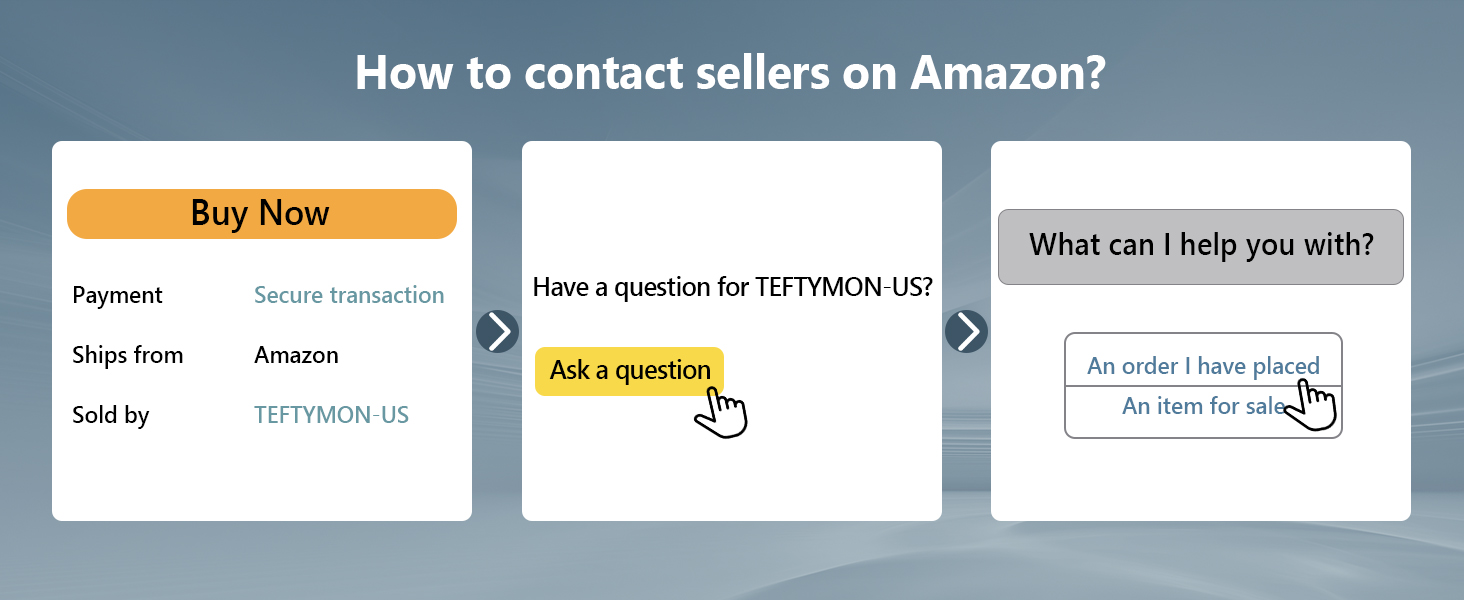
For any questions, technical assistance, or warranty inquiries, please contact our customer support team. We are committed to assisting you within 12 hours or less.

Our dedicated customer support team is available to assist you with any inquiries.
Protection Plans
Additional protection plans are available for purchase to extend coverage beyond the standard warranty:
- 2-Year Protection Plan: Extends coverage for an additional 24 months.
- 3-Year Protection Plan: Extends coverage for an additional 36 months.
- Complete Protect: A comprehensive plan covering eligible past and future purchases (monthly billing).