
Introduction
This manual provides detailed instructions for the installation, operation, maintenance, and troubleshooting of your AINAVI 13.3-Inch Car TV Android Headrest Monitor. Please read this manual thoroughly before using the device to ensure proper functionality and safety.
Package Contents
Verify that all items listed below are included in your package:
- 13.3inch Headrest Monitor (1pc)
- Universal Mounting Bracket (1pc)
- 12V DC Adapter (1pc, for home use)
- Cigarette Lighter Power Cable (1pc, for car use)
- HDMI Cable (1pc)
- User Manual (1pc)

Image: Contents of the product package, showing the headrest monitor, mounting brackets, power adapters, cables, and user manual.
Product Features
- High-Resolution Touchscreen: 13.3-inch 1920*1080 IPS touchscreen supporting 4K video playback.
- Android Operating System: Runs Android 11.0, allowing installation of various apps from Google Play Store or APKpure.
- Memory: Built-in 2GB RAM and 32GB ROM for storing media and applications.
- Wireless Connectivity: Supports 5G/2.4 GHz WiFi and phone hotspots for online streaming.
- Screen Mirroring: Compatible with iOS AirPlay and Android Miracast for phone screen mirroring.
- Multiple Ports: Equipped with SD card port, USB port, HDMI input, HDMI output, and headphone port.
- Audio: Built-in dual speakers, FM transmitter for car speakers, and Bluetooth headset support.
- Ambient Lighting: Features 7-colorful LED ambient lights with automatic or manual selection.
- Power Options: Supports DC adapter (home) and car charger (12V car).
- OTA Updates: Supports Over-The-Air system updates.

Image: Overview of key product features such as memory, operating system, display resolution, and connectivity options.
Setup and Installation
1. Mounting the Monitor
The AINAVI headrest monitor comes with a universal mounting bracket designed for easy installation. It is compatible with over 98% of cars, specifically those with round stainless steel headrest poles. It fits spaces between 130-200mm.
- Identify the headrest poles in your vehicle. Ensure they are round and made of stainless steel.
- Attach the universal mounting bracket to the headrest poles. Adjust the bracket to securely fit the distance between the poles.
- Slide the headrest monitor onto the mounted bracket until it clicks into place. Ensure it is firmly secured and does not wobble.

Image: Visual guide for mounting the headrest monitor, highlighting compatible headrest pole types.
2. Power Connection
The monitor can be powered in two ways:
- In-Car Use: Use the provided Cigarette Lighter Power Cable. Plug one end into the monitor's DC 12V power port and the other into your car's 12V cigarette lighter socket.
- Home/Indoor Use: Use the provided 12V DC Adapter. Plug the adapter into a standard wall outlet and connect the other end to the monitor's DC 12V power port.

Image: Power connection methods for the headrest monitor, illustrating both home and car power options.
3. Initial Power On
Once mounted and powered, press the power button on the monitor to turn it on. The device will boot up, displaying the Android operating system interface.
Operating Instructions
1. Navigating the Interface
The monitor features a touchscreen interface. Swipe, tap, and pinch to navigate through menus and applications, similar to a standard Android tablet.
2. Wi-Fi and Internet Connection
- Go to Settings on the main screen.
- Select Network & Internet.
- Turn on Wi-Fi and select your desired network from the list.
- Enter the password if prompted and connect.
The device supports 5G and 2.4GHz Wi-Fi bands, as well as phone hotspots.

Image: The main user interface of the monitor, displaying various streaming applications.
3. Installing Applications
You can download and install applications from the Google Play Store or APKpure. Ensure you have an active internet connection.
- Open the Google Play Store app.
- Search for the desired app (e.g., Facebook, WhatsApp, TikTok, Netflix).
- Tap Install to download and set up the app.

Image: Representation of the Android 11.0 system and its ability to install various applications.
4. Screen Mirroring (MyCar Link)
The monitor supports screen mirroring from both iOS (AirPlay) and Android (Miracast) devices. For seamless control, you can use the MyCar Link app on your phone.
- Ensure both your mobile phone and the car TV are connected to the same Wi-Fi network.
- On the monitor, open the screen mirroring application (e.g., AirPlay or Miracast).
- On your phone, enable screen mirroring/casting and select the AINAVI monitor from the list of available devices.
- For remote control, download and install the MyCar Link app on your phone.

Image: Demonstration of the screen mirroring feature from a smartphone to the headrest monitor.
5. HDMI Connectivity and Sync Screen
The monitor features both HDMI input and HDMI output ports, allowing for versatile connections and synchronized playback.
- HDMI Input: Connect external devices such as gaming consoles (Xbox, PS4, PS5), TV boxes, Fire TV Sticks, PCs, or projectors to use the monitor as a display.
- HDMI Output: Connect two AINAVI monitors via HDMI cables to play the same movie or content simultaneously on both screens.
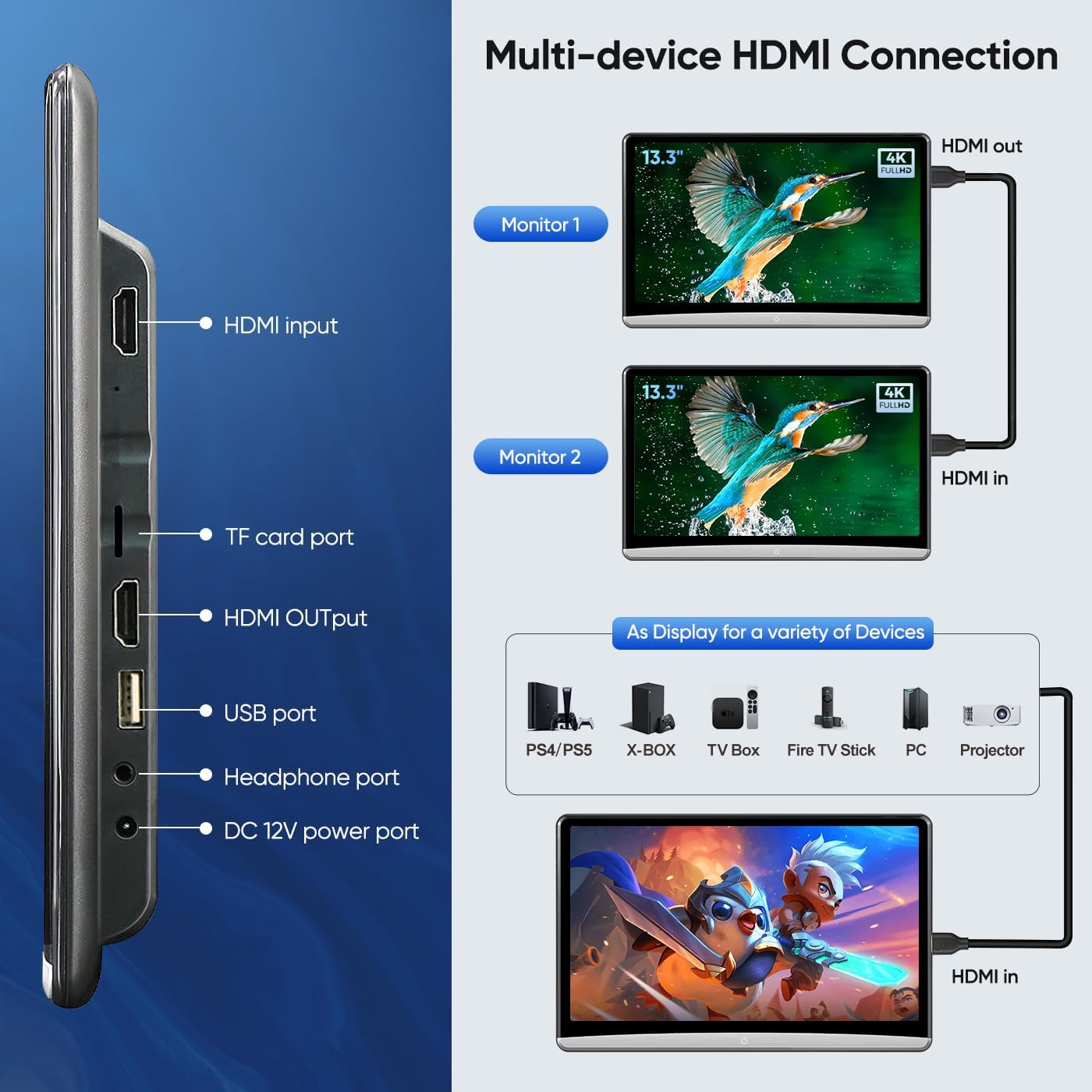
Image: Detailed diagram of HDMI input and output ports and their applications, including connecting to gaming consoles and syncing multiple monitors.
6. Audio Output Options
The monitor offers several audio output methods:
- Built-in Dual Speakers: For direct audio playback from the monitor.
- FM Transmitter: Transmit audio to your car's speakers.
- Connect the monitor to the same Wi-Fi network as your phone (if applicable).
- On the monitor, go to FM Transmitter settings and select a frequency.
- Tune your car's FM radio to the same frequency.
- Bluetooth Headsets: Pair Bluetooth headphones for private listening.
- Wired Headsets: Use the 3.5mm headphone jack for wired headphones.

Image: Overview of audio output options, including built-in speakers, Bluetooth, wired headphones, and FM transmission to car speakers.
7. Ambient Lighting
The monitor features 7-colorful LED ambient lights. You can set them to automatically switch colors or manually select a preferred color through the settings menu.

Image: The colorful LED ambient lighting feature of the monitor and its control interface.
Maintenance
1. Cleaning the Monitor
- Turn off the monitor and disconnect it from power before cleaning.
- Use a soft, lint-free cloth to gently wipe the screen and exterior.
- For stubborn smudges, slightly dampen the cloth with water or a screen-safe cleaning solution. Do not spray liquid directly onto the screen.
- Avoid using abrasive cleaners, alcohol, or solvents, as these can damage the screen and finish.
2. Software Updates (OTA)
The monitor supports Over-The-Air (OTA) system updates to ensure optimal performance and access to the latest features and app compatibility.
- Ensure the monitor is connected to a stable Wi-Fi network.
- Go to Settings > Information > Check for update.
- If an update is available, follow the on-screen prompts to download and install it.
Note: The system updates are incremental. If your current version is significantly old, you may need to perform multiple updates consecutively.
Troubleshooting
| Problem | Possible Cause | Solution |
|---|---|---|
| Monitor does not power on. | No power supply; loose connection. | Check power cable connection to monitor and power source (cigarette lighter or DC adapter). Ensure power source is active. |
| No Wi-Fi connection. | Incorrect password; out of range; router issue. | Verify Wi-Fi password. Move closer to the Wi-Fi source. Restart your Wi-Fi router. |
| Screen mirroring not working. | Devices not on same Wi-Fi; mirroring app not open. | Ensure both phone and monitor are connected to the same Wi-Fi network. Open the correct mirroring app (AirPlay/Miracast) on the monitor. |
| No sound from car speakers via FM. | Incorrect FM frequency; car radio not tuned. | Verify the FM frequency set on the monitor matches your car radio's frequency. Ensure FM transmitter is enabled on the monitor. |
| Apps not installing or crashing. | Insufficient storage; outdated software; app incompatibility. | Check available storage. Perform OTA software updates. Try installing from APKpure if Play Store fails. |
Specifications
| Feature | Detail |
|---|---|
| Model Number | 13.3inch- (2G+32G)-2pcs |
| Screen Size | 13.3 Inches |
| Display Type | IPS Touchscreen |
| Resolution | 1920*1080 |
| Operating System | Android 11.0 |
| RAM | 2GB |
| ROM | 32GB |
| Connectivity | Wi-Fi (5G/2.4GHz), Bluetooth, HDMI In/Out, USB, SD Card |
| Supported Video Formats | MP4/ MPG/AVI/MKV/MOV/3GP/MP3/MAV/FLAC/AAC/OGG/OGA (4K video playback supported) |
| Power Input | DC 12V (via adapter or cigarette lighter) |
| Item Weight | 8.47 pounds |
| Dimensions (Package) | 14.21 x 11.42 x 6.97 inches |

Image: Physical dimensions of the monitor and a visual representation of included accessories.
Warranty and Support
For installation and technical support, please contact the seller directly through the Amazon platform. This ensures you receive assistance from the product's vendor.
- Go to the product page on Amazon.
- Locate the "Sold by" section, usually near the "Add to Cart" button.
- Click on the seller's name (e.g., "HomeCar").
- On the seller's page, click "Ask a question" to send a message.
- Provide detailed information, including pictures or videos, regarding your technical or installation query.
The seller will respond as soon as possible to assist you.

Image: Guide on how to contact the seller for support via the Amazon platform.