
SANZUCO ZNN F60-4
SANZUCO Wireless Intercom System User Manual
Model: ZNN F60-4
Brand: SANZUCO
Introduction
The SANZUCO Wireless Intercom System provides reliable and efficient communication for homes, offices, and various other environments. Designed for ease of use, this system offers hands-free, real-time two-way communication with advanced features like group calling and automatic answer functionality. Its robust design ensures clear audio and stable connections over a wide range.
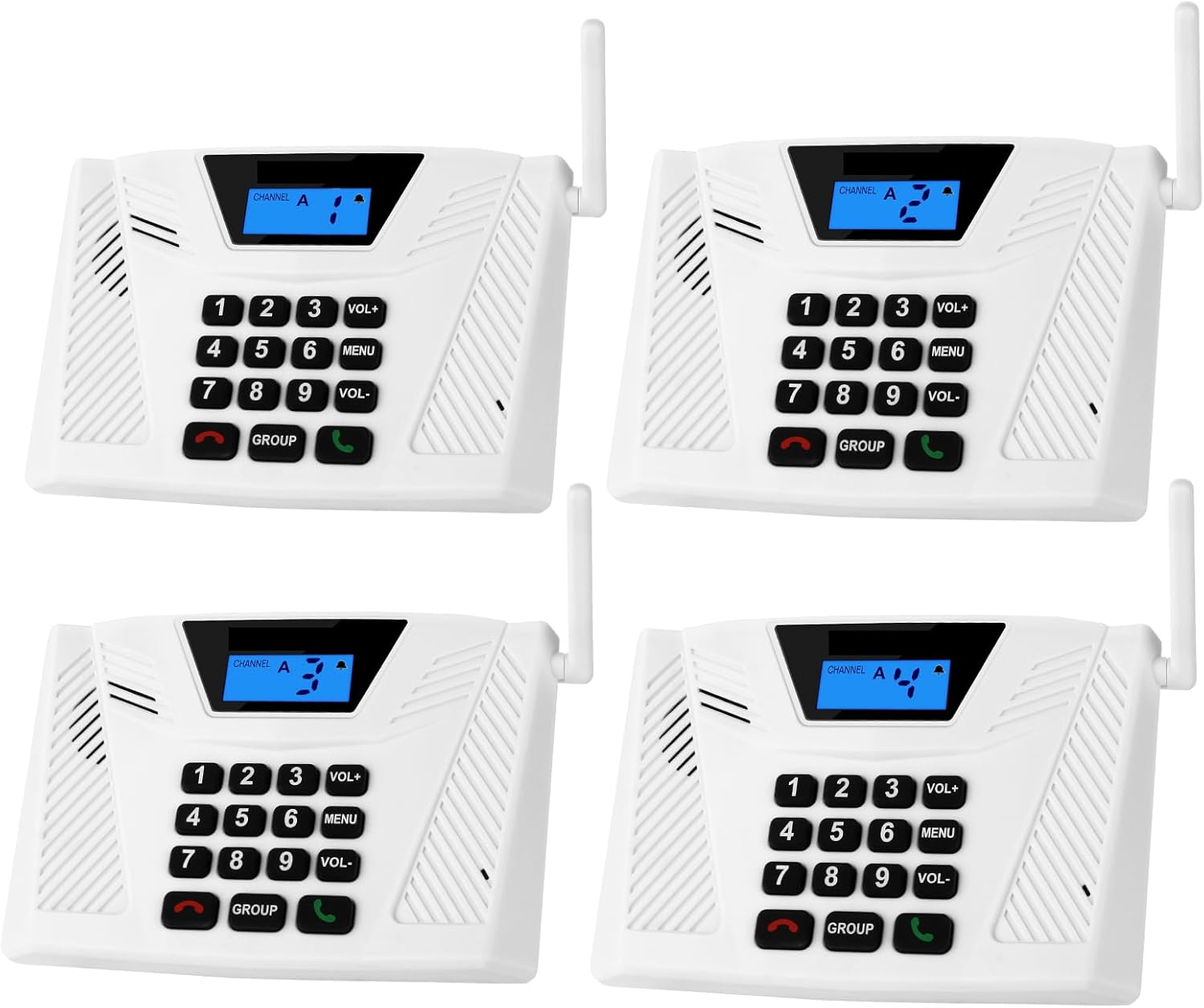
Image of four SANZUCO wireless intercom units, showcasing their compact design and keypad layout.

Diagram illustrating the seven main functions of the intercom system: Full Duplex, Hands Free, Good Range, Clear Sound, Group Call, Silent Mode, and Automatic Answer.
Product Features
- Upgraded Intercom: Offers easy and fast communication, hands-free operation, and comes pre-installed for immediate use.
- Technical Innovation: FCC certified, features 18 channels and 2 secret digital codes, utilizing high-fidelity processing technology for crystal clear sound and interference avoidance. Ensures stable and confidential communication.
- Multi-Function Intercom: Includes Full Duplex Function, Automatic Answer, Silent Mode, Replay Function, Good Range, Clear Sound, and Group Call to meet diverse communication requirements.
- Wide Using Range: Wireless transmission operates at a safe frequency, preventing interference with other devices. Suitable for various locations including homes, offices, hotels, restaurants, hospitals, banks, and stores.
- Easy Installation: Equipped with two slots on the back for simple installation and four rubber foot pads to protect surfaces.
Setup
Unpacking
Carefully remove all components from the packaging. Verify that all included items are present:
- 4 x Full Duplex Intercoms
- 4 x Type C Cables
- 4 x Type C Charging Bricks
- 1 x Full Duplex Intercom User Manual

Image showing the contents of the SANZUCO intercom package, including four intercom units, charging cables, and power adapters.
Powering On
Connect the Type C charging cable to the Type C power port on the back of each intercom unit. Plug the charging brick into a standard electrical outlet. The intercom units are designed for plug-and-play installation and are pre-installed to work right out of the box.

Detailed view of the intercom unit, highlighting the Type C power port, non-slip mat, antenna, and various buttons with their functions.
Operating Instructions
Basic Communication (1-to-1 Full-Duplex Calls)
To initiate a call to a specific unit, press the corresponding channel number (1-9) on the keypad. Then, press the green "Call" button. The receiving unit will ring. Once answered, you can engage in a natural, two-way conversation.

Illustration demonstrating full duplex and hands-free communication in an office setting, showing two individuals conversing naturally through the intercoms.
Group Call Function
To broadcast a message to all units in your system, press and hold the "GROUP" button. Speak your message, then release the "GROUP" button when finished. All connected units will receive the message simultaneously.

Visual guide explaining the group call function, showing how to long-press the 'GROUP' button to speak to multiple units simultaneously, facilitating multi-person communication.
Automatic Answer Function
The auto-answer function allows the receiving unit to automatically connect calls after two rings without requiring the user to press any button. This feature needs to be manually activated. Refer to the detailed user manual included in the package for activation steps.

Image highlighting the 'NEW AUTOMATIC ANSWER' feature, showing an intercom unit in a kitchen setting, indicating that the intercom automatically answers after two rings.
Silent Mode
To activate Silent Mode, press the "VOL+" button until the silent mode icon appears on the display. In Silent Mode, the recipient cannot hear the ring tone, providing a discreet notification.

Illustration demonstrating the Silent Mode feature, where the intercom's ring tone is muted, indicated by a speaker icon with a cross through it on the display.
Volume Adjustment
Use the "VOL+" and "VOL-" buttons to adjust the speaker volume.
Maintenance
Cleaning
To clean the intercom units, use a soft, dry cloth. Do not use abrasive cleaners or solvents, as they may damage the surface.
Storage
When not in use for extended periods, store the intercom units in a cool, dry place away from direct sunlight and extreme temperatures.
Troubleshooting
| Problem | Possible Cause | Solution |
|---|---|---|
| No power | Power cable not connected; outlet not working. | Ensure power cable is securely connected to the unit and a working outlet. |
| No sound or low volume | Volume too low; unit in Silent Mode. | Adjust volume using VOL+ button. Check if Silent Mode is active and deactivate if necessary. |
| Interference or unclear sound | Obstructions; other electronic devices nearby. | Reposition units to minimize obstructions. Move away from other electronic devices that may cause interference. |
| Cannot connect to other units | Units on different channels; out of range. | Ensure all units are set to the same channel. Verify units are within the effective operating range (up to 5,300 feet in open areas). |
Specifications
| Feature | Detail |
|---|---|
| Model Number | ZNN F60-4 |
| Dimensions (L x W x H) | 19.3 x 11.9 x 3.6 cm |
| Item Weight | 1.4 kg |
| Power Source | Corded Electric |
| Voltage | 5 Volts |
| Channels | 18 |
| Security Codes | 2 Digital Codes |
| Effective Range | Up to 5,300 feet (open areas) |
| Installation Method | Plug in and use |
| Included Components | Intercom Charger x 4, Hands Free Wireless Intercom system (white) x 4, Full Duplex Intercom User Manual x 1, Home intercom Charging Cables x 4 |
Warranty and Support
For warranty information and technical support, please refer to the contact details provided in the full user manual included with your product. You may also visit the SANZUCO official website for further assistance and frequently asked questions.
Related documentsZNN F60-4

Ask a question about this manual
Ask about setup, troubleshooting, compatibility, parts, safety, or missing instructions. Manuals+ will review the question and use this page’s manual context to help answer it.