
Introduction
Thank you for choosing the POOEKEN A90 WiFi Automatic Pet Feeder. This device is designed to help you manage your pet's feeding schedule with convenience and precision, ensuring they receive the right amount of food at the right time. With its smart features, including app control and voice recording, you can maintain your pet's healthy eating habits even when you're away.
This manual provides detailed instructions for setting up, operating, maintaining, and troubleshooting your automatic pet feeder. Please read it thoroughly before use to ensure optimal performance and the safety of your pet.
1. Setup and Assembly
Follow these steps to assemble and prepare your POOEKEN A90 pet feeder for first use.
1.1 Unpacking and Component Check
Carefully remove all components from the packaging. Ensure you have the following:
- Feeder Base Unit
- Food Storage Container (6L capacity)
- Food Bowl
- Lid
- 5V Power Adapter
- User Manual (this document)
Inspect all parts for any damage. If any components are missing or damaged, please contact customer support.
1.2 Assembly
- Attach the Food Bowl: Place the food bowl securely onto the front of the feeder base unit.
- Install the Food Storage Container: Align the food storage container with the base unit and twist it gently until it locks into place.
- Secure the Lid: Place the lid on top of the food storage container. Ensure it is properly sealed to maintain food freshness and prevent pets from accessing food prematurely. The lid features a dual-locking mechanism for added security.
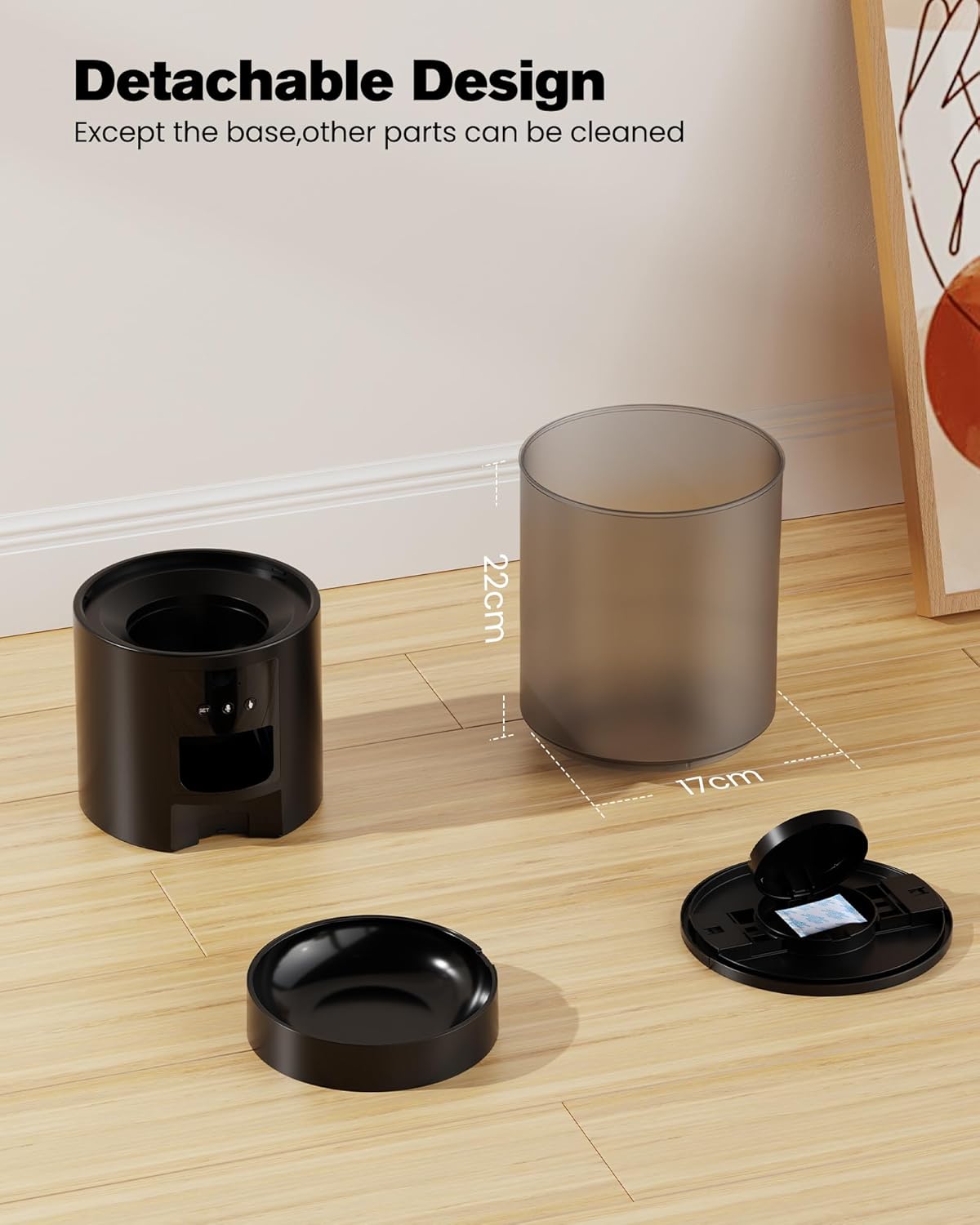
Image: Detachable components of the POOEKEN A90 pet feeder, including the base, food container, and lid, illustrating ease of assembly and cleaning.
1.3 Power Connection
The feeder can be powered by the included 5V power adapter or by D-cell batteries (not included) for backup power during outages.
- Primary Power: Connect the 5V power adapter to the feeder's power port and plug it into a wall outlet.
- Backup Power (Optional): For uninterrupted operation during power outages, insert 3 x D-cell batteries into the battery compartment located at the bottom of the feeder. Ensure correct polarity.

Image: The POOEKEN A90 pet feeder demonstrating its dual power supply options: a 5V power adapter for primary use and a battery compartment for D-cell batteries (not included) to ensure operation during power outages.
1.4 Filling the Food Container
Open the lid and pour dry pet food into the storage container. The feeder has a 6-liter capacity, which can hold approximately 25.3 cups of dry food.
Important: This device is designed for dry pet food only. Do not use semi-moist or wet food, as it can cause blockages and damage the feeder.

Image: The POOEKEN A90 pet feeder highlighting its 6-liter large capacity food container, capable of holding up to 25.3 cups of dry pet food, suitable for extended periods without refilling.
1.5 App Download and WiFi Connection
The POOEKEN A90 feeder connects to your home WiFi (2.4G only) for remote control via a dedicated app.
- Download the App: Search for the "POOEKEN Pet" app (or similar, as indicated in the product packaging) on your smartphone's app store (iOS or Android).
- Create an Account: Open the app and follow the on-screen instructions to create a new user account.
- Add Device: In the app, select "Add Device" or a similar option. Follow the app's instructions to connect the feeder to your 2.4G WiFi network. This typically involves putting the feeder into pairing mode (often by pressing and holding a button on the feeder) and entering your WiFi credentials in the app.
- Confirmation: Once connected, the app will confirm the successful pairing, and you can begin controlling your feeder remotely.

Image: A smartphone screen showing a WiFi connection symbol next to the POOEKEN A90 pet feeder, illustrating the device's WiFi direct connection capability and highlighting improvements in rapidity and stability.
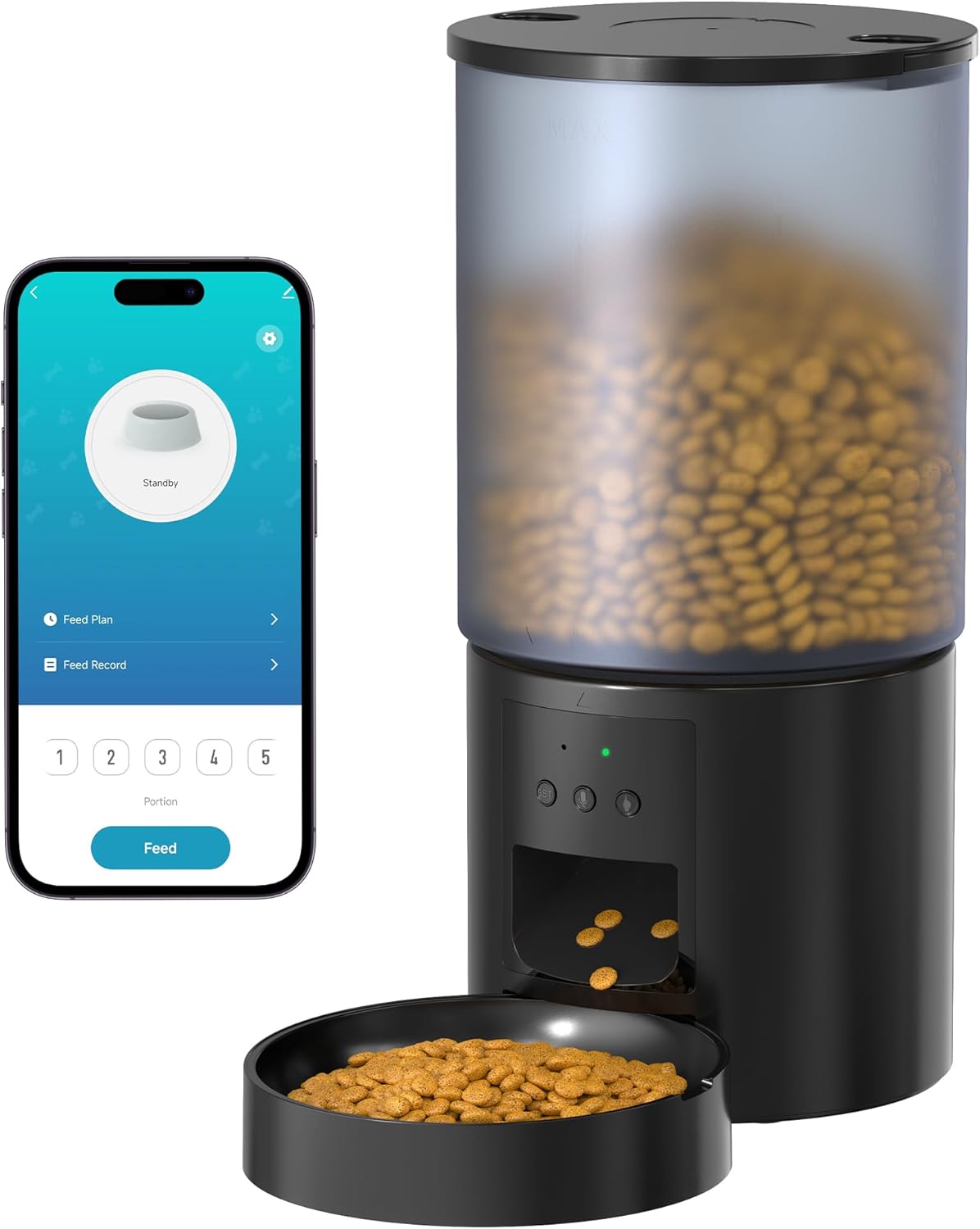
Image: The POOEKEN A90 pet feeder positioned beside a smartphone, which displays the feeder's dedicated control application, showing options for feed plans, feed records, and manual feeding.
2. Operating Instructions
Learn how to use the various features of your POOEKEN A90 pet feeder.
2.1 Setting Up Feeding Schedules
Use the mobile app to create and manage your pet's feeding plan.
- Access Feed Plan: Open the app and navigate to the "Feed Plan" section.
- Add a Meal: Tap to add a new feeding time. You can schedule up to 10 individual meals per day.
- Set Time and Portions: For each meal, specify the exact time and the number of portions to dispense. The feeder allows a maximum of 12 portions per meal.
- Save: Save your settings. The feeder will automatically dispense food according to your programmed schedule.

Image: A user interacting with the POOEKEN A90 pet feeder's mobile application to remotely control feeding, showing the app interface for personalizing feeding plans, while a cat enjoys food dispensed by the feeder.
2.2 Manual Feeding
You can dispense food instantly outside of the scheduled times.
- Via App: On the app's main screen, select the desired number of portions and tap the "Feed" button.
- Via Feeder Button: Press the manual feed button on the feeder's control panel. Each press will dispense one portion.
2.3 Voice Recording Function
Record a personalized 10-second message to call your pet to eat.
- Record Message: In the app, navigate to the voice recording settings. Press and hold the record button to record your message (e.g., "Hey [Pet's Name], it's time to eat!").
- Playback: The recorded message will play automatically at each scheduled feeding time.

Image: The POOEKEN A90 pet feeder with a speech bubble indicating a recorded message "Hey Baby, It's time to eat!" playing, as a cat walks towards the feeder, demonstrating the 10-second voice recording feature.
2.4 Button Lock Feature
The feeder includes a one-touch button lock to prevent accidental activation by pets or children.
- Activate/Deactivate: Refer to the app or the feeder's physical buttons for instructions on how to engage and disengage the button lock.

Image: A kitten trying to open the POOEKEN A90 pet feeder, which is secured by a dual-locking mechanism and automatic locking, preventing pets from accessing food outside of scheduled times.
3. Maintenance and Cleaning
Regular cleaning ensures hygiene and extends the life of your feeder.
3.1 Disassembly for Cleaning
The feeder features a detachable design for easy cleaning of most parts.
- Unplug the power adapter and remove any backup batteries.
- Empty any remaining food from the storage container and food bowl.
- Remove the lid, food storage container, and food bowl from the base unit.
Image: The POOEKEN A90 pet feeder's components disassembled, illustrating its detachable design for convenient daily cleaning of the food container, lid, and bowl.
3.2 Cleaning Instructions
- Food Storage Container, Lid, and Food Bowl: These parts can be washed with mild soap and water. Rinse thoroughly and dry completely before reassembly.
- Feeder Base Unit: The base unit contains electronic components and cannot be submerged in water. Wipe it clean with a damp cloth. Ensure it is completely dry before reconnecting power.
- Food Outlet and Channels: Periodically check and clean the food outlet and internal channels to prevent blockages, especially if using smaller kibble or if food residue accumulates.
Care Tip: The base cannot be soaked in water for cleaning; please wipe it with a towel.
4. Troubleshooting
If you encounter issues with your POOEKEN A90 pet feeder, refer to the following common problems and solutions.
4.1 Feeder Not Dispensing Food
- Check for Blockage: Ensure there is no excessive food in the bowl or blockage in the food outlet and internal channels. Clean the spout and channels if necessary. The feeder has an anti-clog design with a 45° steep slope to minimize this, but regular checks are recommended.
- Food Level: Verify that the food storage container has enough food.
- Power Supply: Confirm the feeder is properly connected to power and that the power adapter is working. If using batteries, check their charge level.
- Schedule: Double-check your feeding schedule in the app to ensure it is correctly set.
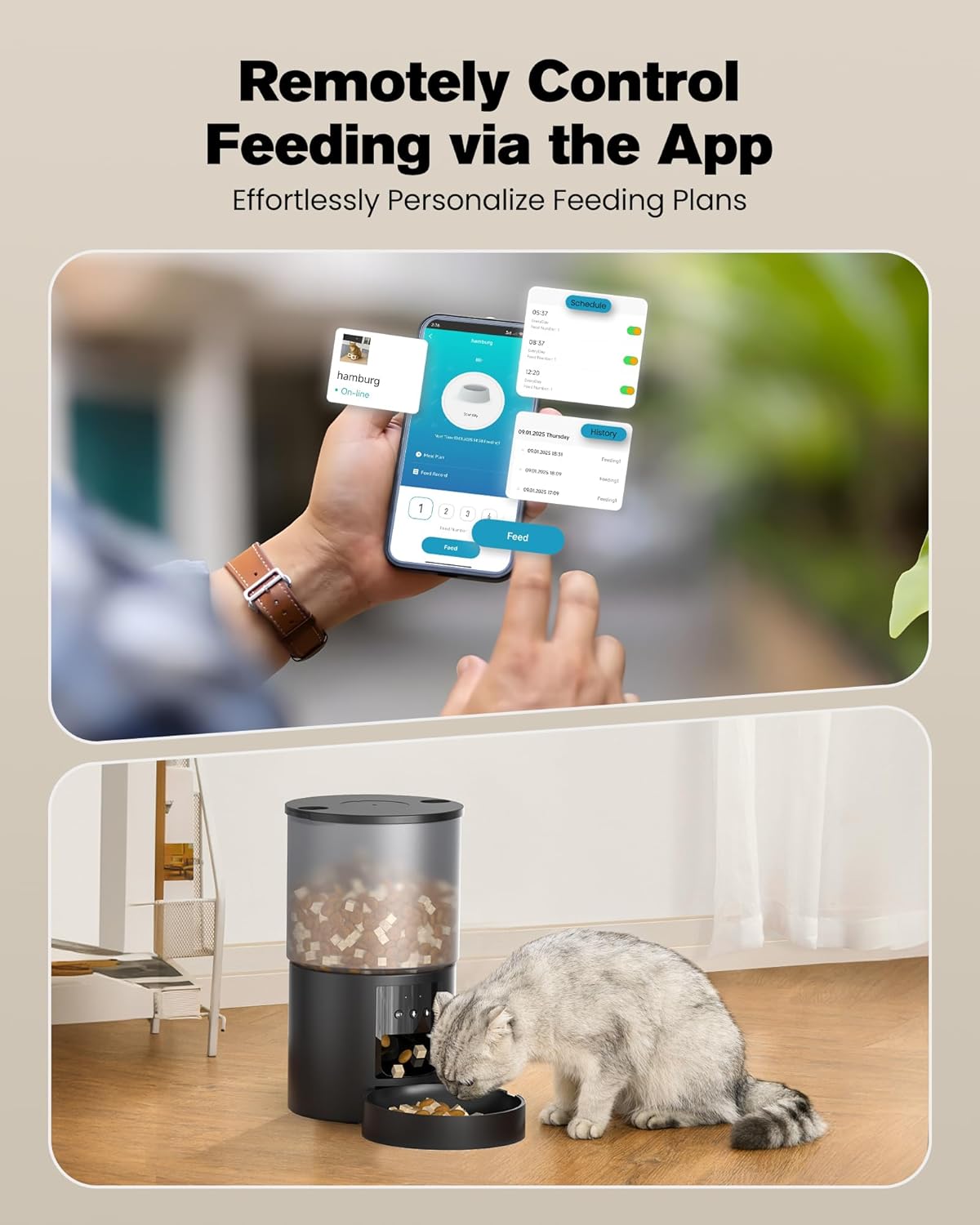
Image: An internal view of the POOEKEN A90 pet feeder's anti-clog design, featuring a 45-degree steep slope in the food dispensing mechanism to ensure smooth and consistent food flow.
4.2 App Connectivity Issues
- WiFi Network: Ensure your feeder is connected to a 2.4G WiFi network. It does not support 5G WiFi.
- Router Proximity: Move the feeder closer to your WiFi router to improve signal strength.
- App Update: Make sure your "POOEKEN Pet" app is updated to the latest version.
- Re-pair Device: If connectivity persists, try removing the device from the app and re-pairing it following the setup instructions.
4.3 Accidental Dispensing / Pet Accessing Food
- Button Lock: Ensure the one-touch button lock feature is activated to prevent pets from pressing the manual feed button.
- Lid Security: Verify that the lid is securely closed and the dual-locking mechanism is engaged.
5. Product Specifications
| Feature | Specification |
|---|---|
| Model Number | A90 |
| Brand | POOEKEN |
| Dimensions (L x W x H) | 12 x 12 x 12 cm |
| Weight | 500 grams |
| Material | Acrylonitrile Butadiene Styrene (ABS) |
| Capacity | 6 Liters (approx. 25.3 cups) |
| Connectivity | 2.4G WiFi |
| Power Source | Electric Cable (5V adapter), 3 x D-cell batteries (backup, not included) |
| Max Meals per Day | 10 |
| Max Portions per Meal | 12 |
| Voice Recording | 10 seconds |
| Recommended for | Cats, puppies, and small dog breeds |
| Special Features | Feeding schedule, automatic dispensing, dual-locking lid, anti-clog design, button lock |
6. Warranty and Support
Information regarding product warranty and customer support was not available in the provided product data. Please refer to the product packaging or the seller's website for details on warranty coverage and how to contact customer support for assistance.


