
Idatalink MD-8100
Momento M8 MD-8100 Dash Camera User Manual
Model: MD-8100
1. Product Overview
The Momento M8 MD-8100 is a 3-channel Full HD (1080p) dash camera system designed to record video from the front and rear of your vehicle. It features dual 5.0GHz Wi-Fi connectivity, built-in GPS, and ECO battery saving technology for parking mode. The system includes a 32GB MicroSD card for immediate use.
Key Features:
- Full HD 1080p 30fps Image Resolution for Front & Rear Cameras
- Sony IMX Image Sensor for enhanced clarity in various lighting conditions
- Dual 5.0GHz Wi-Fi for smartphone connectivity via the Momento App
- Integrated GPS for location and speed data recording
- ECO Parking Mode Battery Saving Technology for extended surveillance
- Voice Control functionality
- Includes 32GB MicroSD Card (supports up to 256GB)
- Sleek and compact design for discreet installation

This image displays the Momento M8 MD-8100 dash camera kit, including the main front camera unit and the rear camera, along with its retail packaging. The packaging highlights key features such as Wi-Fi and GPS capabilities.
2. Setup and Installation
2.1 What's Included:
- M8 Front FHD Dash Camera with Built-in Dual 5.0GHz Wi-Fi + GPS
- FHD Rear Camera with Installation Cable
- Hardwire Installation Harness
- 32GB Micro SD Card with SD Card Adapter
- Mount
- 2-Year Warranty Information
2.2 Installation Steps:
- Prepare the Mounting Location: Choose a location on your windshield that does not obstruct your view and allows for optimal camera angle. Clean the area thoroughly.
- Mount the Front Camera: Attach the front dash camera to the chosen location using the provided mount. Ensure it is securely fastened and the lens has a clear view of the road ahead.
- Install the Rear Camera: Route the installation cable from the front camera to the rear of your vehicle. Mount the rear camera on the rear window, ensuring a clear view.
- Connect Power: Use the included hardwire installation harness to connect the dash camera system to your vehicle's power supply. Professional installation is recommended for hardwiring to ensure proper functionality and to utilize parking mode features.
- Insert MicroSD Card: Insert the 32GB MicroSD card into the designated slot on the main dash camera unit. Ensure it clicks into place.
- Initial Power On: Once connected, turn on your vehicle's ignition to power on the dash camera. The camera will typically begin recording automatically.
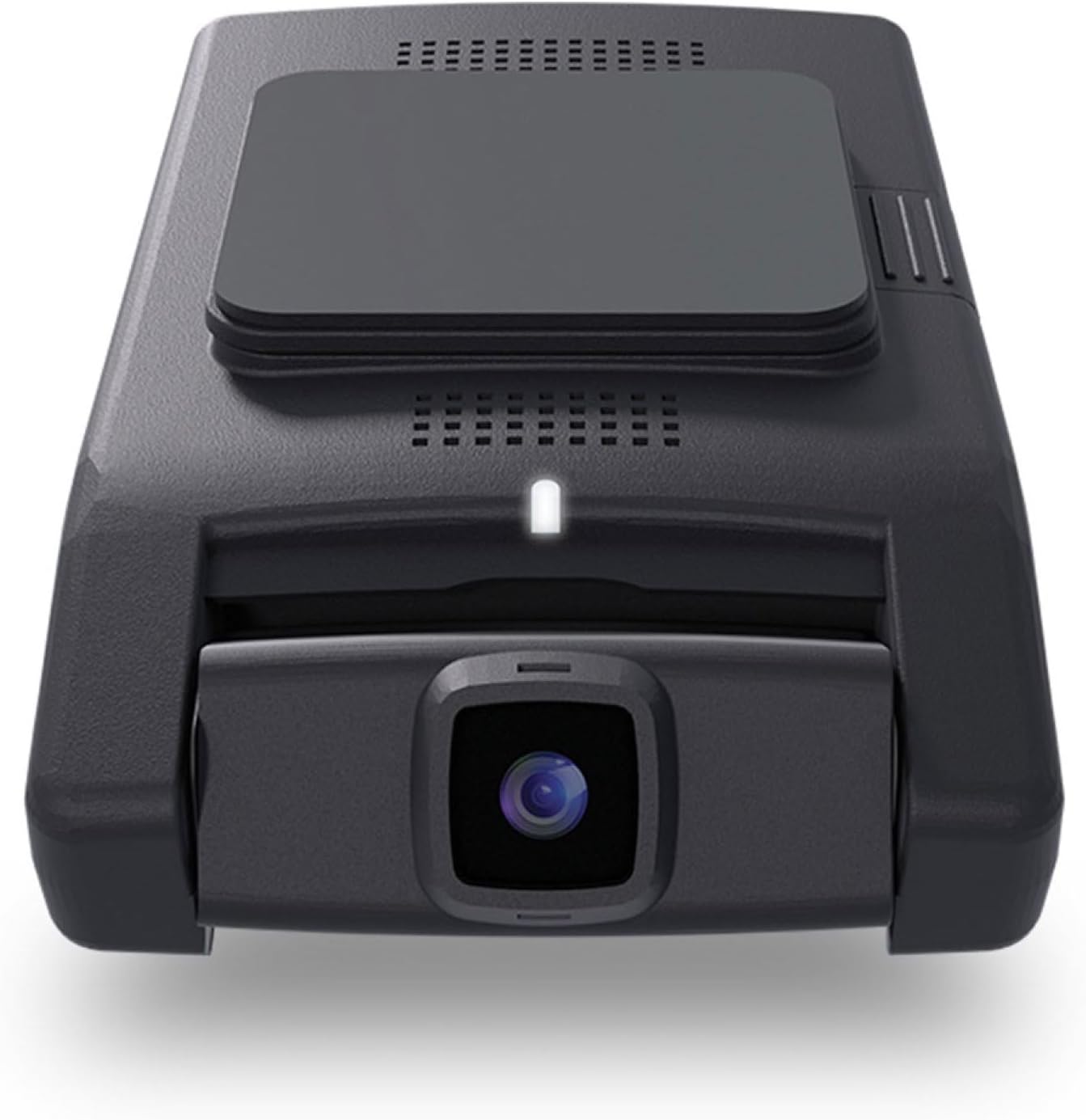
This image provides a clear front view of the Momento M8 dash camera unit, showcasing its compact design and the main camera lens.

This image shows a side profile of the Momento M8 dash camera, illustrating its slim form factor and the location of the MicroSD card slot.
3. Operating Instructions
3.1 Basic Operation:
- Automatic Recording: The Momento M8 dash camera is designed to automatically begin recording when your vehicle's ignition is turned on.
- Loop Recording: The camera records in continuous loops. When the MicroSD card is full, the oldest files are overwritten by new recordings.
- Event Recording: In the event of a sudden impact or collision, the built-in shock sensor will trigger an event recording, which is typically saved to a protected folder to prevent overwriting.
3.2 Wi-Fi Connectivity and Momento App:
The Momento M8 features Dual 5.0GHz Wi-Fi for seamless connection to your smartphone or tablet via the Momento App. This app allows you to:
- View live footage from the dash camera.
- Review recorded videos and images.
- Download recordings directly to your device.
- Adjust camera settings.
To connect, download the Momento App from your device's app store, enable Wi-Fi on your smartphone, and connect to the dash camera's Wi-Fi network (SSID and password can be found in the camera settings or manual). Open the app to manage your device.

This image illustrates the user interface of the Momento dash camera application on a smartphone, showing options for live view, gallery, saved files, and settings.
3.3 Parking Mode:
The ECO Parking Mode Battery Saving Technology allows the dash camera to monitor your vehicle even when parked. When motion or impact is detected, the camera will automatically activate and record the event. This feature helps protect your vehicle from theft, vandalism, or hit-and-runs while you are away.
3.4 Voice Control:
The Momento M8 supports voice commands for certain functions, allowing for hands-free operation. Refer to the detailed in-app settings or the full digital manual for a list of supported voice commands.
4. Maintenance
4.1 MicroSD Card Management:
The included 32GB MicroSD card is designed for continuous recording. To ensure optimal performance and prevent data corruption, it is recommended to:
- Format the Card Regularly: Format the MicroSD card within the Momento App or on the camera itself every 2-4 weeks. This helps maintain card health and prevents fragmentation.
- Replace Worn Cards: MicroSD cards have a limited lifespan due to continuous read/write cycles. If you experience recording errors or corrupted files, consider replacing the MicroSD card with a new, high-endurance card (Class 10 or higher, U3 recommended). The camera supports up to 256GB MicroSD cards.

This image shows the Momento branded 32GB MicroSD card, which is included with the dash camera system for immediate use.
4.2 Cleaning the Camera:
- Use a soft, dry cloth to clean the camera body.
- For the lens, use a lens cleaning cloth specifically designed for optics to avoid scratches. Do not use abrasive cleaners or solvents.
5. Troubleshooting
Common Issues and Solutions:
- Camera Not Powering On:
- Check the power connection to ensure it is securely plugged into the vehicle's power source.
- Verify that the vehicle's ignition is on (if connected to an ignition-switched power source).
- If hardwired, ensure the fuse for the circuit is intact.
- Recording Errors / Corrupted Files:
- Format the MicroSD card using the Momento App or camera settings.
- Ensure you are using a high-endurance MicroSD card (Class 10, U3).
- Replace the MicroSD card if the issue persists, as it may be worn out.
- Wi-Fi Connection Issues:
- Ensure the camera's Wi-Fi is enabled.
- Restart both the camera and your smartphone.
- Verify you are connecting to the correct Wi-Fi network (SSID) and using the correct password.
- Ensure your smartphone is within close proximity to the dash camera.
- GPS Not Working:
- Ensure the camera has a clear view of the sky (not obstructed by metallic tint or other objects).
- Allow a few minutes for the GPS to acquire a signal after powering on.
- Poor Video Quality:
- Clean the camera lens.
- Ensure the protective film has been removed from the lens.
- Check camera settings in the app to ensure it is set to Full HD (1080p) resolution.
If you encounter issues not listed here, please refer to the Momento App's help section or contact customer support.
6. Specifications
| Feature | Specification |
|---|---|
| Model Name | Momento M8 MD-8100 |
| Cameras | Front and Rear Dash Camera Kit (3-Channel System) |
| Front Camera Recording Resolution | FHD 1080p 30fps |
| Rear Camera Recording Resolution | FHD 1080p 30fps |
| Viewing Angle | Up to 270º (Front + Rear) |
| Image Sensor | Sony IMX Sensor |
| Wi-Fi Connectivity | Yes, Dual 5.0GHz |
| GPS/Speed | Yes |
| Shock Sensors | Yes |
| ECO Battery Saving Tech | Yes |
| Parking Current Draw | As low as 28mAH with Eco Mode |
| Voice Control | Yes |
| Memory Card Included | 32GB Micro SD Card with SD Card adapter |
| MicroSD Supported Size Maximum | 256GB |
| Viewing Software | iOS/Android App + PC/Mac Viewer |
| Product Dimensions | 5 x 5 x 3 inches |
| Item Weight | 1.2 pounds |
| Color | Black |
| Mounting Type | Windshield Mount |
7. Warranty and Support
7.1 Warranty Information:
The Momento M8 MD-8100 Dash Camera Kit comes with an industry-leading 2-Year Warranty. This warranty covers manufacturing defects and ensures the reliable operation of your device under normal use. Please retain your proof of purchase for warranty claims.
7.2 Customer Support:
For further assistance, technical support, or warranty inquiries, please refer to the Momento App's support section or visit the official Momento website. You can also contact Momento customer service directly for personalized support.
Related documentsMD-8100


Ask a question about this manual
Ask about setup, troubleshooting, compatibility, parts, safety, or missing instructions. Manuals+ will review the question and use this page’s manual context to help answer it.