
1. Introduction
Thank you for purchasing the iSinbox Q8 Mini Projector. This manual provides essential information for setting up, operating, and maintaining your projector. Please read it thoroughly before use to ensure optimal performance and safety.
2. Safety Information
- Do not look directly into the projector lens when the lamp is on.
- Ensure proper ventilation around the projector to prevent overheating.
- Keep the projector away from water, moisture, and flammable materials.
- Use only the power adapter supplied with the device.
- Do not attempt to disassemble or repair the projector yourself. Contact customer support for assistance.
- Keep out of reach of children.
3. Package Contents
Please check the box for the following items:
- iSinbox Q8 Mini Projector
- Power Adapter
- Remote Control
- HDMI Cable
- User Manual
4. Product Overview
The iSinbox Q8 Mini Projector is a portable device designed for various projection needs, featuring advanced auto-focus and keystone correction, WiFi 6, and Bluetooth 5.3 connectivity.
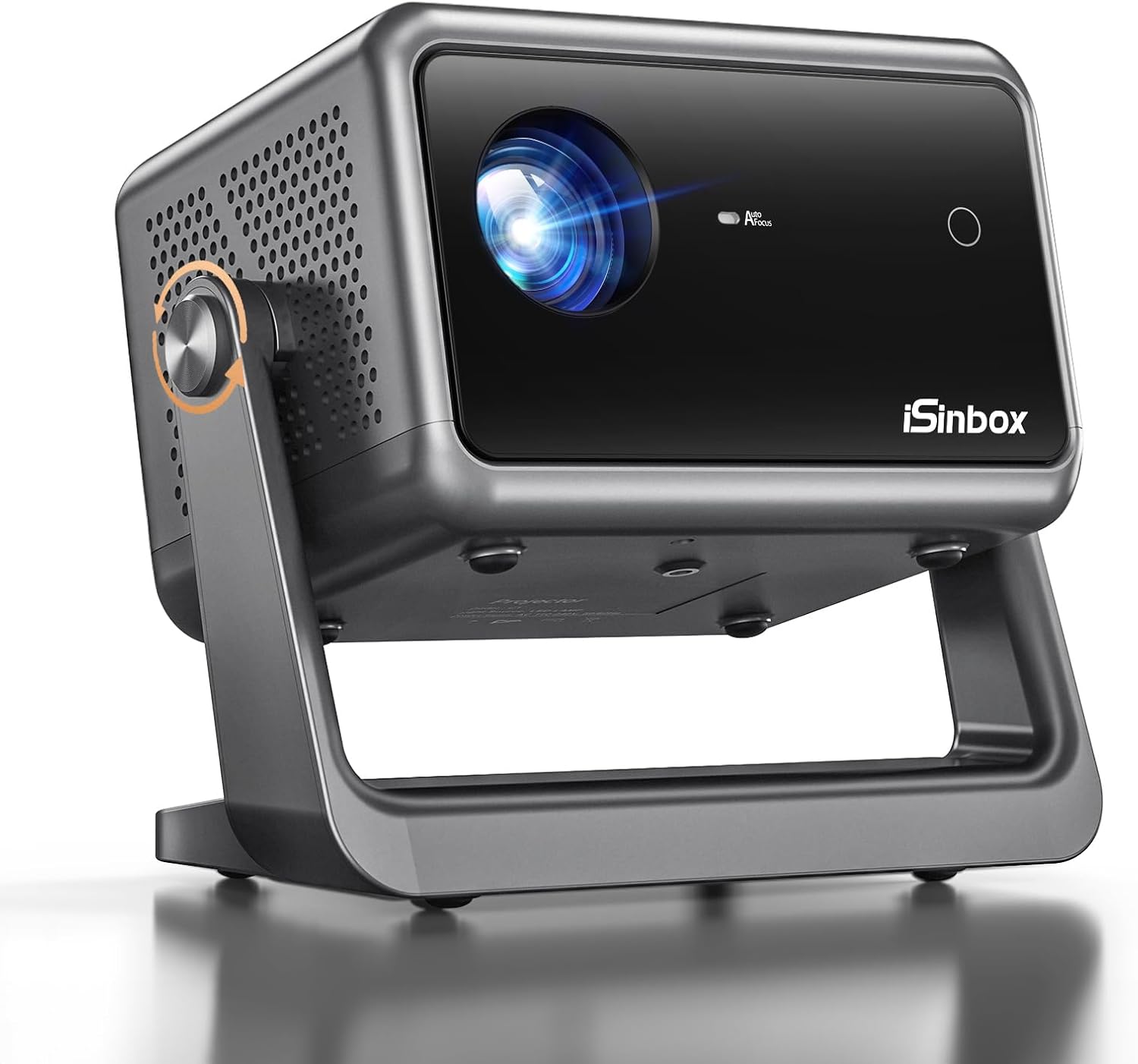
Image: Front view of the iSinbox Q8 Mini Projector, showcasing its compact design and lens.
Key Features:
- 1080P Supported Resolution: Delivers clear and detailed images.
- 15000 Lumen Brightness: Provides a bright display for various environments.
- 15000:1 Contrast Ratio: Enhances image depth and detail, with 95% NTSC color gamut.
- TOF Auto Focus: Automatically adjusts image clarity in seconds.
- Auto 4D & 4P Keystone Correction: Corrects distorted images automatically for a perfect rectangular display.
- 135° Rotatable Design: Allows flexible projection angles, including ceiling projection.
- WiFi 6 & Bluetooth 5.3: Ensures fast and stable wireless connectivity for streaming and audio.
- Low Noise Operation: Designed for quiet viewing experiences (below 32dB).
- Eye Protection: Features designed to reduce eye strain.
- Portable Design: Weighs 2.2 lbs with dimensions of 8.07 x 5.24 x 7.07 inches.

Image: Visual representation of the projector's key features, including resolution, brightness, focus, keystone, and connectivity.
5. Setup
5.1 Placement
Position the projector on a stable, flat surface. The 135° rotatable design allows for flexible placement, including desktop, tray bracket, or ceiling mount. Ensure there are no obstructions blocking the lens or ventilation ports.

Image: Illustration of flexible projector placement options, including on a tray, desktop, or ceiling.
5.2 Power Connection
- Connect the power adapter to the projector's power input port.
- Plug the power adapter into a wall outlet.
5.3 Initial Adjustments (Auto Focus & Keystone)
The iSinbox Q8 features automatic focus and keystone correction. Upon powering on or moving the projector, it will automatically adjust the image for clarity and shape. This process typically takes only a few seconds.

Image: The projector projecting an image onto a ceiling, demonstrating its flexible projection capabilities and automatic image correction.
6. Operating Instructions
6.1 Power On/Off
- Power On: Press the power button on the projector or the remote control.
- Power Off: Press the power button again. Confirm shutdown if prompted.
6.2 Navigation and Settings
Use the remote control to navigate the on-screen menu. Adjust settings such as:
- Picture Mode: Standard, Bright, User, etc.
- Sound Mode: Standard, Music, Movie, User, etc.
- Projection Mode: Front, Rear, Front Ceiling, Rear Ceiling.
- Zoom: Adjust image size from 50% to 100%.
6.3 Screen Size and Projection Distance
The projector supports a large screen size up to 200 inches. For optimal viewing experience, especially for images larger than 180 inches, a projection distance greater than 5 meters (16 feet) is recommended. Ideal projection sizes are typically between 80-120 inches.

Image: Visual guide for optimal screen sizes and corresponding projection distances.
7. Connectivity
7.1 WiFi 6 Connection
- Go to the projector's settings menu and select 'Network' or 'WiFi'.
- Enable WiFi and select your desired network from the list.
- Enter the password if required and connect.
7.2 Bluetooth 5.3 Connection
The projector supports both Bluetooth input and output.
- Bluetooth Output (Connecting to external speakers): Go to settings, select 'Bluetooth', and pair with your Bluetooth speaker or headphones.
- Bluetooth Input (Using projector as a speaker): This feature allows you to connect your phone or other device to the projector to use its internal speaker. Select the appropriate mode in the projector's menu.

Image: Depiction of the projector's WiFi 6 and Bluetooth 5.3 capabilities, connecting to mobile devices and external audio.
7.3 Wired Connections (HDMI, USB)
- HDMI: Connect devices like laptops, gaming consoles (PS5), or TV sticks using an HDMI cable. Select the HDMI input source from the projector's menu.
- USB: Insert a USB drive to play media files directly. Select the USB input source.
7.4 Streaming Copyrighted Content
Due to HDCP (High-bandwidth Digital Content Protection) copyright issues, streaming services such as Netflix, Amazon Prime Video, Disney+, and Hulu cannot be directly mirrored from a phone or tablet. To watch copyrighted content, you must use a TV Stick (e.g., Amazon Fire Stick, Roku), Chromecast, or connect a PC via HDMI.

Image: The projector displaying content from a TV Stick, illustrating how to access streaming services.
8. Maintenance
8.1 Cleaning the Lens
Use a soft, lint-free cloth specifically designed for optical lenses. Gently wipe the lens to remove dust or smudges. Avoid using abrasive cleaners or excessive force.
8.2 Cleaning the Projector Body
Wipe the exterior of the projector with a soft, dry cloth. Do not use liquid cleaners directly on the device.
8.3 Ventilation
Ensure the ventilation ports are clear of dust and debris. Periodically use compressed air to gently clear the vents, but avoid spraying directly into the lens or internal components.
9. Troubleshooting
| Problem | Possible Cause | Solution |
|---|---|---|
| No image / Power off | Power cable loose; Projector off | Check power connection; Press power button. |
| Blurry image | Out of focus; Projector moved | Allow auto-focus to engage; Manually adjust if needed. |
| Distorted image (trapezoid) | Incorrect keystone setting | Allow auto-keystone to engage; Manually adjust if needed. |
| No sound | Volume too low; Incorrect audio output; Bluetooth not connected | Increase volume; Check audio settings; Reconnect Bluetooth device. |
| Cannot stream Netflix/Hulu directly | HDCP copyright protection | Use a TV Stick (Fire Stick, Roku), Chromecast, or connect a PC via HDMI. |
| Dust spot on projection | Dust inside lens assembly | Contact customer support. Avoid attempting to clean internally. |
| WiFi connection issues | Incorrect password; Out of range; Router issue | Verify password; Move closer to router; Restart router and projector. |
10. Specifications
| Feature | Specification |
|---|---|
| Brand | iSinbox |
| Model Number | Q8 |
| Display Type | LCD |
| Native Resolution | 1920 x 1080 (1080P Supported) |
| Connectivity Technology | USB, HDMI, WiFi 6, Bluetooth 5.3 |
| Item Weight | 3.89 pounds (approx. 1.76 kg) |
| Product Dimensions | 7 x 7 x 5 inches (approx. 17.8 x 17.8 x 12.7 cm) |
11. Warranty and Support
iSinbox is committed to providing excellent customer service.
- Quick Response: Customer support inquiries receive a response within 24 hours.
- Return Policy: Returns for exchange or refund are accepted within 30 days of purchase.
- Technical Support: Lifetime technical customer support is provided for your iSinbox Q8 Mini Projector.

Image: Visual summary of iSinbox customer support commitments: 24-hour response, 30-day returns, and lifetime technical support.
For further assistance, please refer to the contact information provided with your product packaging or visit the official iSinbox website.


