
1. Introduction
The Elitech LogEt5T is a reusable USB temperature data logger designed for monitoring temperature in various applications, including cold chain logistics, refrigerators, and industrial environments. It features automatic PDF and CSV report generation, a clear LCD screen for real-time data display, and a 'Shadow Data' function to ensure data integrity. This manual provides instructions for setting up, operating, and maintaining your LogEt5T data logger.
2. Product Overview
The LogEt5T data logger is a compact device with an integrated USB interface for easy data transfer. It is equipped with an internal temperature sensor and can support an external sensor (sold separately for specific models) for extended measurement capabilities.

Figure 2.1: LogEt5T Components
This diagram illustrates the main components of the LogEt5T data logger: (1) Internal Sensor, (2) LCD Screen, (3) Buttons (Start/Stop), (4) USB Port, and (5) External Sensor (optional, for compatible models).

Figure 2.2: LCD Screen Display
The LCD screen (23x19mm) provides real-time information including current temperature, maximum (MAX), minimum (MIN), average (AVG), Mean Kinetic Temperature (MKT), date, time, mark, log points, device status, and battery level. Temperature units can be switched between Fahrenheit and Celsius.
3. Key Features
- Shadow Data Function: Ensures data integrity by passively recording data even if the logger is accidentally stopped or started, providing a continuous record.
- Automatic PDF and CSV Reports: Generates reports automatically upon connection to a computer, eliminating the need for specialized software to view basic data.
- On-Screen Data Visualization: Displays current, maximum, minimum, and MKT temperature values, along with date, time, and recording points directly on the LCD.
- Adjustable Parameters: Allows customization of temperature units (℃/℉), alarm ranges, and recording intervals via the Elitechlog software.
- Reusable Design: Capable of being cleared and reused multiple times, offering a cost-effective solution for long-term monitoring.
- Wide Temperature Range & High Accuracy: Measures temperatures from -30 ℃ to 70 ℃ (-22 ℉ to 158 ℉) with an accuracy of ±0.1 ℃/±0.1 ℉.
- FDA 21 CFR Part 11 Compliance: Meets regulatory standards for data integrity and electronic records.
4. Setup and Configuration
4.1 Battery Installation
The LogEt5T uses one CR2 battery. Ensure the battery is correctly inserted according to polarity markings. The device comes with a pre-installed battery.
4.2 Software Installation (Elitechlog)
For advanced configuration and detailed data analysis, download the Elitechlog software from the official Elitech website (www.i-elitech.net). The software is compatible with Windows and macOS operating systems.
- Visit www.i-elitech.net.
- Navigate to the 'Download' section and select 'Elitechlog Software'.
- Download and install the software following the on-screen instructions.
4.3 Initial Device Settings
Before starting a new recording, it is recommended to configure the device parameters using the Elitechlog software. Connect the data logger to your computer via the USB port.
- Connect the LogEt5T to your computer's USB port.
- Open the Elitechlog software.
- The software will detect the device. You can then set parameters such as:
- Logging interval (e.g., 10 seconds to 24 hours)
- Alarm thresholds (upper and lower temperature limits)
- Temperature unit (Celsius or Fahrenheit)
- Start/Stop mode (e.g., button press, scheduled)
- Save the settings to the device.
5. Operation
5.1 Starting a Recording Session
To start recording data, press and hold the START button on the device until the 'REC' indicator appears on the LCD screen. The device will begin logging data according to the configured interval.
5.2 Stopping a Recording Session
To stop recording, press and hold the STOP button until the 'END' indicator appears. The device will cease logging data.
5.3 Viewing Data on LCD
During or after a recording session, short-press the START button to cycle through various display modes on the LCD, including current temperature, MAX/MIN/AVG/MKT values, date, time, and remaining log points.
6. Data Retrieval and Analysis
6.1 Connecting to a Computer
To retrieve recorded data, remove the protective cap and plug the LogEt5T directly into a USB port on your computer.
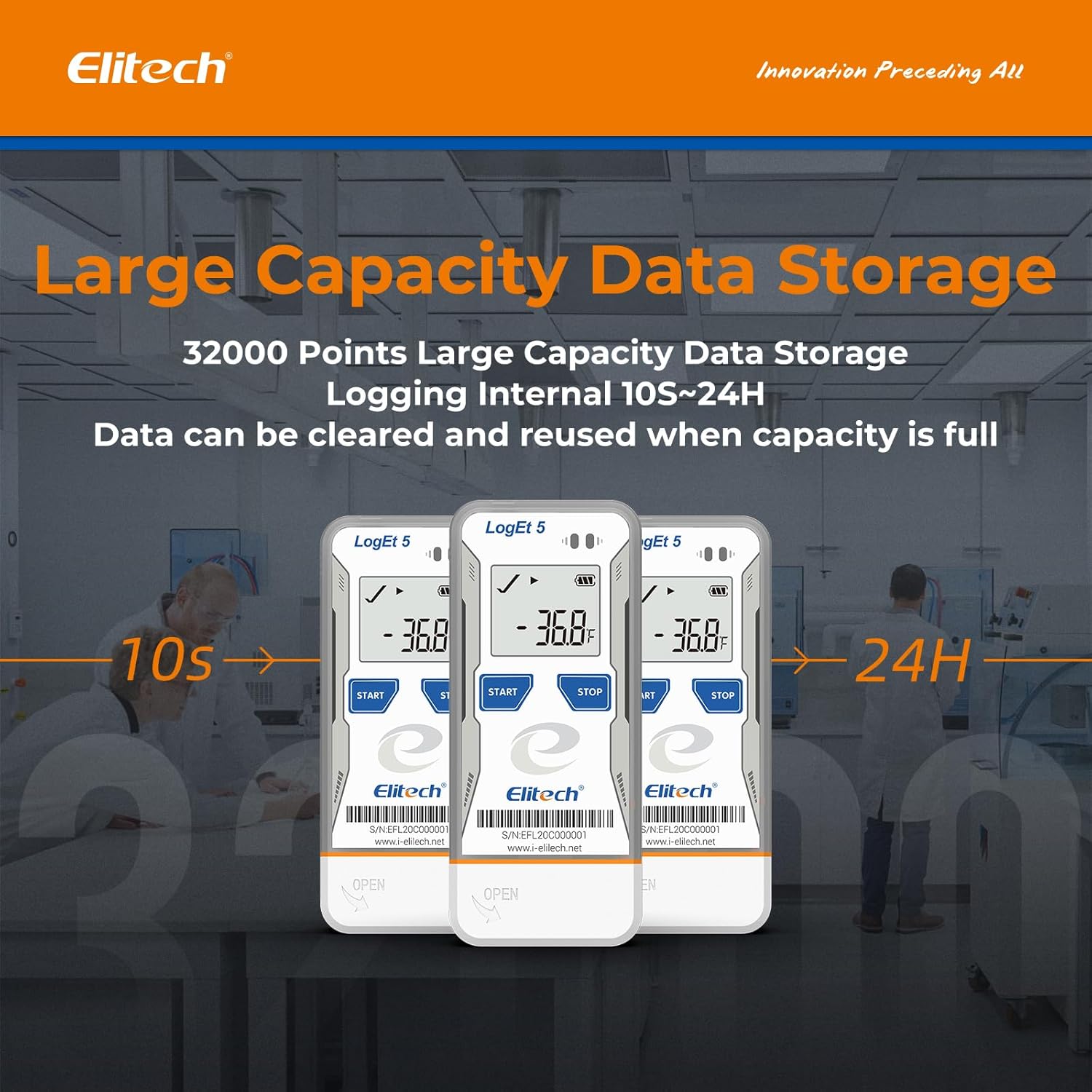
Figure 6.1: USB Plug and Play
The LogEt5T connects directly to a computer's USB port for data transfer and configuration.
6.2 Automatic PDF/CSV Reports
Upon connection, the data logger will automatically generate a PDF and a CSV report in its internal storage. These files can be accessed directly from your computer without needing the Elitechlog software.

Figure 6.2: Automatic Report Generation
The device automatically generates PDF and CSV reports, which can be viewed on any computer without special software. The Elitechlog software provides additional analysis tools.
6.3 Using Elitechlog Software
The Elitechlog software offers comprehensive data analysis features:
- View data in graphical and tabular formats.
- Export data in various formats (PDF, CSV, TXT, Excel).
- Set and modify device parameters.
- Calibrate the device (if applicable).
- Manage multiple data loggers.

Figure 6.3: Elitechlog Software Interface
The Elitechlog software allows for detailed analysis and comparison of data from multiple loggers, presenting information in clear graphs and tables.
7. Shadow Data Function
The LogEt5T incorporates a 'Shadow Data' function, which provides an additional layer of data integrity. This feature ensures that even if the recording is accidentally interrupted or not manually started, a low-frequency background recording continues. This passive data collection helps maintain a traceable record, preventing complete data loss in unforeseen circumstances.

Figure 7.1: Shadow Data Feature
The Shadow Data function ensures continuous, passive data recording to safeguard against accidental data loss, providing a robust backup for your temperature logs.
8. Reusability
The LogEt5T is designed for multiple uses. Once a recording session is complete and data has been retrieved, you can clear the device's memory to start a new session. This process is managed through the Elitechlog software.
- Connect the data logger to your computer.
- Open the Elitechlog software.
- Locate the 'Reset' or 'Clear Data' option within the software interface.
- Confirm the action to clear the device's memory.
Note: Always back up historical data before resetting the device to prevent permanent data loss.

Figure 8.1: Reusing the Data Logger
The Elitechlog software provides a simple process to reset the data logger, making it ready for a new recording cycle after data retrieval.
9. Technical Specifications
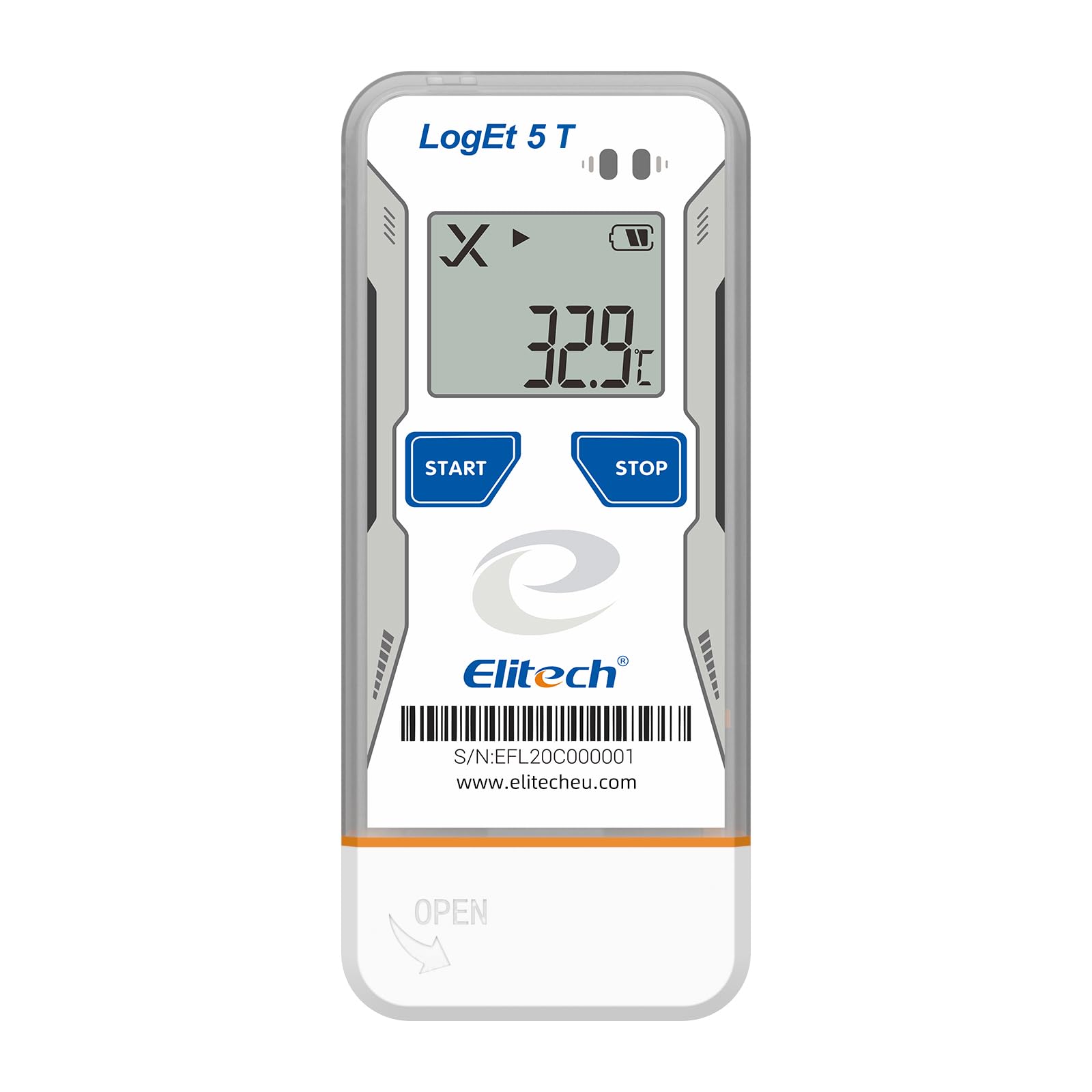
Figure 9.1: LogEt5T Specifications Overview
Key specifications of the Elitech LogEt5T data logger, including temperature range, accuracy, and physical dimensions.
| Specification | Value |
|---|---|
| Model Name | LogEt5T |
| Temperature Range | -30 ℃ to 70 ℃ (-22 ℉ to 158 ℉) |
| Temperature Accuracy | ±0.5 ℃ (-20~40 ℃), ±1 ℃ (-100~150 ℃), ±2 ℃ (others) |
| Data Capacity | 32,000 points |
| Logging Interval | Configurable (10 seconds to 24 hours) |
| Display Type | Digital LCD |
| Connectivity | USB |
| Power Source | 1 x CR2 Battery (included) |
| Dimensions | 97mm x 43mm x 12.5mm (approx. 3.8 x 1.7 x 0.5 inches) |
| Weight | 80 grams (approx. 2.8 oz) |
| Outer Material | Stainless Steel |
| Compliant Specifications | FDA 21 CFR Part 11 |
| Origin | China |
10. Troubleshooting
This section addresses common issues you might encounter with your LogEt5T data logger.
- Device not recognized by computer:
Ensure the device is fully inserted into the USB port. Try a different USB port or computer. Reinstall the Elitechlog software if necessary. - No data recorded:
Verify that the recording session was properly started (check for 'REC' on LCD). Ensure the battery has sufficient power. Check the logging interval settings in Elitechlog software. - LCD display is blank or dim:
Replace the CR2 battery. If the issue persists, contact support. - Alarm triggered unexpectedly:
Review the alarm threshold settings in the Elitechlog software. Ensure the temperature being monitored is within the desired range. - Cannot clear data for reuse:
Ensure the device is connected to the computer and the Elitechlog software is running. Follow the steps in Section 8 carefully.
11. Maintenance
- Battery Replacement: When the battery indicator on the LCD shows low power, replace the CR2 battery promptly to ensure continuous operation and data integrity.
- Cleaning: Wipe the device with a soft, dry cloth. Avoid using abrasive cleaners or solvents that could damage the casing or screen.
- Storage: Store the data logger in a cool, dry place away from direct sunlight and extreme temperatures when not in use.
12. Warranty and Support
Elitech provides a standard warranty for its products. For detailed warranty information, technical support, or service inquiries, please visit the official Elitech website or contact their customer service department. Ensure you have your product model (LogEt5T) and purchase information available when seeking support.
Official Website: www.i-elitech.net


