
1. Introduction
This manual provides essential information for the proper use and maintenance of your GOODTEL G9 11-inch Android Tablet. Please read this manual thoroughly before operating the device to ensure optimal performance and longevity.
The GOODTEL G9 tablet features an 11-inch 2K display, an octa-core processor, 16GB RAM (8GB fixed + 8GB expandable), 256GB ROM (expandable up to 1TB via Micro SD), an 8600mAh battery, 5G Wi-Fi, Bluetooth 5.0, and 13MP rear and 5MP front cameras. It operates on Android 13 and is GMS certified.

Image 1.1: GOODTEL G9 Tablet overview, highlighting 2K display, 16GB RAM, 256GB ROM, and Android OS.
2. Package Contents
Upon opening the package, please verify that all items are present and in good condition. The standard package includes:
- GOODTEL G9 11-inch Android Tablet
- Power Adapter
- USB Type-C Cable
- Protective Case
- Screen Protector (pre-applied or separate)
- User Manual (this document)
Image 2.1: The GOODTEL G9 Tablet and its standard accessories.
3. Setup
3.1. Initial Charging
Before first use, fully charge the tablet.
- Connect the USB Type-C cable to the tablet's charging port.
- Connect the other end of the cable to the power adapter.
- Plug the power adapter into a wall outlet.
- Allow the tablet to charge until the battery indicator shows 100%.
3.2. Powering On/Off
- To Power On: Press and hold the Power button until the GOODTEL logo appears.
- To Power Off: Press and hold the Power button, then select "Power off" from the options on the screen.
- To Restart: Press and hold the Power button, then select "Restart" from the options on the screen.
3.3. Initial Setup Wizard
The first time you power on the tablet, an on-screen setup wizard will guide you through basic configurations:
- Language Selection: Choose your preferred language.
- Wi-Fi Connection: Connect to a Wi-Fi network to access the internet.
- Google Account: Sign in with your Google account or create a new one. This is necessary for downloading apps from the Google Play Store.
- Date & Time: Set the correct date and time.
- Security: Set up a screen lock (PIN, pattern, password, or facial recognition).
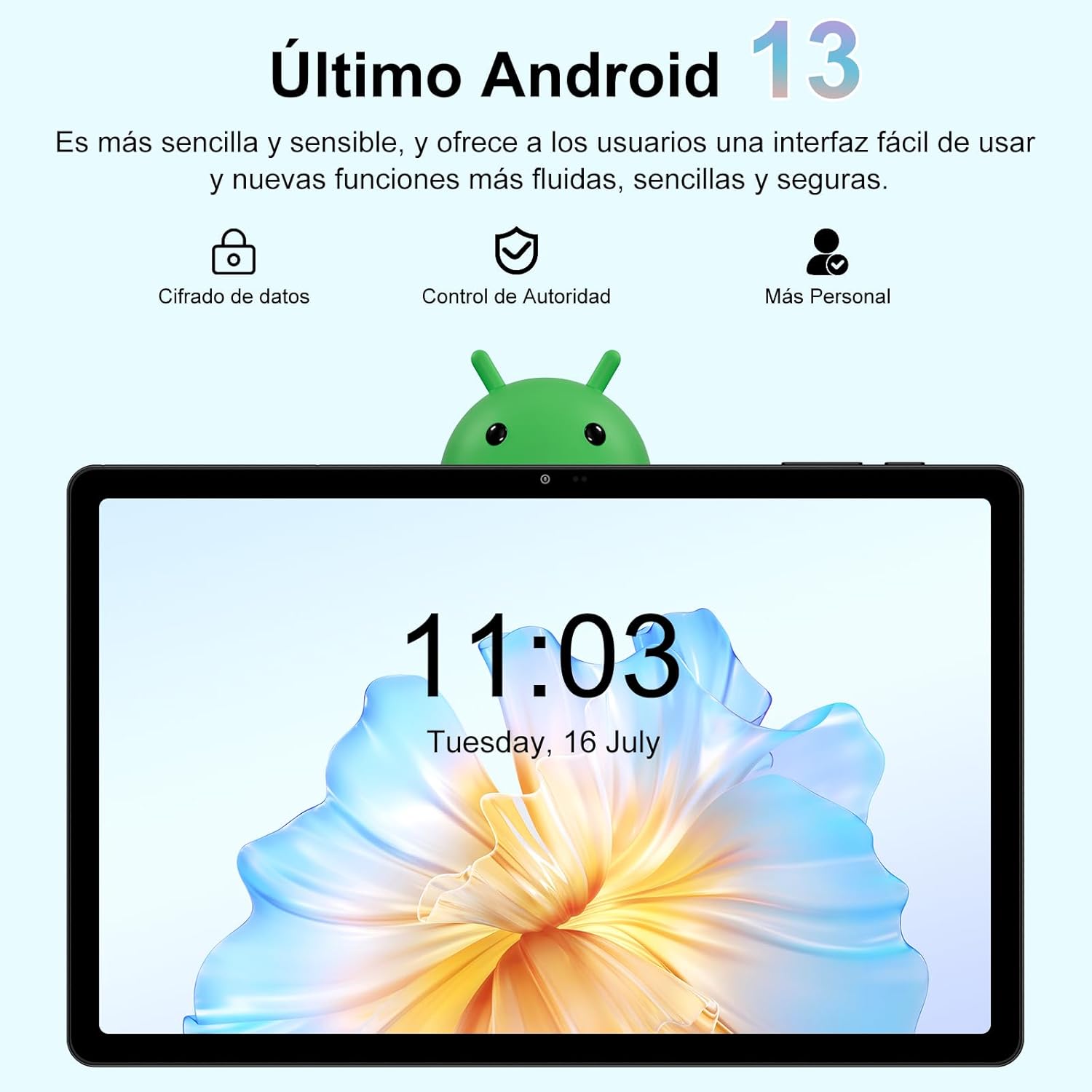
Image 3.1: The Android 13 operating system interface on the GOODTEL G9 Tablet.
4. Operating the Tablet
4.1. Display and Navigation
The GOODTEL G9 features an 11-inch 2K Incell HD display with a resolution of 2000x1200 pixels, offering vibrant colors and rich details.
- Touch Gestures: Navigate the interface using standard Android touch gestures (tap, swipe, pinch-to-zoom).
- Home Screen: Access your apps and widgets.
- Notification Panel: Swipe down from the top of the screen to view notifications and quick settings.
- Recent Apps: Tap the square navigation button (or swipe up and hold) to view and switch between recently used applications.

Image 4.1: The 11-inch display of the GOODTEL G9 Tablet.
4.2. Performance and Storage
The tablet is equipped with an 8-core 2.0 GHz processor, 16GB RAM (8GB fixed + 8GB expandable), and 256GB internal storage (ROM). Storage can be expanded up to 1TB using a Micro SD card (not included).
- App Management: Install and uninstall applications from the Google Play Store.
- File Management: Use the pre-installed file manager to organize your documents, photos, and videos.
- Multitasking: The generous RAM allows for smooth multitasking and app switching.

Image 4.2: Memory and storage capabilities of the GOODTEL G9 Tablet.
4.3. Cameras
The GOODTEL G9 features a 13MP rear camera and a 5MP front camera, suitable for capturing photos, videos, and video calls.
- Taking Photos: Open the Camera app, frame your shot, and tap the shutter button.
- Recording Videos: Switch to video mode in the Camera app and tap the record button.
- Settings: Adjust camera settings such as resolution, flash, and timer within the Camera app.

Image 4.3: Examples of photos taken with the GOODTEL G9 Tablet cameras.
4.4. Connectivity
- Wi-Fi: Supports dual-band 2.4G and 5G Wi-Fi for stable and fast internet access. Go to Settings > Network & internet > Wi-Fi to connect to a network.
- Bluetooth 5.0: Connect to wireless headphones, speakers, and other Bluetooth-enabled devices. Go to Settings > Connected devices > Bluetooth.
- GPS: Integrated GPS allows for navigation and location-based services.
- OTG (On-The-Go): Supports OTG connectivity for connecting USB peripherals like flash drives or external keyboards/mice.

Image 4.4: Connectivity features of the GOODTEL G9 Tablet.
4.5. Battery Management
The tablet is equipped with an 8600mAh high-capacity battery, providing extended usage time for reading, browsing, and multimedia consumption.
- Battery Saver: Enable battery saver mode in Settings > Battery to extend battery life.
- Charging: Use the provided Type-C charger for optimal charging.
- Battery Health: Avoid extreme temperatures and fully discharging the battery frequently to prolong its lifespan.

Image 4.5: The 8600mAh high-capacity battery.
5. Maintenance
- Cleaning: Use a soft, lint-free cloth to clean the screen and body of the tablet. Avoid abrasive cleaners or solvents.
- Software Updates: Regularly check for and install system updates to ensure optimal performance and security. Go to Settings > System > System update.
- Data Backup: Periodically back up important data to a cloud service or external storage device.
- Storage Management: Regularly clear unnecessary files and cache to free up storage space and maintain performance.
- Environmental Conditions: Avoid exposing the tablet to extreme temperatures, direct sunlight, or high humidity.
6. Troubleshooting
- Tablet not turning on: Ensure the battery is charged. Connect the charger and try again. If it still doesn't turn on, perform a forced restart by holding the power button for 10-15 seconds.
- Apps crashing or freezing: Close and reopen the app. Clear the app's cache (Settings > Apps > [App Name] > Storage & cache > Clear cache). If the issue persists, uninstall and reinstall the app.
- Wi-Fi connection issues: Ensure Wi-Fi is enabled. Restart your router and the tablet. Forget the network and reconnect.
- Slow performance: Close unnecessary background apps. Clear cache and temporary files. Consider performing a factory reset if performance issues persist after other troubleshooting steps (back up your data first).
- Screen unresponsive: Restart the tablet. If the issue continues, contact customer support.
7. Specifications
| Feature | Specification |
|---|---|
| Model | GOODTEL G9 |
| Operating System | Android 13 |
| Display Size | 11 inches |
| Display Resolution | 2000 x 1200 pixels (2K Incell HD) |
| Processor | MediaTek Octa-Core, 2.0 GHz |
| RAM | 16 GB (8 GB fixed + 8 GB expandable) |
| Internal Storage (ROM) | 256 GB |
| Expandable Storage | Up to 1 TB via Micro SD card |
| Rear Camera | 13 MP |
| Front Camera | 5 MP |
| Battery Capacity | 8600 mAh (Lithium-Ion) |
| Connectivity | 5G Wi-Fi (802.11a/b/g/n), Bluetooth 5.0, GPS, Type-C, OTG |
| Dimensions | 17 x 12 x 0.8 cm |
| Weight | 480 grams |
8. Warranty and Support
Your GOODTEL G9 Tablet comes with a standard manufacturer's warranty. Please refer to the warranty card included in your package for specific terms and conditions.
For technical support, troubleshooting assistance, or warranty claims, please contact GOODTEL customer service through the retailer where you purchased the product or visit the official GOODTEL website.
Online Support: Visit the GOODTEL Store on Amazon

