
1. Product Overview
This Podofo 9-inch Android car stereo is designed for Mercedes Benz C-Class and GLK models (W203, W209, C180, C200, C203, C209, A209) manufactured between 2004 and 2011. It features an Android 13 operating system with 4GB RAM and 64GB ROM, a 1280x720 HD IPS touchscreen, and supports various connectivity options and multimedia functions.

Image 1. Comparison of the original Mercedes Benz car radio with the Podofo 9-inch Android car stereo installed, highlighting the upgraded display and interface.
2. Package Contents
Before installation, please verify that all items listed below are included in your package:
- 1 x 9-inch Car Stereo Unit
- 1 x Power Cable
- 1 x GPS Antenna
- 1 x Rear Camera Input Cable
- 1 x RCA Cable
- 2 x USB Cables
- 2 x Mounting Brackets
- 4 x Screws
- 1 x User Manual
- 1 x Microphone
- 1 x AHD Rear View Camera

Image 2. Detailed view of the package contents, illustrating each accessory and cable provided with the car stereo.
3. Setup and Installation
Installation of the Podofo 9-inch Android car stereo requires careful attention to wiring and mounting. It is recommended that installation be performed by a qualified professional.
3.1. Compatibility Check
Ensure your vehicle is a Mercedes Benz C-Class or GLK (W203, W209, C180, C200, C203, C209, A209) model from 2004-2011. The unit is designed to fit the specific dashboard dimensions of these models.
3.2. Wiring Connections
- Power Cable: Connect the provided power cable to the vehicle's wiring harness. Ensure correct positive, negative, and accessory power connections.
- GPS Antenna: Mount the GPS antenna in a location with a clear view of the sky, typically on the dashboard or under the windshield. Connect it to the designated port on the stereo unit.
- RCA Cables: Connect RCA cables for external amplifiers, subwoofers, or auxiliary audio/video inputs/outputs as needed.
- USB Cables: Route the USB cables to an accessible location for connecting USB devices or for wired Carplay/Android Auto.
- Rear Camera: Connect the AHD rear view camera cable to the stereo's camera input. Ensure the camera's power is connected to the reverse light circuit for automatic activation.
- Microphone: Connect the external microphone for improved call quality during hands-free operation.
- CANBUS Decoder: If your vehicle requires a CANBUS decoder for steering wheel controls or other vehicle data integration, ensure it is correctly connected according to the vehicle's wiring diagram.
3.3. Mounting
Use the provided mounting brackets and screws to secure the car stereo unit into the dashboard opening. Ensure a snug and stable fit.

Image 3. The car stereo after successful installation, demonstrating its seamless integration into the vehicle's interior and its modern interface.
4. Operating Instructions
4.1. Power On/Off
The unit will power on automatically with the vehicle's ignition. To manually power off, press and hold the power button on the unit (if available) or use the software power option.
4.2. Touchscreen Navigation
The 9-inch HD IPS touchscreen allows for intuitive control. Swipe left/right to navigate between home screens, tap icons to open applications, and use pinch-to-zoom gestures where supported.

Image 4. The high-definition IPS touchscreen showcasing its vibrant display, multiple UI options, and split-screen capability for multitasking.
4.3. Wireless Carplay & Android Auto
Connect your smartphone wirelessly via Bluetooth or USB for seamless integration with Carplay or Android Auto. This allows access to phone applications such as navigation, music, calls, and messages directly from the car stereo display.
- Wireless Connection: Enable Bluetooth and Wi-Fi on your smartphone. Pair your phone with the car stereo via Bluetooth. Follow on-screen prompts to activate Wireless Carplay or Android Auto.
- Wired Connection: Connect your smartphone to one of the USB ports using a compatible USB cable. The system should automatically detect and launch Carplay or Android Auto.

Image 5. Demonstrating wireless Carplay and Android Auto, enabling hands-free calls, navigation, and music streaming directly from your smartphone.
4.4. Bluetooth Connectivity
Pair your phone via Bluetooth for hands-free calling and audio streaming.
- Go to the Bluetooth settings on the car stereo.
- Enable Bluetooth on your smartphone and search for available devices.
- Select the car stereo from the list and confirm the pairing code.
- Once connected, you can make/receive calls and play music through the car's speakers.

Image 6. Bluetooth interface for hands-free calls and music, alongside the FM radio display with RDS functionality.
4.5. GPS Navigation
The unit supports online and offline navigation. Connect to Wi-Fi or a mobile hotspot for online maps, or download offline maps for use without an internet connection.
- Open the pre-installed navigation app or download your preferred app from the Google Play Store.
- Ensure the GPS antenna is properly connected for accurate positioning.
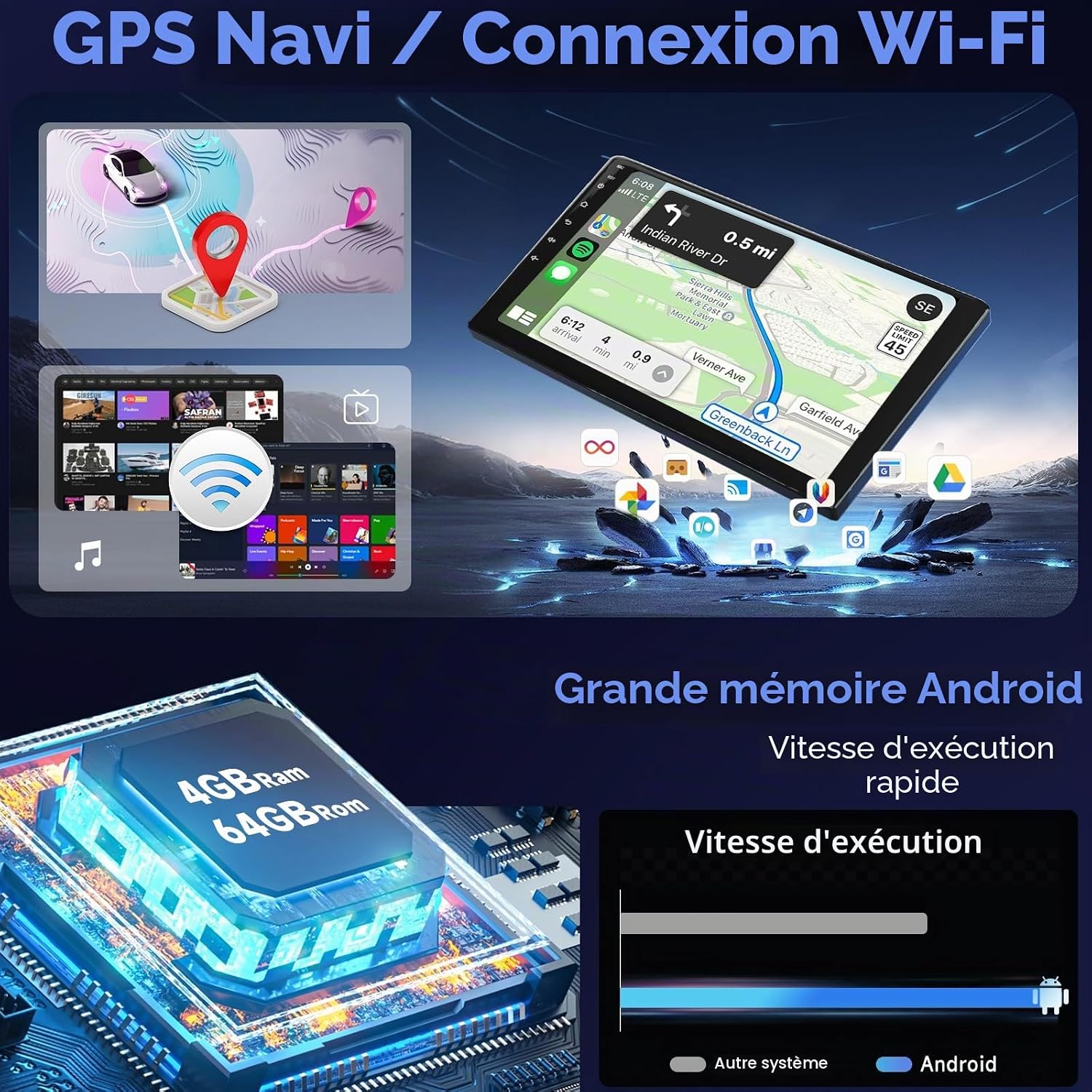
Image 7. GPS navigation in action, demonstrating Wi-Fi connectivity and the system's robust Android memory for smooth operation.
4.6. RDS/FM Radio & DSP
Tune into your favorite radio stations with clear reception. The RDS (Radio Data System) feature displays station names and other information. The integrated DSP (Digital Sound Processor) allows for advanced audio tuning.
- Access the Radio application from the main menu.
- Use the scan function to find available stations or manually tune to a frequency.
- In the DSP settings, adjust equalizer bands (36-band AE, 10-band EQ), sound field, and tone patterns to optimize audio quality.
4.7. Steering Wheel Control (SWC)
The unit supports original steering wheel controls, allowing you to manage audio playback and calls without taking your hands off the wheel.
- After installation, the system should automatically recognize most steering wheel controls via the CANBUS decoder.
- If controls are not recognized, navigate to the SWC settings in the system menu to manually map the buttons.
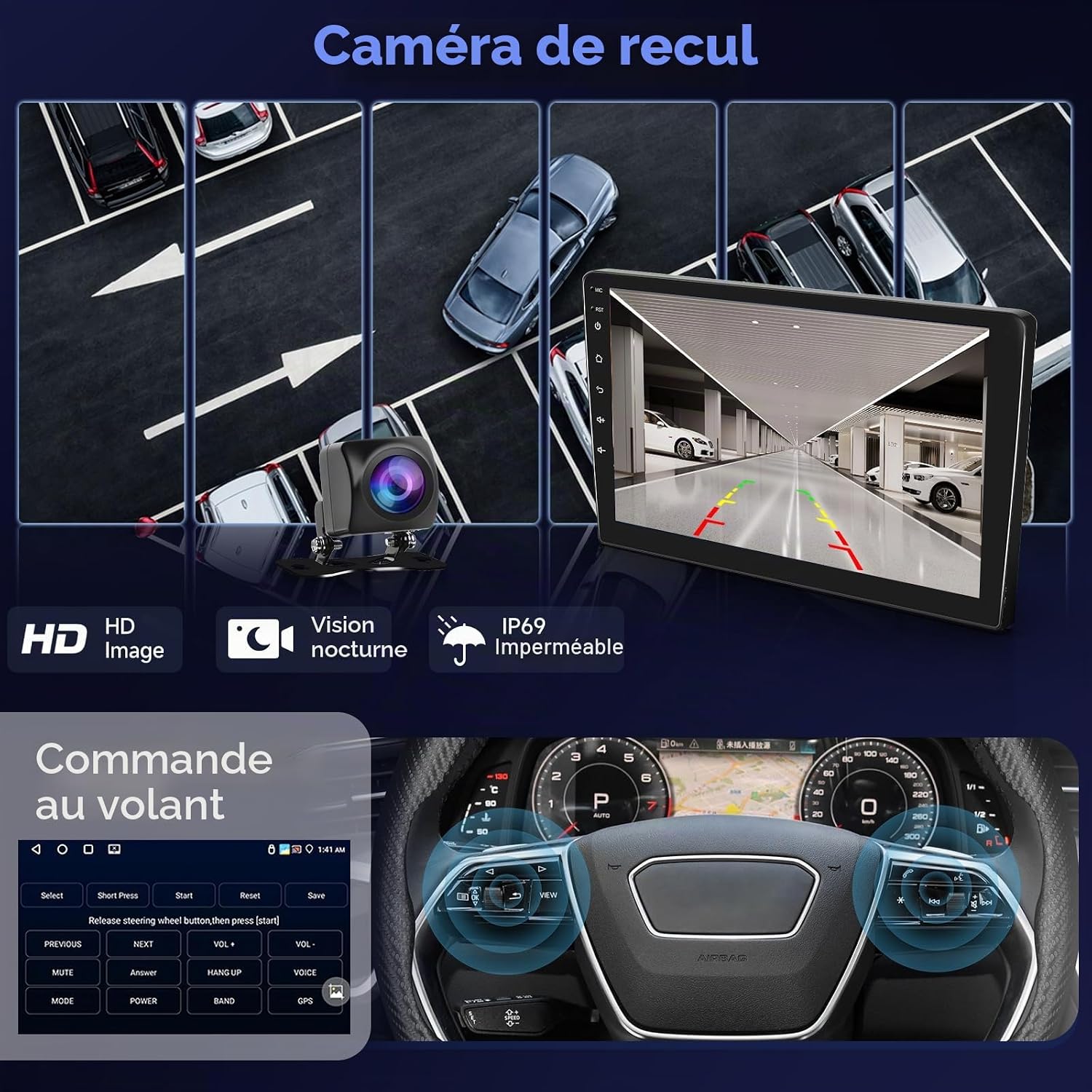
Image 8. Steering wheel control interface, illustrating how to configure and use the vehicle's existing buttons for safe and convenient operation of the car stereo.
4.8. AHD Backup Camera
The included AHD backup camera provides a clear view of the rear of your vehicle when reversing, enhancing safety.
- When the vehicle is shifted into reverse gear, the car stereo display will automatically switch to the rear camera view.
- The camera features HD image quality, night vision, and IP69 waterproofing for reliable performance in various conditions.

Image 9. AHD backup camera system, detailing its features and connection diagram for automatic rear view display when reversing.
5. Maintenance
To ensure the longevity and optimal performance of your Podofo car stereo, follow these maintenance guidelines:
- Cleaning: Use a soft, dry cloth to clean the touchscreen and unit exterior. Avoid abrasive cleaners or solvents that may damage the surface.
- Software Updates: Periodically check for software updates provided by Podofo to ensure you have the latest features and bug fixes. Updates can improve system stability and performance.
- Avoid Extreme Temperatures: Do not expose the unit to extreme heat or cold for extended periods, as this can affect electronic components.
- Cable Connections: Ensure all cables are securely connected. Loose connections can lead to intermittent issues.
6. Troubleshooting
If you encounter any issues with your car stereo, refer to the following common troubleshooting steps:
- No Power: Check all power cable connections. Ensure the vehicle's ignition is on. Verify the fuse in the power cable.
- No Sound: Check speaker connections. Ensure the volume is not muted or set too low. Verify audio output settings.
- Bluetooth Connection Issues: Ensure Bluetooth is enabled on both the stereo and your phone. Try unpairing and re-pairing the devices. Clear Bluetooth cache on your phone if necessary.
- GPS Signal Loss: Ensure the GPS antenna is properly connected and has a clear view of the sky. Move the vehicle to an open area if signal is weak.
- Rear Camera Not Displaying: Check the camera input cable connection. Ensure the camera's power wire is correctly connected to the reverse light circuit. Verify camera settings in the stereo menu.
- Steering Wheel Controls Not Working: Verify CANBUS decoder connection. Check SWC settings in the stereo menu for manual mapping.
- Microphone Quality Issues: Ensure the external microphone is properly connected and positioned away from direct airflow or noise sources.
- System Freezing/Unresponsive: Perform a soft reset by pressing the reset button (if available) or by turning off the vehicle's ignition and restarting. If issues persist, a factory reset may be required (note: this will erase all user data).
If these steps do not resolve the issue, please contact customer support.
7. Specifications
| Feature | Specification |
|---|---|
| Brand | podofo |
| Model Number | 4+64G |
| Operating System | Android 13 |
| RAM | 4GB |
| ROM | 64GB |
| Screen Size | 9 inches |
| Screen Type | HD IPS Touchscreen |
| Resolution | 1280 x 720 |
| Connectivity Technology | Bluetooth, Wi-Fi |
| Special Features | Wireless Carplay, Android Auto, GPS Navigation, RDS, FM, DSP, AHD Camera Support, Steering Wheel Control |
| Compatible Devices | Smartphone |
| Connector Type | RCA, USB Type A |
| Audio Output Mode | Stereo, Surround |
| Surround Sound Channels | 4.0 |
| Video Encoding Support | MKV, RMVB, AVI, MP4, MDV |
| Output Power | 45 Watts (per channel), 180 Watts (total) |
| Internet Application | Internet Radio |
| Digital Media Format | AVI, Surround Sound |
8. Warranty and Support
Podofo is committed to providing excellent customer service and support for your product.
- Customer Service: Expect a reply to customer service inquiries within 18 hours.
- Return Policy: Enjoy a 60-day worry-free return period.
- Replacement: Replacements are available within 24 months of purchase.
- Technical Support: Lifetime after-sales consultation and technical support are provided.
8.1. How to Contact Support
If you require assistance or have questions, please follow these steps:
- On the product page, locate and click on "Podofo electronic" (usually near the seller information).
- On the seller's page, find and click the "Ask a question" button.

Image 10. Visual guide on how to contact Podofo customer support through the online platform.


