
1. Introduction
This manual provides detailed instructions for the installation, operation, and maintenance of your MISONDA Android 14 Car Stereo Navigation System. Please read this manual thoroughly before using the product to ensure proper function and to prevent damage. This system is designed for Mercedes-Benz SL R230 series vehicles, including models SL350, SL500, SL300, and SL550.

Image 1.1: Front view of the MISONDA Android 14 Car Stereo Navigation System, showing the main interface with system information, navigation, and application icons.
2. Product Overview
Key Features:
- Operating System: Android 14 with 8-core 64-bit processor.
- Memory: 8GB RAM + 256GB ROM for application storage and smooth operation.
- Display: 9-inch IPS touchscreen with 1080x680 resolution.
- Connectivity: Built-in Wi-Fi, Bluetooth 5.0 (A2DP, hands-free calling, phone book download), USB.
- Navigation: GPS with pre-loaded offline maps and support for online navigation.
- Audio: Built-in DSP (Digital Sound Processor) with 64-band equalizer adjustments, 4*45W output power.
- Radio: FM/AM radio with RDS and 18 preset stations.
- Smartphone Integration: Wireless CarPlay and Android Auto, Mirror Link for Android and iOS phones.
- Additional Functions: Split-screen capability, Steering Wheel Control (SWC) support.
Optional Features (Requires additional purchase of external modules):
- DVR (Digital Video Recorder)
- OBD (On-Board Diagnostics)
- 360 Panoramic Car Camera System (1080P AHD, Night Vision, 3D Dynamic Road Condition Display)
- DAB+ (Digital Audio Broadcasting)
- 3G/4G Dongle support for internet connectivity
3. Package Contents
Verify that all items listed below are included in your package. If any items are missing or damaged, please contact your vendor.

Image 3.1: Visual representation of the car stereo dimensions and all components included in the package.
- MISONDA Android 14 Car Stereo Unit
- Custom Frame for Mercedes-Benz SL R230 Series
- Power Socket A
- Power Socket B
- RCA Output Socket A
- RCA Output Socket B
- RCA Output Socket C
- USB Cables (2x)
- GPS Antenna
- Rear Camera
- External Microphone
- Install Brackets
- CANBUS Decoder
- User Manual (this document)
4. Installation
Professional installation is recommended. Ensure the vehicle's power is disconnected before beginning installation. This unit is specifically designed for Mercedes-Benz SL R230 series vehicles (SL350, SL500, SL300, SL550).
Installation Steps:
- Carefully remove the original car stereo unit from your Mercedes-Benz SL R230 dashboard. Refer to your vehicle's service manual for specific removal instructions.
- Connect the provided wiring harnesses (Power Socket A, Power Socket B, RCA Output Sockets, USB Cables) to the corresponding ports on the new MISONDA unit and the vehicle's wiring.
- Install the GPS antenna in a location with a clear view of the sky, typically on the dashboard or under the windshield.
- Connect the external microphone and route it to a suitable location for clear voice pickup.
- If installing the rear camera, route the camera cable from the rear of the vehicle to the head unit and connect it to the designated input.
- Attach the provided install brackets to the MISONDA unit.
- Mount the new MISONDA unit into the dashboard opening, ensuring all connections are secure and no wires are pinched.
- Secure the unit using the install brackets and reassemble any removed dashboard trim.
- Reconnect the vehicle's power and test the unit's functionality.
Image 4.1: Illustrates the appearance of the Mercedes-Benz SL R230 dashboard before and after the installation of the MISONDA car stereo unit.
5. Setup
Initial Power On:
After installation, turn on your vehicle's ignition. The MISONDA unit will boot up. The initial boot may take slightly longer than subsequent starts.
System Settings:
Navigate to the 'Settings' menu on the touchscreen to configure basic system parameters such as language, time, date, and display brightness. Ensure the CANBUS settings are correctly configured for your specific Mercedes-Benz SL R230 model to enable steering wheel controls and other vehicle-specific functions.
Wi-Fi Connection:
To access online features, connect the unit to a Wi-Fi hotspot (e.g., from your smartphone). Go to Settings > Network & Internet > Wi-Fi, select your network, and enter the password.
6. Operating Instructions
6.1 Android System Navigation
The unit operates on Android 14. Use the touchscreen to navigate through applications and settings. The home screen provides quick access to frequently used functions like navigation, radio, and media playback.

Image 6.1: Displays the core features including the Octa Core Android system, DSP sound adjustments, and the integration of Wireless CarPlay and Android Auto.
6.2 Wireless CarPlay & Android Auto
Connect your smartphone wirelessly via Bluetooth to enable CarPlay or Android Auto. This allows you to access navigation, make calls, send messages, and enjoy music directly from your phone's interface displayed on the car stereo screen.
6.3 GPS Navigation
The unit comes with pre-loaded offline maps. For online navigation with real-time traffic updates, ensure the unit is connected to Wi-Fi. Open the navigation application and enter your destination. The system will provide suitable routes.

Image 6.2: Shows the GPS navigation interface, Bluetooth 5.0 connectivity for calls and music, and the configuration screen for steering wheel controls.
6.4 Bluetooth 5.0
Pair your phone with the unit via Bluetooth for hands-free calling, music streaming (A2DP), and phone book synchronization. Go to Settings > Bluetooth, enable Bluetooth on both devices, and pair them.
6.5 Built-in DSP (Digital Sound Processor)
The DSP allows for advanced audio customization. Access the DSP settings to adjust equalization (64-band), bass filtering, and sound staging to optimize sound quality for your vehicle's interior.
6.6 Split Screen Function
The split-screen feature allows two applications to be displayed simultaneously on the screen. For example, you can have navigation on one side and music playback on the other. To activate, long-press the recent apps button or drag an app to one side of the screen.

Image 6.3: Demonstrates the split-screen feature, Mirror-Link capability for both Android and iOS devices, and the built-in Wi-Fi modem for internet access.
6.7 Mirror Link
Mirror Link allows you to display your smartphone's screen on the car stereo. This function supports both Android and iOS devices. Follow the on-screen instructions within the Mirror Link application to establish a connection.
6.8 Radio (FM/AM/RDS)
Access the Radio application to tune into FM or AM stations. The RDS (Radio Data System) feature displays station information where available. You can save up to 18 preset stations.
6.9 Steering Wheel Control (SWC)
If properly configured via CANBUS, your vehicle's steering wheel controls will operate the car stereo. This allows for safe adjustment of volume, track changes, and call management without taking your hands off the wheel.
6.10 Optional Features
If you have purchased and installed optional modules like the 360 Camera, DAB+, or a 3G/4G dongle, access their respective applications or settings on the main unit. For the 360 camera, you can switch between different views of your car's surroundings.
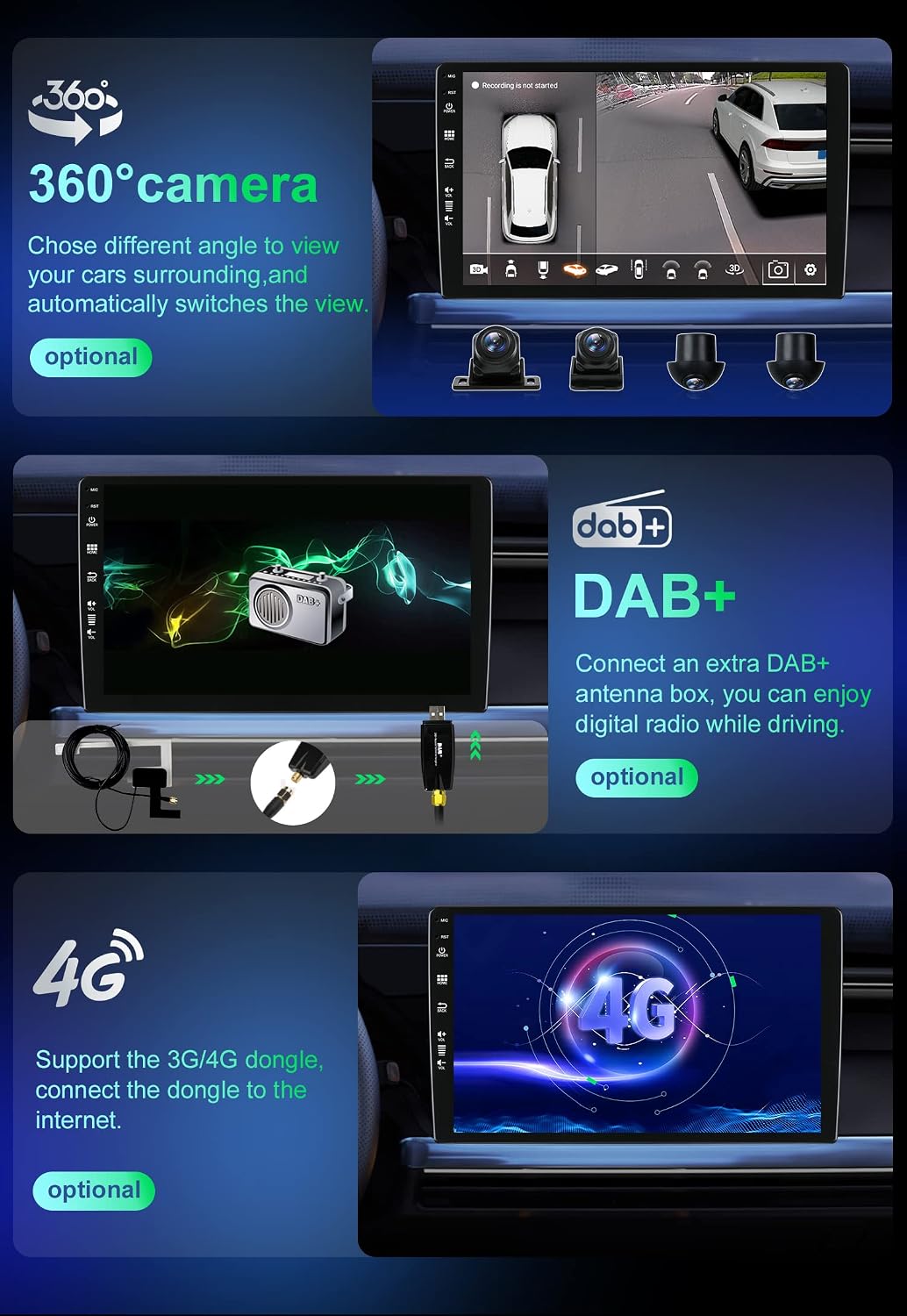
Image 6.4: Illustrates the functionality of optional accessories including the 360-degree camera system, DAB+ digital audio broadcasting, and 4G internet support.
7. Maintenance
Screen Cleaning:
Use a soft, lint-free cloth to clean the touchscreen. For stubborn smudges, slightly dampen the cloth with water or a screen-safe cleaner. Avoid abrasive materials or harsh chemicals.
Software Updates:
Periodically check for system software updates through the unit's settings menu (if available) to ensure optimal performance and access to new features.
General Care:
Avoid exposing the unit to extreme temperatures or direct sunlight for prolonged periods. Ensure proper ventilation around the unit to prevent overheating.
8. Troubleshooting
- No Power: Check all power connections and fuses. Ensure the vehicle's ignition is on.
- No Sound: Verify volume settings, check speaker connections, and ensure the audio source is active. Check DSP settings for any muted channels or extreme equalization.
- GPS Signal Lost: Ensure the GPS antenna is properly connected and has a clear view of the sky. Move the vehicle to an open area if in a covered location.
- Bluetooth Connection Issues: Ensure Bluetooth is enabled on both the unit and your phone. Delete previous pairings and try re-pairing.
- Touchscreen Unresponsive: Try restarting the unit by pressing the reset button (if available) or turning off the vehicle's ignition and restarting.
- Steering Wheel Controls Not Working: Verify CANBUS settings are correct for your vehicle model. Check wiring connections for the CANBUS decoder.
If issues persist, consult a professional installer or contact customer support.
9. Specifications
| Feature | Specification |
|---|---|
| Operating System | Android 14 |
| Processor | 8 Core Cortex A53, 2.5GHz |
| RAM | 8GB |
| ROM | 256GB |
| Screen Size | 9 Inches IPS Touchscreen |
| Screen Resolution | 1080 * 680 |
| Output Power | 4*45W |
| Radio Chip | TDA7786 |
| Power Amplifier Chip | TDA7851 |
| Bluetooth Version | 5.0 |
| Working Temperature | -40°C to 80°C |
| Item Weight | 4 pounds |
| Package Dimensions | 31 x 21 x 11 inches |
| Model Number | BX-5Z19-D04-256G+14 |
10. Warranty and Support
Warranty: The product specifications indicate that there is no explicit warranty provided. Please refer to your purchase agreement or contact your seller for details regarding return policies or implied warranties.
Support: For technical assistance or inquiries, please contact the seller or manufacturer directly through the platform where the product was purchased.