
1. Introduction
This manual provides essential information for the installation, operation, and maintenance of the Cisco IE-3400-8T2S-E Catalyst IE3400 Rugged Series Network Essential Switch. This device is designed for industrial environments, offering robust network connectivity. Please read this manual thoroughly before operating the device.
2. Safety Information
Observe the following safety precautions to prevent injury and damage to the equipment:
- Ensure proper grounding of the device.
- Disconnect power before performing any maintenance or installation procedures.
- Operate the switch within the specified environmental conditions (temperature, humidity).
- Only qualified personnel should install and service this equipment.
- Avoid exposing the device to moisture or extreme temperatures.
3. Package Contents
Verify that your package contains the following items:
- Cisco IE-3400-8T2S-E Catalyst IE3400 Rugged Series Network Essential Switch
- Documentation (Quick Start Guide, Safety Information)
- Mounting hardware (if included with specific model variant)
- Power connector terminal blocks
If any items are missing or damaged, contact your supplier immediately.
4. Physical Overview
The following diagram illustrates the front panel components of the Cisco IE-3400-8T2S-E switch.
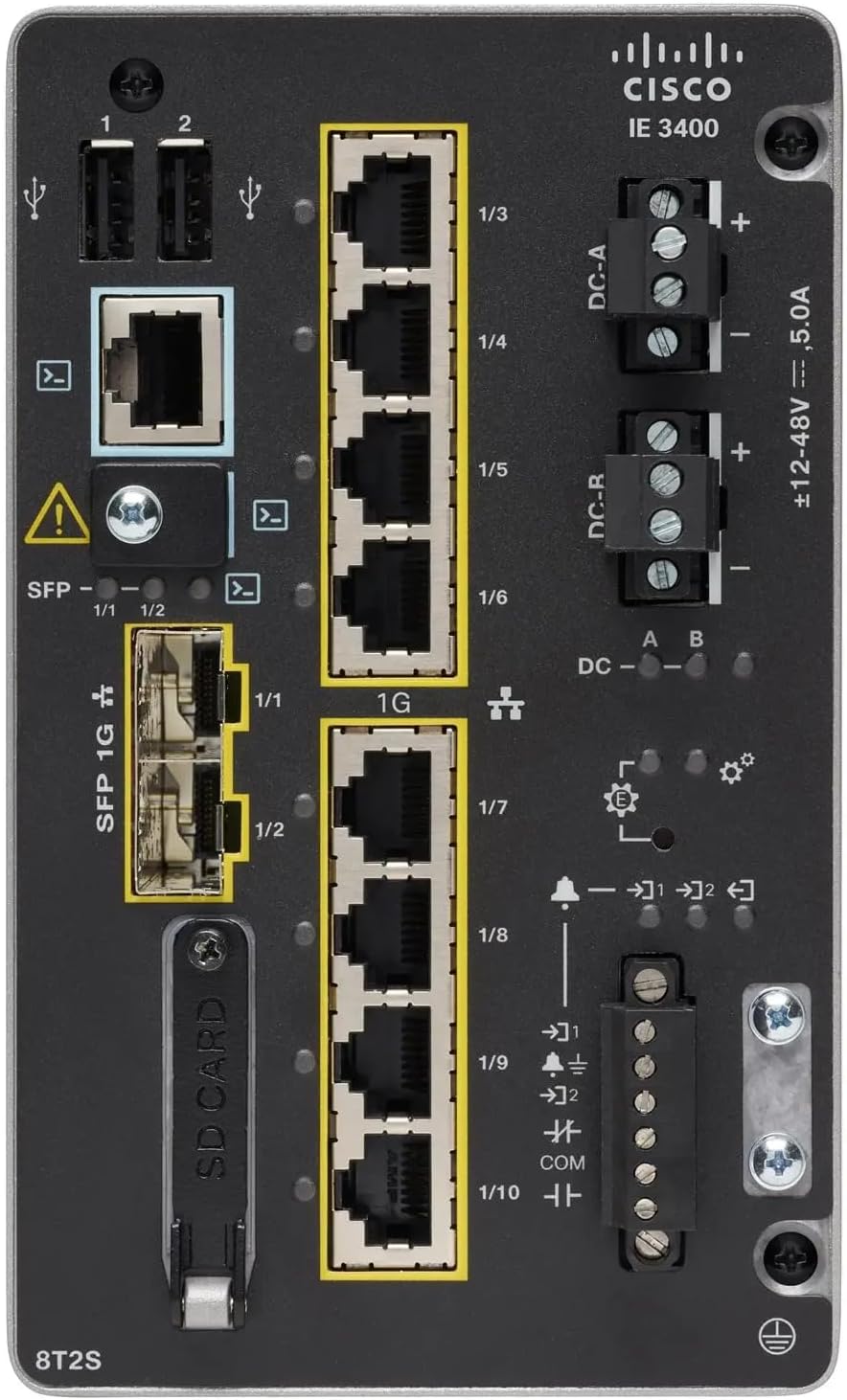
Figure 1: Front Panel Layout of the Cisco IE-3400-8T2S-E Switch
4.1. Front Panel Components Description
- USB Ports (1, 2): Two USB ports for connecting external devices or for configuration.
- Console Port: An RJ45 console port for local management and initial configuration.
- SFP 1G Ports (1/1, 1/2): Two Small Form-Factor Pluggable (SFP) ports supporting 1 Gigabit Ethernet for fiber optic connections.
- 1G Ethernet Ports (1/3 - 1/10): Eight 1 Gigabit Ethernet RJ45 ports for standard network connections.
- DC Power Inputs (DC-A, DC-R): Redundant DC power input terminals, supporting a voltage range of ±12-48V at 5.0A.
- Grounding Screw: Terminal for connecting the chassis to earth ground.
- SD Card Slot: Slot for an SD card, typically used for configuration backup or software storage.
- Alarm/Relay Ports (1/9, 1/10): Terminals for connecting external alarm systems or relay controls.
- LED Indicators: Various LEDs indicating power status (DC A/B), system status, link/activity for ports, and alarm status.
5. Setup
5.1. Mounting the Switch
The IE3400 series switches are designed for industrial environments and typically support DIN rail or wall mounting. Refer to the specific mounting instructions provided with your mounting kit for detailed steps.
5.2. Connecting Power
- Ensure the power source is off before connecting.
- Connect the DC power cables to the DC-A and/or DC-R terminal blocks, observing polarity (+ and -). The switch supports redundant power inputs.
- Connect the grounding wire to the grounding screw on the front panel.
- Once all connections are secure, apply power to the switch. The DC-A and/or DC-B LEDs should illuminate.
5.3. Network Connections
- Ethernet Ports: Connect standard RJ45 Ethernet cables from your network devices to the 1G Ethernet ports (1/3 - 1/10).
- SFP Ports: Insert compatible SFP transceivers into the SFP 1G ports (1/1, 1/2) and connect fiber optic cables as required.
- Console Port: For initial configuration, connect a console cable from your management workstation to the RJ45 console port.
6. Operating Instructions
6.1. Initial Power-Up
Upon applying power, the switch will perform a power-on self-test (POST). The system LED will indicate the boot status. Once the boot process is complete, the switch will be ready for configuration.
6.2. Configuration Access
The switch can be configured via the console port using a terminal emulator or remotely via Telnet/SSH once an IP address is assigned. Refer to the Cisco IOS documentation for detailed configuration commands and procedures.
6.3. LED Indicators
Monitor the LED indicators on the front panel to understand the switch's operational status:
- DC-A/DC-B LEDs: Indicate the status of the primary and redundant DC power inputs.
- System LED: Indicates the overall operational status of the switch (e.g., green for normal operation, amber for warning, red for fault).
- Link/Activity LEDs (per port): Indicate network link status and data activity on each Ethernet and SFP port.
- Alarm LED: Illuminates when a critical system alarm is triggered.
7. Maintenance
7.1. Cleaning
Periodically clean the exterior of the switch with a soft, dry cloth. Do not use liquid or aerosol cleaners. Ensure ventilation openings are free from dust and debris.
7.2. Firmware Updates
Regularly check the Cisco support website for the latest firmware updates. Applying updates can improve performance, add features, and address security vulnerabilities. Follow Cisco's official procedures for firmware upgrades.
7.3. Environmental Considerations
Ensure the switch operates within its specified temperature and humidity ranges. Proper airflow around the device is crucial for heat dissipation.
8. Troubleshooting
This section provides basic troubleshooting steps for common issues.
8.1. No Power
- Verify that the power source is active and the power cables are securely connected to the DC-A/DC-R terminals.
- Check the DC-A/DC-B LEDs. If they are off, there is no power or a power supply issue.
8.2. No Network Link
- Ensure Ethernet or fiber optic cables are properly connected to both the switch port and the connected device.
- Check the Link/Activity LED for the specific port. If it is off, there is no link.
- Verify that the connected device is powered on and functioning correctly.
8.3. System Alarm
- If the Alarm LED is illuminated, consult the Cisco IOS documentation for specific alarm codes and their meanings.
- Check system logs via the console or network management interface for detailed error messages.
9. Specifications
| Feature | Specification |
|---|---|
| Model | IE-3400-8T2S-E |
| Manufacturer | Cisco |
| Ethernet Ports | 8 x 1 Gigabit RJ45 |
| SFP Ports | 2 x 1 Gigabit SFP |
| Interface Type | RJ45, SFP, PoE, PoE+ (model dependent) |
| Power Input | ±12-48V DC, 5.0A (Redundant) |
| Product Dimensions | 36 x 9 x 55 cm |
| Item Weight | 2.28 Kilograms |
| Compatible Devices | Desktop, Laptop, Printer |
| UPC | 703670760433 |
10. Warranty and Support
This product is offered as an Amazon Renewed item. Warranty and return policies are typically managed by the reseller (Amazon Renewed) for a specified period. Please refer to your purchase documentation or contact Amazon Renewed support for details regarding your specific warranty coverage.
For technical documentation, software downloads, and advanced support for the Cisco IE-3400-8T2S-E switch, please visit the official Cisco support website and search for your specific model.


