
1. Introduction
This manual provides detailed instructions for the installation, operation, and maintenance of your Vratzn Android 13 Car Radio Stereo. Please read this manual thoroughly before installation and use to ensure proper functionality and to maximize your experience.
2. Compatible Car Models
This car radio stereo is designed for the following Lexus IS models and years:
- Lexus IS250 (2005-2012)
- Lexus IS300 (2005-2012)
- Lexus IS200 (2005-2012)
- Lexus IS220 (2005-2012)
- Lexus IS350 (2005-2012)
3. Package Contents
Verify that all items listed below are included in your package:
- Vratzn Android 13 Car Radio Stereo Unit (10-inch display)
- Power Cable
- Power Harness
- RCA Cable
- USB Cable (x2)
- GPS Module
- Microphone
- Reversing Line (for backup camera)
- OBD Adapter
- Screwdriver
- Crowbar (Pry Tool)

4. Installation Guide
Professional installation is recommended. Ensure the vehicle's battery is disconnected before beginning installation.
4.1. Pre-Installation Comparison
Observe the difference in appearance and functionality before and after installation.

4.2. Wiring Connections
Refer to the detailed wiring diagram for correct connections. Improper wiring can lead to malfunctions, especially with AC and steering wheel controls.
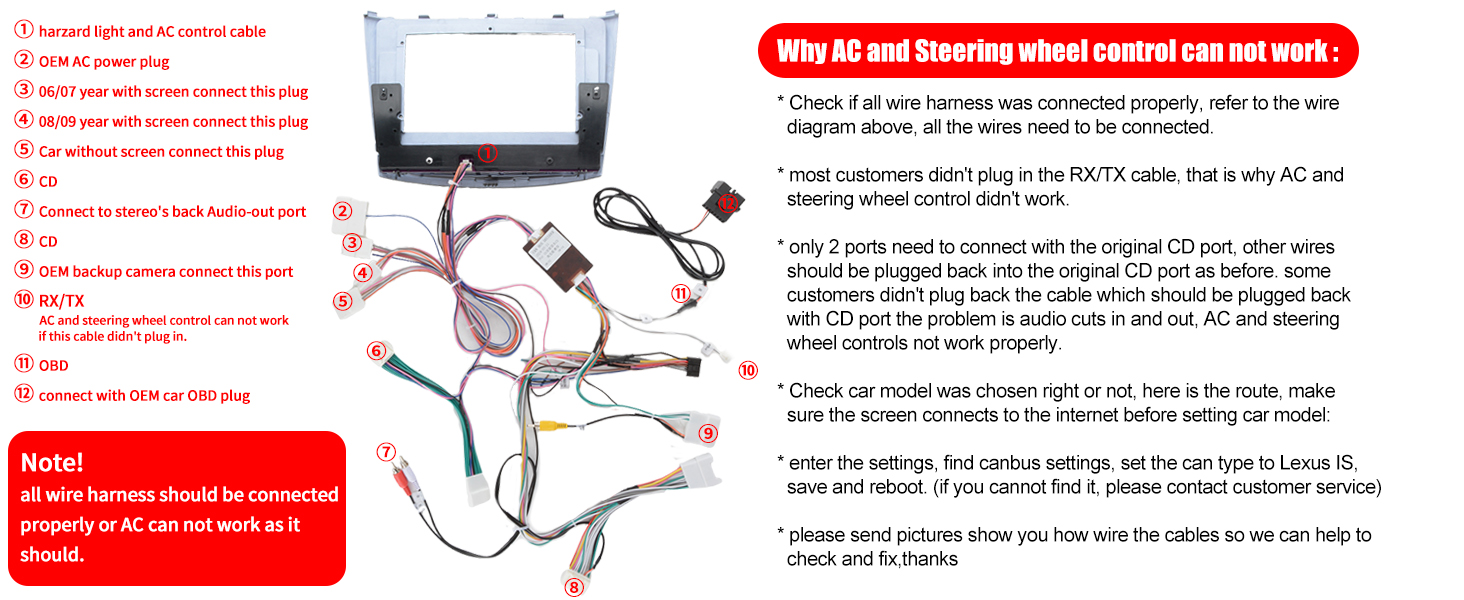
Important Note:
- Ensure all wire harnesses are connected properly.
- For AC and steering wheel control functionality, the RX/TX cable must be plugged in.
- If your vehicle has an original CD port, ensure other wires are plugged back into it after connecting the new unit.
- Connect the OEM backup camera to its designated port.
- Connect the OBD adapter to the OEM OBD plug.
5. Initial Setup
5.1. Setting Car Model (CANBUS)
After installation, it is crucial to set the correct car model in the system settings for proper integration with vehicle features like AC and steering wheel controls.
- Ensure the unit is connected to the internet.
- Navigate to the system settings.
- Locate the 'CANBUS settings' or 'Car Model settings'.
- Select 'Lexus IS' as the car type.
- Save the settings and reboot the unit.
If you encounter difficulties, please contact customer support with pictures of your wiring for assistance.
6. Operating Instructions
6.1. Wireless CarPlay & Android Auto
Connect your smartphone wirelessly to access navigation, music, calls, and more directly on the car stereo screen. Supports both Apple CarPlay and Android Auto.

6.2. GPS Navigation
The unit comes with built-in offline North America maps and supports online navigation when connected to WiFi. Install or delete navigation apps from the application store.

6.3. WiFi Connection
Connect to a 5GHz WiFi network for faster and more stable internet access. This enables online navigation, video streaming, and app downloads.
6.4. Bluetooth 5.0
Pair your mobile phone via Bluetooth for hands-free calling and audio streaming.

6.5. FM Radio
Tune into your favorite FM radio stations. The unit supports multiple presets.
6.6. Steering Wheel Control (SWC)
The unit supports original car steering wheel controls. After correct wiring and configuration, you can control volume, track changes, and answer calls directly from your steering wheel.
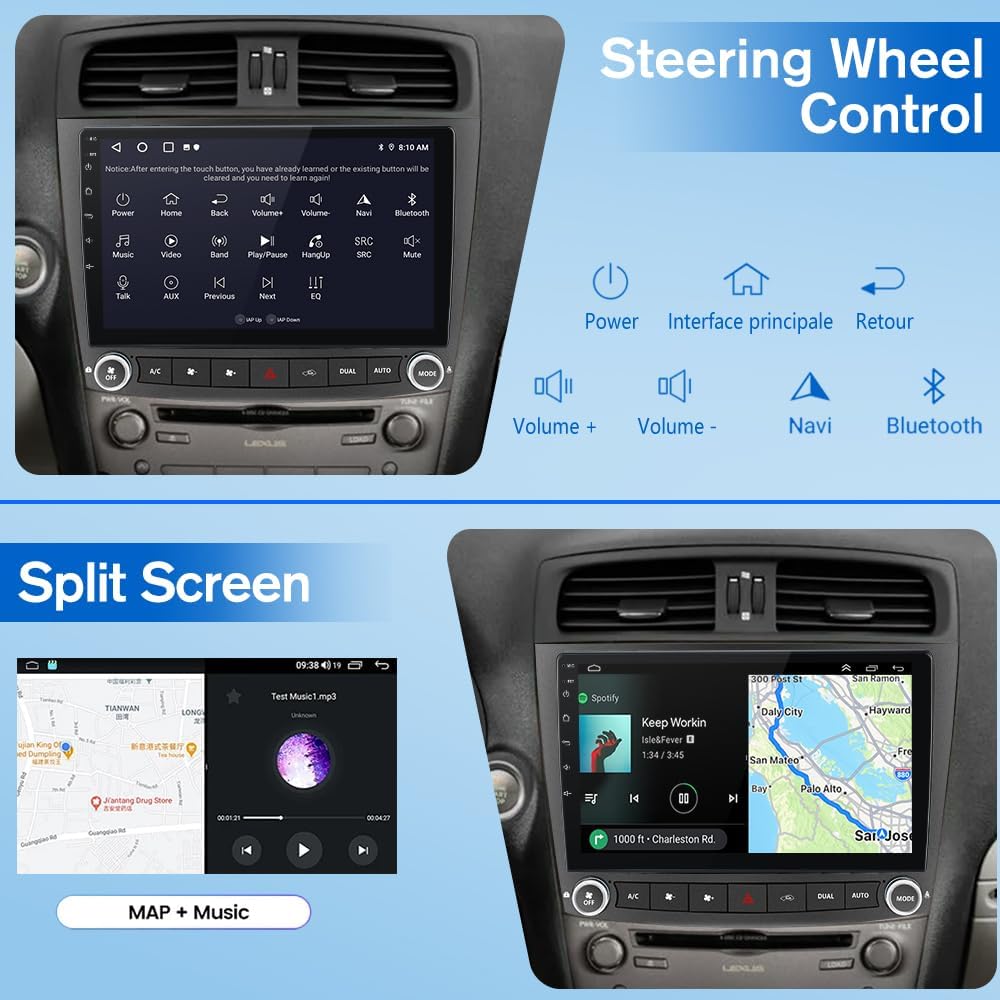
6.7. Split Screen
Utilize the split-screen feature to run two applications simultaneously, such as navigation and music playback.
7. Troubleshooting
7.1. AC and Steering Wheel Controls Not Working
- Check Wiring: Ensure all wire harnesses are connected correctly, especially the RX/TX cable. Refer to the wiring diagram in Section 4.2.
- Original CD Port: If your car had an original CD port, ensure all necessary wires are plugged back into it. Some connections might rely on this.
- CANBUS Settings: Verify that the correct car model (Lexus IS) is selected in the CANBUS settings (Section 5.1) and the unit is rebooted.
- Internet Connection: Ensure the screen is connected to the internet before setting the car model.
7.2. Hazard Button or OEM Backup Camera Not Working
- Wiring Check: Double-check the connections for the hazard light cable and the OEM backup camera port as shown in the wiring diagram.
- Compatibility: While the unit supports OEM backup cameras, ensure your specific vehicle's camera system is compatible with the provided wiring.
7.3. Steering Wheel Control Buttons Reversed
- Learning Function: Access the steering wheel control learning function in the unit's settings. Attempt to re-map or reverse the functions of the 'Next' and 'Previous' buttons.
- CANBUS Settings: Re-verify CANBUS settings for any options related to steering wheel control mapping.
If issues persist after following these steps, please contact Vratzn customer support.
8. Specifications
| Feature | Detail |
|---|---|
| Operating System | Android 13 |
| Processor | 4-core |
| RAM | 2GB |
| ROM (Internal Storage) | 32GB |
| Display Size | 10.1 Inches |
| Display Type | IPS Touch Screen (Capacitive) |
| Wireless Connectivity | 5GHz WiFi, Bluetooth 5.0 |
| Smartphone Integration | Wireless CarPlay, Wireless Android Auto, Wired/Wireless Mirror Link (IOS/Android) |
| Navigation | Offline/Online GPS Navigation (North America maps) |
| Audio Features | FM Radio, Adjustable EQ, Multi-format Music Player |
| Video Features | 1080p Video Player, Video and Audio Output |
| Inputs | AHD Backup Camera, AUX Audio and Video Input, 2 USB Ports |
| Additional Features | Steering Wheel Control, Split Screen, Multiple UI and Wallpaper Selections |
| Item Weight | 3.63 pounds |
| Package Dimensions | 12.6 x 5.12 x 5.12 inches |
9. Warranty and Support
9.1. Product Warranty
This Vratzn car radio stereo comes with a 1-Year Warranty from the date of purchase. This warranty covers manufacturing defects and malfunctions under normal use. Please retain your proof of purchase for warranty claims.
9.2. Customer Support
For any installation questions, operational issues, or troubleshooting assistance, please contact our dedicated customer support team. We are committed to providing reliable one-on-one support.
Contact Email: Vratzn-US@outlook.com
