
Product Overview
This document provides instructions for the ZWP NS-RCFNA-21 Rev F Replacement Voice Remote Control. This remote is designed for use with Insignia F20 Series and F30 Series Smart TVs, including models NS-43F301NA23, NS-50F301NA23, and NS-55F301NA23, specifically those with DirecTV and Peacock shortcut buttons. It features voice control capabilities and is made of high-quality, wear-resistant ABS material for comfortable handling and durability.

Image: The ZWP NS-RCFNA-21 Rev F Replacement Voice Remote Control, showcasing its design and button layout.
Setup and Installation
Battery Installation
The remote control requires two AAA batteries (not included). Follow these steps to install them:
- Locate the battery compartment on the back of the remote control.
- Slide the battery cover downwards to open it.
- Insert two AAA batteries, ensuring the positive (+) and negative (-) terminals align correctly with the markings inside the compartment.
- Slide the battery cover back into place until it clicks securely.

Image: Front view of the remote control alongside two AAA batteries, illustrating the battery type required.
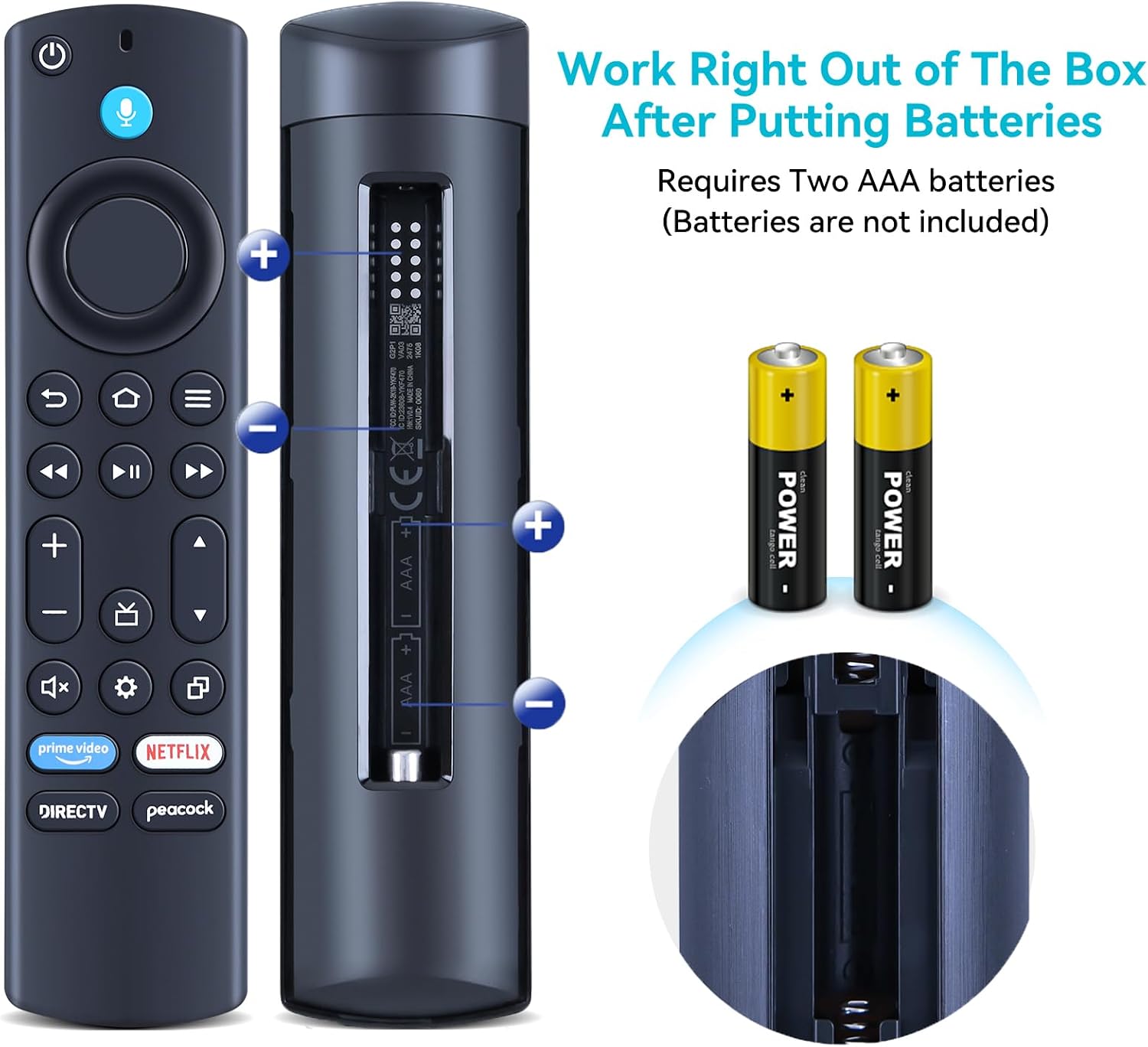
Image: Back view of the remote control with the battery cover removed, showing the correct orientation for inserting AAA batteries.
Pairing Steps
To ensure proper functionality, the remote control must be paired with your Insignia Smart TV. Please ensure your TV's shortcut buttons are DirecTV and Peacock for compatibility. Follow these steps:
- Place the remote control approximately 10 feet (3 meters) from your TV device.
- Press and hold the Left, Menu, and Back keys simultaneously for more than 10 seconds. Wait for 60 seconds after releasing.
- Remove the batteries from the remote control.
- Unplug the power cord from your TV equipment and wait for 60 seconds.
- Reconnect the power cord to your TV equipment and wait for the main screen to display.
- Reinsert the batteries into the remote control.
- Press and hold the Home button on the remote control for 40 seconds.
- Wait for an additional 60 seconds for the pairing process to complete.
Operating Instructions
This voice remote control offers intuitive navigation and voice command capabilities for your Insignia Smart TV.
Key Functions
- Power Button: Turns the TV on or off.
- Voice Button (Microphone Icon): Press and hold to activate voice commands. Speak clearly into the remote.
- Navigation Ring (Directional Pad): Use to move through menus and select items.
- Select Button (Center of Navigation Ring): Confirms selections.
- Back Button: Returns to the previous screen.
- Home Button: Returns to the TV's home screen.
- Menu Button (Three Horizontal Lines): Accesses context-sensitive menus.
- Volume Up/Down Buttons (+/-): Adjusts the TV volume.
- Channel Up/Down Buttons (Triangle Icons): Changes TV channels.
- Mute Button (Speaker with X): Mutes or unmutes the TV audio.
- Settings Button (Gear Icon): Accesses TV settings.
- App Shortcut Buttons (Prime Video, Netflix, DirecTV, Peacock): Direct access to these streaming applications.

Image: Illustration demonstrating the use of the voice command feature by holding the voice button and speaking commands such as "look up stock prices" or "show me the hot movies."
Voice Control
To use voice control, press and hold the microphone button on the remote. Speak clearly and concisely into the remote. Release the button when you are finished speaking. Examples of commands include:
- "Open Netflix"
- "Search for action movies"
- "Go to channel 5"
- "Volume up"
Maintenance
Battery Replacement
When the remote control's performance degrades or it stops responding, it is likely time to replace the batteries. Follow the battery installation steps outlined in the "Setup and Installation" section.
Important: Always replace both batteries at the same time with new AAA batteries. Do not mix old and new batteries, or different types of batteries.
Cleaning
To clean the remote control, use a soft, dry cloth. For stubborn dirt, slightly dampen the cloth with water. Do not use abrasive cleaners, solvents, or alcohol, as these can damage the remote's surface or internal components.
Troubleshooting
If you experience issues with your remote control, refer to the following common troubleshooting steps:
- Remote Not Responding:
- Check if the batteries are correctly inserted and have sufficient charge. Replace them if necessary.
- Ensure there are no obstructions between the remote control and the TV's infrared receiver.
- Re-pair the remote control with the TV using the "Pairing Steps" in the Setup section.
- Voice Control Not Working:
- Ensure you are pressing and holding the voice button while speaking.
- Speak clearly and at a normal volume.
- Check your TV's internet connection, as voice commands often require online processing.
- Remote Consistently Unpairs:
- This can sometimes indicate a weak battery or interference. Try replacing batteries and re-pairing.
- Ensure the remote is within the recommended operating distance from the TV.
- Shortcut Buttons (DirecTV, Peacock) Not Working:
- Verify that your TV model is compatible with these specific shortcut buttons as mentioned in the product description.
- Ensure the respective applications are installed and updated on your Smart TV.
If the issue persists after trying these steps, please contact customer support for further assistance.
Specifications
| Feature | Detail |
|---|---|
| Model Number | NS-RCFNA-21 Rev F |
| Brand | ZWP |
| Compatible TV Models | Insignia F20 Series, F30 Series Smart TV (NS-43F301NA23, NS-50F301NA23, NS-55F301NA23) with DirecTV Peacock Buttons |
| Special Feature | Voice Search |
| Color | Black |
| Max Number of Supported Devices | 1 |
| Item Weight | 0.81 ounces |
| Package Dimensions | 6.3 x 1.62 x 0.75 inches |
| Power Source | 2 x AAA Batteries (not included) |
| Material | High-quality ABS |

Image: Dimensional diagram of the remote control, indicating its length, width, and thickness.
Warranty and Support
For warranty information or technical support, please contact the manufacturer, ZWP, directly. Refer to the product packaging or the manufacturer's official website for contact details.
For general inquiries or assistance, you may also refer to the product's listing page on Amazon or contact Amazon customer service.
- Manufacturer: ZWP
- Seller: ZWP-STORE (on Amazon)
- Amazon Product Page: https://www.amazon.com/dp/B0DMDGLWYW