
Coleshome Dfj-5928
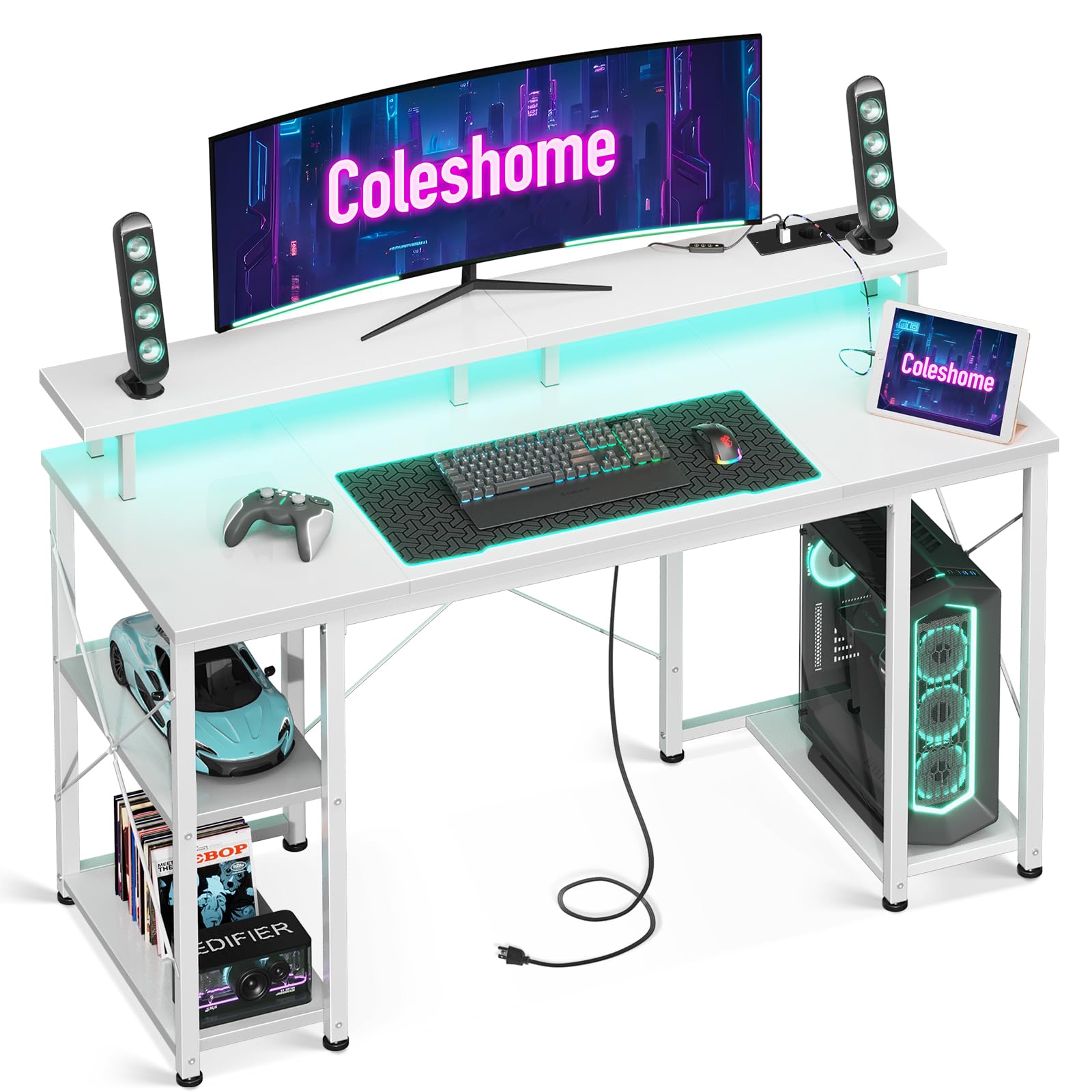
Coleshome Gaming Desk with LED Lighting, 2 Outlets, 2 USB Ports, Monitor Stand, and Storage (Model Dfj-5928 / REX-09) User Manual
Model: Dfj-5928 / REX-09 | Dimensions: 120 x 50 cm | Color: White
Introduction
This manual provides essential instructions for the assembly, operation, and maintenance of your Coleshome Gaming Desk. Please read this manual thoroughly before assembly and use to ensure safe and efficient operation of your product. Keep this manual for future reference.
Safety Warnings
To prevent injury or damage to the product, observe the following safety precautions:
- Weight Capacity: Do not overload the desk with excessively heavy equipment. Ensure the total weight on the desk, including monitors, computers, and other accessories, does not exceed its specified weight capacity.
- Stability: Properly stabilize the desk during assembly and before use to prevent tipping. Ensure all screws and fasteners are securely tightened.
- Electrical Safety: Use the integrated power outlets and USB ports with caution to avoid electrical hazards. Do not plug in damaged devices or use the ports in wet conditions. Ensure the desk is connected to a properly grounded power source.
- Assembly: Follow all assembly instructions carefully. Do not force parts together. If you encounter difficulties, refer to the assembly guide or contact customer support.
- Placement: Place the desk on a level surface to ensure stability. Avoid placing it near heat sources or in direct sunlight for prolonged periods.
Package Contents
Please verify that all components are present before beginning assembly. Refer to the separate assembly guide for a detailed list of parts and hardware. Typically, the package includes:
- Desk panels (main desktop, monitor stand shelf, side storage shelves)
- Metal frame components
- Integrated LED lighting strip
- Power strip with 2 outlets and 2 USB ports
- Assembly hardware (screws, bolts, tools)
- Instruction manual (this document) and separate assembly guide
Setup and Assembly
The Coleshome Gaming Desk is designed for straightforward assembly. It is recommended to assemble the desk with two people. Please follow the detailed step-by-step instructions provided in the separate assembly guide included with your product.
- Unpack Components: Carefully unpack all parts and lay them out on a clean, soft surface to prevent scratches.
- Assemble Frame: Begin by assembling the metal frame according to the diagrams in the assembly guide. Ensure all connections are secure.
- Attach Desktop: Secure the main desktop panel to the assembled frame.
- Install Monitor Stand: Attach the monitor stand shelf. Note that the desk features a reversible shelf design, allowing you to customize the layout of the monitor stand and storage areas to your preference.
- Install Storage Shelves: Attach the side storage shelves.
- Integrate Electrical Components: Install the LED lighting strip and the power strip with outlets and USB ports into their designated positions. Connect the LED lighting to its power source as instructed.
- Final Check: Once assembled, ensure all screws are tightened and the desk is stable.
Operating Instructions
LED Lighting
The desk features integrated LED lighting to enhance your gaming or work environment. To operate the LED lighting:
- Connect the LED lighting power cable to a suitable power source.
- Use the inline controller (if present) or remote control (if included) to turn the lights on/off, change colors, adjust brightness, or select lighting modes. Refer to the LED lighting specific instructions for detailed control options.
Integrated Power Outlets and USB Ports
The desk includes a built-in power strip with 2 standard outlets and 2 USB charging ports for convenient access to power for your devices.
- Power Connection: Plug the desk's main power cord into a grounded wall outlet.
- Using Outlets: Insert device power plugs into the 2 standard outlets. Ensure devices do not exceed the total wattage capacity of the power strip.
- Using USB Ports: Connect your USB-powered devices (e.g., smartphones, tablets, gaming accessories) to the 2 USB ports for charging.
- Safety: Avoid spilling liquids near the power strip. Do not attempt to disassemble or modify the power strip.
Maintenance
Regular maintenance will help prolong the life and appearance of your Coleshome Gaming Desk.
- Cleaning Surfaces: Wipe desk surfaces with a soft, damp cloth. Avoid abrasive cleaners or harsh chemicals that may damage the finish.
- Electrical Components: Ensure the power strip and LED lighting are unplugged before cleaning. Use a dry cloth to wipe dust from these components. Do not spray liquids directly onto electrical parts.
- Tighten Fasteners: Periodically check and tighten all screws and bolts to maintain desk stability.
- Avoid Excessive Moisture: Protect the desk from excessive moisture and humidity.
Troubleshooting
If you encounter issues with your Coleshome Gaming Desk, refer to the following common troubleshooting steps:
- Desk is Unstable:
- Ensure all assembly screws and bolts are fully tightened.
- Verify the desk is placed on a flat, level surface. Adjust leveling feet if present.
- LED Lighting Not Working:
- Check if the LED power cable is securely plugged into both the LED strip and the power source.
- Ensure the power source is active.
- Verify the LED controller (if any) is functioning correctly and not set to 'off' or minimum brightness.
- Power Outlets/USB Ports Not Functioning:
- Ensure the desk's main power cord is securely plugged into a working wall outlet.
- Check if the wall outlet itself is providing power (test with another device).
- Avoid overloading the power strip. Unplug some devices and try again.
- If the power strip has a reset button or circuit breaker, try resetting it.
- Missing or Damaged Parts:
- Review the package contents list and assembly guide.
- Contact Coleshome customer support for assistance with replacement parts.
If these steps do not resolve the issue, please contact Coleshome customer support for further assistance.
Specifications
| Brand | Coleshome |
| Model Number | Dfj-5928 / REX-09 |
| Color | White |
| Product Dimensions (L x W x H) | 120 x 50 x 86.5 cm (47.2 x 19.7 x 34.1 inches) |
| Item Weight | 16 Kilograms (35.3 lbs) |
| Material | Metal |
| Special Features | Convertible design, Integrated USB ports, Monitor stand, LED lighting, 2 Power Outlets |
| Desk Design | Computer Desk / Gaming Desk |
| Shape | Rectangular |
Warranty and Support
Warranty Information: Specific warranty details for the Coleshome Gaming Desk are not provided in the product information. Please refer to the documentation included with your purchase or contact Coleshome customer support for warranty terms and conditions.
Customer Support: For technical assistance, missing parts, or any inquiries regarding your Coleshome Gaming Desk, please contact the manufacturer's customer support. Contact information can typically be found on the product packaging or the official Coleshome website.
Related documentsDfj-5928

Ask a question about this manual
Ask about setup, troubleshooting, compatibility, parts, safety, or missing instructions. Manuals+ will review the question and use this page’s manual context to help answer it.