
1. Introduction
This manual provides comprehensive instructions for the OMAIC Voice Remote Control, Model AMZ4. It covers product features, setup procedures, operational guidelines, maintenance tips, and troubleshooting steps to ensure optimal performance and user experience. This remote is designed as a replacement for various Smart TV Stick, TV Cube, and Smart TV models, offering enhanced functionality and broad compatibility.

Figure 1: OMAIC Voice Remote Control and a compatible TV Stick. This image displays the sleek design of the remote control alongside a typical streaming device it is designed to operate.
2. Broad Compatibility
The OMAIC Voice Remote Control is engineered for extensive compatibility with a wide range of Smart TV devices and models. Refer to the lists below for specific compatible devices and remote models.
2.1. Compatible Smart TV Devices
- Smart TV Cube (1st / 2nd / 3rd Gen)
- Smart TV Stick 4K Max (1st / 2nd Gen)
- Smart TV Stick 4K (1st / 2nd Gen)
- Smart TV Stick (1st / 2nd / 3rd Gen)
- Smart TV Stick Lite
- Smart TV (3rd Gen, Pendant Design)
- Omni QLED Series Smart TVs
- Omni Series Smart TVs
- 2-Series Smart TVs
- 4-Series Smart TVs
- Smart TVs: LF711 / LF621U / LF421U / LF221U / C350 / A810U / A710U / M550 / V35 series
- Smart TVs: F30 / F20 / F50 / DF710 / DF711 / DF310 / DF510 / DF311 / DF620 series
- TVs PN450 / PN651 / PN851 / PN951 series
2.2. Applicable Remote Models
- Smart TV stick voice remote control (2nd Gen/3rd Gen/Lite/Lite 2nd Gen)
- TV voice remote control (NS-RCFNA-21, CT-95018, CT-RC1US-21, NS-RCFNA-19, CT-RC1US-19)
3. Key Features
The OMAIC Voice Remote Control offers several enhanced features designed to improve your media consumption experience.
3.1. Upgraded Functions
- Two Customizable Buttons: Easily program your favorite applications and functions to these dedicated buttons for quick access.
- Headphone Button: A new dedicated button allows for quick pairing of wireless headphones, enabling private listening without disturbing others.

Figure 2: Customizable Buttons. This image illustrates the location of the two customizable buttons (labeled 1 and 2) on the remote control, which can be programmed for preferred apps or functions.

Figure 3: Headphone Button. This image shows the headphone button on the remote and a user enjoying private listening with wireless headphones connected to their TV.
3.2. Enhanced Voice Control
- Activate voice commands by pressing and holding the Microphone Button (blue microphone icon).
- Speak clearly into the remote's microphone. Examples of commands include:
- "Find action movies"
- "Open Netflix"
- "Play [Movie Title]"
- "Go to settings"
- Release the Microphone Button when you finish speaking.
3.3. Four Shortcut Buttons
The remote includes four dedicated quick launch buttons for popular streaming services, providing one-key access to:
- NETFLIX
- Video (likely Prime Video)
- Disney (Disney+)
- Hulu
4. Setup and Pairing
Before using your OMAIC Voice Remote Control, it must be paired with your compatible TV Stick, TV Cube, or Smart TV. This process enables full functionality, including voice control.
4.1. Installing Batteries
- Locate the battery compartment on the back of the remote control.
- Slide open the battery cover.
- Insert two (2) AAA batteries, ensuring correct polarity (+ and -).
- Close the battery cover securely.
4.2. Pairing the Remote Control
The pairing process may vary slightly depending on your specific TV Stick, TV Cube, or Smart TV model. Generally, follow these steps:
- Ensure your TV Stick/Cube/Smart TV is powered on and connected to your display.
- Place the OMAIC Voice Remote Control within 10 feet (3 meters) of your device.
- On your TV Stick/Cube/Smart TV, navigate to the Settings menu. This is typically found on the home screen.
- Select Controllers & Bluetooth Devices or a similar option (e.g., Remotes & Bluetooth Devices, Add New Remote).
- Choose Add New Remote or Add Remote Control.
- The device will begin searching for new remotes.
- On the OMAIC Voice Remote Control, press and hold the Home button (usually a house icon) for approximately 10-20 seconds. The remote's indicator light may flash.
- Release the button when your device detects the remote. A confirmation message should appear on your screen.
- Follow any on-screen prompts to complete the pairing.
If pairing is unsuccessful, try replacing the batteries, moving closer to the device, or restarting your TV Stick/Cube/Smart TV and repeating the steps.
5. Operating Instructions
Once paired, your OMAIC Voice Remote Control is ready for use. Below are instructions for its primary functions.
5.1. Basic Navigation
- Directional Pad (D-Pad): Use the circular pad with Up, Down, Left, and Right arrows to navigate menus and select items.
- OK Button: Press the center "OK" button to confirm selections or play/pause content.
- Back Button: The curved arrow button returns to the previous screen or menu.
- Home Button: The house icon button returns you to the main home screen of your device.
- Menu Button: The three-line icon button opens context-sensitive menus or options.
5.2. Using Voice Control
- Press and hold the Microphone Button (blue microphone icon).
- Speak clearly into the remote's microphone. Examples of commands include:
- "Find action movies"
- "Open Netflix"
- "Play [Movie Title]"
- "Go to settings"
- Release the Microphone Button when you finish speaking.
5.3. Programming Customizable Buttons
The remote features two customizable buttons (labeled 1 and 2) that can be programmed to launch your favorite apps or functions.
- Navigate to the app or function you wish to assign to a customizable button.
- Press and hold the desired customizable button (1 or 2) for approximately 3-5 seconds until a confirmation appears on your screen, indicating the app/function has been assigned.
- To use the programmed button, simply press it once.
5.4. Pairing Wireless Headphones
The dedicated headphone button simplifies connecting wireless headphones for private listening.
- Ensure your wireless headphones are in pairing mode.
- Press the Headphone Button (headphone icon) on the remote control.
- Follow the on-screen instructions on your TV or streaming device to complete the pairing process with your headphones.
6. Maintenance
Proper care and maintenance will extend the lifespan of your OMAIC Voice Remote Control.
6.1. Cleaning
- Use a soft, dry cloth to wipe the surface of the remote.
- For stubborn dirt, lightly dampen the cloth with water or a mild, non-abrasive cleaner. Do not spray cleaner directly onto the remote.
- Avoid using harsh chemicals, solvents, or abrasive cleaning materials, as these can damage the remote's finish or internal components.
6.2. Battery Replacement
- Replace batteries when the remote's response becomes sluggish or if the indicator light does not illuminate during use.
- Always replace both AAA batteries at the same time with new ones.
- Do not mix old and new batteries, or different types of batteries.
- Remove batteries if the remote will not be used for an extended period to prevent leakage.
7. Troubleshooting
If you encounter issues with your OMAIC Voice Remote Control, try the following solutions:
| Problem | Possible Cause | Solution |
|---|---|---|
| Remote not responding | Low or dead batteries; Remote not paired; Obstruction between remote and device. | Replace batteries. Re-pair the remote (refer to Section 4.2). Ensure clear line of sight to the device. |
| Voice control not working | Remote not paired for voice; Microphone button not held; Speaking too softly/loudly. | Ensure remote is fully paired (voice function activates after pairing). Press and hold the microphone button while speaking. Speak clearly at a normal volume. |
| Customizable buttons not working | Buttons not programmed; Incorrect programming. | Program the buttons as described in Section 5.3. Ensure you hold the button long enough for confirmation. |
| Headphones not pairing | Headphones not in pairing mode; Interference. | Ensure headphones are in pairing mode. Try moving closer to the device. Restart both the device and headphones. |
| Intermittent connection | Weak batteries; Interference from other devices; Distance from device. | Replace batteries. Reduce interference by moving other electronic devices. Stay within recommended operating range (approx. 10 feet). |
8. Specifications
Detailed technical specifications for the OMAIC Voice Remote Control, Model AMZ4.
| Feature | Detail |
|---|---|
| Product Dimensions | 6.2 x 1.49 x 0.59 inches (15.7 x 3.8 x 1.5 cm) |
| Item Weight | 1.76 ounces (50 grams) |
| Model Number | AMZ4 |
| Batteries Required | 2 x AAA batteries (not included) |
| Connectivity Technology | Infrared (IR) and Bluetooth (for voice/advanced features) |
| Max Number of Supported Devices | 1 (dedicated to one paired device) |
| Compatible Devices | Television, Smart TV Stick, Smart TV Cube |
| Special Features | Ergonomic design, No programming required (after pairing), Universal compatibility (within specified models), Voice Search, Customizable Buttons, Headphone Pairing Button |
| Manufacturer | OMAIC |
| Date First Available | November 8, 2024 |
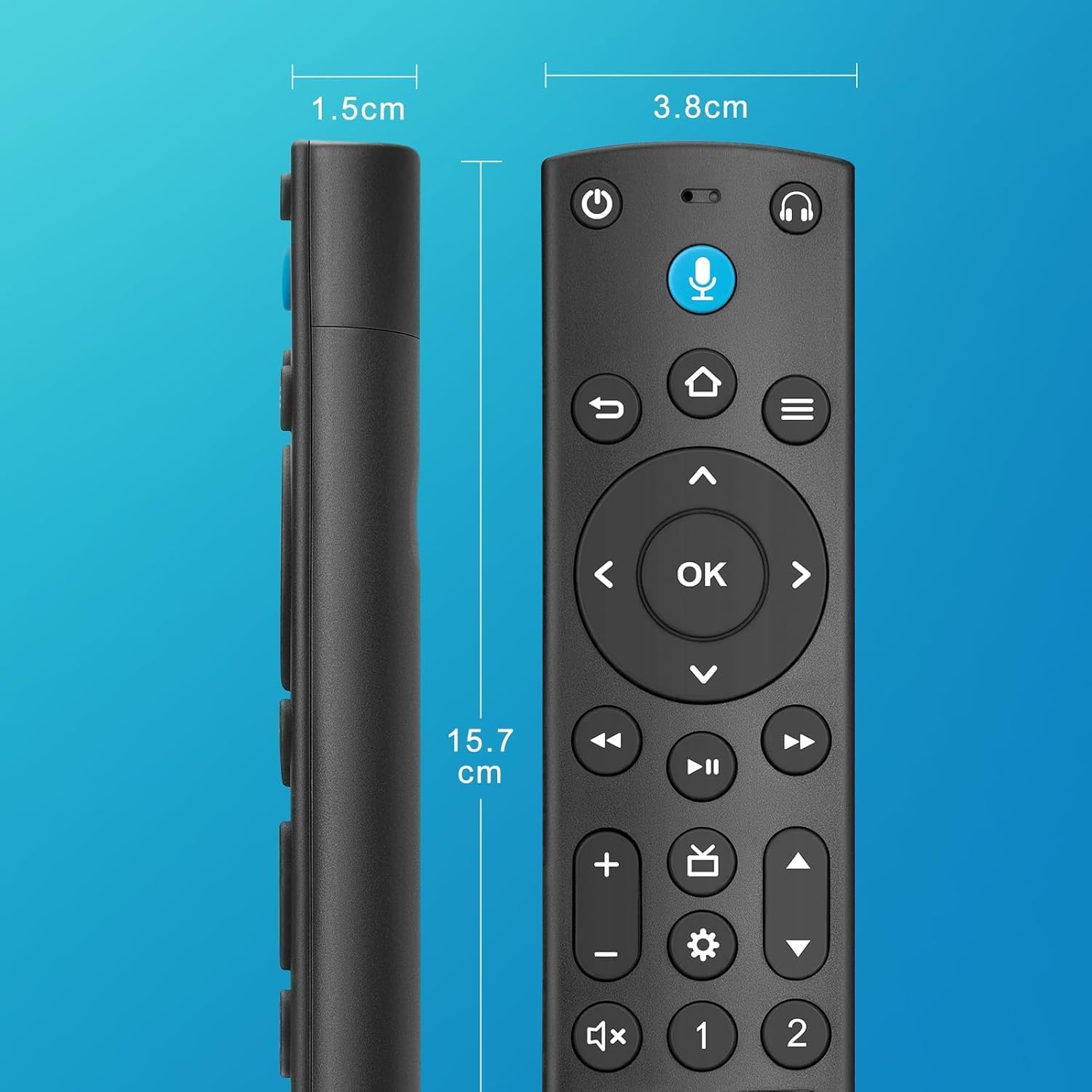
Figure 4: Remote Control Dimensions. This image provides a visual representation of the remote control's length, width, and thickness, with measurements in both inches and centimeters.
9. Customer Support
For further assistance, technical support, or warranty inquiries regarding your OMAIC Voice Remote Control, please contact OMAIC customer service through the retailer's platform or visit the official OMAIC store page.
OMAIC Store: Visit OMAIC Store on Amazon
Please have your product model number (AMZ4) and purchase details ready when contacting support.