
1. Introduction
Welcome to the user manual for your Emerson CKSS7071 Sunrise Smartset Alarm Clock Radio. This device is designed to enhance your daily routine with its unique features, including a sunrise simulation, soothing sound options, Bluetooth connectivity, and an 8-color dimmable LED display. Please read this manual thoroughly to understand the full functionality and ensure proper use and care of your new alarm clock radio.
Video 1: Overview of the Emerson CKSS7071 Sunrise Smartset Alarm Clock Radio. This video demonstrates the key features and design of the product.
2. Important Safety Information
- Read all instructions before operating the appliance.
- Keep these instructions for future reference.
- Do not use this apparatus near water.
- Clean only with a dry cloth.
- Do not block any ventilation openings. Install in accordance with the manufacturer's instructions.
- Do not install near any heat sources such as radiators, heat registers, stoves, or other apparatus (including amplifiers) that produce heat.
- Protect the power cord from being walked on or pinched, particularly at plugs, convenience receptacles, and the point where they exit from the apparatus.
- Only use attachments/accessories specified by the manufacturer.
- Unplug this apparatus during lightning storms or when unused for long periods of time.
- Refer all servicing to qualified service personnel. Servicing is required when the apparatus has been damaged in any way, such as power-supply cord or plug is damaged, liquid has been spilled or objects have fallen into the apparatus, the apparatus has been exposed to rain or moisture, does not operate normally, or has been dropped.
3. Package Contents
Verify that all items are present upon opening the package:
- Emerson CKSS7071 Sunrise Smartset Alarm Clock Radio
- AC Power Adapter
- User Manual
4. Product Overview
4.1 Front View

Image 1: Front view of the alarm clock, featuring the digital time display and the sunrise simulation light panel.
The front of the unit features the main 1.2-inch LED time display and the large circular light panel for sunrise simulation and ambient lighting. Indicators for AM/PM, Alarm 1/2, and Bluetooth status are also visible.
4.2 Side View (Controls)
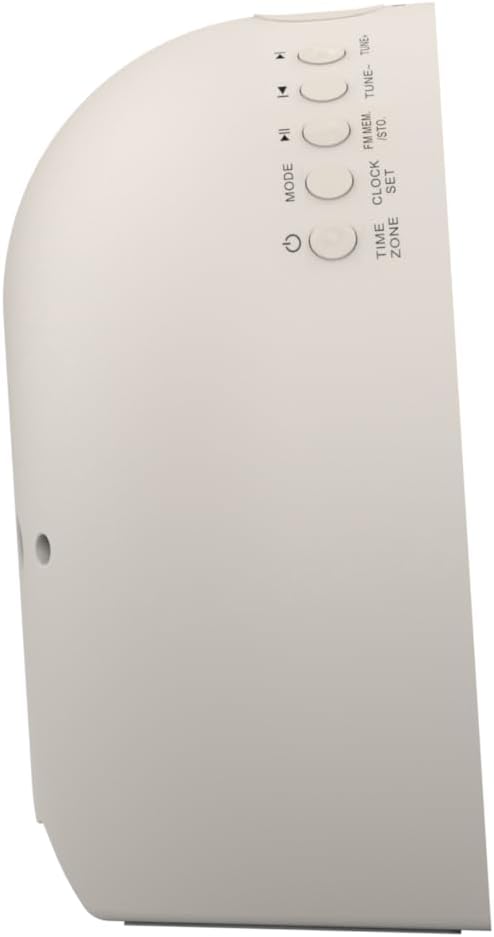
Image 2: Side view of the alarm clock, highlighting the control buttons for various functions.
The side panel houses the primary control buttons, including Power, Mode, Clock Set, Time Zone, Tune/Skip, and Volume controls. These buttons are used for setting time, alarms, and navigating audio functions.
4.3 Rear View

Image 3: Rear view of the alarm clock, showing the speaker grille and power connection port.
The rear of the unit features the main speaker grille and the power input port for connecting the AC adapter.
5. Setup
5.1 Power Connection
- Plug the AC power adapter into the DC IN jack located on the back of the unit.
- Plug the other end of the adapter into a standard wall outlet (AC 100-240V, 50/60Hz).
- The unit will power on automatically.
5.2 SmartSet Automatic Time Setting
The SmartSet system automatically sets the correct time and date as soon as you plug in the unit. It also maintains time and alarm settings during power disruptions or outages, provided the button cell battery is installed.
5.3 Battery Backup Installation
A button cell battery (CR2032, included) is required for battery backup. This ensures that time and alarm settings are retained during a power outage.
- Locate the battery compartment on the bottom of the unit.
- Open the battery compartment cover.
- Insert one CR2032 button cell battery, ensuring the correct polarity (+/-).
- Close the battery compartment cover securely.
6. Operating Instructions
6.1 Setting the Clock Manually
- Press and hold the CLOCK SET button. The hour digits will flash.
- Use the TUNE -/+ buttons to adjust the hour. Press CLOCK SET to confirm.
- The minute digits will flash. Use the TUNE -/+ buttons to adjust the minutes. Press CLOCK SET to confirm.
- Continue this process to set the year, month, and day.
- Press CLOCK SET again to exit time setting mode.
6.2 Setting Alarms (Alarm 1 & Alarm 2)
The unit features dual alarms. Follow these steps for each alarm:
- Press and hold the ALARM 1 or ALARM 2 button. The alarm hour digits will flash.
- Use the TUNE -/+ buttons to adjust the alarm hour. Press the respective ALARM button to confirm.
- The alarm minute digits will flash. Use the TUNE -/+ buttons to adjust the alarm minutes. Press the respective ALARM button to confirm.
- Select the alarm source (Buzzer, FM Radio, or Soothing Sound). Press the respective ALARM button to confirm.
- Adjust the alarm volume using the VOL -/+ buttons. Press the respective ALARM button to confirm.
- The alarm is now set. The alarm indicator (AL1 or AL2) will appear on the display.
6.3 Sunrise Simulation
The sunrise simulation feature gradually brightens the light panel before your set alarm time, mimicking a natural sunrise to gently wake you.
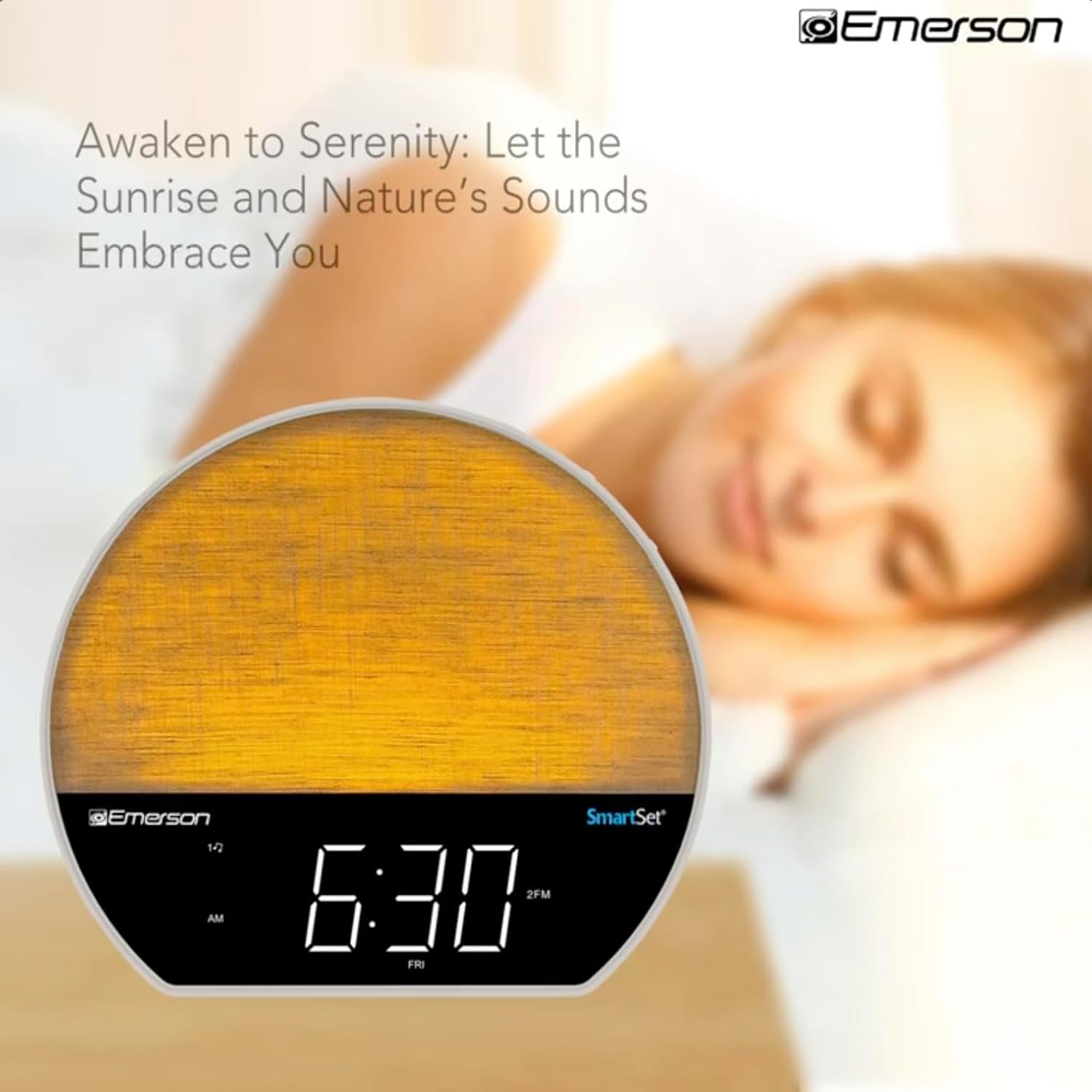
Image 4: The alarm clock simulating a sunrise with a warm, increasing light intensity.
To activate, ensure the sunrise option is selected during alarm setup. The light will begin to brighten 30 minutes before the alarm sounds.
6.4 Soothing Sounds and White Noise
The unit includes 6 soothing sounds and white noise to help with relaxation or waking up.
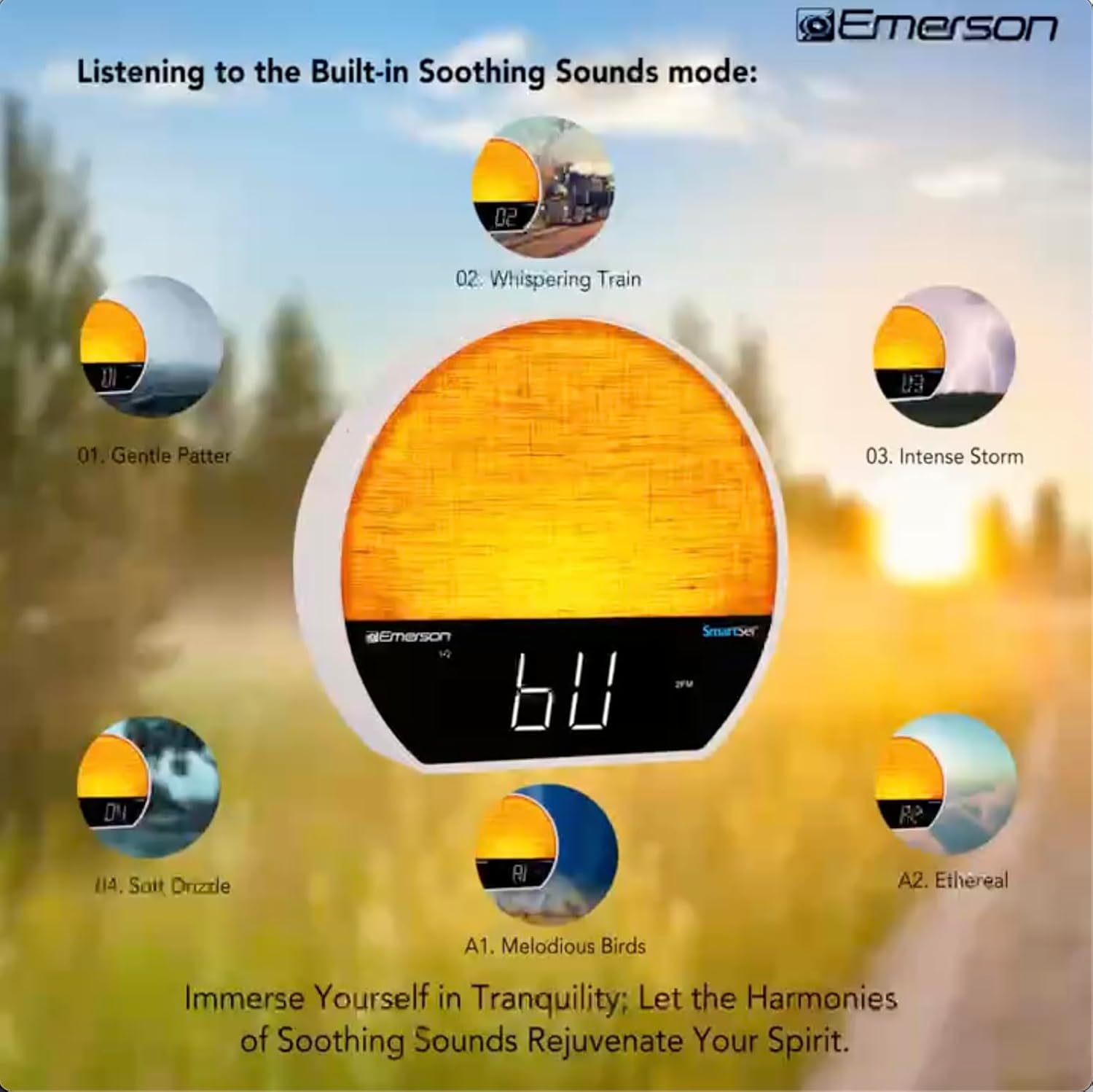
Image 5: Visual representation of the six soothing sound modes available on the alarm clock.
- Press the MODE button repeatedly until the Soothing Sound mode is selected.
- Use the TUNE -/+ buttons to cycle through the available sounds (e.g., Gentle Patter, Whispering Train, Intense Storm, Soft Drizzle, Melodious Birds, Ethereal, White Noise).
- Adjust the volume using the VOL -/+ buttons.
6.5 Bluetooth Speaker Function
Connect your smartphone or other Bluetooth-enabled device to stream audio wirelessly.

Image 6: The alarm clock in Bluetooth mode, paired with a mobile device for audio streaming.
- Press the MODE button until 'BT' appears on the display, indicating Bluetooth mode.
- On your device, enable Bluetooth and search for 'Emerson CKSS7071'.
- Select the device to pair. A confirmation tone will sound upon successful pairing.
- You can now play audio from your device through the alarm clock's speaker.
6.6 FM Radio Operation
Tune into your favorite FM radio stations.
- Press the MODE button until 'FM' appears on the display.
- Press the TUNE -/+ buttons briefly to manually tune to a station.
- Press and hold the TUNE -/+ buttons to automatically scan for the next available station.
- To save a station, press and hold the FM MEM button until the preset number flashes. Use TUNE -/+ to select a preset number, then press FM MEM again to save.
6.7 LED Decor and Dimmer Control
Customize the ambient light with 8 different colors and adjust the brightness.

Image 7: The alarm clock demonstrating its 8-color dimmable LED decor options.
- Press the LIGHT button to cycle through the 8 available colors or turn the light off.
- To adjust the brightness of the LED decor light, press and hold the LIGHT button. The brightness will cycle through 5 levels. Release the button at your desired brightness.
6.8 Display Dimmer Control
Adjust the brightness of the 1.2-inch LED time display.

Image 8: The alarm clock illustrating the five distinct levels of display luminescence.
Press the DIMMER button (often combined with another function, refer to button labels) to cycle through 4 levels of display brightness (Bright, Moderate, Dim, Faint).
6.9 Sleep Timer
Set a timer for the audio to automatically turn off after a specified duration.

Image 9: The alarm clock set for a sunset sleep timer, providing a harmonious end to the day.
- While audio is playing (FM or Soothing Sound), press the SLEEP button.
- Repeatedly press the SLEEP button to cycle through available sleep timer durations (e.g., 15, 30, 60, 90 minutes, or OFF).
- The audio will automatically turn off after the selected time.
6.10 Snooze Function
When an alarm sounds, press the SNOOZE button (usually a large button on top) to temporarily silence the alarm for a few minutes. The alarm will sound again after the snooze period.
7. Maintenance
7.1 Cleaning
- Always unplug the unit from the power outlet before cleaning.
- Use a soft, dry cloth to clean the exterior surfaces.
- Do not use liquid cleaners, abrasive cleaners, or chemical sprays, as these may damage the finish.
7.2 Battery Replacement
If the time and alarm settings are not retained during a power outage, the button cell backup battery may need to be replaced. Follow the instructions in section 5.3 to replace the CR2032 battery.
8. Troubleshooting
| Problem | Possible Cause | Solution |
|---|---|---|
| Unit does not power on. | Power adapter not connected or faulty. | Ensure the AC adapter is securely plugged into the unit and a working wall outlet. |
| Time/Alarm settings lost after power outage. | Backup battery is dead or not installed. | Install or replace the CR2032 button cell battery (see section 5.3). |
| Alarm does not sound. | Alarm is not activated or volume is too low. | Ensure the alarm is set and activated (AL1/AL2 indicator on). Increase alarm volume. |
| Bluetooth device cannot pair. | Unit not in Bluetooth mode or device too far. | Ensure the unit is in Bluetooth mode ('BT' displayed). Move your device closer to the unit. Try unpairing and re-pairing. |
| Poor FM radio reception. | Antenna not extended or interference. | Extend the FM wire antenna fully and reposition it for better reception. Avoid placing near other electronic devices. |
| Display is too bright/dim. | Display dimmer setting needs adjustment. | Press the DIMMER button to cycle through brightness levels (see section 6.8). |
9. Specifications
| Feature | Detail |
|---|---|
| Model Number | CKSS7071 |
| Power Source | AC 100-240V, 50/60Hz (via AC adapter) |
| Battery Backup | 1 x CR2032 Button Cell Battery (included) |
| Display Type | 1.2-inch LED Display |
| Bluetooth Version | V5.4 |
| Soothing Sounds | 6 Nature Sounds + White Noise |
| LED Decor Colors | 8 Dimmable Colors |
| Product Dimensions (W x D x H) | 7.09" x 3.15" x 6.37" |
| Weight | Not specified |
10. Warranty Information
Emerson products are manufactured to the highest quality standards. This product is covered by a limited warranty against defects in materials and workmanship for a period of one (1) year from the original date of purchase. This warranty does not cover damage caused by misuse, accident, unauthorized modification, or normal wear and tear. Proof of purchase is required for all warranty claims. Please retain your receipt.
11. Customer Support
If you have any questions, require assistance, or experience issues with your Emerson CKSS7071 Sunrise Smartset Alarm Clock Radio, please contact our customer support team.
- Website: Visit the official Emerson website for FAQs and support resources.
- Email: Refer to your product packaging or the official website for customer service email contact.
- Phone: Refer to your product packaging or the official website for customer service phone numbers.
Please have your model number (CKSS7071) and proof of purchase ready when contacting support.


