
KYOCERA MA4000x
KYOCERA ECOSYS MA4000x Monochrome Multifunctional Laser Printer
User Manual
1. Introduction
This manual provides essential information for the safe and efficient operation of your KYOCERA ECOSYS MA4000x Monochrome Multifunctional Laser Printer. This device is designed for high-speed monochrome printing, copying, and scanning, offering advanced features such as a dual scan document processor and free OCR capabilities. It integrates seamlessly with cloud and mobile utilities for enhanced productivity.
Please read this manual thoroughly before using the printer and keep it for future reference.
2. Product Overview

Figure 2.1: Front view of the KYOCERA ECOSYS MA4000x Multifunctional Laser Printer.
2.1 Key Features
- High-speed monochrome printing up to 42 pages per minute (ppm).
- Integrated copy and scan functionalities.
- 5-line LCD with Hard Key Control Panel for intuitive operation.
- Dual Scan Document Processor for efficient scanning of multi-page documents.
- Free Optical Character Recognition (OCR) for searchable PDF creation.
- Standard Wireless connectivity.
- 1 GB standard memory and faster processor for enhanced performance.
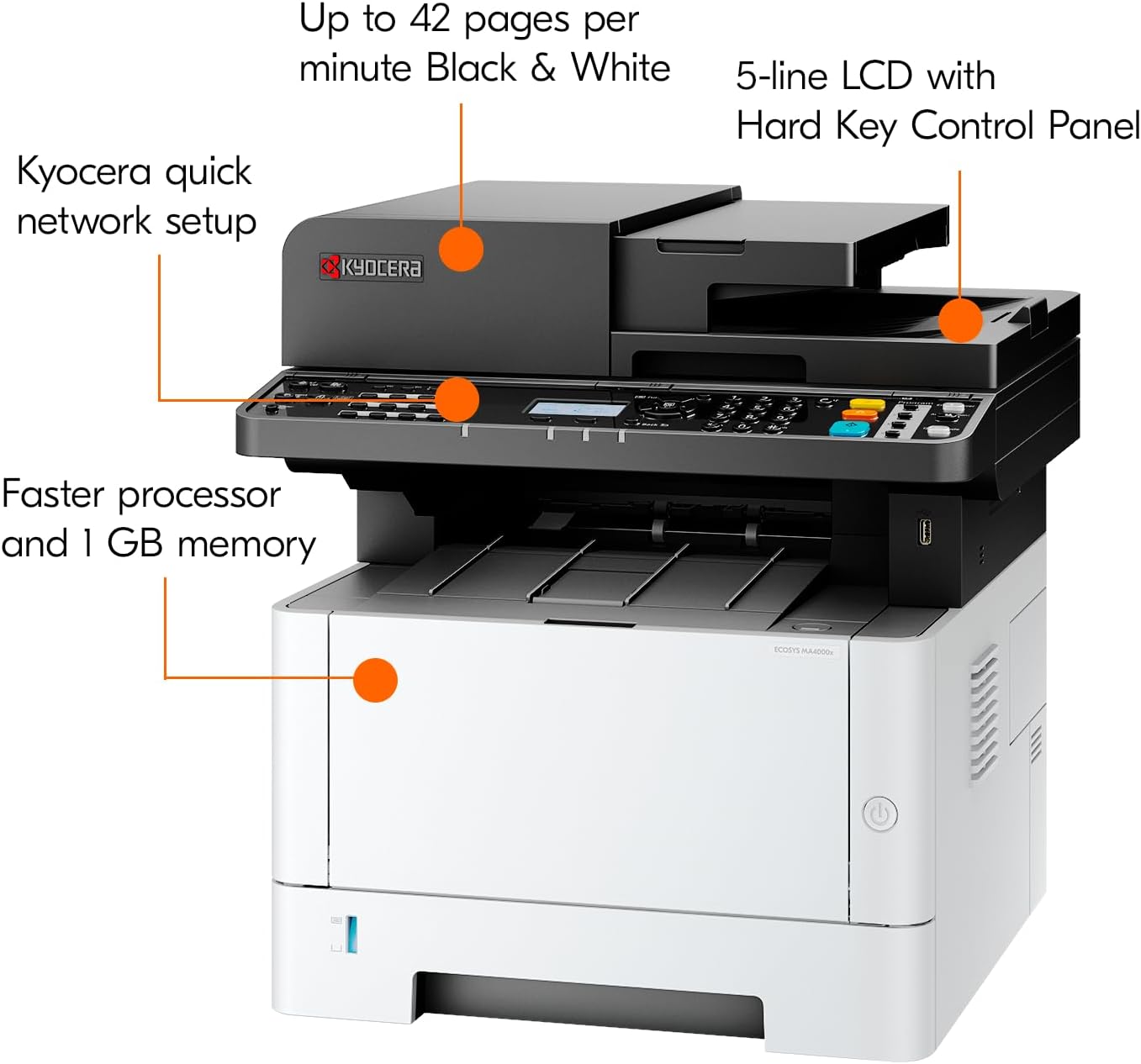
Figure 2.2: Visual representation of key features including print speed, control panel, network setup, and processor/memory.
3. Setup
3.1 Unpacking and Initial Inspection
Carefully remove the printer and all components from the packaging. Verify that all items listed below are present:
- KYOCERA ECOSYS MA4000x Laser Printer
- Starter Toner Cartridge
- Power Cord
- User Manual (this document)
- Software CD/DVD (or download instructions)
Inspect the printer for any visible damage. If any damage is found, do not proceed with setup and contact your vendor.
3.2 Physical Placement
Place the printer on a stable, level surface with adequate ventilation. Ensure sufficient space around the printer for proper operation and maintenance, especially for paper trays and output bins.
3.3 Toner Cartridge Installation
- Open the front cover of the printer.
- Remove the protective materials from the starter toner cartridge.
- Insert the toner cartridge into its designated slot until it clicks into place.
- Close the front cover securely.
3.4 Loading Paper
The printer supports various paper sizes and types. Refer to the specifications section for details on supported media.
- Pull out the paper tray.
- Adjust the paper guides to the size of the paper you are loading.
- Load the paper stack into the tray, ensuring it is flat and below the maximum fill line.
- Gently push the paper tray back into the printer until it locks.
3.5 Connecting to Power and Network
- Connect the power cord to the printer and then to a grounded electrical outlet.
- For network connectivity, connect an Ethernet cable to the printer's LAN port and to your network router/switch, or configure wireless settings via the control panel.
- Turn on the printer using the power button.
3.6 Driver and Software Installation
Install the necessary drivers and software on your computer to enable full functionality of the printer. Drivers are typically available on the included CD/DVD or can be downloaded from the KYOCERA official website.
- Supported Operating Systems: Windows 10 (32/64), Windows 11 (64), Windows Server 2016, 2019, 2022, MAC OS X 10.9 or Greater, Linux (Ubuntu 20.04+, Debian 11+, OpenSUSE 15.5+, Fedora 39+, CentOS Stream 9+), Chrome OS (Version 118+).
4. Operation
4.1 Control Panel Overview
The printer features a 5-line LCD with hard key control panel for easy navigation and operation. Use the arrow keys and OK button to select options, and dedicated function buttons for Print, Copy, and Scan modes.
4.2 Printing
To print a document from your computer:
- Open the document you wish to print.
- Select "Print" from the application's menu.
- Choose the KYOCERA ECOSYS MA4000x from the list of available printers.
- Adjust print settings (e.g., number of copies, paper size, duplex printing) as needed.
- Click "Print".
The printer supports automatic duplex (two-sided) printing.
4.3 Copying
To make a copy:
- Place the original document face-up in the Automatic Document Feeder (ADF) or face-down on the scanner glass.
- Press the "Copy" button on the control panel.
- Use the control panel to select copy settings such as quantity (1-999), magnification (25%-400%), image mode (Text, Photo, Text & Photo, Light Text/Fine Line), and other features like ID Card Copy or Auto Duplex.
- Press the "Start" button to begin copying.
4.4 Scanning
The printer offers various scanning options:
- Scan Types: Color, Grayscale, Black & White.
- Resolution: 200/300/400/600 dpi (up to 1200 dpi via TWAIN).
- Methods: PC (SMB v3.0), E-mail (SMTP), USB, FTP, FTPS, WSD (Network), TWAIN Source (Network & USB), WIA (Network & USB).
- File Formats: TIFF (MMR/JPEG), JPEG, XPS, Open XPS, PDF (High compression), PDF/A-1, PDF/A-2, Encrypted PDF.
To initiate a scan, place your document and select the "Scan" function on the control panel, then choose your desired destination and settings.
4.5 Mobile and Cloud Utilities
The ECOSYS MA4000x supports various mobile and cloud solutions for flexible workflow:
- Kyocera Mobile Print: Print documents directly from your mobile device.
- MyPanel: A mobile application for remote control and management of the printer.
- Kyocera Print Center: Centralized management for print jobs.
- Kyocera Cloud Access: Seamless integration with cloud services.
- Kyocera Net Viewer & Device Manager: Tools for network device management.

Figure 4.1: The printer's compatibility with mobile print applications and cloud services.

Figure 4.2: Enhanced compatibility with Kyocera Cloud Access, Net Viewer, Device Manager, and Fleet Services.
5. Maintenance
5.1 Toner Replacement
When the toner cartridge is low or empty, a message will appear on the control panel. Follow these steps to replace it:
- Open the front cover.
- Remove the empty toner cartridge by pulling it out.
- Unpack the new toner cartridge and shake it gently to distribute the toner.
- Insert the new cartridge firmly until it clicks into place.
- Close the front cover.
5.2 Cleaning
Regular cleaning helps maintain print quality and extends the life of your printer.
- Exterior: Wipe the exterior of the printer with a soft, damp, lint-free cloth. Do not use abrasive cleaners or solvents.
- Scanner Glass: Clean the scanner glass and the white backing strip with a soft cloth dampened with glass cleaner.
5.3 Paper Jam Clearance
If a paper jam occurs, the control panel will display an error message indicating the location of the jam. Carefully open the indicated covers and gently remove any jammed paper, pulling in the direction of the paper path. Ensure all torn pieces are removed.
5.4 ECO-Footprint Program
KYOCERA is committed to environmental sustainability. Participate in the ECO-Footprint Program for responsible recycling of used toner cartridges. Information on how to return used cartridges can be found on the KYOCERA website.

Figure 5.1: The ECO-Footprint Program supports recycling of toner cartridges to reduce waste.
6. Troubleshooting
This section provides solutions to common issues you may encounter with your printer. For more complex problems, refer to the comprehensive troubleshooting guide on the KYOCERA support website or contact customer service.
6.1 Common Issues and Solutions
| Problem | Possible Cause | Solution |
|---|---|---|
| Printer not responding | Power off, cable disconnected, network issue, driver issue. | Ensure printer is powered on. Check power and USB/Ethernet cables. Verify network connection. Reinstall or update printer drivers. |
| Paper jam | Incorrect paper loading, foreign object, worn rollers. | Follow on-screen instructions to clear jam. Ensure paper is loaded correctly. Remove any obstructions. |
| Poor print quality (streaks, faded prints) | Low toner, dirty print head/drum, incorrect paper type. | Replace toner cartridge. Clean the printer's internal components as per maintenance instructions. Use recommended paper types. |
| Scanner not working | Scanner glass dirty, software issue, connection problem. | Clean scanner glass. Ensure scanner drivers are installed. Check USB/network connection. |
7. Specifications
| Feature | Detail |
|---|---|
| Model Name | ECOSYS MA4000x |
| Functions | Print, Copy, Scan (Monochrome) |
| Print Speed (Monochrome) | Up to 42 ppm (A4 simplex) |
| Print Resolution | Up to Fine1200 (print), 600dpi (copy and scan) |
| Warm-up Time | Approx. 19 seconds or less |
| Processor | ARM Cortex-A53, 1.0GHz |
| Memory | 1 GB Standard |
| Control Panel | 5-line LCD with Hard Key Control Panel |
| Connectivity | Ethernet, USB, Wi-Fi, SDHC |
| Max Input Sheet Capacity | 850 sheets (Standard 350 sheets / Maximum 850 sheets) |
| Paper Output Capacity | 150 sheets |
| Supported Media Sizes | Statement to Legal (5.5” x 8.5” – 8.5” x 14”), Custom |
| Supported Media Weights | Drawer: 16 lb. Bond – 90 lb. Index (60 –163gsm); MPT: 16 lb. Bond – 120 lb. Index (60 – 220gsm) |
| Supported Media Types | Plain Paper, Bond Paper, Recycled Paper, Thin Paper, Thick Paper, Labels, OHP, Envelopes |
| Duplex Printing | Automatic |
| Scanner Type | Automatic Document Feeder (ADF) |
| Product Dimensions (W x D x H) | 18.7” W x 16.2” D x 17.2” H |
| Item Weight | 43 lbs |
| Included Components | Laser printer, starter toner |
8. Warranty and Support
8.1 Warranty Information
The KYOCERA ECOSYS MA4000x Multifunctional Laser Printer comes with a limited warranty. Please refer to the warranty card included with your product or visit the official KYOCERA website for detailed terms and conditions regarding warranty coverage and duration.
8.2 Customer Support
For technical assistance, driver downloads, FAQs, or additional support resources, please visit the official KYOCERA support website. You can also contact KYOCERA customer service directly for personalized assistance.
Website: www.kyoceradocumentsolutions.com
Related Documents - MA4000x
 |
Kyocera ECOSYS M4125idn Multifunction Printer: Features and Specifications Detailed overview of the Kyocera ECOSYS M4125idn, a monochrome A4/A3 multifunctional printer. Covers print, copy, scan, and fax capabilities, technical specifications, paper handling, consumables, and optional features. |
 |
Kyocera Cloud Capture (KCC) Software Information v1.5 - Features and Overview Explore the features, system overview, and technical specifications of Kyocera Cloud Capture (KCC) software version 1.5. Learn about document digitization, cloud integration, and workflow management. |
 |
Kyocera Printer Setup Tool v1.0 for Windows - Installation Guide A comprehensive guide to installing and configuring Kyocera printers using the Printer Setup Tool v1.0 for Windows. Learn about system requirements, supported models, and step-by-step instructions for Wi-Fi setup and driver installation. |
 |
KYOCERA ECOSYS MA4000cifx/MA4000cix/MA3500cifx/MA3500cix First Steps Quick Guide A quick guide for setting up and operating KYOCERA ECOSYS MA4000cifx, MA4000cix, MA3500cifx, and MA3500cix multifunction printers, covering installation, login, copying, scanning, faxing, and troubleshooting. |
 |
Kyocera Printer Setup Tool v1.0 for Android/iOS Guide A comprehensive guide to using the Kyocera Printer Setup Tool v1.0 for Android and iOS devices, covering printer selection, Wi-Fi network configuration, and system requirements. |
 |
Kyocera Cloud Print and Scan Software Information - Version 1.15.0 Explore the latest software information for Kyocera Cloud Print and Scan (KCPS) version 1.15.0. This document details new features, system requirements, supported models, and licensing for Kyocera's cloud print and scan solution. |