
1. Introduction
Thank you for choosing the Tatybo WT5 Wireless Gaming Headset. This manual provides essential information for setting up, operating, and maintaining your headset to ensure optimal performance and longevity. Please read this manual thoroughly before use.
2. Package Contents
- Tatybo WT5 Wireless Gaming Headset
- Detachable ENC Noise-Canceling Microphone
- 2.4GHz USB-A Wireless Dongle
- USB-C Adapter for Dongle
- 3.5mm Audio Cable
- USB Type-C Charging Cable
- User Manual (this document)
- Storage/Travel Bag
3. Product Overview
3.1 Key Features
- 2.4GHz Low Latency Wireless: Experience ultra-low latency gaming with a stable 2.4GHz connection.
- 7.1 Surround Sound: Enhanced audio for immersive gaming and precise positional awareness.
- ENC Noise-Canceling Microphone: Ensures clear voice communication by reducing environmental noise.
- Comfortable Design: Thick, noise-isolating ear cushions and an adjustable headband for extended wear.
- Long Battery Life: Up to 40+ hours of use with RGB lighting.
- Multi-Platform Compatibility: Connects to PC, PS4, PS5, Switch, Laptops, Mobile devices, and Mac via various methods.
3.2 Headset Controls and Ports
Familiarize yourself with the headset's controls and ports for easy operation.

Image: Headset controls and ports. This image displays the various buttons and interfaces on the headset, including the ON/OFF button (long press), Volume Control slider, Microphone Mute Button, 7.1 Channel button, and the 3.5mm interface.
- ON/OFF Button: Long press to power the headset on or off.
- Volume Control: Slider to adjust the audio volume.
- Microphone Mute Button: Press to mute or unmute the microphone.
- 7.1 Channel Button: Press to activate or deactivate 7.1 surround sound.
- RGB Light Control: Double-click the 7.1 Channel button to turn RGB lighting on/off.
- 3.5mm Interface: For wired connection using the included 3.5mm audio cable.
- USB-C Charging Port: For charging the headset battery.
- Microphone Port: For attaching the detachable microphone.
4. Setup Instructions
4.1 Charging the Headset
Before first use, fully charge the headset. Connect the USB Type-C charging cable to the headset's charging port and the other end to a USB power source (e.g., computer USB port, USB wall adapter). The LED indicator will show charging status and turn off when fully charged.
4.2 Attaching the Microphone
Insert the detachable microphone into the microphone port on the headset until it clicks into place. The microphone is flexible and can be adjusted to your preferred position. When not in use, it can be folded away or detached.
4.3 Connecting to Devices
The Tatybo WT5 offers multiple connectivity options:

Image: Multi-platform wireless support. This image illustrates how to connect the headset using the USB-A dongle for PS5/PS4 and Laptops, and the Type-C dongle for Nintendo Switch and mobile phones/tablets. It also notes that the headset is not compatible with Xbox.
4.3.1 2.4GHz Wireless Connection (Recommended for Gaming)
This method provides ultra-low latency for an optimal gaming experience.
- Power on your Tatybo WT5 headset by long-pressing the ON/OFF button.
- Insert the 2.4GHz USB-A wireless dongle into an available USB port on your PC, PS4, PS5, or Laptop.
- For devices with a USB-C port (e.g., Nintendo Switch, some Laptops/Mobile devices), attach the USB-C adapter to the USB-A dongle before inserting it.
- The headset and dongle should automatically pair. A solid LED indicator on the headset confirms a successful connection.
- On your device, ensure the Tatybo WT5 headset is selected as the audio input and output device in your sound settings.

Image: Low latency wireless connection. This image highlights the headset's 2.4GHz wireless connection, boasting an ultra-low latency of less than 25ms, ideal for competitive gaming.
4.3.2 Bluetooth Connection
Use Bluetooth for general audio listening with compatible devices.
- Ensure the headset is powered on.
- Activate Bluetooth pairing mode on the headset (refer to device-specific instructions if needed, usually a long press on the power button or a dedicated Bluetooth button). The LED indicator will flash rapidly.
- On your mobile device, laptop, or Switch, go to Bluetooth settings and search for available devices.
- Select "Tatybo WT5" from the list to pair. The LED indicator will become solid once connected.
4.3.3 3.5mm Wired Connection
For devices without wireless capabilities or when battery is low.
- Connect one end of the 3.5mm audio cable to the headset's 3.5mm interface.
- Connect the other end to the 3.5mm audio port on your device.
- Note: Some headset functions (e.g., RGB lighting, 7.1 surround sound button) may not be available in wired mode, depending on the device.
5. Operating Instructions
5.1 Power On/Off
Long press the ON/OFF button for approximately 3 seconds to power the headset on or off.
5.2 Volume Adjustment
Use the volume control slider on the headset to increase or decrease the audio volume.
5.3 Microphone Usage
To use the microphone, ensure it is attached and positioned correctly near your mouth. Press the Microphone Mute Button to toggle between muted and unmuted states. The LED on the microphone tip may indicate its status (e.g., red for muted).
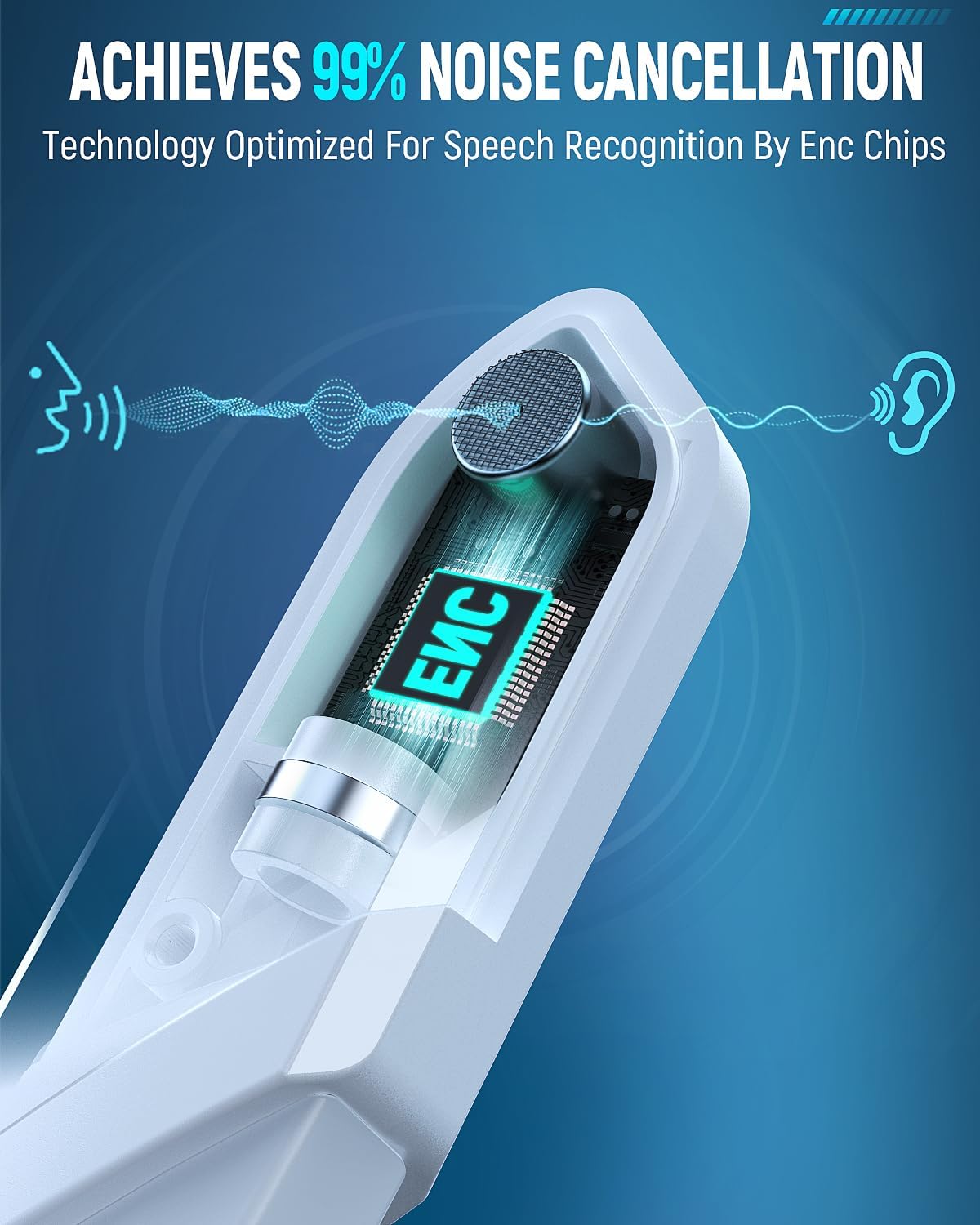
Image: ENC Noise-Canceling Microphone. This image illustrates the Environmental Noise-Canceling (ENC) technology integrated into the microphone, designed for clear voice transmission.
5.4 7.1 Surround Sound
Press the 7.1 Channel button to activate or deactivate the 7.1 surround sound feature. This enhances spatial audio for a more immersive experience, particularly in gaming.

Image: 7.1 Surround Sound for superior positional audio. This image emphasizes the benefit of 7.1 surround sound for gamers, allowing them to hear and react to in-game sounds with greater accuracy.
5.5 RGB Lighting
Double-click the 7.1 Channel button to toggle the RGB lighting on the earcups on or off. This feature adds a visual flair to your gaming setup.
5.6 Comfort Adjustment
The headset features an adjustable headband and thick, comfortable ear cushions. Adjust the headband to fit your head size for optimal comfort during long gaming sessions.

Image: Game all-day in comfort. This image details the comfort-focused design of the headset, featuring weight reduction, optimized ear cup shape, 3D breathable structure, skin-friendly protein leather, and 90% physical noise isolation.
6. Maintenance
- Cleaning: Use a soft, dry cloth to clean the headset. Do not use harsh chemicals or abrasive materials.
- Storage: Store the headset in a cool, dry place, away from direct sunlight and extreme temperatures. Use the provided storage bag to protect it from dust and scratches.
- Battery Care: To prolong battery life, avoid fully discharging the headset frequently. Charge it regularly, even if not in use for extended periods.
- Avoid Water: This headset is not waterproof. Keep it away from liquids.
7. Troubleshooting
- No Sound/Low Volume:
- Ensure the headset is powered on and fully charged.
- Check the volume control on the headset and your connected device.
- Verify the correct audio output device is selected in your device's sound settings.
- If using 2.4GHz wireless, ensure the dongle is properly inserted and paired. Try re-pairing.
- If using Bluetooth, ensure it's paired and connected. Try re-pairing.
- If using 3.5mm wired, ensure the cable is securely connected at both ends.
- Microphone Not Working:
- Ensure the microphone is securely attached to the headset.
- Check if the microphone is muted using the mute button on the headset.
- Verify the correct audio input device is selected in your device's sound settings.
- Test the microphone with another application or device.
- Connection Issues (Wireless):
- Ensure the headset is within the specified Bluetooth or 2.4GHz range (30 meters for Bluetooth).
- Avoid strong electromagnetic interference from other devices.
- Try restarting both the headset and the connected device.
- If using the 2.4GHz dongle, try a different USB port.
- RGB Lights Not Working:
- Ensure the headset is powered on.
- Double-click the 7.1 Channel button to toggle the RGB lights.
- Ensure the headset has sufficient battery charge.
8. Specifications
| Model Name | WT5 |
| Brand | Tatybo |
| Connectivity Technology | Wireless (2.4GHz RF, Bluetooth), Wired (3.5mm Jack) |
| Wireless Communication Technology | Bluetooth, RF |
| Bluetooth Version | 4.2 |
| Bluetooth Range | 30 Meters |
| Battery Life | 30 Hours (40+ hours with RGB lighting off) |
| Noise Control Features | ENC Noise-Canceling Microphone, Sound Isolation |
| Special Features | Noise Cancellation, Noise Isolation, Surround Sound, RGB Lighting |
| Compatible Devices | Gaming Consoles (PS4, PS5, Switch), Computers (PC, Laptop, Mac), Mobile Devices |
| Material | Faux Leather, Plastic |
| Item Weight | 1.23 pounds |
| Earpiece Shape | Over Ear |
9. Warranty and Support
Tatybo products are designed for quality and reliability. For specific warranty information, please refer to the warranty card included in your product packaging or visit the official Tatybo website. If you encounter any issues or require technical assistance, please contact Tatybo customer support through their official channels.