
Introduction
This manual provides detailed instructions for the installation, operation, and maintenance of your SIXWIN Android 13 Car Stereo, model P2. This unit is specifically designed for Hyundai Sonata NF vehicles manufactured between 2004 and 2008. Please read this manual thoroughly before installation and use to ensure proper function and safety.
What's in the Box
Verify that all the following components are included in your package:
- 1 x Car Stereo
- 1 x Power Cable
- 1 x GPS Antenna
- 1 x Rear Camera Input Cable
- 1 x RCA Cable
- 2 x USB Cable
- 2 x Mounting Bracket
- 1 x Backup Camera
- 1 x Microphone
- 1 x Radio Housing
- 1 x Extended Line
- 1 x Instruction Manual
- 4 x Screws
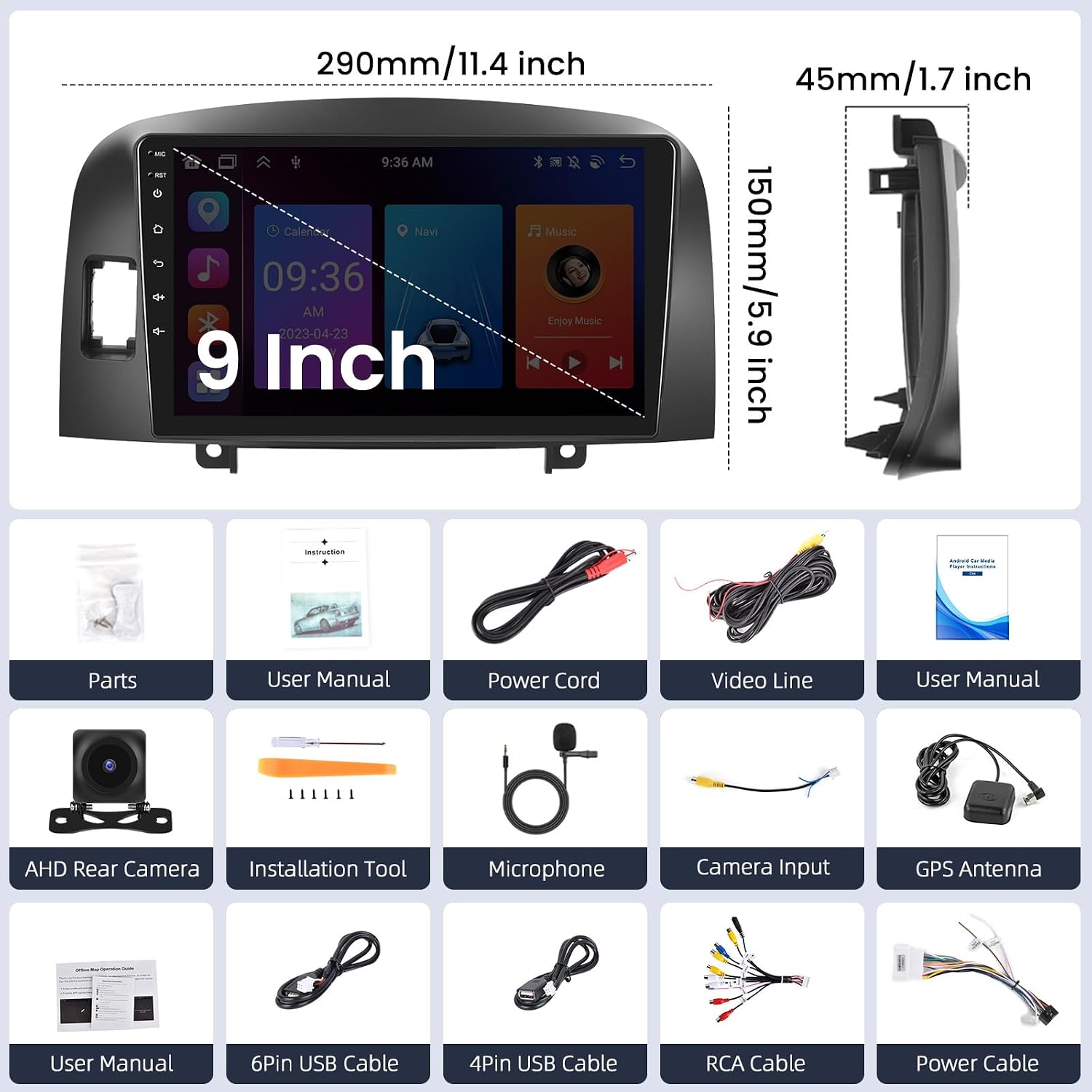
Figure 1: Package Contents. This image displays all items typically found in the product box, including the main head unit, various connection cables, a GPS antenna, a backup camera, and mounting hardware.
Setup and Installation
Vehicle Compatibility
This car stereo is compatible with Hyundai Sonata NF models from 2004 to 2008. It is designed for basic version vehicles. For vehicles with a navigation version, additional wiring harnesses and a CANBUS adapter may be required. Please verify your vehicle's existing wiring interface before installation.

Figure 2: After Installation. This image illustrates the car stereo integrated into the dashboard of a Hyundai Sonata NF. A smaller inset shows a specific vehicle wiring interface, indicating that additional harnesses may be needed if your car has this type of connector.
Wiring Diagram and Connections
Follow the provided wiring diagram carefully. Incorrect connections can damage the unit or your vehicle's electrical system. It is recommended to consult a professional for installation if you are unsure about any steps.
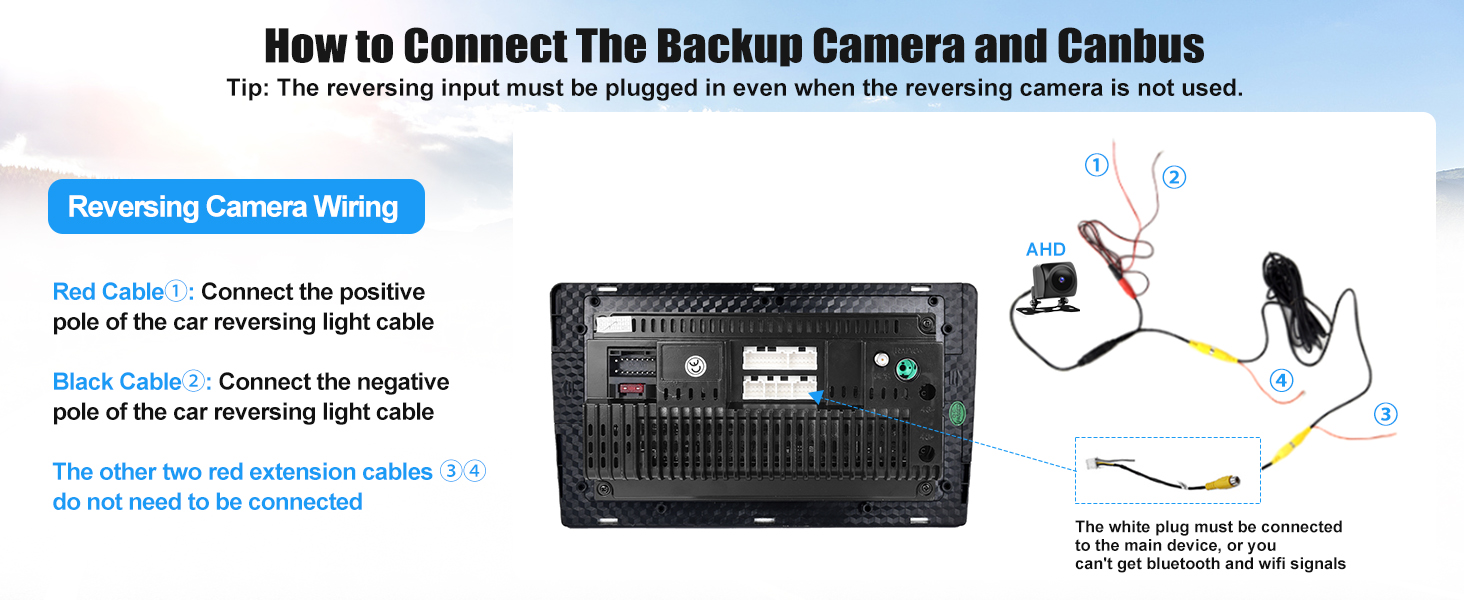
Figure 3: Backup Camera and CANBUS Wiring. This diagram details the connections for the reversing camera, including positive (red cable) and negative (black cable) connections to the car's reversing light cable. It also shows the white plug connection to the main device for Bluetooth and Wi-Fi functionality.
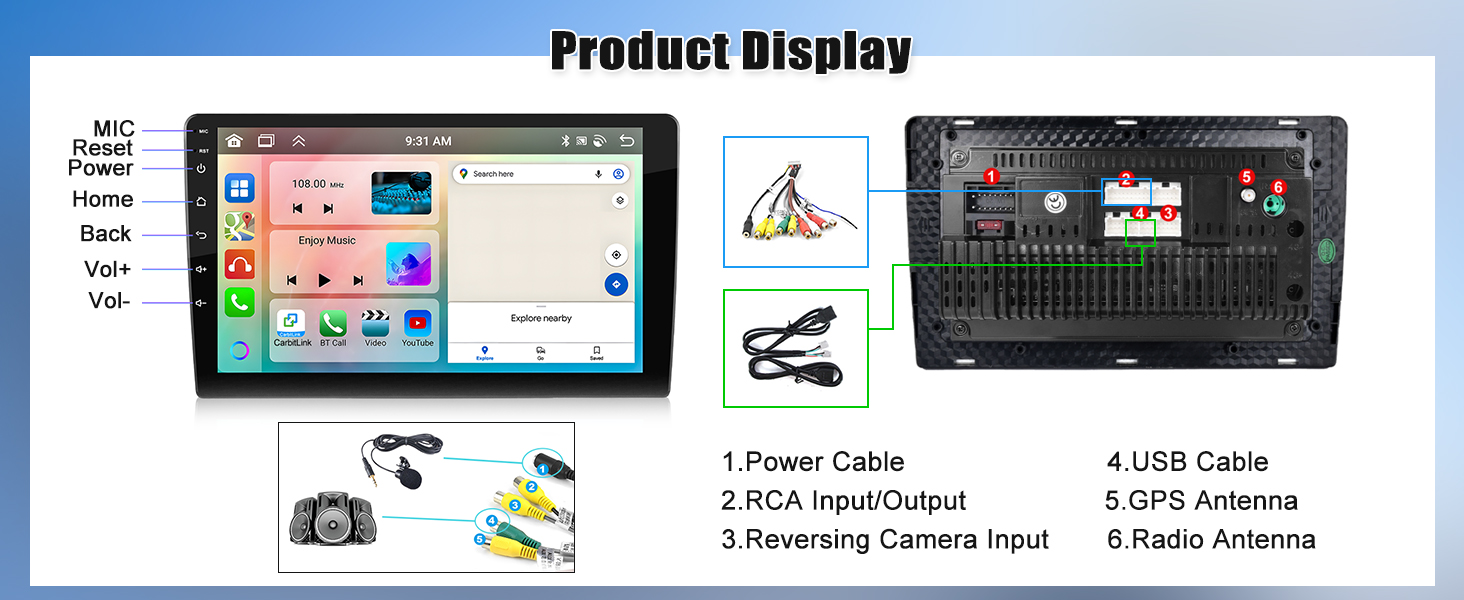
Figure 4: Product Display and Connections. This image provides a rear view of the car stereo, labeling the ports for the power cable, RCA input/output, reversing camera input, USB cables, GPS antenna, and radio antenna.
Installation Video Guide
Video 1: Car Radio for Hyundai Sonata 2004-2008. This video provides a visual guide to the installation process of the car stereo in a Hyundai Sonata, demonstrating key steps and connections.
Operating Instructions
Power On/Off
The unit powers on automatically with the vehicle's ignition. To manually power off, press and hold the power button (if available) or turn off the vehicle.
Wireless CarPlay and Android Auto
The unit supports both wireless and wired CarPlay and Android Auto. Connect your smartphone via Bluetooth and then open the "Zlink5" app on the car stereo. This allows access to maps, GPS navigation, phone contacts, email, notifications, and music. You can also activate Siri or Google Assistant through voice control. Note: Android Auto mirror link functionality is not supported for Samsung phones.
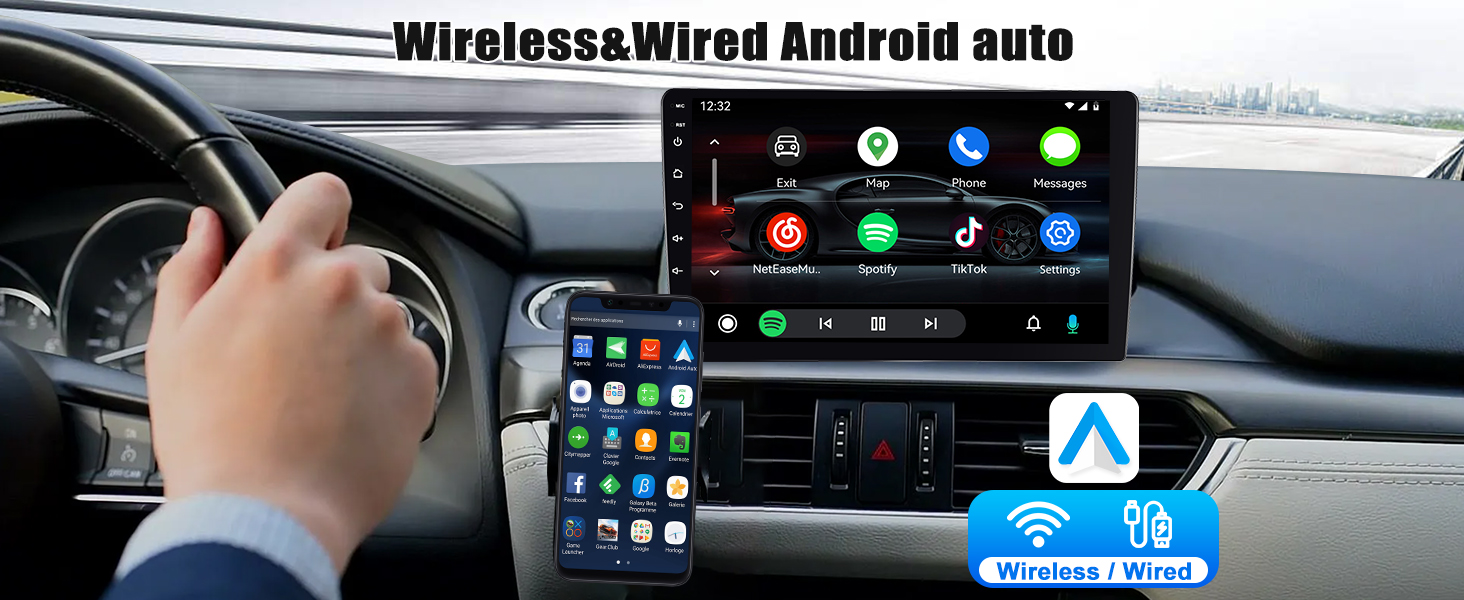
Figure 5: Wireless CarPlay and Android Auto. This image displays the car stereo screen showing both Apple CarPlay and Android Auto interfaces, highlighting the wireless and wired connection options.
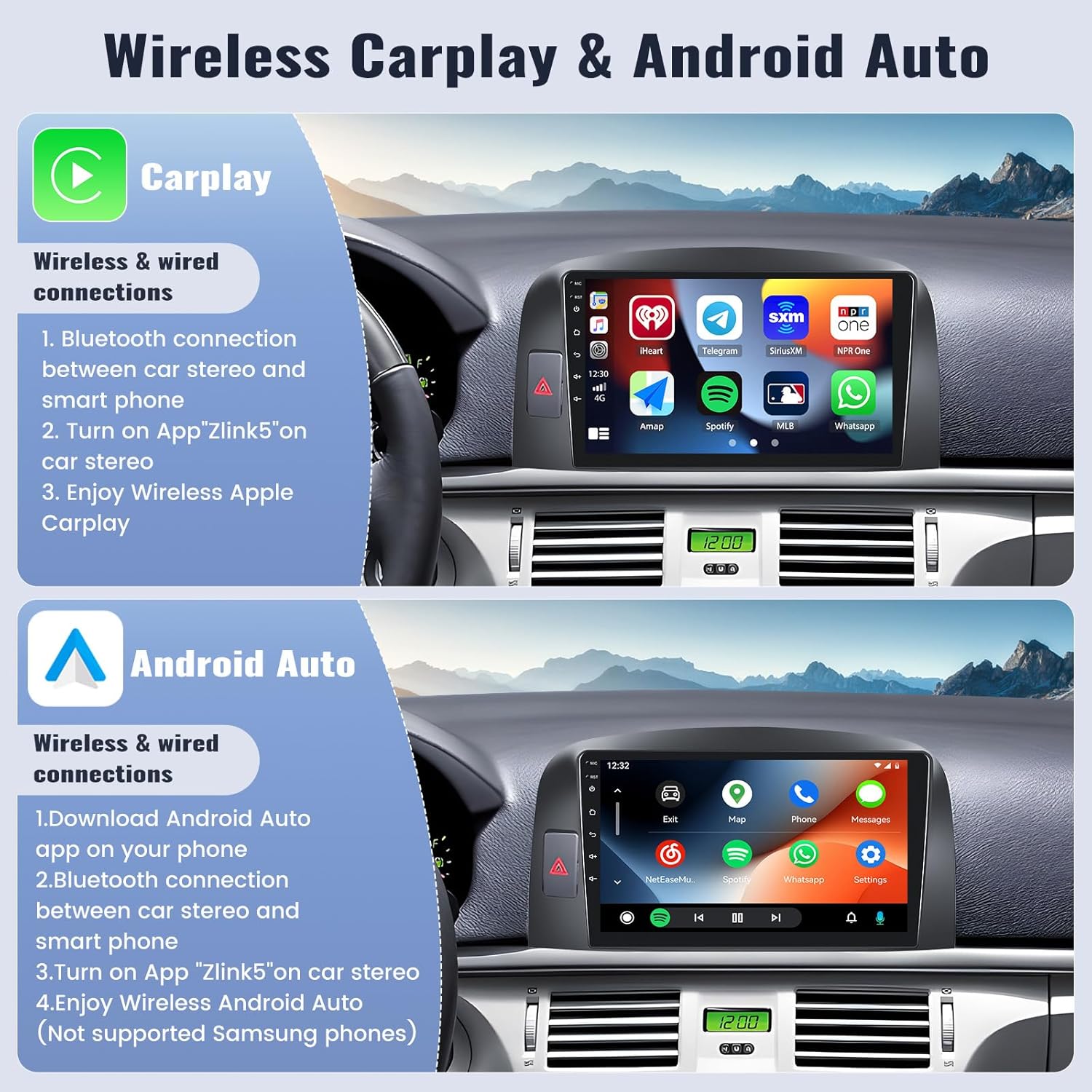
Figure 6: CarPlay, Android Auto, and UI Themes. This image showcases different screen layouts and themes available, including CarPlay, Android Auto, and various customizable UI designs.
Mirror Link
Mirror Link allows you to display your smartphone screen on the car stereo. For iOS devices, this is a one-way control via Wi-Fi. For Android devices, it supports two-way control via Wi-Fi or USB.

Figure 7: Mirror Link. This image illustrates how Mirror Link works for both iOS and Android phones, showing the phone screen mirrored onto the car stereo display.
GPS Navigation and WiFi Connectivity
The unit features built-in GPS navigation with support for online and offline maps. The "Here We Go" app is pre-installed for offline map usage. Connect to a Wi-Fi network to use online navigation or download additional applications from the Play Store, providing a mobile phone-like experience.

Figure 8: GPS Navigation, WiFi, and Network Radio. This image displays the car stereo screen showing active GPS navigation, the WiFi connection interface, and the Network Radio application.
Bluetooth 5.0 and Network Radio
Bluetooth 5.0 enables hands-free calling, music streaming, and phonebook synchronization. An external microphone is included for clear communication. Network Radio provides access to mainstream radio stations globally, even without a local signal.
User Interface and Customization
The system runs on Android 13 and offers 59 UI desktop themes and 19 wallpaper options for personalization. It also supports a three-split screen function for multitasking, allowing you to run multiple applications simultaneously.
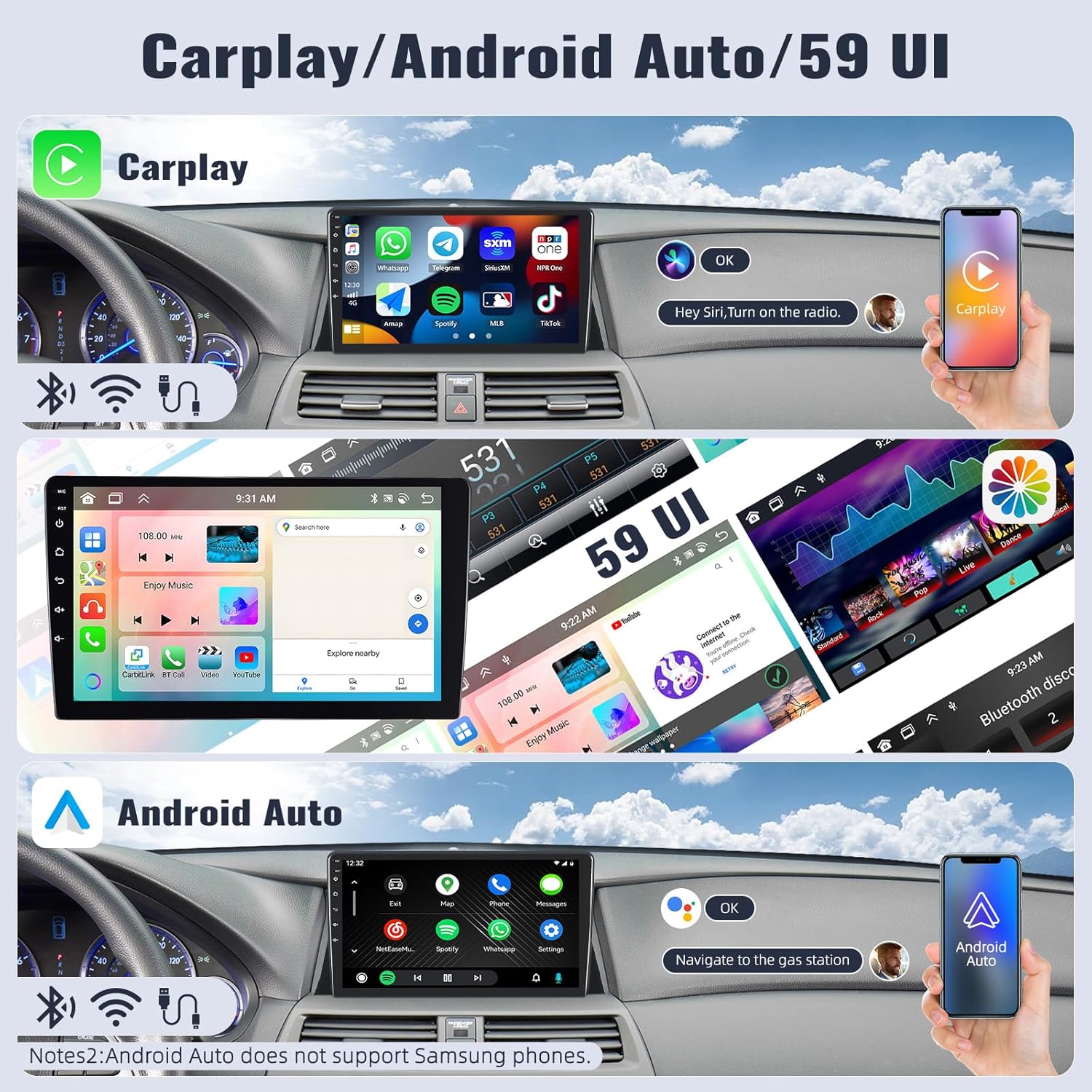
Figure 9: Weather Forecast, Split Screen, and Wallpapers. This image demonstrates the weather forecast display, the three-split screen feature for running multiple apps, and the variety of wallpaper options available for customization.
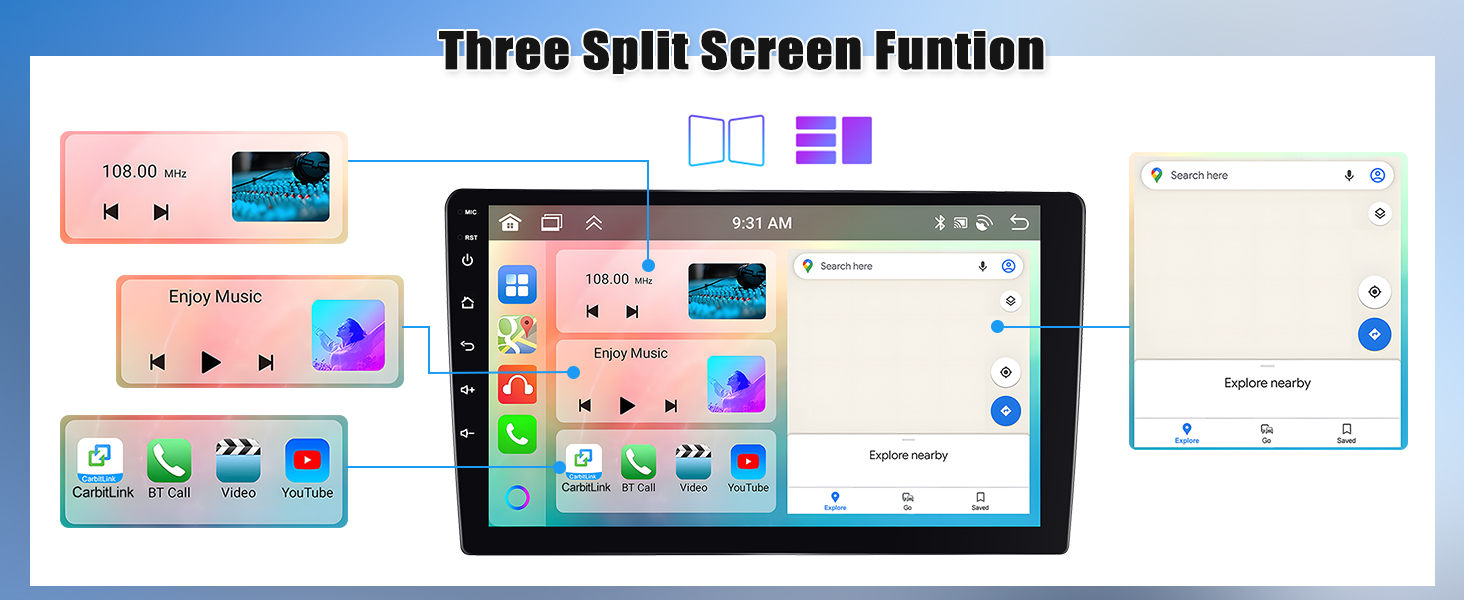
Figure 10: Three Split Screen Function. This image illustrates the capability of the car stereo to display three applications concurrently, enhancing multitasking.
Steering Wheel Control
The unit supports steering wheel controls. To configure, navigate to settings and enter password "1234" to access the steering wheel control learning function. This allows you to manage songs, volume, and calls directly from your steering wheel.

Figure 11: Steering Wheel Control. This image displays the car stereo's interface for programming steering wheel controls, alongside an illustration of typical steering wheel buttons.
Backup Camera
An AHD backup camera is included. When reversing, the camera feed automatically displays on the unit's screen, assisting with safer parking.

Figure 12: Backup Camera. This image shows the view from the AHD backup camera displayed on the car stereo screen, complete with parking assistance lines.
Voice Assistant
The system supports voice control for functions like Siri or Google Assistant, allowing hands-free operation for navigation, calls, and music playback.
Audio Settings (32-Band EQ + DSP)
Customize your audio experience with the built-in 32-band equalizer and Digital Sound Processor (DSP) for various sound effects and field adjustments, allowing you to tailor the sound to your preference.
Maintenance
Screen Cleaning
Use a soft, lint-free cloth to clean the touch screen. Avoid abrasive cleaners, solvents, or harsh chemicals, as these can damage the screen surface.
Software Updates
Periodically check for software updates to ensure optimal performance, security, and access to new features. Updates can typically be performed via Wi-Fi connection.
Troubleshooting
Common Issues and Solutions
- Unit does not power on: Check all power connections, including the main power cable and ignition wire. Ensure the vehicle's ignition is on. Verify fuses are intact.
- No sound: Verify speaker connections and audio settings within the unit's menu. Check volume levels and ensure the mute function is not active.
- GPS signal loss: Ensure the GPS antenna is properly installed in a location with a clear view of the sky, free from obstructions.
- Bluetooth connectivity issues: Ensure Bluetooth is enabled on both the stereo and your smartphone. Try deleting the existing pairing and re-pairing the devices.
- Battery Drain: Some users have reported battery drain issues. Ensure the unit is properly shut down with the vehicle's ignition. If issues persist, consult a professional installer to verify wiring, particularly the constant power and accessory power connections.
- Fitment Issues (Hyundai Sonata NF 2008): Some users have reported issues with the parking light socket alignment and the locking mechanism for the 2008 Hyundai Sonata NF. Verify fitment before final installation. Additional modifications or a different mounting frame may be required for certain vehicle configurations.
For further assistance, refer to the online help resources or contact customer support.
Specifications
| Brand | SIXWIN |
| Model Name | Hyundai Sonata NF 2004-2008 |
| Model Number | A7246A3019A4MI2 |
| Operating System | Android 13 |
| Memory Storage Capacity | 64 GB |
| Screen Size | 9 Inches |
| Display Type | LCD |
| Touch Screen Type | Capacitive |
| Connectivity Technology | Wireless (Bluetooth, Wi-Fi) |
| Special Features | Bluetooth, GPS Navigation, WiFi, Rear View Camera Input, Touchscreen, Wireless CarPlay and Android Auto |
| Supported Satellite Navigation System | GPS |
| Audio Output Mode | Stereo |
| Control Method | Voice, Touchscreen |
Warranty and Support
Warranty Information
This SIXWIN product comes with a 1-year manufacturer's warranty from the date of purchase. Please retain your proof of purchase for warranty claims.
Customer Support
For online help, additional user manuals, or technical support, please contact our customer service team via email:

Figure 13: Customer Support. This image highlights the availability of online help and user manual support, providing the contact email address for assistance.
