
Introduction
This manual provides comprehensive instructions for the ZIYOU LANG FREEWOLF M68 TKL Wireless Gaming Keyboard. Please read this manual carefully before using the product to ensure proper operation and to maximize your user experience. This keyboard offers versatile connectivity, ergonomic design, and a long-lasting battery, suitable for various computing environments.

Image: The M68 TKL Gaming Keyboard highlighting its key features: 67 keys, 3 connection modes, RGB backlighting, three-color design, PBT keycaps, and a 2000mAh battery.
Package Contents
Upon opening the package, please verify that all items are present:
- ZIYOU LANG FREEWOLF M68 TKL Wireless Gaming Keyboard
- USB-C Charging Cable
- USB 2.4G Wireless Receiver (located in the back of the keyboard)
- Keycap Puller
- User Manual (in 8 languages)
Setup
1. Charging the Keyboard
Before initial use, fully charge the keyboard using the provided USB-C cable. Connect the USB-C end to the keyboard's charging port and the USB-A end to a power source (e.g., computer USB port, USB wall adapter). Avoid using fast chargers to protect the battery life.
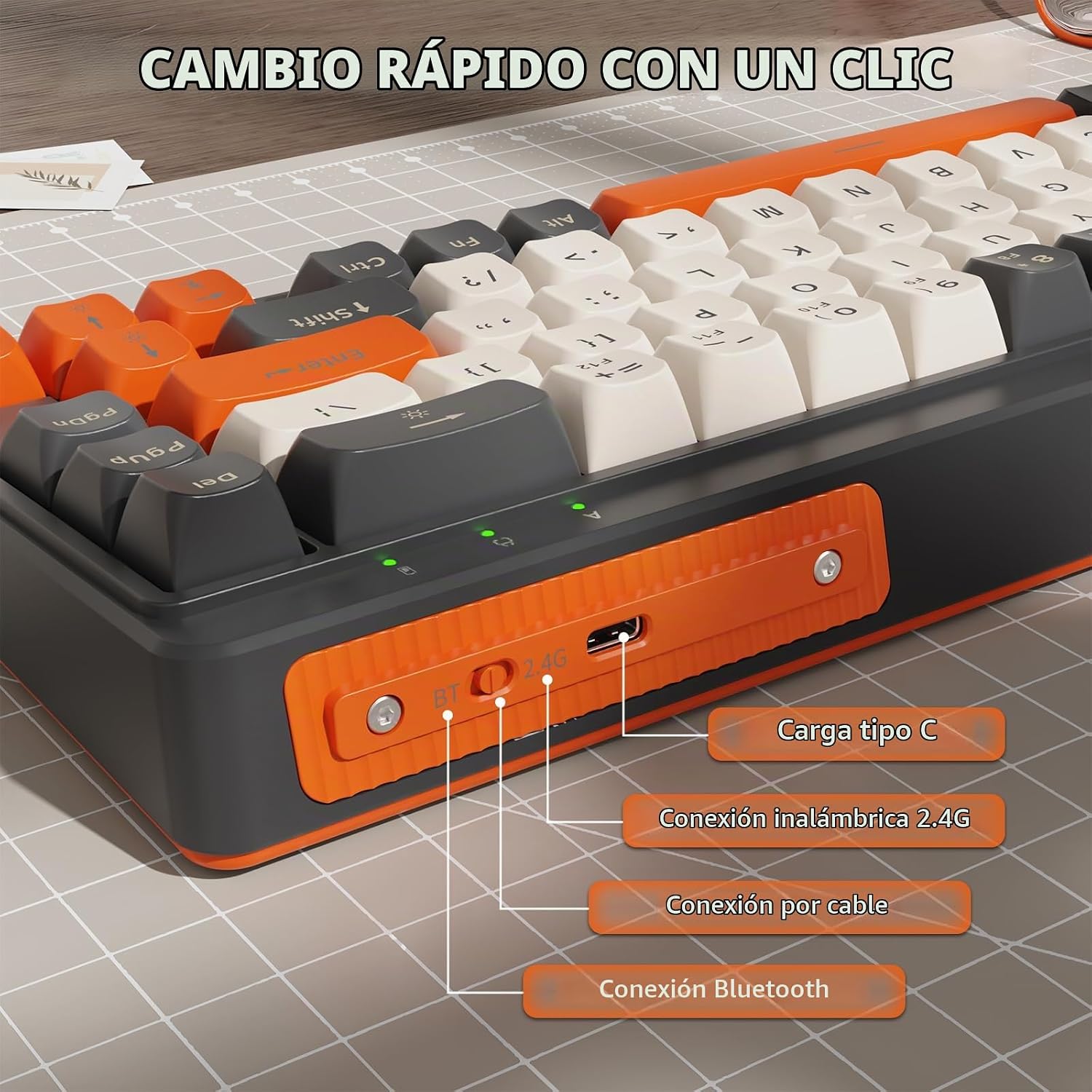
Image: Detailed view of the keyboard's connectivity options, including the Type-C charging port, 2.4G wireless connection switch, wired connection, and Bluetooth connection switch.
2. Connecting the Keyboard
The M68 TKL keyboard supports three connection modes:
- 2.4GHz Wireless Mode:
- Locate the USB 2.4G receiver stored in the back compartment of the keyboard.
- Plug the receiver into an available USB port on your computer.
- Switch the keyboard's mode selector to 2.4G. The keyboard should connect automatically.
- Bluetooth 5.1 Mode:
- Switch the keyboard's mode selector to Bluetooth (BT).
- On your device (computer, tablet, smartphone), enable Bluetooth and search for new devices.
- Press and hold the FN + E, FN + R, or FN + T keys for 10 seconds to enter pairing mode for device 1, 2, or 3 respectively. The indicator light will flash.
- Select "M68 Keyboard" (or similar) from the list of available Bluetooth devices on your device to pair.
- USB-C Wired Mode:
- Connect the USB-C cable to the keyboard and the USB-A end to your computer.
- The keyboard will automatically switch to wired mode.

Image: Illustration of the three smart connection modes: Wired for stable and reliable connection, 2.4GHz for wireless freedom, and BT 5.0 for effortless connection.
The keyboard is compatible with Windows, Mac, and Linux operating systems.
Operating Instructions
FN Key Functions
The keyboard features various multimedia and control functions accessible via the FN key combinations:
- FN + ESC: Switch to F1-F12 function keys.
- FN + \: Switch backlight effects.
- FN + ↑: Increase backlight brightness.
- FN + ↓: Decrease backlight brightness.
- FN + ←: Slow down light effect speed.
- FN + →: Speed up light effect speed.
- FN + Backspace (long press): Restore factory settings.
- FN + E/R/T (long press for 10s): Bluetooth pairing for device 1/2/3.
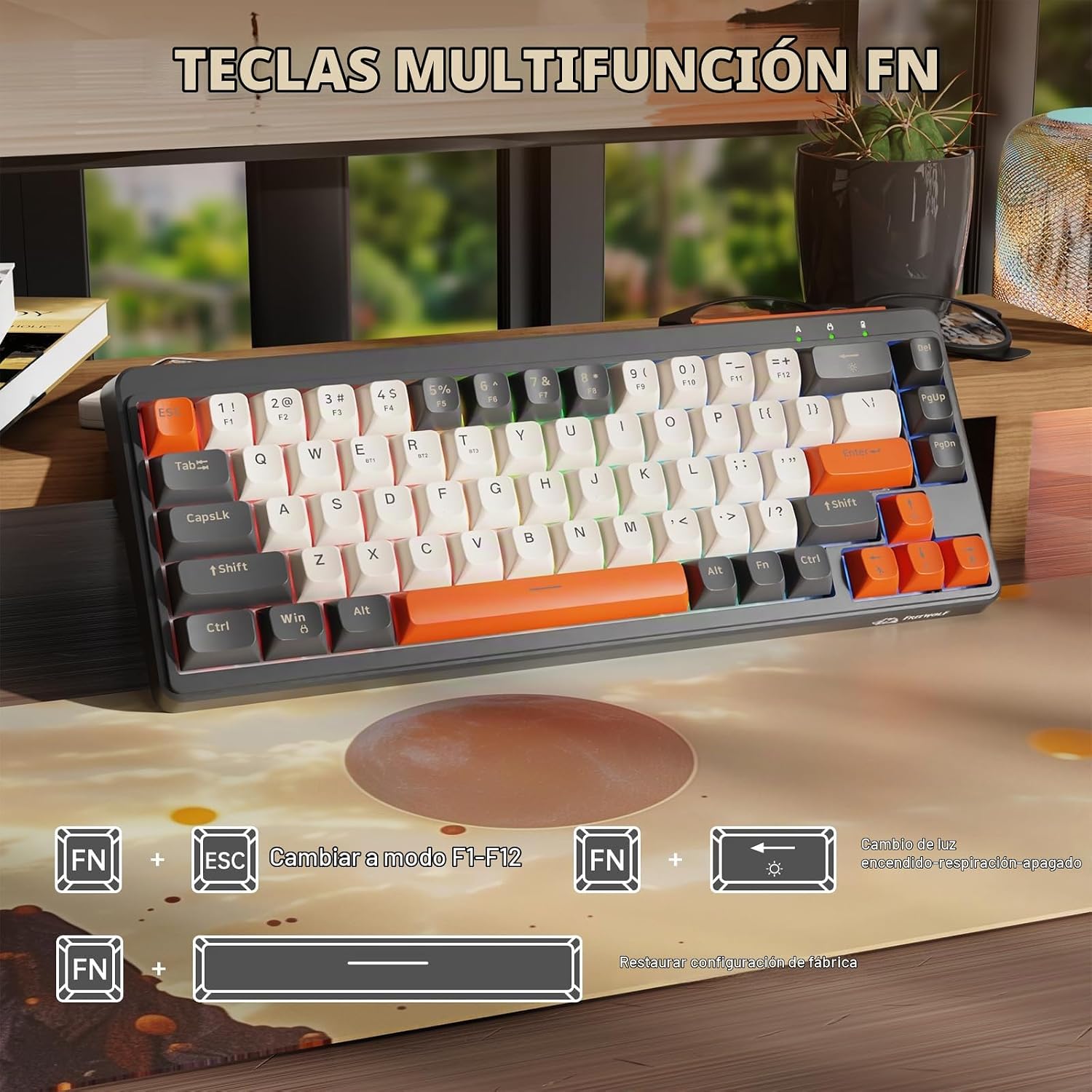
Image: Multifunction FN keys illustrating combinations for switching to F1-F12 mode, controlling backlight effects, and restoring factory settings.

Image: Visual guide for FN key combinations to switch light modes, adjust brightness, and control the speed of lighting effects.
Ergonomic Adjustment
The keyboard features a two-level adjustable stand, allowing you to choose between three different typing angles (5° and 8°) for improved comfort and reduced wrist strain during extended use.

Image: Portable design with dual-mode height adjustment, showing the keyboard at 5° and 8° angles for ergonomic comfort.

Image: Double-layered tripod design, allowing users to choose between 5 and 8-degree tilt angles for personalized ergonomic comfort.
Maintenance
Cleaning
To clean the keyboard, power it off and disconnect it from any devices. Use a soft, dry cloth to wipe the surface. For stubborn dirt, a slightly damp cloth with mild soap can be used, ensuring no liquid enters the keyboard. The included keycap puller can be used to remove keycaps for deeper cleaning.
Battery Care
The keyboard is equipped with a 2000mAh rechargeable battery. To prolong battery life:
- Avoid using fast charging adapters.
- Do not expose the keyboard to extreme temperatures.
- If storing for a long period, charge the battery to about 50% and store in a cool, dry place.

Image: The M68 TKL keyboard emphasizing its long-lasting 2000mAh rechargeable battery for prolonged use.

Image: The M68 TKL keyboard highlighting its 2000mAh battery for extended usage.
Troubleshooting
- Keyboard not responding:
- Ensure the keyboard is charged.
- Check the connection mode (2.4G, BT, Wired) and ensure it matches your device.
- For 2.4G, ensure the USB receiver is properly plugged in.
- For Bluetooth, ensure the keyboard is paired and selected on your device. Try re-pairing if necessary.
- Try connecting via USB-C cable to rule out wireless issues.
- Lag or disconnection in wireless mode:
- Ensure the keyboard is within range of the receiver/device.
- Reduce interference from other wireless devices.
- Ensure the keyboard battery is sufficiently charged.
- Backlight not working or incorrect:
- Use FN key combinations to adjust brightness and switch lighting effects (refer to "Operating Instructions").
- Ensure the keyboard battery is charged, as low battery can affect backlight performance.
- Keys not registering or ghosting:
- Clean under the keycaps for any debris.
- Try restoring factory settings by long-pressing FN + Backspace.
Specifications
| Feature | Detail |
|---|---|
| Model Number | M68 |
| Dimensions (L x W x H) | 32.5 x 12.5 x 4 cm |
| Weight | 600 g |
| Connectivity | Bluetooth 5.1, 2.4G Wireless, USB-C Wired |
| Keyboard Type | Membrane |
| Number of Keys | 67 |
| Keycap Material | PBT |
| Backlight | RGB |
| Battery Capacity | 2000 mAh |
| Compatible Operating Systems | Windows, Mac, Linux |
| Ergonomic Features | Adjustable two-level stand (5°, 8°), TKL compact design |
| Water Resistance | No |
Warranty and Support
Warranty Information
This ZIYOU LANG FREEWOLF M68 TKL Wireless Gaming Keyboard comes with a 6-month warranty from the date of purchase. This warranty covers manufacturing defects and malfunctions under normal use. It does not cover damage caused by misuse, accidents, unauthorized modifications, or normal wear and tear.
Customer Support
For technical assistance, troubleshooting, or warranty claims, please contact ZIYOU LANG customer support through the retailer where the product was purchased or refer to the contact information provided in the included multi-language manual. Please have your purchase receipt and product model number (M68) ready when contacting support.