
1. Introduction
This manual provides essential information for the safe and efficient use of your Hama Travel 600 Multi-Device Bluetooth Keyboard. Please read these instructions carefully before using the device and keep them for future reference. This keyboard is designed for universal use with mobile devices such as tablets and smartphones, as well as PCs and laptops, offering a portable and versatile typing solution.
2. Safety Instructions
- Do not open the device. Incorrect assembly or repair can lead to hazards.
- Protect the product from moisture, dirt, and extreme temperatures. Avoid direct sunlight.
- Use the product only for its intended purpose.
- Do not operate the product outside the power limits specified in the technical data.
- Keep this product, as all electrical products, out of the reach of children.
- Dispose of packaging material immediately according to locally applicable regulations.
- Do not modify the product in any way. Doing so voids the warranty.
3. Package Contents
Please check that all items are present and in good condition:
- 1 Hama Travel 600 Bluetooth Mini Keyboard
- 1 USB Charging Cable (USB-A to USB-C)
- 1 USB-C to USB-A Adapter
- 1 Cable Manager
- 1 Instruction Manual (this document)
4. Product Overview
The Hama Travel 600 is a compact, foldable multi-device Bluetooth keyboard designed for portability and versatility. Its slim design allows it to fit easily into a backpack or tablet compartment. The integrated magnetic case also functions as a stand for your tablet or smartphone, enhancing typing comfort.
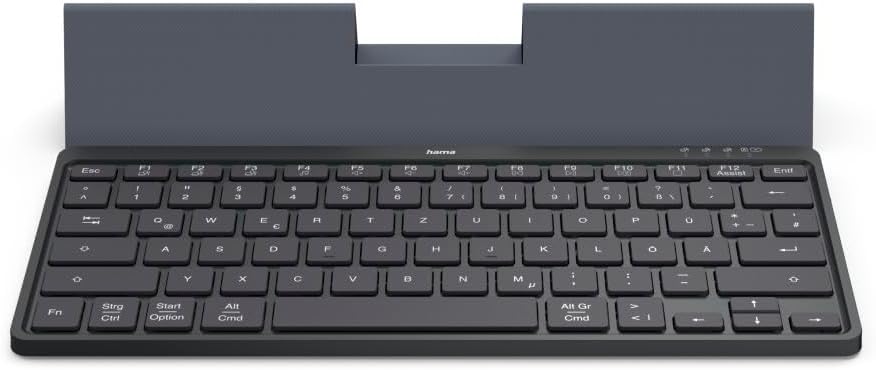
The Hama Travel 600 Multi-Device Bluetooth Keyboard in its open position, revealing the QWERTZ layout and the integrated stand for a tablet or smartphone. The keyboard features a compact design suitable for portability.
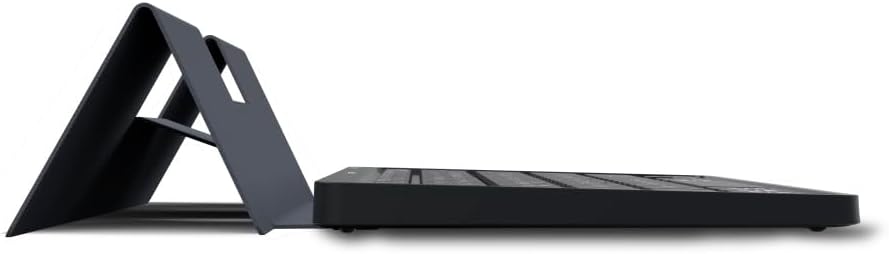
Side view of the Hama Travel 600 keyboard, illustrating its slim profile and how the integrated case folds to form a stable stand for mobile devices.
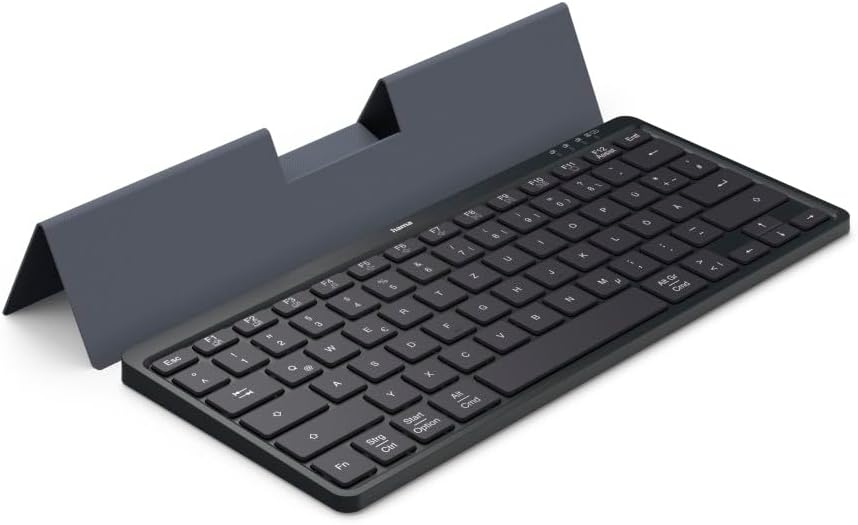
An angled view of the Hama Travel 600 keyboard, showcasing its full QWERTZ layout and the magnetic case that doubles as a device stand, providing an ergonomic typing experience.

Bottom view of the Hama Travel 600 keyboard with its case folded, highlighting the compact and flat design for easy storage and transport.

Close-up of the right side of the Hama Travel 600 keyboard, detailing the function keys (F7-F12), multimedia controls, and the QWERTZ key arrangement, including the 'Alt Gr' and 'Cmd' keys.

Another angled view of the Hama Travel 600 keyboard, emphasizing its portability and the functional design of the magnetic case that securely holds a tablet or smartphone.
5. Setup
5.1. Charging the Keyboard
The keyboard features an integrated lithium-polymer battery. Before initial use, ensure the keyboard is fully charged. Connect the supplied USB-C charging cable to the keyboard's charging port and the other end to a USB power source (e.g., computer, USB wall adapter). A charging indicator light will typically illuminate during charging and turn off or change color when fully charged. A full charge ensures maximum flexibility and usage time.
5.2. Bluetooth Pairing
To connect your Hama Travel 600 keyboard to a device via Bluetooth:
- Ensure the keyboard is sufficiently charged.
- Locate the power switch on the keyboard and slide it to the 'ON' position.
- Activate Bluetooth on your device (tablet, smartphone, PC).
- Press and hold the Bluetooth pairing button on the keyboard. This is often indicated by a Bluetooth symbol or a specific function key combination (e.g., Fn + C). The indicator light will flash, signifying it is in pairing mode.
- On your device, search for available Bluetooth devices. Select "Hama Travel 600" from the list.
- If prompted, enter the displayed pairing code on the keyboard and press Enter.
- Once successfully paired, the indicator light on the keyboard will stop flashing, and your device will confirm the connection. The keyboard is now ready for use.
6. Operating the Keyboard
6.1. Multi-Device Switching
The Hama Travel 600 keyboard allows you to connect and switch between multiple devices. Use the dedicated multi-device switching keys (typically marked with Bluetooth icons or numbers) to select the desired paired device. Press the corresponding key to switch the keyboard's active connection.
6.2. Special Function Keys (Fn Keys)
The keyboard includes a row of function keys (F1-F12) that can perform special actions when pressed in combination with the Fn key. These keys provide quick access to multimedia controls and system functions.
| Key Combination | Function |
|---|---|
| Fn + F7 | Previous Track |
| Fn + F8 | Play/Pause |
| Fn + F9 | Volume Down |
| Fn + F10 | Volume Up |
| Fn + F11 | Mute |
| Fn + F12 | Assist (e.g., Voice Assistant activation) |
| Strg / Ctrl | Control Key |
| Start / Option | Windows Key / Option Key (Mac) |
| Alt / Cmd | Alt Key / Command Key (Mac) |
| Alt Gr / Cmd | Alt Graph Key / Command Key (Mac) |
Note: The exact functionality of some keys may vary depending on the operating system and device connected.
7. Maintenance
- Clean this product only with a slightly damp, lint-free cloth.
- Do not use aggressive cleaning agents, alcohol, or other chemical solutions, as these could damage the surface or functionality.
- Ensure no liquid enters the keyboard during cleaning.
- Store the keyboard in a dry, dust-free environment when not in use.
- Avoid dropping the keyboard or subjecting it to strong impacts.
8. Troubleshooting
If you encounter issues with your Hama Travel 600 keyboard, refer to the following table for common problems and solutions:
| Problem | Possible Cause | Solution |
|---|---|---|
| Keyboard does not connect/pair. | Low battery; Bluetooth off on device; keyboard not in pairing mode; interference. | Charge the keyboard. Ensure Bluetooth is enabled on your device. Put the keyboard into pairing mode. Move closer to the device and away from other wireless devices. Try unpairing and re-pairing. |
| Keys are not responding or input is delayed. | Low battery; weak Bluetooth signal; device issue. | Charge the keyboard. Ensure the keyboard is within effective Bluetooth range. Restart your connected device. |
| Incorrect characters are typed. | Incorrect keyboard layout selected on the device. | Check your device's settings to ensure the correct keyboard layout (e.g., QWERTZ DE) is selected. |
| Keyboard frequently disconnects. | Low battery; too far from device; interference. | Charge the keyboard. Keep the keyboard close to your device. Minimize other wireless interference. |
9. Specifications
| Feature | Detail |
|---|---|
| Brand | Hama |
| Model Number | 00125138 |
| Connectivity Technology | Bluetooth |
| Color | Black |
| Material | Plastic |
| Battery Type | Integrated Lithium-Polymer |
| Special Features | Lightweight, Portable, Shortcut keys, Multimedia keys, Rechargeable, Magnetic case |
| Compatible Devices | Laptop, PC, Tablet, Smartphone |
| Keyboard Layout | QWERTZ DE (German Layout) |
| Included Components | USB-C charging cable, USB-C to USB-A adapter, Cable manager |
10. Warranty and Support
Hama products are covered by a standard manufacturer's warranty. For detailed warranty terms, technical support, or service inquiries, please refer to the official Hama website (www.hama.com) or contact their customer service directly. Please retain your proof of purchase for any warranty claims.


