1. Introduction
This manual provides instructions for the setup, operation, and maintenance of your Hama WK-200 Wireless Computer Keyboard. Please read this manual thoroughly before using the device to ensure proper function and longevity.
The Hama WK-200 is a full-size wireless keyboard designed for convenient control of your computer or laptop. It features a QWERTZ layout, 8 dedicated media keys, and an AI assistant button for enhanced productivity.

Image 1: The Hama WK-200 Wireless Keyboard integrated into a typical desk setup, demonstrating its compact and functional design.
2. Package Contents
- 1 x Hama WK-200 Wireless Keyboard
- 1 x USB-A Receiver
- 1 x AA Mignon Battery
3. Setup
3.1. Battery Installation
- Locate the battery compartment on the underside of the keyboard.
- Open the battery compartment cover.
- Insert the provided AA Mignon battery, ensuring correct polarity (+/-).
- Close the battery compartment cover securely.
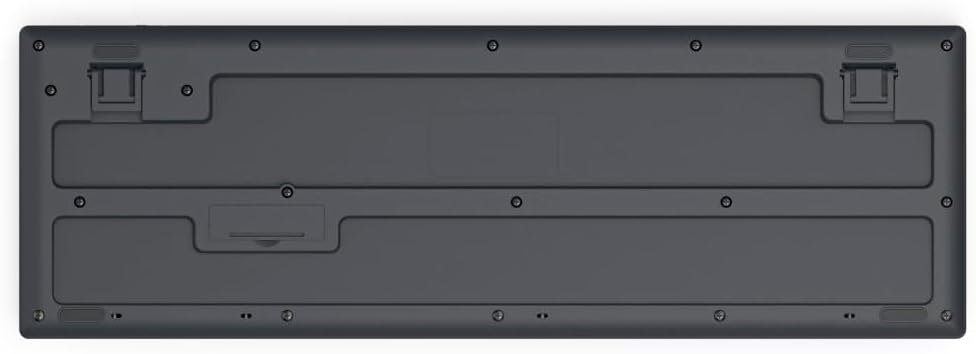
Image 2: Bottom view of the Hama WK-200 Wireless Keyboard, illustrating the battery compartment and receiver storage slot.
3.2. Connecting the USB Receiver
- Locate the USB-A receiver, typically stored within the battery compartment or packaging.
- Plug the USB-A receiver into an available USB port on your computer or laptop.
- The keyboard should automatically connect. No driver installation is required (Plug & Play).

Image 3: Top view of the Hama WK-200 Wireless Keyboard, ready for use after connecting the USB receiver.
4. Operating the Keyboard
4.1. Basic Typing
The Hama WK-200 features a standard QWERTZ layout. Begin typing once the keyboard is connected and recognized by your operating system.

Image 4: Detailed top view of the Hama WK-200 Wireless Keyboard, highlighting the QWERTZ key layout and function keys.
4.2. Multimedia Keys
The keyboard includes 8 dedicated multimedia keys for quick access to common functions. These keys are located above the function row (F1-F12).
- Volume Down: Decreases audio volume.
- Volume Up: Increases audio volume.
- Mute: Mutes or unmutes audio.
- Previous Track: Skips to the previous audio/video track.
- Play/Pause: Plays or pauses media playback.
- Next Track: Skips to the next audio/video track.
- Stop: Stops media playback.
- Web Browser: Opens your default web browser.
4.3. AI Assistant Button
The dedicated "Assist" button activates your multi-program AI assistant, if configured on your operating system, allowing for quick access to voice commands or smart features.
4.4. Adjustable Tilt
The keyboard features adjustable feet on the underside to change the typing angle for improved ergonomics.

Image 5: Side profile of the Hama WK-200 Wireless Keyboard, showing the kickstand extended for an angled typing position.
5. Maintenance
To maintain the performance and appearance of your keyboard:
- Clean the keyboard regularly with a soft, dry cloth.
- For stubborn dirt, slightly dampen the cloth with water or a mild cleaning solution. Avoid excessive moisture.
- Do not use abrasive cleaners or solvents.
- Keep the keyboard away from liquids and extreme temperatures.
6. Troubleshooting
- Keyboard not responding:
- Check if the battery is correctly inserted and has sufficient charge. Replace the battery if necessary.
- Ensure the USB-A receiver is securely plugged into a working USB port on your computer. Try a different USB port.
- Move the keyboard closer to the USB receiver to rule out range issues.
- Restart your computer.
- Keys are unresponsive or require hard presses:
- Ensure the keyboard is clean and free from debris under the keys.
- Verify battery charge. Low battery can sometimes affect key responsiveness.
- Incorrect key output (e.g., 'Z' types 'Y'):
- The Hama WK-200 uses a QWERTZ (German) keyboard layout. Ensure your operating system's keyboard language setting matches this layout. If your system is set to QWERTY (US English) or another layout, key outputs may not correspond to the physical keycaps. Adjust your operating system's keyboard settings accordingly.
7. Specifications
| Brand | Hama |
| Model Number | 00173055 |
| Connectivity Technology | USB Wireless |
| Keyboard Description | Multimedia |
| Compatible Devices | Laptop, PC |
| Special Feature | Lightweight |
| Color | Black |
| Material | Plastic |
| Item Weight | 1.04 pounds (approx. 472g) |
| Package Dimensions | 18.94 x 6.02 x 1.26 inches (approx. 48.1 x 15.3 x 3.2 cm) |

Image 6: Diagram illustrating the dimensions of the Hama WK-200 Wireless Keyboard: 43.8 cm length, 14.5 cm width, and 2.6 cm height.
8. Warranty and Support
Hama products are covered by a manufacturer's warranty. For specific warranty terms and conditions, please refer to the documentation included with your purchase or visit the official Hama website.
For technical support, troubleshooting assistance, or warranty claims, please contact Hama customer service directly. Contact information can typically be found on the Hama website or product packaging.
9. Safety Instructions
- Do not open the device. Improper repairs can lead to significant hazards for the user.
- Do not operate the product if it is visibly damaged.
- Protect the product from dirt, moisture, and overheating.
- Only use the product for its intended purpose.
- Keep this product, as all electrical products, out of the reach of children.


