
1. Introduction
This manual provides detailed instructions for the safe and efficient operation of your Retoo ER1007 Mini Projector. Please read this manual thoroughly before using the device and retain it for future reference. The Retoo ER1007 is a portable projector designed for home entertainment, presentations, and educational purposes, featuring Android OS, Wi-Fi, Bluetooth 5.0, and 4K content support.
2. Package Contents
Verify that all items listed below are included in your package:
- Retoo ER1007 Mini Projector
- Remote Control
- HDMI Cable
- Power Adapter
- User Manual (this document)
- Original Packaging
3. Product Overview
Familiarize yourself with the components and features of your Retoo ER1007 Mini Projector.

Figure 3.1: Front view of the Retoo ER1007 Mini Projector, showcasing its lens, integrated stand, and a remote control. The projected image displays various streaming application icons, indicating its smart functionality.

Figure 3.2: Rear view of the Retoo ER1007 Mini Projector, highlighting its various input ports including HDMI, USB, and power input. Accompanying power cables and an HDMI cable are also shown.

Figure 3.3: A hand demonstrating the compact size and portability of the Retoo ER1007 Mini Projector by placing it into a small carrying bag.

Figure 3.4: The Retoo ER1007 Mini Projector illustrating its 180-degree rotating stand, allowing for flexible projection angles, including ceiling projection.
4. Setup
- Power Connection: Connect the power adapter to the projector's power input port and then plug it into a power outlet.
- Placement: Place the projector on a stable, flat surface. Utilize the 220-degree rotating stand to adjust the projection angle as needed. Ensure there are no obstructions blocking the lens or ventilation vents.
- Initial Power On: Press the power button on the projector or the remote control to turn on the device.
5. Operating Instructions
5.1 Basic Operation
- Power On/Off: Press the power button on the remote or projector.
- Navigation: Use the arrow keys and 'OK' button on the remote to navigate the Android interface.
- Volume Control: Use the volume buttons on the remote to adjust the audio output.

Figure 5.1: The Retoo ER1007 Mini Projector in operation, projecting a high-definition image of a car onto a wall in a modern living room setting.
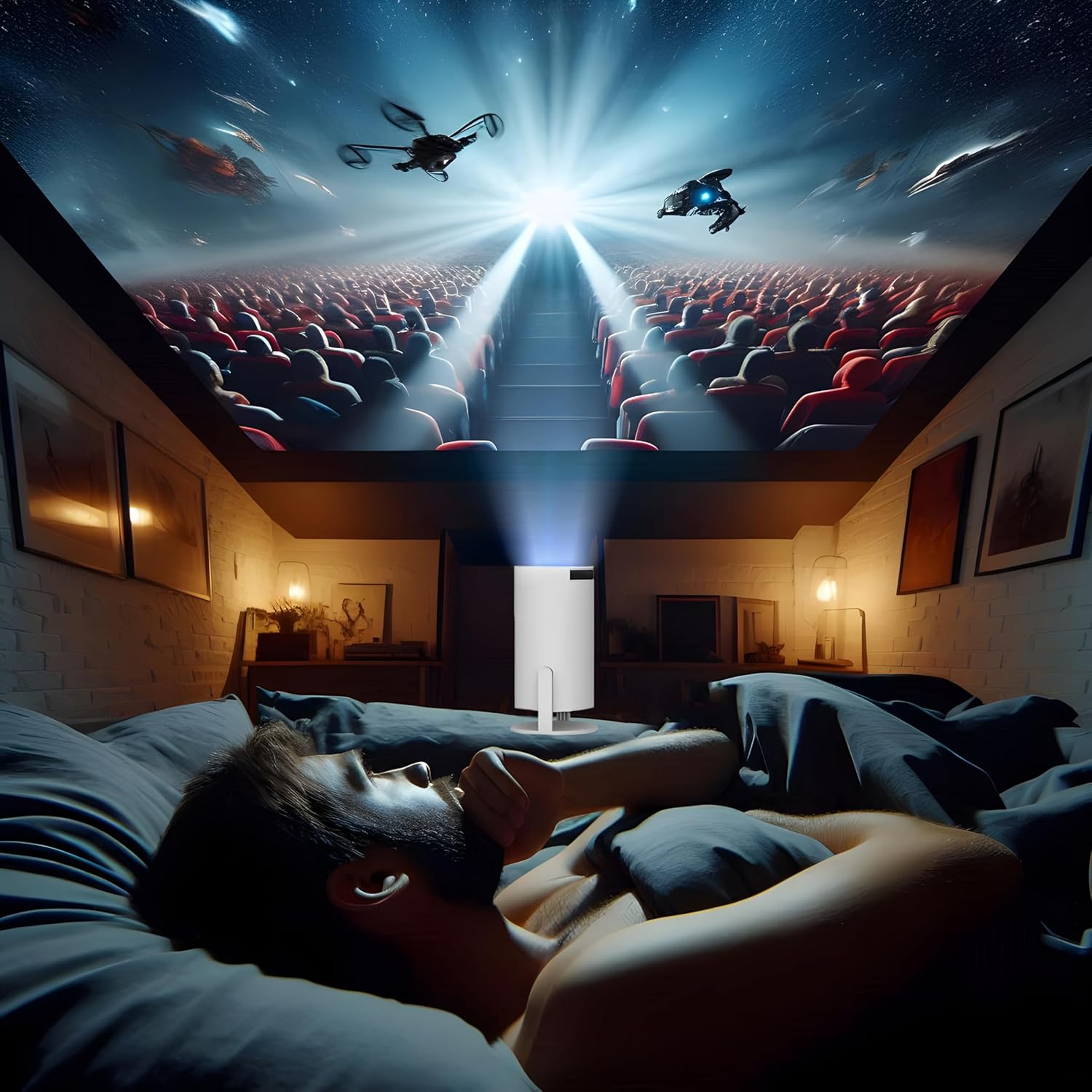
Figure 5.2: A person comfortably watching a movie projected onto the ceiling by the Retoo ER1007 Mini Projector, demonstrating its versatile projection capabilities.
6. Connectivity
6.1 Wi-Fi Connection
- Go to the 'Settings' menu on the projector's interface.
- Select 'Network & Internet' and then 'Wi-Fi'.
- Choose your desired Wi-Fi network and enter the password if prompted.
6.2 Bluetooth Connection
The projector supports Bluetooth 5.0 for connecting external audio devices.
- Go to 'Settings' and select 'Connected Devices' or 'Bluetooth'.
- Enable Bluetooth and search for available devices.
- Select your Bluetooth speaker or headphones from the list to pair.
6.3 HDMI and USB Connections
Connect external devices such as laptops, gaming consoles, or USB drives using the HDMI and USB ports.
- HDMI: Connect an HDMI cable from your source device to the projector's HDMI port. Select the HDMI input source from the projector's menu.
- USB: Insert a USB drive into the USB port to access media files. The projector's media player will allow you to browse and play content.
6.4 Screen Mirroring (Android & Apple)
The projector supports screen projection from compatible Android and Apple mobile devices.
- Ensure both your mobile device and the projector are connected to the same Wi-Fi network.
- On the projector, select the screen mirroring application (e.g., 'Miracast' for Android, 'AirPlay' for Apple).
- On your mobile device, activate screen mirroring/casting feature and select the projector from the list of available devices.

Figure 6.1: The Retoo ER1007 Mini Projector projecting an image while simultaneously connected to a soundbar via Bluetooth and mirroring content from a smartphone.
7. Image Adjustment
7.1 Automatic Keystone Correction
The projector is equipped with a high-precision sensor that automatically corrects the four corners of the projection surface, ensuring optimal image geometry without manual intervention.
7.2 Manual Focus Adjustment
For the sharpest possible image, manually adjust the focus ring located on the front of the projector.

Figure 7.1: A hand rotating the focus ring on the front of the Retoo ER1007 Mini Projector to achieve a clear and sharp projected image.
8. Maintenance
- Cleaning the Lens: Use a soft, lint-free cloth specifically designed for optical lenses. Do not use abrasive cleaners or solvents.
- Cleaning the Exterior: Wipe the projector's exterior with a soft, dry cloth. For stubborn marks, a slightly damp cloth can be used, followed by a dry one.
- Ventilation: Ensure the ventilation vents are clear of dust and debris to prevent overheating. Do not block the vents during operation.
- Storage: When not in use for extended periods, store the projector in a cool, dry place, away from direct sunlight and extreme temperatures.
9. Troubleshooting
9.1 No Power
- Check if the power adapter is securely connected to both the projector and the power outlet.
- Ensure the power outlet is functional.
9.2 No Image or Distorted Image
- No Image: Verify the input source is correctly selected (e.g., HDMI, USB, Screen Mirroring).
- Blurry Image: Adjust the manual focus ring (refer to Section 7.2).
- Keystone/Distortion: The projector features automatic keystone correction. If issues persist, ensure the projector is placed on a stable surface and try restarting.
- No Signal: Ensure the source device is powered on and the cable connection is secure.
9.3 No Sound
- Adjust the volume on the projector and the source device.
- If using external Bluetooth speakers, ensure they are properly paired and their volume is adjusted.
- Check if the audio output is muted on the projector or source device.
10. Specifications
Detailed technical specifications for the Retoo ER1007 Mini Projector:
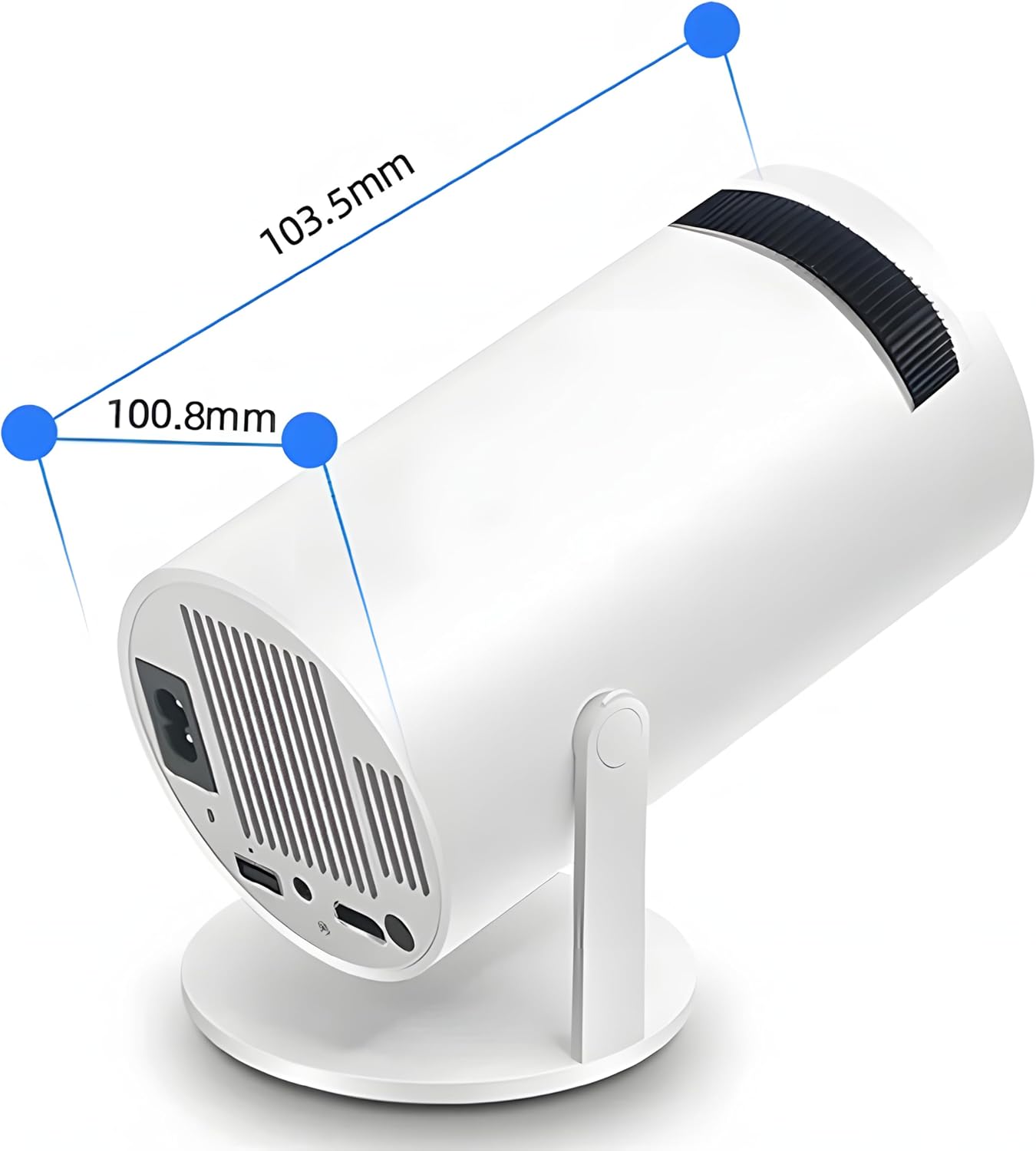
Figure 10.1: The Retoo ER1007 Mini Projector displaying its approximate dimensions: 103.5mm in length and 100.8mm in diameter.
| Feature | Specification |
|---|---|
| Model | ER1007 |
| Native Resolution | 1280 x 720p |
| Supported Resolution | Up to 4K |
| Brightness | 250 ANSI Lumens |
| Contrast Ratio | 1500:1 |
| Aspect Ratio | 16:9 |
| Projection Size | 40 to 130 inches |
| Keystone Correction | Automatic (4D) |
| Focus Adjustment | Manual |
| Operating System | Android |
| RAM | 1GB |
| ROM | 8GB |
| Connectivity | Wi-Fi, Bluetooth 5.0 |
| Ports | HDMI, USB, 3.5mm Audio Jack |
| Built-in Speaker | 3W Stereo Speaker |
| Lamp Life | 50,000 hours |
| Power Consumption | 60 watts |
| Dimensions (approx.) | 22 x 13 x 12 cm (Package); 103.5mm x 100.8mm (Projector) |
| Weight (approx.) | 850 g (Package) |
11. Warranty and Support
For warranty information and customer support, please refer to the documentation provided at the time of purchase or contact your retailer. Keep your proof of purchase for warranty claims.
