
banapoy banapoycmd0pg97wr-11
Security Camera Outdoor User Manual
Model: banapoycmd0pg97wr-11 | Brand: banapoy
1. Introduction
This manual provides detailed instructions for the installation, operation, and maintenance of your banapoy Outdoor Security Camera. Please read this manual thoroughly before using the product to ensure proper functionality and safety.
Key Features:
- Triple Lens with 360° Coverage: Features 3 lenses for comprehensive area monitoring, reducing blind spots. Offers 355° pan and 90° tilt capabilities.
- 2MP Single Lens: Provides clear 2-megapixel visuals with full-color video, even in low-light conditions.
- Integrated Ball Camera Functionality: Allows automatic focus on selected points with a single click on the ball camera screen.
- AI Motion Detection and Fixed Patrols: Detects movement and sends instant alerts.
- Two-Way Talk and Alarm Notifications: Supports real-time two-way audio communication and multiple alarm methods (app notifications, white light, sound alerts).
- Connectivity: Supports 2.4GHz Wi-Fi, BT5.0, and Ethernet connections.
- Weatherproof: IP66 protection level for outdoor use.
2. Package Contents
Verify that all items listed below are included in your package. If any items are missing or damaged, please contact customer support.
- 1 x banapoy Outdoor Security Camera
- 4 x Mounting Screws
- 4 x Screw Expansion Tubes (Wall Plugs)
- 1 x Power Adapter (US Plug)
- 1 x Power Plug
- 1 x Connector
- 1 x Rubber Seal
- 1 x User Manual (this document)
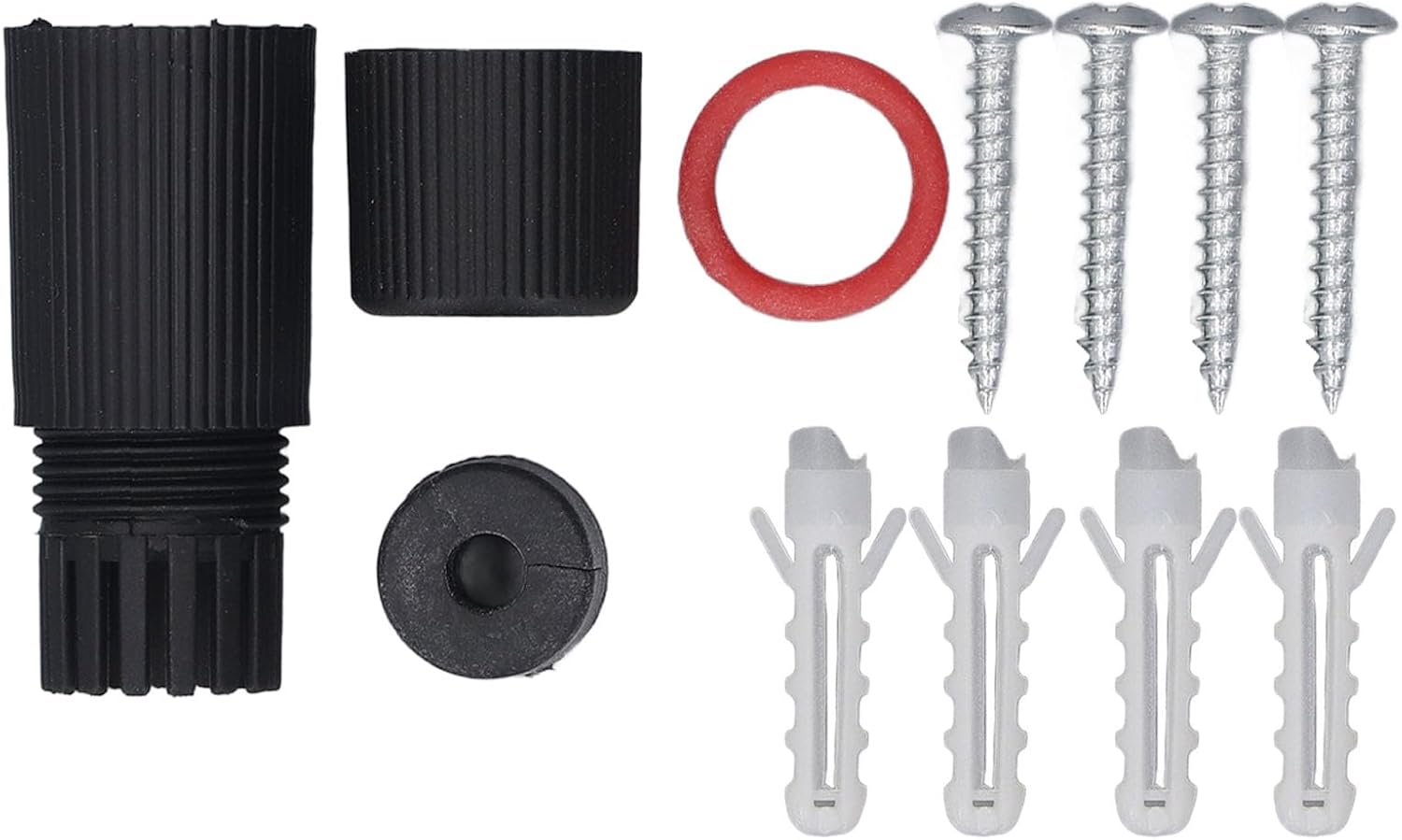
Figure 2.1: Contents of the product package, showing the camera, mounting hardware, power adapter, and other accessories.
3. Setup and Installation
3.1 Choosing an Installation Location
Select a location that provides optimal viewing coverage and is within range of your Wi-Fi network or has access to an Ethernet connection. Ensure the location is suitable for outdoor use and provides a stable mounting surface.
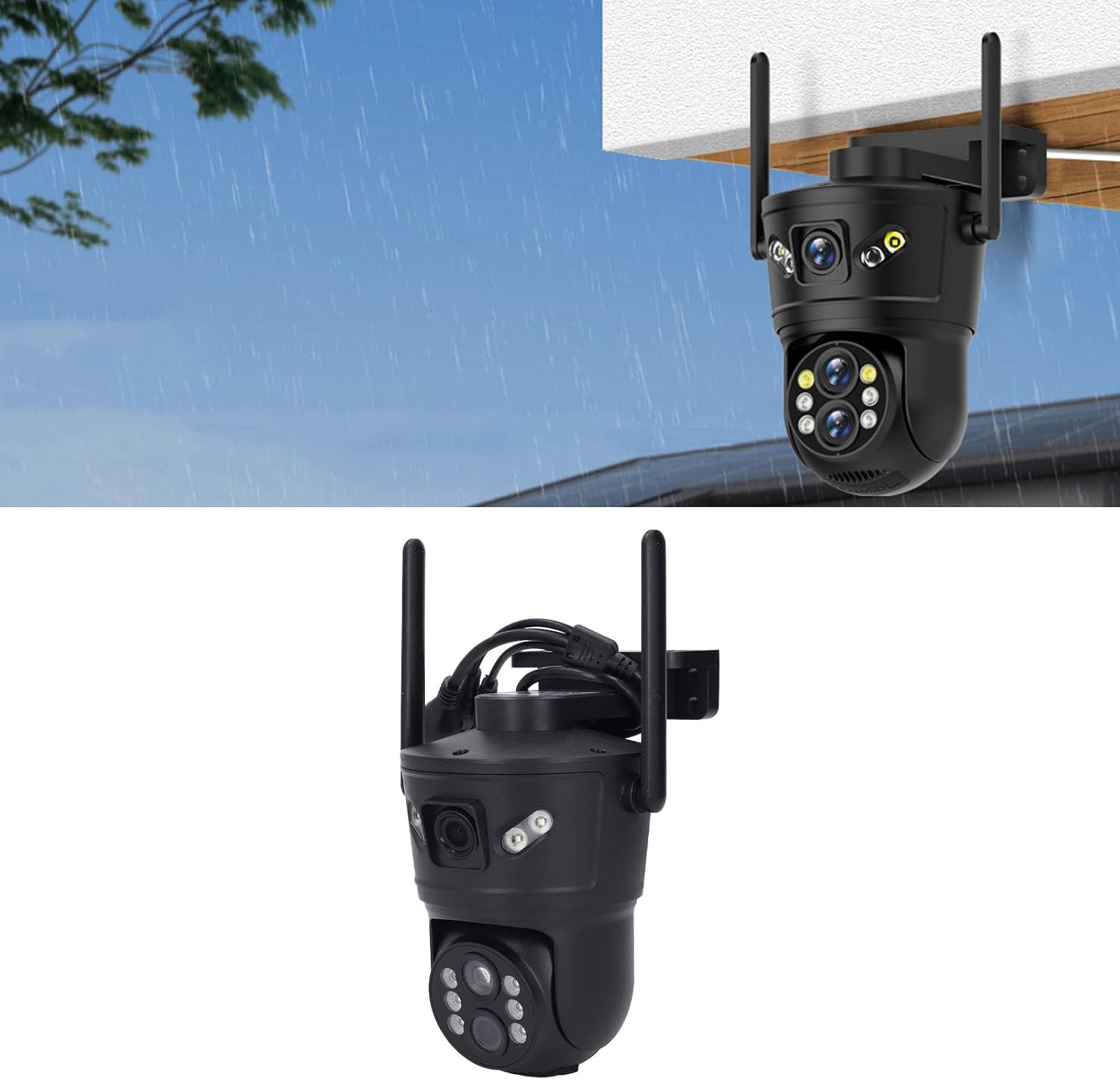
Figure 3.1: Example of a suitable outdoor mounting location for the camera, typically under an eave for protection.
3.2 Mounting the Camera
- Mark the drilling points on the wall or mounting surface using the camera's base as a template.
- Drill holes at the marked points. Insert the screw expansion tubes (wall plugs) into the drilled holes.
- Align the camera's base with the holes and secure it using the provided mounting screws.
- Ensure the camera is firmly attached and stable.
3.3 Powering On and Connectivity
- Connect the power adapter to the camera's power input port.
- Plug the power adapter into a suitable outdoor power outlet.
- For wired connection, connect an Ethernet cable from your router to the camera's Ethernet port.
- For wireless connection, download the dedicated mobile application (available for Android and iOS) and follow the in-app instructions to connect the camera to your 2.4GHz Wi-Fi network. The camera also supports BT5.0 for initial setup or specific functions.
- Wait for the camera's indicator light to show a stable status, indicating it is ready for operation.
4. Operating Instructions
4.1 Mobile Application Overview
The camera is primarily controlled via a mobile application. Ensure you have downloaded and installed the latest version of the app from your device's app store. Register an account and add your camera following the on-screen prompts.

Figure 4.1: Live view interface within the mobile application, showing controls for camera functions.
4.2 Pan and Tilt Control
From the live view in the mobile app, you can manually control the camera's pan (horizontal) and tilt (vertical) movements. Drag your finger across the screen or use the directional controls within the app to adjust the camera's viewing angle. The camera offers 355° pan and 90° tilt.

Figure 4.2: Illustration of the camera's extensive pan and tilt range, providing full coverage of the monitored area.
4.3 Motion Detection and Alerts
The camera features AI-powered motion detection. When motion is detected, the camera can send instant alerts to your mobile device. You can configure sensitivity levels and detection zones within the app.
- Setting up Motion Detection: Navigate to the camera settings in the app and enable motion detection. Adjust sensitivity as needed.
- Alerts: Receive push notifications on your phone. The camera can also activate white light alarms and sound alerts to deter intruders.

Figure 4.3: Example of human detection and alarm notification, illustrating the camera's ability to identify and alert to human presence.

Figure 4.4: Visual representation of the AI motion detection feature, highlighting a detected subject within the camera's view.
4.4 Two-Way Audio
The camera supports two-way audio communication. Tap the microphone icon in the live view interface of the app to speak through the camera's speaker. Tap the speaker icon to listen to audio from the camera's microphone.
4.5 Recording and Storage
The camera supports local storage via a memory card (up to 256GB, not included) and cloud storage (subscription may be required). Recordings can be accessed and managed through the mobile application.
- Local Storage: Insert a compatible memory card into the camera's designated slot. Recordings will automatically save to the card based on your settings (e.g., continuous, motion-triggered).
- Cloud Storage: Follow the in-app instructions to subscribe to and activate cloud storage services for remote access to recordings.
5. Maintenance
Regular maintenance ensures optimal performance and longevity of your security camera.
- Cleaning the Lens: Periodically clean the camera lens with a soft, lint-free cloth. For stubborn dirt, use a lens cleaning solution. Avoid abrasive materials that could scratch the lens.
- Checking Connections: Ensure all power and network cables are securely connected and free from damage.
- Firmware Updates: Check the mobile application regularly for available firmware updates. Keeping the firmware updated ensures the camera has the latest features and security patches.
- Environmental Protection: While the camera is IP66 rated for weather resistance, avoid directing high-pressure water jets directly at the camera. Ensure proper drainage around the installation area.
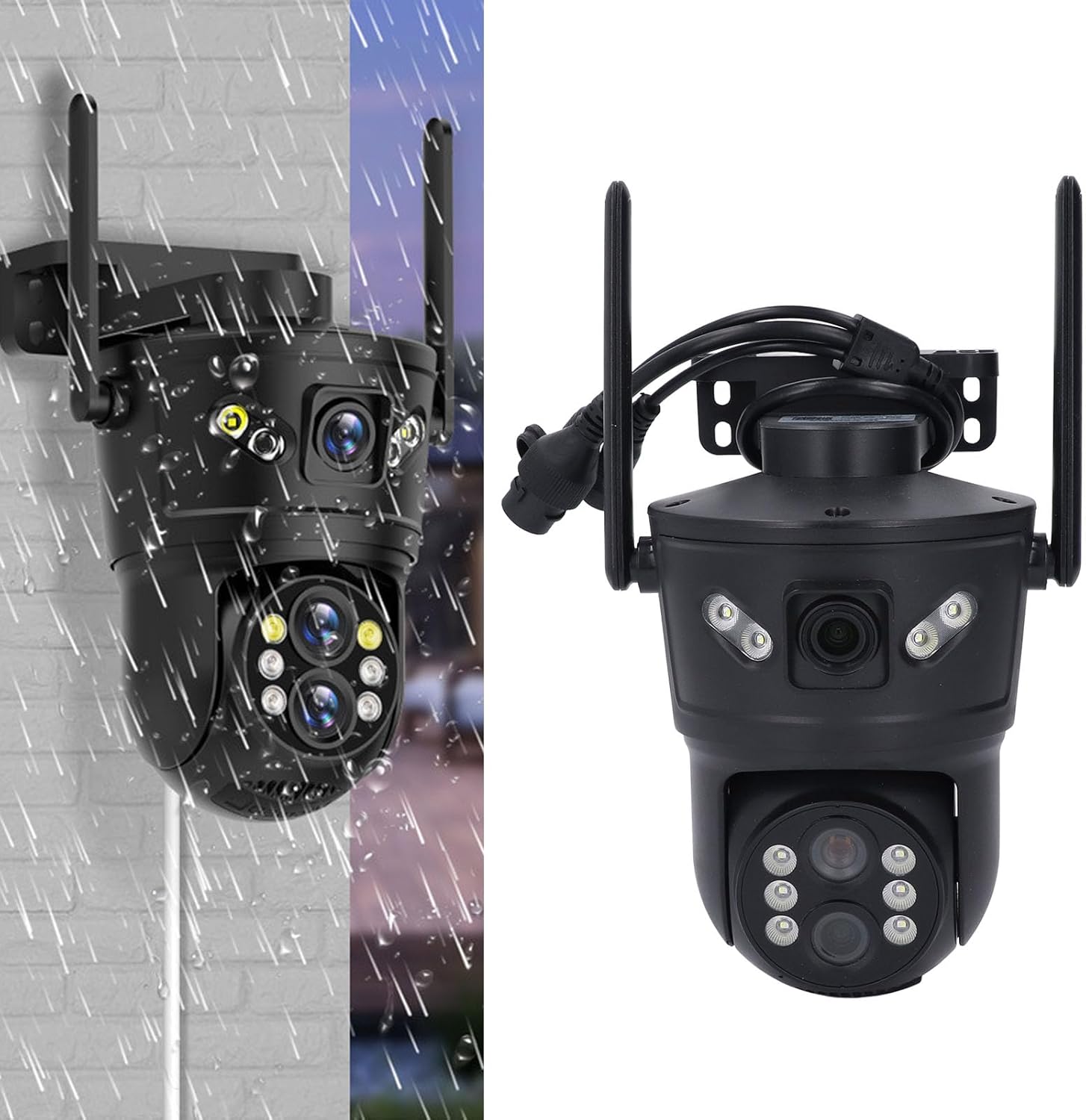
Figure 5.1: The camera's weather-resistant design, capable of withstanding rain and outdoor elements.
6. Troubleshooting
If you encounter issues with your camera, refer to the following common problems and solutions:
| Problem | Possible Cause | Solution |
|---|---|---|
| Camera is offline/cannot connect. | No power; Wi-Fi signal too weak; incorrect Wi-Fi password; router issues. | Check power connection. Ensure camera is within Wi-Fi range. Verify Wi-Fi password. Restart your router. Try connecting via Ethernet if possible. |
| Poor image quality. | Dirty lens; insufficient lighting; network bandwidth issues. | Clean the camera lens. Ensure adequate lighting or check night vision settings. Verify network speed. |
| Motion detection not working. | Motion detection disabled; sensitivity too low; detection zone not set correctly. | Enable motion detection in the app. Increase sensitivity. Adjust detection zones. |
| Two-way audio not functioning. | Microphone/speaker muted in app; network latency. | Check audio settings in the app. Ensure network connection is stable. |
| Cannot access recordings. | Memory card full/corrupted; cloud storage subscription expired; network issues. | Check memory card status or replace it. Verify cloud storage subscription. Ensure stable network connection. |
If the problem persists after trying these solutions, please contact banapoy customer support for further assistance.
7. Specifications
| Feature | Detail |
|---|---|
| Model Name | banapoycmd0pg97wr-11 |
| Brand | banapoy |
| Pixels | 2MP (Single Lens) |
| Pan/Tilt Range | 355° Pan, 90° Tilt |
| Connectivity Technology | Ethernet, 2.4GHz Wi-Fi, BT5.0 |
| Power Source | AC/DC |
| Protecting Level | IP66 (Weatherproof) |
| Detection Distance | Approx. 0-30m / 0-98.43ft |
| Storage | Maximum support 8-256G memory card (not included), Cloud Storage (Support) |
| Operating System Compatibility | For Android, For iOS |
| Item Weight | 15.9 ounces (approx. 450g) |
| Package Dimensions | 6.3 x 5.51 x 3.15 inches |
| Recommended Uses | Indoor/Outdoor |
8. Warranty and Support
banapoy products are designed for reliability and performance. For specific warranty details, please refer to the warranty card included with your product or visit the official banapoy website. If you require technical assistance or have questions not covered in this manual, please contact banapoy customer support.
Customer Support: Please refer to the contact information provided on the product packaging or the official banapoy website for the most up-to-date support channels.
Online Resources: For additional FAQs, video tutorials, and software downloads, visit the banapoy support page.