
IMILAB EC6 Panorama
IMILAB EC6 Panorama 3.5K WiFi Plug-in Spotlight Camera User Manual
Model: EC6 Panorama (CMSXJ115A)
Brand: IMILAB
Introduction
The IMILAB EC6 Panorama 3.5K WiFi Plug-in Spotlight Camera is an advanced outdoor security solution designed to provide comprehensive surveillance with its unique dual-lens system. This manual provides detailed instructions for setting up, operating, maintaining, and troubleshooting your EC6 Panorama camera to ensure optimal performance and security for your property.

Image: The IMILAB EC6 Panorama camera shown alongside a smartphone displaying its live view interface.
What's in the Box
Verify that all components are present in the package:
- EC6 Panorama Camera x 1
- Power Cable 10ft & Adapter x 1
- Mounting Kit x 1
- User Manual & Warranty Card x 1

Image: A visual representation of all items included in the EC6 Panorama product package.
Setup
Follow these steps to set up your IMILAB EC6 Panorama camera:
- Download the App: Download the "Mi Home/Xiaomi Home" app from your device's app store. Ensure you download the correct app with the green logo, as older versions may not support account creation.
- Power On: Connect the camera to power using the provided 10ft power cable and adapter. The camera will power on and provide voice prompts to guide you through the initial setup.
- In-App Setup: Open the Mi Home/Xiaomi Home app and follow the on-screen instructions to add your EC6 Panorama camera. This process will guide you through connecting the camera to your 2.4GHz WiFi network or via LAN for network connectivity.
- MicroSD Card Installation (Optional): For local 24/7 recording without a subscription, insert a MicroSD card (up to 256GB, not included) into the designated slot. Ensure the camera is powered off before inserting or removing the card.
- Mounting: The EC6 Panorama can be mounted on a wall, ceiling, or column. Use the included mounting kit and template for secure installation. Ensure the mounting location provides a clear view of the area you wish to monitor and is within range of your power source and network.

Image: A diagram illustrating the three-step connection process: download app, power on and follow in-app instructions, and mount the camera.
Video: EC6 Panorama Setup Guide Video. This video provides a visual walkthrough of the camera's installation and initial setup process.
Operating Instructions
Rotatable 180° Panorama
The EC6 Panorama features dual lenses that capture a 180° panoramic view. The camera can also rotate 344° horizontally (pan) and 90° vertically (tilt) via the app, allowing for comprehensive coverage and automatic people tracking.

Image: The EC6 Panorama camera capturing a wide 180-degree view of a driveway, highlighting its AI detection and pan/tilt capabilities.
Video: EC6 Panorama, 180 degree rotation tracking. This video demonstrates the camera's ability to track movement across its wide panoramic field of view.
3.5K Live View and Two-Way Audio
Access clear live footage in 3.5K resolution directly from your smartphone. The integrated two-way audio feature allows you to communicate with visitors or deter unwanted individuals from a distance.
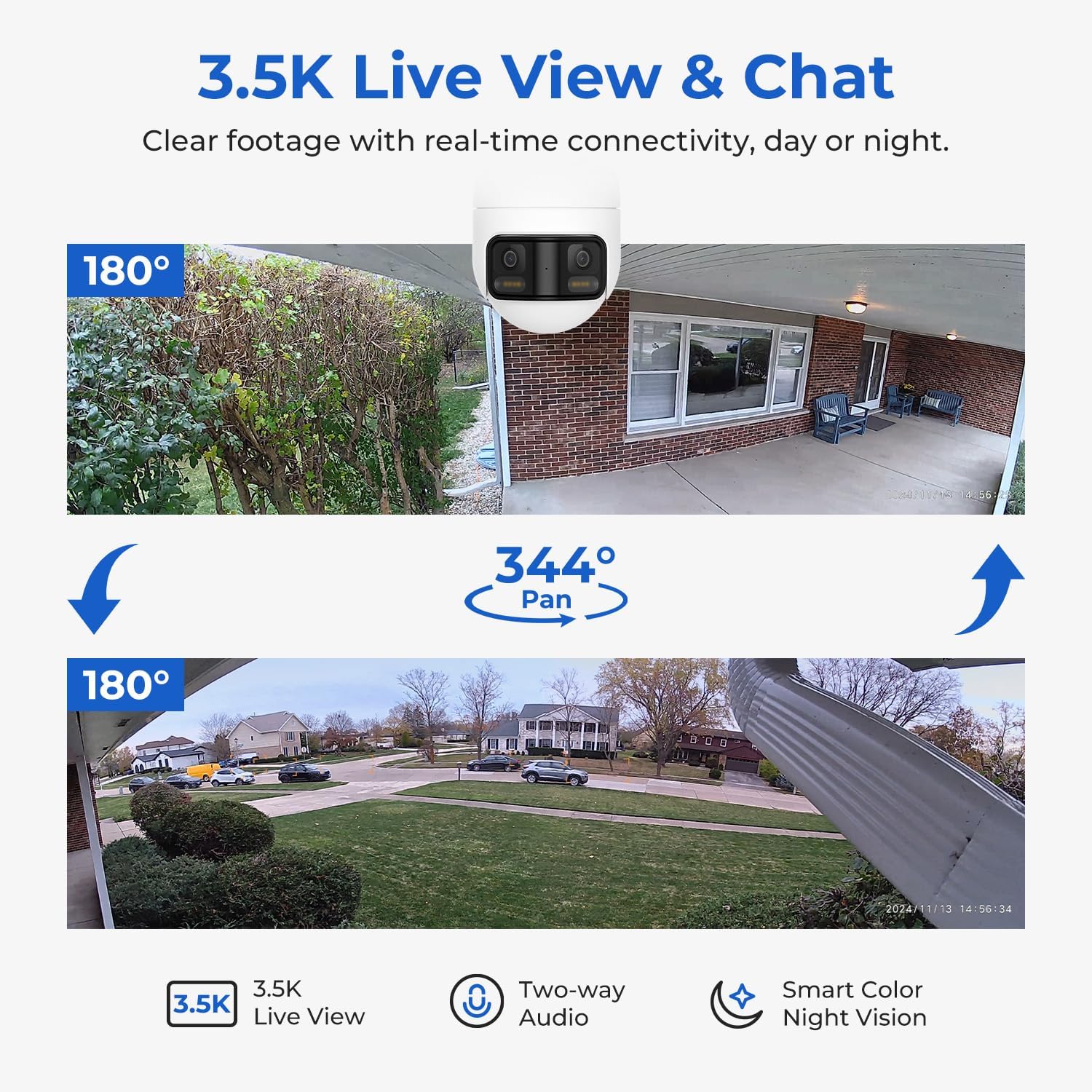
Image: The EC6 Panorama camera's live view interface on a smartphone, demonstrating its 3.5K resolution and two-way audio functionality.
Smart Deterrence
Utilize AI-powered detection to identify people, vehicles, and bikes. The camera can automatically trigger a motion-activated siren or flash to deter intruders. You can also record custom voice messages to play when motion is detected.

Image: A visual representation of the EC6 Panorama's smart deterrence capabilities, showing a motion-triggered siren, flash, and custom voice alarm.
Video: Smart outdoor camera. EC6 panorama. This video highlights the camera's intelligent features for outdoor security.
App Connection and Notifications
The Mi Home/Xiaomi Home app provides real-time notifications for detected events. You can set up custom virtual fences to define specific monitoring areas and reduce false alarms, ensuring you only receive alerts for relevant activity.

Image: A user interacting with the Mi Home app, showing real-time notifications and a timeline of detected events from the EC6 Panorama camera.
Smart Color Night Vision
The EC6 Panorama offers smart color night vision, providing full-color footage even in low-light conditions or when a person is detected. This enhances visibility and detail compared to traditional black-and-white infrared night vision.
Flexible Footage Storage
Record footage locally 24/7 using a MicroSD card (up to 256GB, not included). Alternatively, you can opt for subscription-based cloud storage for motion-triggered events. New users may enjoy a free trial period for cloud storage.

Image: The EC6 Panorama camera with an illustration of a MicroSD card, emphasizing its local footage storage capability up to 256GB.
Voice Assistants
Integrate your EC6 Panorama with Amazon Alexa or Google Assistant for hands-free operation and smart voice control. Simply use voice commands to view your camera feed.

Image: A smart display showing the live feed from the EC6 Panorama camera, indicating compatibility with Amazon Alexa and Google Assistant.
Maintenance
To ensure the longevity and optimal performance of your EC6 Panorama camera, follow these maintenance guidelines:
- Cleaning: Gently wipe the camera lens and body with a soft, dry cloth to remove dust and dirt. Avoid using harsh chemicals or abrasive materials that could scratch the lens or housing.
- Weather Resistance: The camera is IP66 weather-resistant, designed to withstand outdoor conditions. It operates effectively in temperatures ranging from -30°C to 60°C. While it is water-resistant, avoid submerging the camera in water.
- Firmware Updates: Regularly check the Mi Home/Xiaomi Home app for available firmware updates. Keeping your camera's firmware up-to-date ensures you have the latest features, security enhancements, and bug fixes.
- Cable Inspection: Periodically inspect the power cable for any signs of damage or wear. Ensure connections are secure to prevent power interruptions.

Image: The EC6 Panorama camera mounted outdoors during rain, illustrating its IP66 weather resistance.
Troubleshooting
If you encounter issues with your IMILAB EC6 Panorama camera, refer to the following common troubleshooting steps:
- Camera Offline:
- Check power connection: Ensure the camera is properly plugged in and receiving power.
- Network connectivity: Verify your WiFi network is active and the camera is within range. If using LAN, check the Ethernet cable connection.
- Router restart: Try restarting your WiFi router.
- App status: Ensure the Mi Home/Xiaomi Home app is updated to the latest version.
- Poor Video Quality:
- Clean lens: Gently clean the camera lens with a soft cloth.
- Network speed: Ensure your internet connection is stable and has sufficient bandwidth for streaming 3.5K video.
- Lighting: Adjust the camera's position to optimize lighting conditions, especially for night vision.
- Motion Detection Issues:
- Sensitivity settings: Adjust motion detection sensitivity in the app.
- Detection zones: Review and reconfigure virtual fence or motion detection zones in the app.
- Obstructions: Ensure there are no physical obstructions blocking the camera's view.
- No Recording/Storage Issues:
- MicroSD card: Verify the MicroSD card is correctly inserted, formatted, and not full. Try reformatting the card via the app (this will erase data).
- Cloud storage: Check your cloud storage subscription status if you are relying on cloud recording.
- App Functionality:
- Clear cache: Clear the app's cache or reinstall the app.
- Device compatibility: Ensure your smartphone or tablet meets the minimum requirements for the app.
For further assistance, please refer to the official IMILAB support resources or contact customer service.
Specifications
| Feature | Detail |
|---|---|
| Model Name | EC6 Panorama |
| Item Model Number | CMSXJ115A |
| Indoor/Outdoor Usage | Outdoor |
| Video Capture Resolution | 3.5K/6MP (4608 x 1296) |
| Connectivity Technology | 2.4GHz WiFi (WiFi 6 supported) & LAN |
| Power Source | Corded Electric (12V DC, 12W) |
| Controller Type | Mi Home/Xiaomi Home App, Google Assistant, Amazon Alexa |
| Mounting Type | Ceiling Mount, Pole Mount, Wall Mount |
| Night Vision Range | 50 Feet (Smart Color Night Vision) |
| Frame Rate | 20 frames per second |
| Water Resistance Level | IP66 |
| Operating Range | -30°C to 60°C |
| Flash Memory Supported Size Maximum | 256 GB (Micro SD) |
| Item Dimensions L x W x H | 7.56 x 7.91 x 5.04 inches (192 x 128 x 201 mm) |
| Item Weight | 3.21 pounds (1,010g) |

Image: A detailed table outlining the technical specifications of the EC6 Panorama camera.
Warranty and Support
The IMILAB EC6 Panorama camera comes with a standard warranty. Please refer to the included Warranty Card for specific terms and conditions regarding your product's warranty period and coverage. Typically, IMILAB products offer a 2-year warranty with an additional 1-year extension upon registration or specific conditions.
For technical support, product inquiries, or warranty claims, please contact IMILAB customer service through their official website or the support section within the Mi Home/Xiaomi Home app. Providing your product model number (CMSXJ115A) and purchase details will help expedite your support request.
Related documentsEC6 Panorama


Ask a question about this manual
Ask about setup, troubleshooting, compatibility, parts, safety, or missing instructions. Manuals+ will review the question and use this page’s manual context to help answer it.