
NOILLER ZY-BB2
NOILLER 4.3" Video Baby Monitor User Manual
Model: ZY-BB2
Introduction
Thank you for choosing the NOILLER 4.3" Video Baby Monitor. This device is designed to provide a reliable and convenient way to monitor your baby, offering both a dedicated monitor unit and smartphone app connectivity. Please read this manual thoroughly before use to ensure proper operation and safety.
Package Contents
- Baby Camera Unit
- 4.3" LCD Monitor Unit
- Power Adapter for Camera
- Power Adapter for Monitor
- USB Charging Cable
- User Manual (this document)
Product Overview
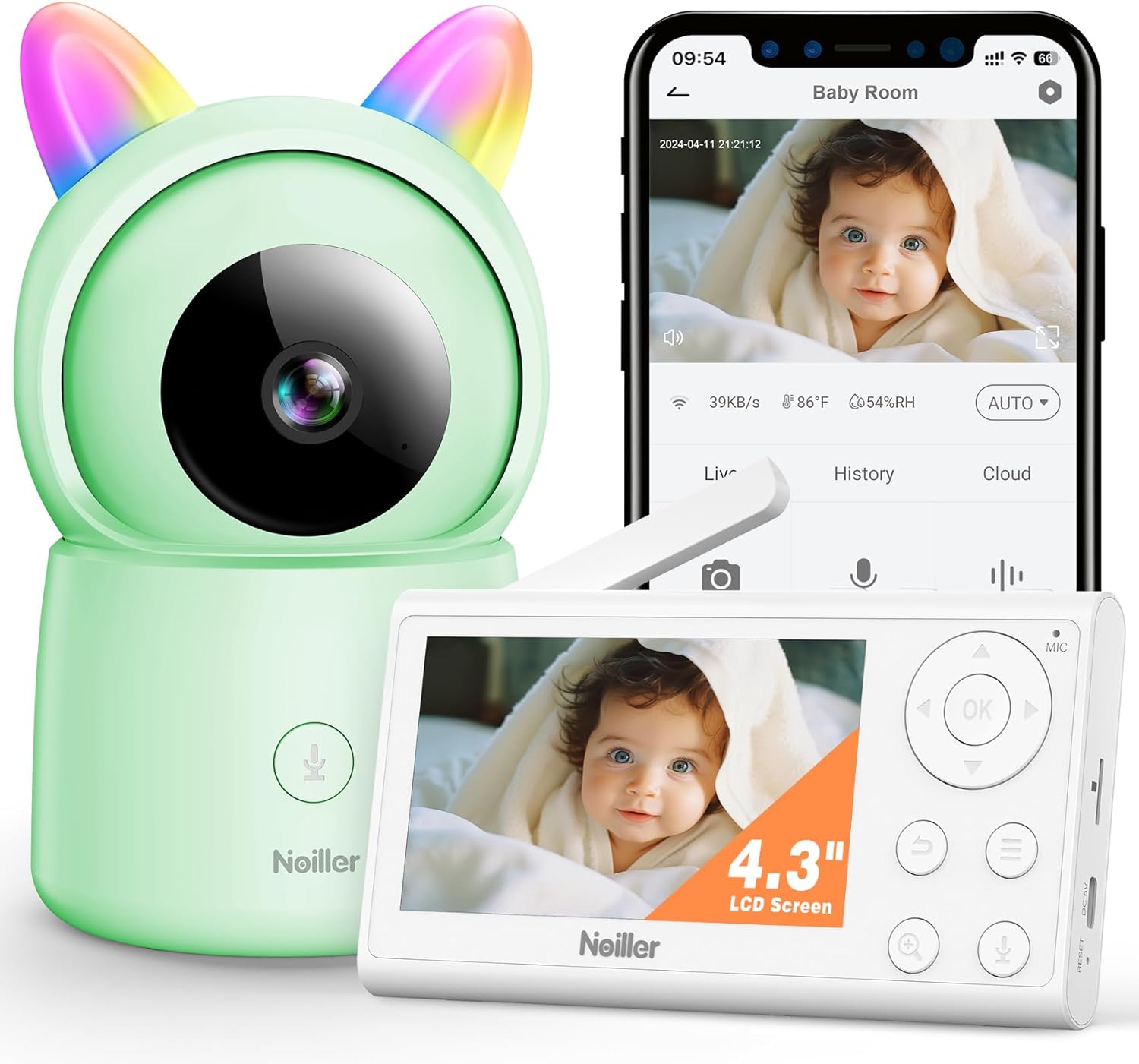
Image: The NOILLER 4.3" Video Baby Monitor system, featuring the green camera unit with rainbow ears, the white 4.3-inch LCD monitor, and a smartphone displaying the "Safeview" app interface with a live baby feed. The monitor shows control buttons for navigation, microphone, and zoom. The camera has a microphone button on its base.
The NOILLER Baby Video Monitor system consists of two main components: the Camera Unit and the Monitor Unit. It also supports a smartphone application for remote viewing.
Camera Unit Features:
- 1080P HD Camera Lens
- Infrared LEDs for Night Vision
- Microphone and Speaker for Two-Way Talk
- Temperature and Humidity Sensors
- RGB Night Lights (on ears)
- Power Input Port
- Reset Button
Monitor Unit Features:
- 4.3" LCD Display
- Navigation Buttons (Up, Down, Left, Right, OK)
- Microphone and Speaker
- Volume Control
- Zoom Function
- Menu Button
- Two-Way Talk Button
- Power Input Port
- Antenna
Setup Guide
1. Powering On the Units
- Connect the camera unit to a power outlet using its dedicated power adapter. Ensure the adapter is securely plugged in.
- Connect the monitor unit to a power outlet using its dedicated power adapter. The monitor unit has a built-in rechargeable battery for portable use, but it is recommended to charge it fully before first use.
- Press and hold the power button on the monitor unit to turn it on.
2. Pairing the Camera and Monitor
The camera and monitor units are pre-paired at the factory. If they do not connect automatically, or if you need to add another camera (sold separately), follow these steps:
- On the monitor unit, press the Menu button.
- Navigate to the Camera icon and select it.
- Choose an available camera channel (e.g., Camera 1, Camera 2).
- Select the Pairing option. The monitor will begin searching for a camera.
- Within 30 seconds, press the Pairing button on the back of the camera unit.
- Once paired, the monitor will display the camera's live feed.
3. Smartphone App Setup (Optional)
For remote viewing and additional features, download the "Safeview" app:
- Scan the QR code provided in the package or search for "Safeview" in your smartphone's app store (iOS/Android).
- Register for a new account or log in if you already have one.
- Follow the in-app instructions to add your camera device. This typically involves connecting the camera to your 2.4G Wi-Fi network.
- Ensure your smartphone is connected to a 2.4G Wi-Fi network during the initial setup process.
4. Camera Placement
Place the camera on a flat, stable surface such as a dresser or shelf, ensuring it has a clear, unobstructed view of the baby's crib or play area. Keep the camera and its power cord out of reach of children (at least 3 feet / 1 meter away from the crib).
Operating Instructions
Live View
Once the camera and monitor are paired, the monitor will automatically display the live video feed. On the smartphone app, select the camera from your device list to view the live feed.
Two-Way Talk
- Monitor Unit: Press and hold the microphone button on the monitor unit to speak. Release the button to hear your baby.
- Smartphone App: Tap the microphone icon on the app interface to speak.
Night Vision
The camera automatically switches to infrared night vision in low-light conditions, providing clear black and white images. No manual adjustment is required.
Zoom Function
On the monitor unit, press the Zoom button to digitally zoom in or out on the video feed.
Lullabies
The monitor unit allows you to play pre-programmed lullabies through the camera's speaker. Access this feature via the Menu on the monitor unit.
RGB Night Lights
The camera unit features RGB night lights on its "ears." These can be controlled via the monitor unit's menu or the smartphone app to provide a soothing glow in the baby's room.
Temperature and Humidity Monitoring
The monitor unit and smartphone app display the real-time temperature and humidity of the baby's room, as detected by the camera's sensors.
VOX Mode (Voice Activated)
The monitor can be set to VOX mode, where the screen and audio activate only when sound is detected from the baby's room. You can adjust the sensitivity level in the monitor's settings.
Maintenance
Cleaning
Wipe the camera and monitor units with a soft, dry, lint-free cloth. Do not use cleaning agents, solvents, or abrasive cleaners. Avoid getting moisture into any openings.
Battery Care (Monitor Unit)
- To prolong battery life, avoid fully discharging the battery frequently.
- Charge the monitor unit regularly, especially if it will not be used for an extended period.
- Store the unit in a cool, dry place when not in use.
Storage
If storing the device for a long period, ensure both units are powered off and stored in a dry, dust-free environment.
Troubleshooting
| Problem | Possible Cause | Solution |
|---|---|---|
| No image/signal on monitor |
|
|
| Poor image quality |
|
|
| No sound or distorted sound |
|
|
| App cannot connect to camera |
|
|
Specifications
| Feature | Detail |
|---|---|
| Model Name | ZY-BB2 |
| Monitor Display Size | 4.3 inches LCD |
| Video Capture Resolution | 1080p |
| Connectivity Technology | Wireless Monitor & 2.4G WiFi Smartphone APP |
| Power Source | Battery Powered Monitor & Corded Electric Camera |
| Indoor/Outdoor Usage | Indoor |
| Controller Type | Mobile Phone APP, LCD Monitor |
| Mounting Type | Tabletop Mount |
| Item Dimensions (L x W x H) | 5 x 3 x 2 inches |
| Item Weight | 1.43 pounds |
| Batteries | 1 Lithium Ion battery required (included) |
| UPC | 750961862307 |
Warranty and Support
NOILLER products are designed for reliability and performance. For warranty information, please refer to the warranty card included in your product packaging or visit the official NOILLER website. If you encounter any issues or have questions regarding your product, please contact our customer support team:
- Email: support@noiller.com
- Website: www.noiller.com
- Please have your model number (ZY-BB2) and purchase details ready when contacting support.
Ask a question about this manual
Ask about setup, troubleshooting, compatibility, parts, safety, or missing instructions. Manuals+ will review the question and use this page’s manual context to help answer it.