1. Product Overview
The CAMECHO 1G+32G Android 13 Car Stereo is an advanced in-dash navigation and multimedia system designed to enhance your driving experience. Featuring a 7-inch touch screen, it integrates GPS navigation, WiFi connectivity, Bluetooth for hands-free calls and audio streaming, FM/RDS radio, and multimedia playback capabilities. This unit is specifically designed for a range of Volkswagen, Skoda, and Seat vehicles, offering seamless integration with your car's existing systems.

Image: Front view of the CAMECHO Android 13 Car Stereo, showing the 7-inch touchscreen display with various app icons and physical buttons on the sides.
2. Compatibility
This car stereo is compatible with a wide range of Volkswagen, Skoda, and Seat models. Please verify your vehicle's make, model, and year against the lists below to ensure proper fitment and functionality.
2.1. Applicable Car Models for Volkswagen
- VW Jetta (2005-2014)
- VW Tiguan (2007-2013)
- VW Golf VI (2008-2013)
- VW Golf V (2003-2009)
- VW Golf GTI (2010-2012)
- VW Beetle (2011-2013)
- VW Passat (2006-2013)
- VW T5 Transporter (2010-2013)
- VW Polo (2009-2013)
- VW Caddy (2004-2013)
- VW Scirocco (2008-2011)
- VW EOS (2006-2013)
- VW Rabbit (2007-2012)
- VW Touran (2003-2013)
- Includes Canbus support for these models.
2.2. Applicable Car Models for Skoda
- Skoda Octavia (2009-2012)
- Skoda Fabia (2007-2014)
- Skoda Superb (2008-2014)
- Skoda Yeti (2009-2015)
- Skoda Roomster (2006-2015)
2.3. Applicable Car Models for Seat
- Seat Leon (2005-2012)
- Seat Alhambra (2010-2016)
- Seat Altea (2004-2012)
- Seat Toledo (2004-2015)

Image: Detailed list of compatible Volkswagen, Skoda, and Seat car models and their respective years.
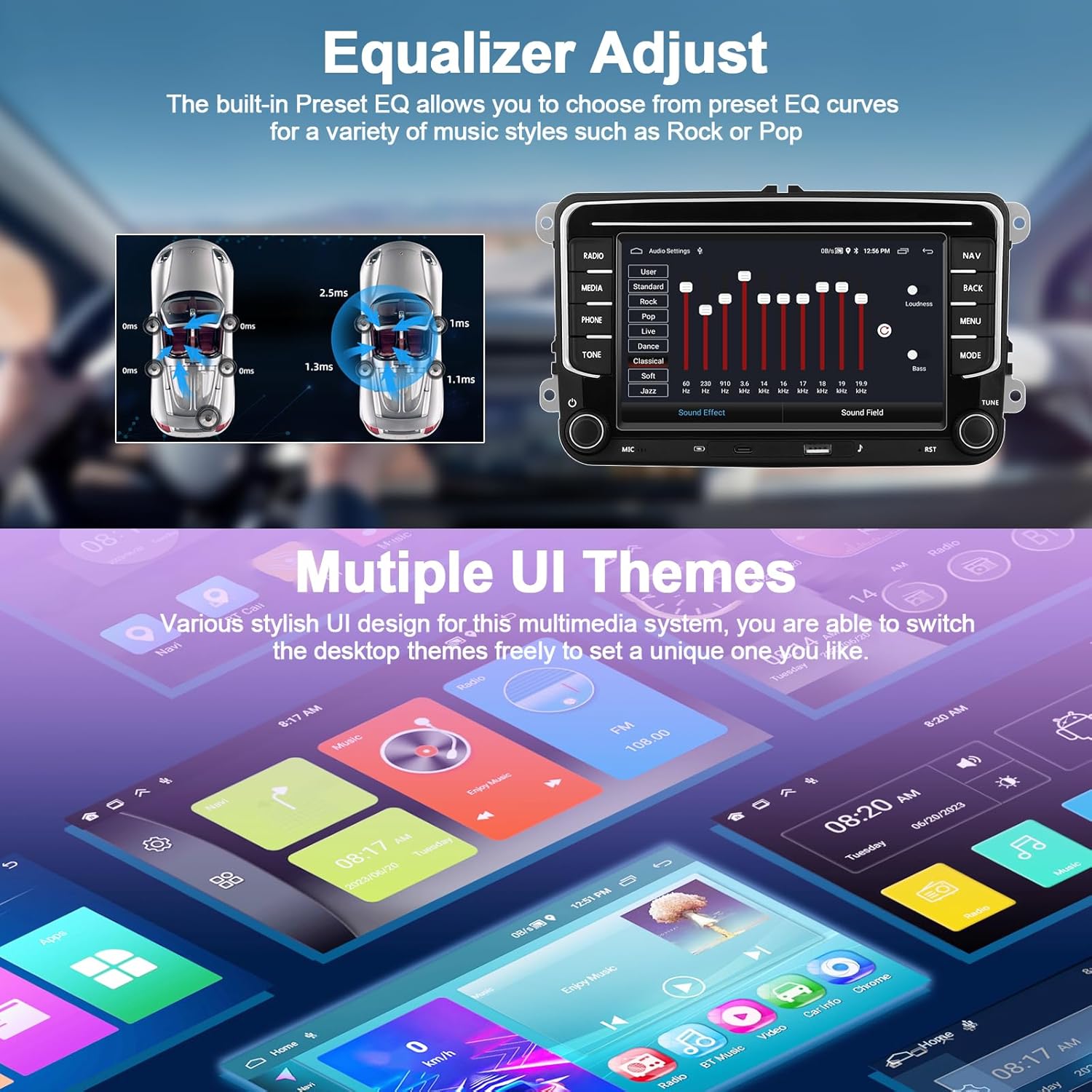
Image: Side-by-side comparison showing a car dashboard before and after the installation of the CAMECHO car stereo, highlighting the integrated look.
3. Key Features
- Android 13 System: Integrated with the latest Android 13 operating system for smooth performance and access to a wide range of applications.
- Memory & Storage: Equipped with 1GB RAM and 32GB ROM for efficient multitasking and ample storage for apps and media.
- 7-inch Touch Screen: Responsive and clear display for intuitive control and media viewing.
- GPS Navigation: Built-in GPS module supports both online and offline navigation applications, ensuring you always find your way. Updates available via Google Play Store.
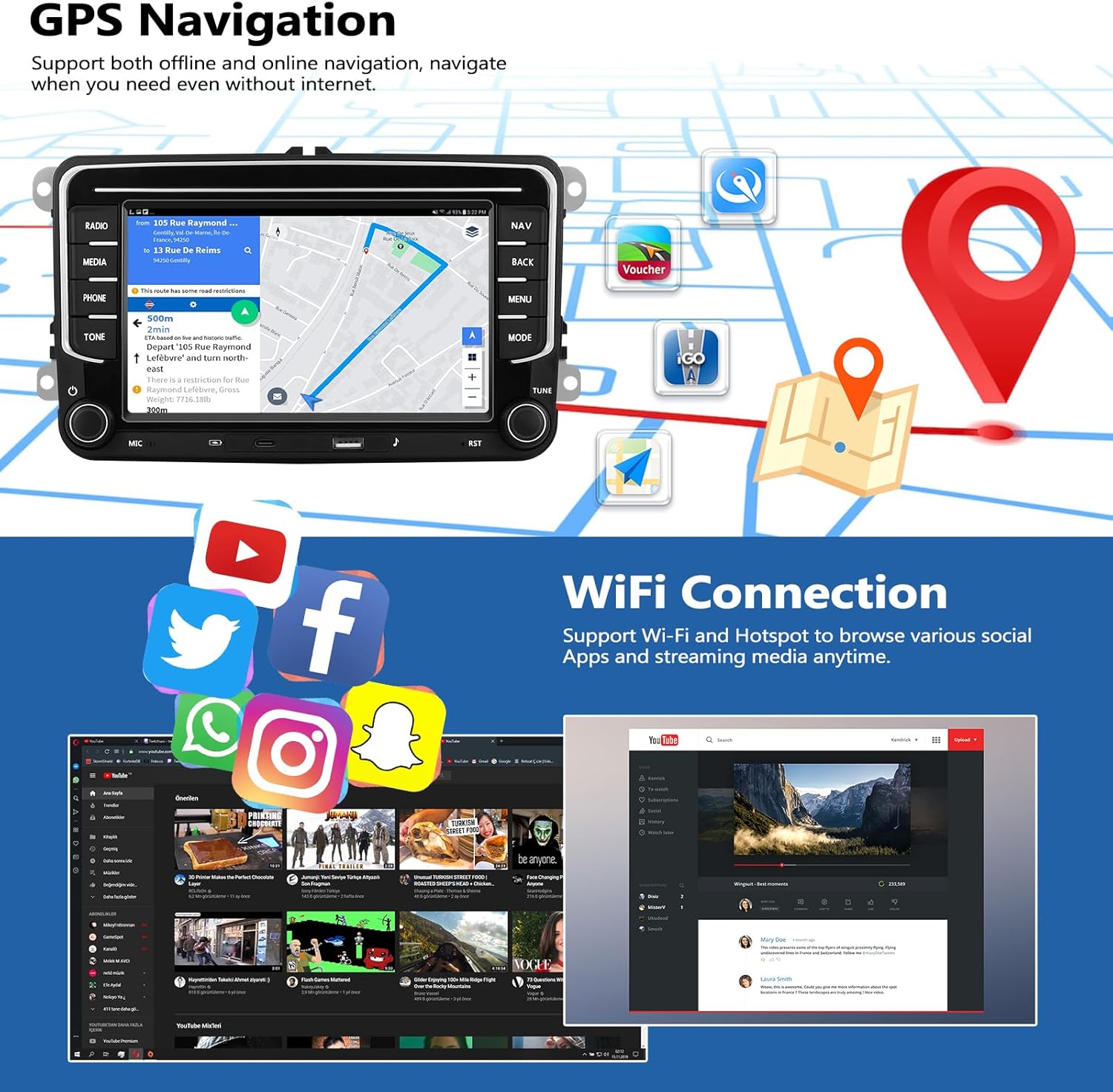
Image: Illustration of GPS navigation on the stereo screen with map icons and a separate section showing various app icons (Twitter, Facebook, Instagram, Spotify, YouTube) indicating WiFi connectivity.
- WiFi Connection: Connect to Wi-Fi or your phone's hotspot to browse the internet, download apps, and stream online content.
- Bluetooth Connectivity: Supports hands-free calling and wireless music streaming for a safer and more enjoyable driving experience.

Image: Top section shows a person driving with a Bluetooth music player interface on the stereo. Bottom section shows the FM/RDS radio interface with frequency display and preset buttons.
- FM/RDS Radio: Enjoy your favorite radio stations with clear reception and RDS (Radio Data System) functionality.
- Mirror Link: Share your phone's screen (both Android and iPhone) directly to the car stereo display for enhanced multimedia access.

Image: Depicts a smartphone screen being mirrored onto the car stereo display, showing the same image on both devices.
- Built-in Equalizer: Customize your audio experience with preset EQ curves for various music styles (e.g., Rock, Pop, Jazz).
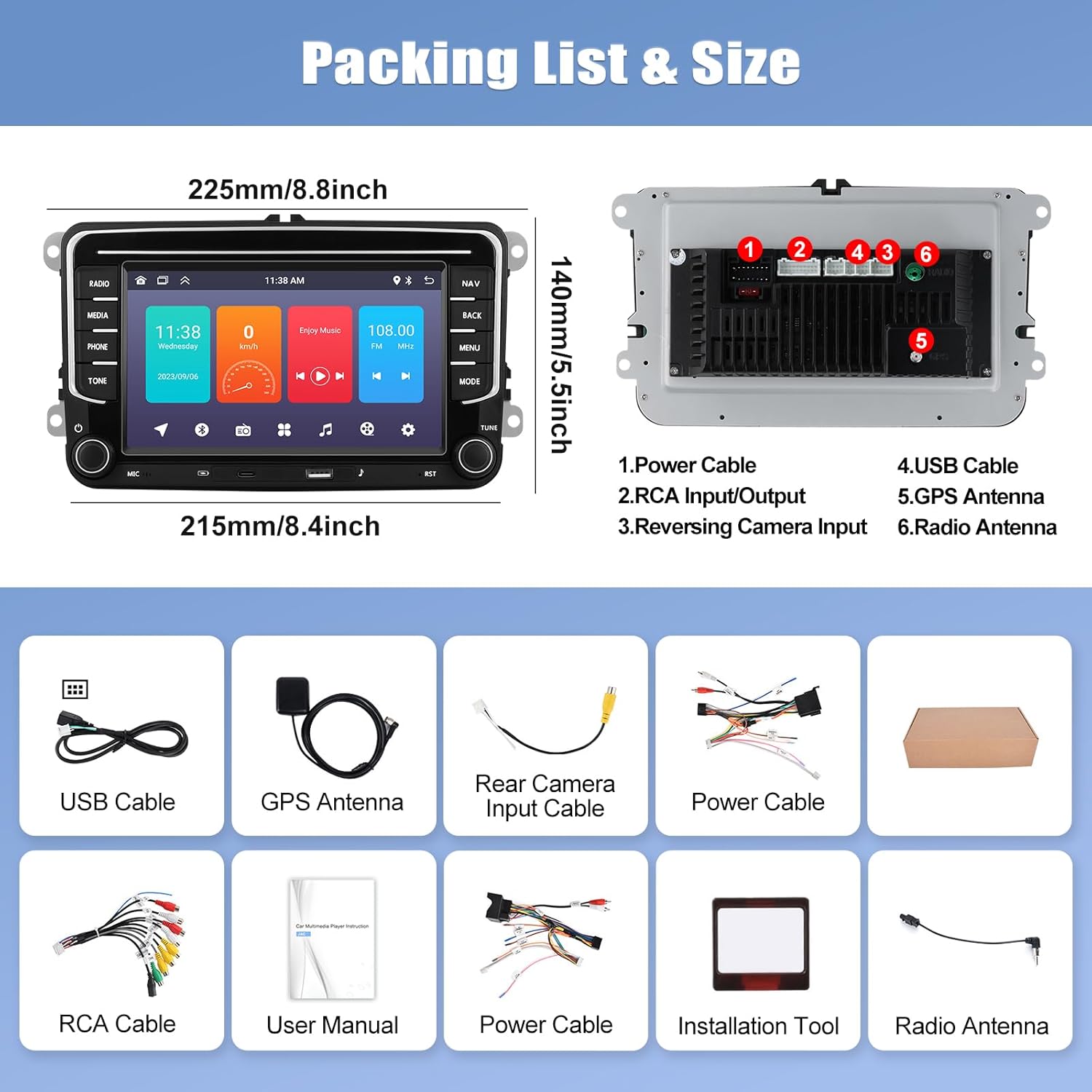
Image: Top section shows the equalizer interface with adjustable frequency bands. Bottom section displays three different user interface themes available on the stereo.
- Multiple Customized UI Desktop Themes: Personalize your stereo's interface with various desktop themes.
- Split Screen: Run two applications simultaneously on the screen for enhanced multitasking.
- Steering Wheel Control: Supports original steering wheel controls for convenient and safe operation.
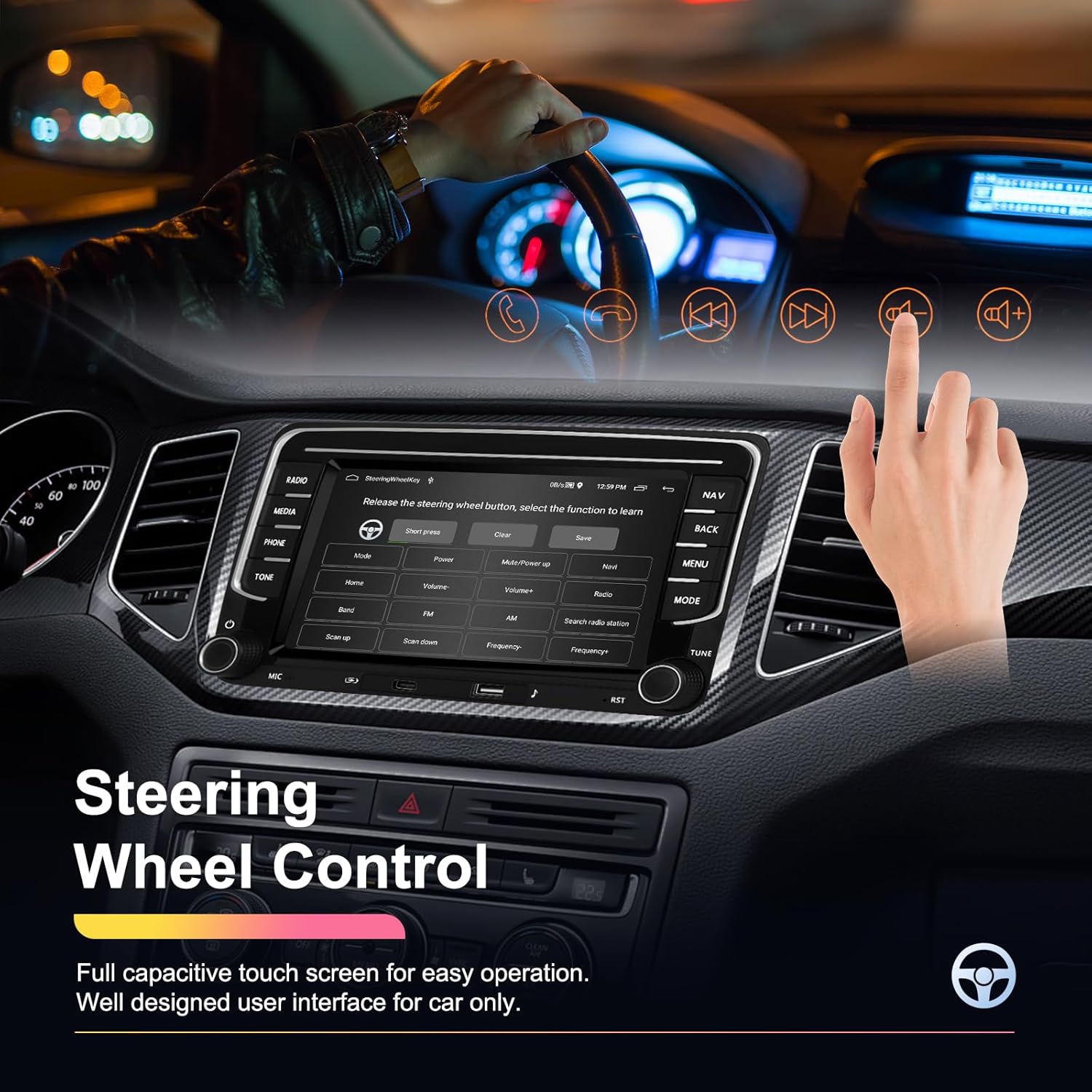
Image: A hand interacting with the car stereo touchscreen, showing the interface for programming steering wheel controls.
- USB Input & Type-C Port: Multiple connectivity options for external devices.
- Full RCA Output & Subwoofer Output: For connecting external amplifiers and subwoofers.
- Backup Camera Support: Ability to add a backup camera for safer reversing.
4. Installation Guide
Before beginning installation, ensure your vehicle's ignition is off and the battery is disconnected. Professional installation is recommended.
4.1. Canbus Connection Confirmation
If your car has original car information, including steering wheel buttons, car door information, big screen display, or reversing tracking, it requires a Canbus connection. Otherwise, it does not.

Image: Diagram illustrating two scenarios: "If you are using a Canbus" with instructions to connect the Canbus and set protocol, and "If your car does not need a Canbus" with instructions to connect the power cable and use the SteeringWheelKey app for controls.
If you are using a Canbus:
- Do NOT connect the small black plug.
- Select power cable according to the original vehicle interface.
- Disconnect the small black plug.
- Connect the Canbus to the pink connector (white plug).
- Choose the correct protocol for your car model in "Setting" -> "Factory Settings" (password: 1234) -> "Protocol settings" -> "Xinpu" -> "VW PQ".
If your car does not need a Canbus:
- Select power cable according to the original vehicle interface.
- Disconnect the Canbus.
- Connect the small black plug.
- After connecting the power cable, you need to go to the "SteeringWheelKey" app to complete the steering wheel button learning.
4.2. Power Connector Confirmation
Confirm the type of power harness connector in your vehicle. The unit typically includes 36-pin and 40-pin ISO power harnesses. If your car's connector matches the 50-pin type shown, you will need to purchase an extra plug.
Image: Section showing examples of 30-pin/40-pin connectors (compatible) and a 50-pin connector (requires extra purchase).
4.3. Reversing Camera Installation
The reversing input must be plugged in even if a reversing camera is not used.

Image: Diagram showing how to wire a reversing camera to the car stereo. It illustrates connecting to the positive and negative poles of the car's reversing light and the power cable (pink wire).
Reversing Camera Wiring Steps:
- Connect to the positive pole of the car's reversing light.
- Connect to the negative pole of the car's reversing light.
- Connect to the power cable (pink wire with label "reverse / parking sensor control / back in").
Note: The white plug must be connected to the main device, or you may not get Bluetooth and WiFi signals. If the camera does not work, adjust the backup camera resolution via: Settings -> Factory Settings -> Password: 1234 -> Video Source.
5. Operating Instructions
5.1. GPS Navigation
The built-in GPS module allows for both online and offline navigation. To use offline maps, download them via a WiFi connection. For online navigation, ensure your device is connected to the internet via WiFi or a mobile hotspot.
- Access navigation apps from the main menu.
- Update map data through the Google Play Store.
5.2. WiFi Connection
Connect your car stereo to a Wi-Fi network or your phone's hotspot to access online features, download apps, and browse the internet.
- Go to "Settings" on the stereo.
- Select "Network & Internet" or "Wi-Fi".
- Turn on Wi-Fi and select your desired network.
- Enter the password if prompted.
5.3. Bluetooth Pairing
Pair your smartphone with the car stereo for hands-free calling and audio streaming.
- On the stereo, go to the "Bluetooth" application.
- Ensure Bluetooth is enabled on your smartphone and set to discoverable.
- Search for available devices on the car stereo.
- Select the car stereo's Bluetooth name (e.g., "CAMECHO_BT") from your phone's Bluetooth settings.
- Confirm the pairing code on both devices.
5.4. FM/RDS Radio
Tune into your favorite radio stations.
- Select the "Radio" application from the main menu.
- Use the scan function to find available stations or manually tune to a frequency.
- Save your favorite stations to preset buttons.
5.5. Equalizer Adjustment
Customize the audio output to match your preferences.
- Access the "Equalizer" or "Sound Settings" from the main menu or settings.
- Choose from various preset EQ curves (e.g., Rock, Pop, Jazz, Classical) or manually adjust frequency bands.
5.6. Mirror Link
Display your smartphone's screen on the car stereo.
- Connect your phone via USB or follow the wireless Mirror Link instructions in the app.
- Open the "Mirror Link" application on the stereo and follow the on-screen prompts for Android or iPhone.
5.7. Steering Wheel Control
Program your car's steering wheel buttons to control the stereo functions.
- Go to "Settings" -> "Steering Wheel Control" or "SteeringWheelKey" app.
- Follow the on-screen instructions to assign functions to each button.
5.8. Multiple UI Themes
Change the visual appearance of your stereo's interface.
- Navigate to "Settings" -> "Display" or "Themes".
- Select your preferred desktop theme.
5.9. Split Screen
Use two applications side-by-side on the screen.
- While an app is open, long-press the recent apps button or drag the app to one side of the screen (depending on Android version).
- Select a second app to open on the other side.
6. Maintenance
To ensure the longevity and optimal performance of your CAMECHO car stereo, follow these general maintenance guidelines:
- Cleaning: Use a soft, dry cloth to clean the screen and exterior. For stubborn smudges, a slightly damp cloth with a mild, non-abrasive cleaner can be used, but avoid spraying directly onto the unit.
- Temperature: Avoid exposing the unit to extreme temperatures, both hot and cold, for extended periods.
- Software Updates: Periodically check for software updates through the system settings to ensure you have the latest features and bug fixes.
- Ventilation: Ensure the unit's ventilation areas are not blocked to prevent overheating.
- Power Cycling: If the unit becomes unresponsive, try turning off your vehicle's ignition, waiting a few minutes, and then restarting.
7. Troubleshooting
This section addresses common issues you might encounter with your car stereo.
7.1. Power Consumption Issues
If your car media player is experiencing power consumption issues (e.g., battery drain), try the following solutions:
Image: Diagram showing power cable connections (36-pin and 40-pin) and troubleshooting steps for power consumption issues, including checking Canbus, ACC red wire, and replacing Simple soft.
- Confirm whether the Canbus and the A&B ports of the power line are connected at the same time. Do not connect them simultaneously.
- If the Canbus is connected, try unplugging it to see if the same issue persists. This can help determine whether the problem is related to the Canbus.
- After turning off the engine, you can test whether the ACC red wire of the power supply still has electricity. Confirm whether there is a wiring error. If the ACC red wire still has electricity after turning off the engine, it is necessary to reconnect it separately.
- If your Canbus is not from "Simple soft", consider replacing it with a "Simple soft" Canbus.
7.2. No Bluetooth or WiFi Signal
Ensure the white plug for the antenna is securely connected to the main device. A loose connection can prevent proper Bluetooth and WiFi functionality.
7.3. Backup Camera Not Displaying
If your backup camera is not displaying an image, ensure all wiring is correct as per Section 4.3. Additionally, check the video source settings:
- Go to "Settings" -> "Factory Settings" (Password: 1234) -> "Video Source".
- Adjust the backup camera resolution settings as needed.
8. Specifications
| Specification | Value |
|---|---|
| Product Dimensions | 22.5 x 6.2 x 14 cm |
| Item Weight | 1 kg |
| Item Model Number | A3665 |
| Display Size | 7 Inches |
| Operating System | Android 13 |
| RAM | 1GB |
| ROM | 32GB |
| Voice Command | Touchscreen |
| Connectivity Technology | Bluetooth, WiFi |
| Map Type | Worldwide (GPS) |
| Audio Output Mode | Stereo |
| Mounting Type | Dashboard Mount |
| Manufacturer | CAMECHO |
| Country of Origin | China |
9. Packing List
The following items are included in your package:
- 1 x CAMECHO VW Android Car Stereo
- 1 x Low Allocation Vehicle Power Cable
- 1 x High Allocation Vehicle Power Cable
- 1 x USB Cable
- 1 x CAM-IN Cable (Reversing Camera Input Cable)
- 1 x RCA Input/Output Cable
- 1 x CANBUS Decoder
- 1 x GPS Antenna
- 1 x Radio Antenna
- 1 x Users Manual (this document)
- 1 x Installation Tool (if included)
Image: Diagram showing the dimensions of the car stereo and an illustration of all included components in the packing list, such as USB cable, GPS antenna, RCA cable, user manual, and power cables.
10. Warranty and Support
Your CAMECHO car stereo comes with a 1-Year Warranty from the date of purchase, as per the product specifications.
For technical support, troubleshooting assistance, or any inquiries regarding your product, please contact CAMECHO customer support:
Email: CAMECHOVIP@126.com
You can also reach out to the seller, Dongguan Yanningqiu Trading Company, through the Amazon platform for assistance.

Image: A customer service representative wearing a headset, with text overlay indicating "We offer help and user manual: CAMECHOVIP@126.com".


