
1. Introduction
The INVCALL Cell Phone Signal Booster F20-PL is designed to enhance 4G LTE and 5G cellular signals within your home or office. This device improves voice quality, data speeds, and reduces dropped calls by amplifying existing outdoor signals and rebroadcasting them indoors. It is compatible with major Canadian carriers and supports frequency bands 4, 5, 7, 12, 17, and 66.

Image: The INVCALL signal booster enhances connectivity for multiple users in a household setting.
2. Package Contents
Verify that all items listed below are included in your package. If any components are missing or damaged, please contact INVCALL customer support.
- Signal Booster Unit (1)
- Indoor Antenna (1)
- Outdoor Antenna (1)
- Short Coaxial Cables (2)
- Long Coaxial Cable (1)
- 30 cm Window Cable (1)
- Power Adapter (1)
- Mounting Accessories (brackets, screws, U-bolt)
- English and French Manuals
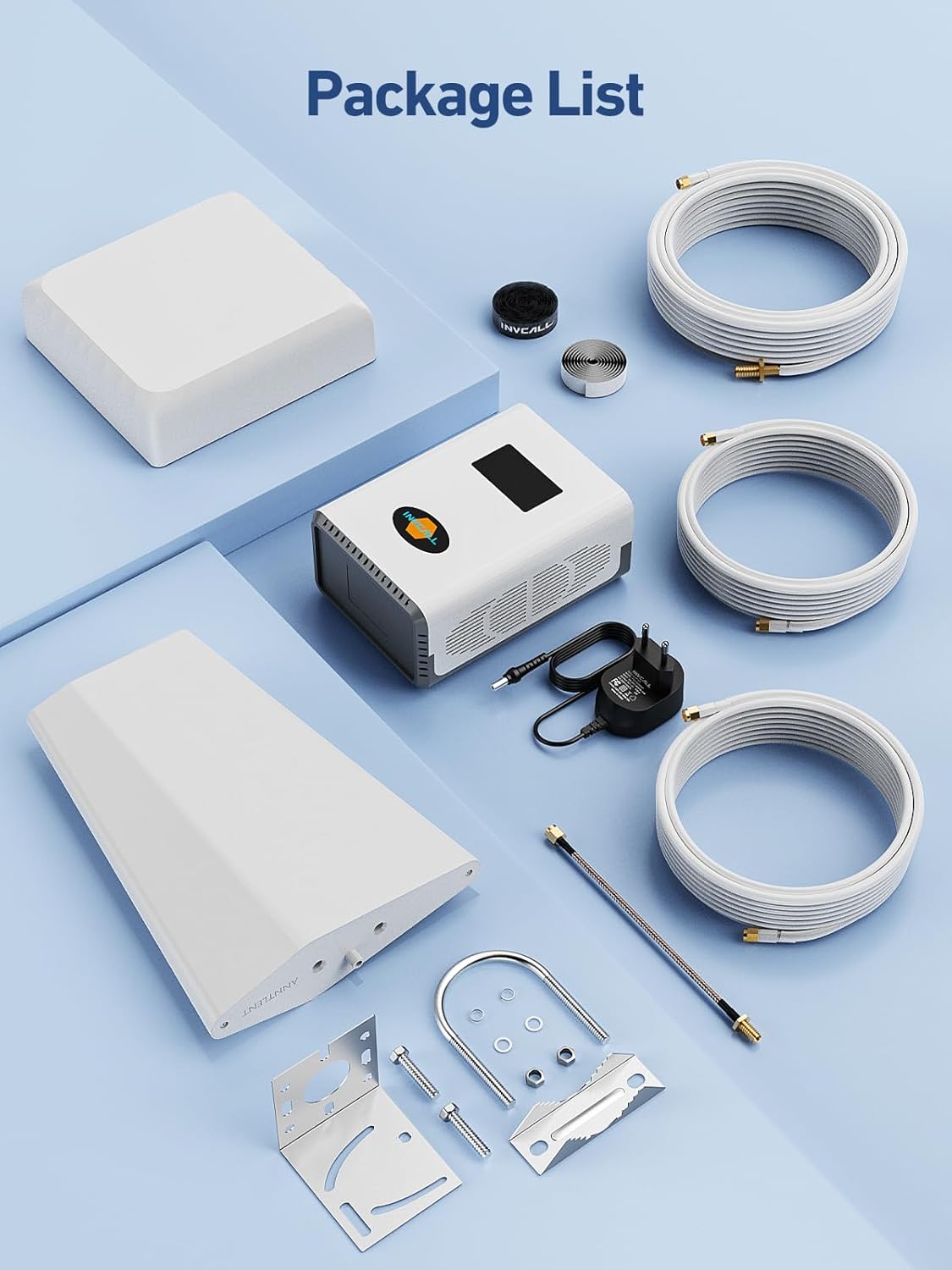
Image: Complete package contents of the INVCALL signal booster kit.
3. Product Overview and Features
The INVCALL F20-PL booster is equipped with advanced features to ensure optimal signal enhancement and ease of use.
- Dual Indoor Antennas: Provides extensive signal coverage up to 7,000 square feet.
- Automatic Gain Control (AGC): Automatically adjusts signal strength for stable performance and prevents interference.
- Smart Touch LCD Display: Shows real-time frequency, gain, output power, and isolation status.
- High Compatibility: Supports 4G LTE and 5G on bands 4, 5, 7, 12, 17, 66 for major Canadian carriers.
- Log-Periodic Outdoor Antenna: Designed for accurate reception from the nearest cell tower.

Image: The booster improves voice quality, video streaming, and data speeds.

Image: Illustration of signal coverage up to 450m² (approximately 4,843 sq ft) with dual indoor antennas.
4. Before Installation: Check Your Band
Before installing, it is crucial to confirm that your phone operates on one of the supported frequency bands (4/5/7/12/17/66). The booster will only function if your phone's band is compatible.
For iPhone Users:
- Dial *3001#12345#* and press Call.
- Navigate to "Serving Cell Info."
- Check "Band Info" to identify the frequency band.
For Android Users:
- Download a network info app (e.g., "Network Cell Info Lite") from the Google Play Store.
- Use the app to find your current frequency band.

Image: Instructions for checking your phone's frequency band before installation.
5. Installation Guide
Proper installation is key to the booster's performance. Follow these steps carefully.
5.1. Outdoor Antenna Placement
The outdoor antenna should be mounted at the highest point possible on your roof or an exterior wall, free from obstructions. It must be aimed towards the nearest cell tower to receive the strongest possible signal.
- Use the "Signal Advisor" app to locate the nearest cell tower and determine the optimal direction for the outdoor antenna.
- Securely mount the antenna using the provided hardware.
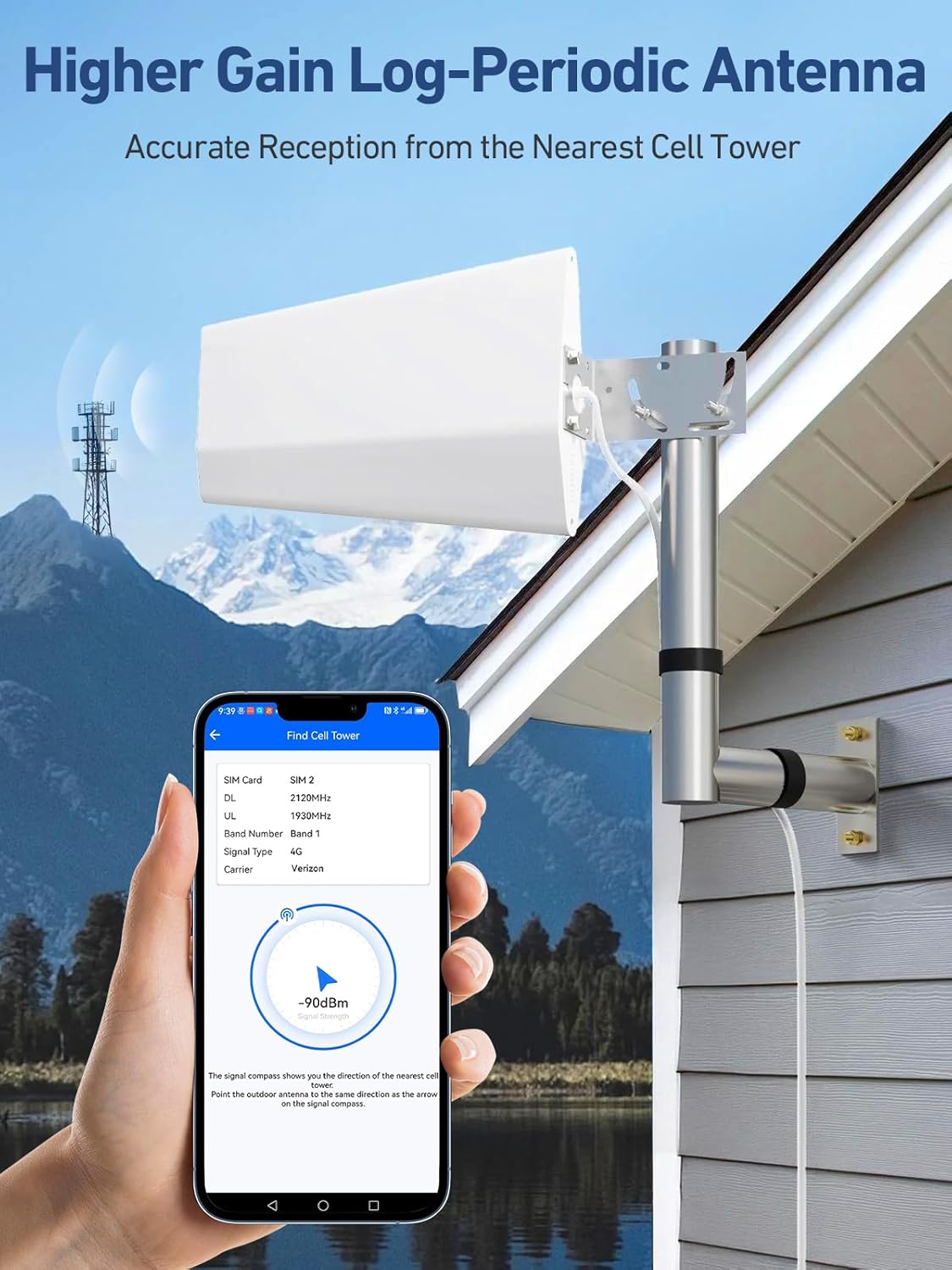
Image: Aiming the outdoor antenna using the Signal Advisor app for accurate signal reception.
5.2. Indoor Antenna Placement
The indoor antenna should be placed in the center of the area where you need improved signal. Ensure there is sufficient separation between the indoor and outdoor antennas to prevent oscillation (feedback).
- Mount the indoor antenna in a central location, typically on a wall or ceiling.
- Maintain a minimum vertical separation of 20 feet (6 meters) and a horizontal separation of 50 feet (15 meters) between the outdoor and indoor antennas. More separation is generally better.
5.3. Connecting Components
- Connect the outdoor antenna to the "OUTDOOR" port on the signal booster using the long coaxial cable.
- Connect the indoor antenna to the "INDOOR" port on the signal booster using one of the short coaxial cables.
- If routing cables through a window, use the provided 30 cm window cable to avoid drilling.
- Ensure all connections are finger-tight. Use waterproof tape for outdoor connections to protect against moisture.
- Plug the power adapter into the booster and then into a power outlet.

Image: Installation accessories including window cable, waterproof tape, and cable manager.
6. Operation
Once installed and powered on, the INVCALL signal booster will automatically begin to amplify signals. The Smart Touch LCD display provides real-time operational status.
6.1. Smart Touch LCD Display
The LCD screen shows critical information:
- FREQ (MHz): Displays the operating frequency band.
- GAIN (dB): Indicates the signal amplification level.
- Pout (dBm): Shows the output power.
- Isolation: Measures the separation between indoor and outdoor antennas. High isolation is crucial for stable operation.
- Band: Identifies the active frequency band.

Image: Interacting with the Smart Touch LCD display to monitor booster performance.
6.2. Signal Advisor App
The "Signal Advisor" app (available on App Store and Google Play) provides additional tools for optimizing your booster's performance:
- Cell Tower Location: Helps pinpoint the nearest cell tower for precise outdoor antenna aiming.
- Real-time Signal Detection: Monitors frequency band and signal strength.
- Installation Video Guides: Step-by-step visual instructions.
- Technical Support: Direct contact with professional technicians for assistance.

Image: The Signal Advisor app provides tools for installation and monitoring.
7. Maintenance
The INVCALL signal booster requires minimal maintenance to ensure long-term performance.
- Cleaning: Periodically wipe the booster unit and indoor antenna with a soft, dry cloth. Do not use liquid cleaners.
- Cable Inspection: Annually inspect outdoor cables and connections for wear, damage, or loose fittings. Ensure waterproof tape is intact.
- Antenna Obstructions: Ensure the outdoor antenna remains free from new obstructions (e.g., tree growth, new buildings) that could block the signal path to the cell tower.
8. Troubleshooting
If you experience issues with your signal booster, refer to the common problems and solutions below. For further assistance, use the Signal Advisor app to contact technical support.
| Problem | Possible Cause | Solution |
|---|---|---|
| No signal improvement | Insufficient outdoor signal; improper antenna aiming; insufficient separation between antennas. | Verify outdoor signal strength with the app. Re-aim outdoor antenna. Increase separation between indoor and outdoor antennas. |
| Booster repeatedly turns on/off | Power adapter issue; oscillation (feedback). | Ensure power adapter is providing sufficient power. Increase antenna separation. Check for loose cable connections. |
| LCD shows "Isolation" warning | Indoor and outdoor antennas are too close, causing feedback. | Increase the physical distance (vertical and horizontal) between the indoor and outdoor antennas. Ensure no direct line of sight. |
| Specific band not boosting | Phone not operating on a supported band; booster not detecting the band. | Confirm your phone's band using the method in Section 4. Ensure outdoor antenna is receiving a strong signal on that band. |
9. Specifications
| Feature | Detail |
|---|---|
| Model Number | F20-PL |
| Supported Frequency Bands | 4, 5, 7, 12, 17, 66 (700 MHz, 1.7/2.1 GHz, 2.5 GHz, 2.6 GHz) |
| Compatibility | Major Canadian Carriers (Telus, Bell, Rogers, Fido, MTS, SasKTel) |
| Coverage Area | Up to 7,000 sq ft (actual coverage may vary based on outdoor signal and building structure) |
| Gain | Up to 70 dB |
| Special Features | Automatic Gain Control (AGC), Inactive Mode, Smart Touch LCD Display |
| Power Input | DC 5V/2A |
| ISED Certification Number | 22138-F20INCA57 |
| Hardware Version Identification Number (HVIN) | F20IN-CA57 |
| Dimensions | 44 x 25.9 x 14 cm (Parcel) |
| Weight | 2.61 kg (Parcel) |
| Country of Origin | China |

Image: ISED Approved label on the INVCALL signal booster.
10. Warranty and Support
INVCALL is committed to providing reliable products and excellent customer service.
- Warranty: This product comes with a 3-year warranty.
- Technical Support: INVCALL offers lifetime technical support for all users. For assistance, please utilize the "Signal Advisor" app to contact professional technicians directly.

