
JOMAA B0DM4Y6V5W
JOMAA Foldable Bluetooth Keyboard with Touchpad User Manual
Model: B0DM4Y6V5W
1. Introduction
Thank you for purchasing the JOMAA Foldable Bluetooth Keyboard with Touchpad. This ultra-slim, portable keyboard is designed for convenience and efficiency, offering seamless connectivity across multiple devices. This manual provides detailed instructions on how to set up, operate, and maintain your new keyboard to ensure optimal performance.
Please read this manual thoroughly before using the product and retain it for future reference.
2. Safety Information
- Do not expose the keyboard to extreme temperatures, humidity, or direct sunlight.
- Avoid dropping or subjecting the keyboard to strong impacts.
- Do not attempt to disassemble or modify the keyboard. This will void the warranty.
- Keep the keyboard away from water and other liquids.
- Use only the provided charging cable or a certified Type-C cable for charging.
- Dispose of the battery according to local regulations. Do not incinerate.
3. Package Contents
- JOMAA Foldable Bluetooth Keyboard with Touchpad
- USB-C Charging Cable
- User Manual
4. Product Overview
Familiarize yourself with the various components of your JOMAA Foldable Bluetooth Keyboard.
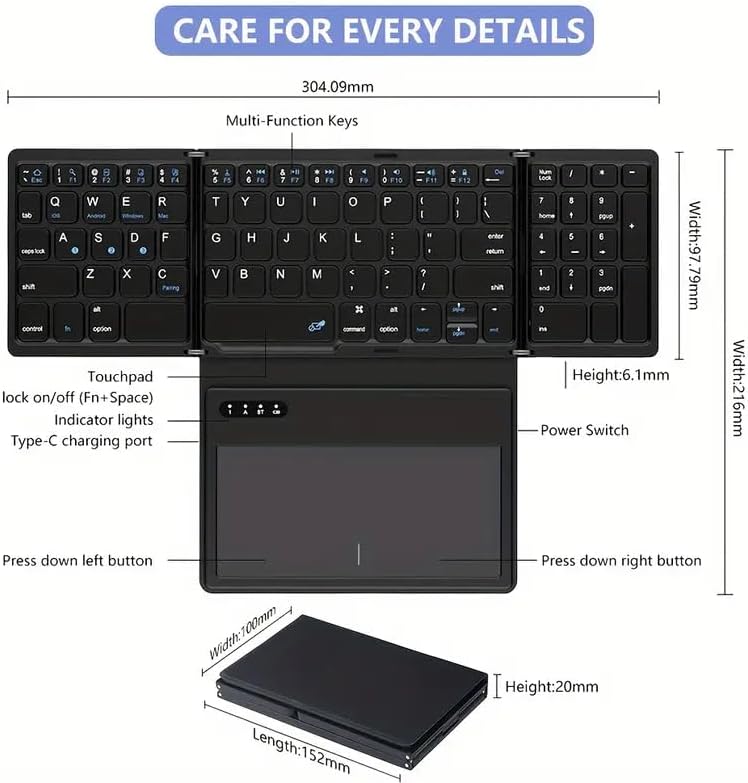
Image 4.1: Keyboard Components and Dimensions. This image displays the unfolded keyboard with various parts labeled, including the touchpad, indicator lights, Type-C charging port, power switch, and left/right touchpad buttons. It also shows the dimensions of the keyboard when unfolded (304.09mm length, 97.75mm width, 6.1mm height) and folded (152mm length, 100mm width, 20mm height).
- Keyboard Layout: Standard QWERTY layout with additional function keys and a numeric keypad section.
- Touchpad: Integrated touchpad with left and right click functionality, supporting multi-gesture touch.
- Indicator Lights: Bluetooth pairing indicator, battery status indicator.
- Type-C Charging Port: For recharging the internal battery.
- Power Switch: To turn the keyboard on or off.
- Folding Mechanism: Tri-fold design for compact portability.
5. Setup
5.1. Charging the Keyboard
Before first use, fully charge the keyboard. A low battery indicator (red light flashing) will appear when the battery is low.
- Connect the provided USB-C charging cable to the keyboard's Type-C port.
- Connect the other end of the cable to a USB power source (e.g., computer USB port, USB wall adapter).
- The charging indicator light will illuminate during charging and turn off when fully charged.
Charging Time: Approximately 1.5 - 2 hours.
Battery Life: Up to 50 hours of continuous use; 90 days standby time.
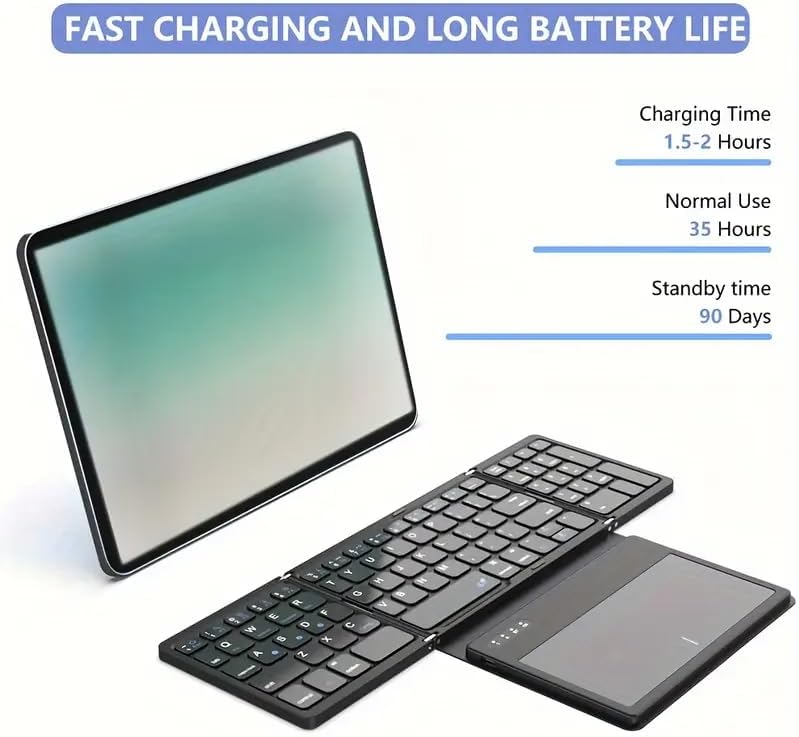
Image 5.1: Fast Charging and Long Battery Life. This image illustrates the keyboard's charging capabilities, highlighting a charging time of 1.5-2 hours, normal use of 50 hours, and a standby time of 90 days.
5.2. Powering On/Off
- To Power On: Unfold the keyboard. The power indicator light will briefly illuminate.
- To Power Off: Fold the keyboard. The power will automatically turn off.
5.3. Bluetooth Pairing
The keyboard supports connecting up to three devices simultaneously and switching between them.
- Ensure the keyboard is charged and unfolded.
- On the keyboard, press and hold the Fn + A (for iOS), Fn + S (for Android), or Fn + D (for Windows) keys for 3-5 seconds until the Bluetooth indicator light starts blinking rapidly. This indicates the keyboard is in pairing mode for the selected channel.
- On your device (smartphone, tablet, laptop, Smart TV):
- Go to Settings > Bluetooth.
- Turn on Bluetooth.
- Search for available devices.
- Select "Bluetooth Keyboard" or similar from the list.
- If prompted, enter the pairing code displayed on your device and press Enter on the keyboard.
- Once paired, the Bluetooth indicator light will stop blinking and remain solid for a few seconds before turning off. The keyboard will automatically reconnect to the last paired device when powered on.

Image 5.2: Wide Compatibility. This image demonstrates the keyboard's compatibility with various operating systems and devices, including iOS (Fn+A), Android (Fn+S), and Windows (Fn+D) for tablets, smartphones, PCs (with wireless adapter), and laptops.
5.4. Switching Between Devices
To switch between the three paired devices:
- Press Fn + Q to switch to the first paired device.
- Press Fn + W to switch to the second paired device.
- Press Fn + E to switch to the third paired device.
Note: The touchpad does NOT work with systems below iOS 13.
6. Operating Instructions
6.1. Using the Keyboard
The keyboard functions like a standard full-size keyboard, providing a comfortable typing experience. It includes independent digital areas, arrow keys, subtitle keys, symbol keys, and multimedia buttons.
6.2. Using the Touchpad
The integrated touchpad allows for precise cursor control without the need for an external mouse. It supports various multi-touch gestures.

Image 6.1: Self-Contained Touchpad. This image highlights the integrated touchpad, emphasizing that no external mouse is required for navigation and control.
Basic Touchpad Gestures:
- Single Finger Tap: Left click.
- Two Finger Tap: Right click.
- Single Finger Drag: Move cursor.
- Two Finger Scroll: Scroll up/down or left/right.
- Pinch to Zoom: Zoom in/out (if supported by application/OS).
Touchpad Lock/Unlock: Press Fn + Space to toggle the touchpad on or off.
6.3. Function Keys
The top row of keys combines standard function keys (F1-F12) with multimedia and system control functions. To use the secondary function, press the Fn key simultaneously with the desired function key.
| Key Combination | Function |
|---|---|
| Fn + F1 | Home |
| Fn + F2 | Search |
| Fn + F3 | Select All |
| Fn + F4 | Copy |
| Fn + F5 | Paste |
| Fn + F6 | Cut |
| Fn + F7 | Previous Track |
| Fn + F8 | Play/Pause |
| Fn + F9 | Next Track |
| Fn + F10 | Mute |
| Fn + F11 | Volume Down |
| Fn + F12 | Volume Up |
| Fn + Space | Touchpad On/Off |
7. Maintenance
- Cleaning: Use a soft, dry, lint-free cloth to clean the keyboard surface. For stubborn dirt, slightly dampen the cloth with water or a mild cleaning solution. Do not spray liquids directly onto the keyboard.
- Storage: When not in use, fold the keyboard to protect the keys and touchpad. Store it in a cool, dry place away from direct sunlight and extreme temperatures.
- Battery Care: To prolong battery life, avoid fully discharging the battery frequently. Charge the keyboard regularly, even if not in constant use.
8. Troubleshooting
| Problem | Possible Cause | Solution |
|---|---|---|
| Keyboard does not turn on. | Low battery. | Charge the keyboard for 1.5-2 hours. |
| Keyboard does not connect via Bluetooth. | Bluetooth not enabled on device. Keyboard not in pairing mode. Device already paired to another keyboard. Interference. | Ensure Bluetooth is on. Press and hold Fn + A/S/D until indicator blinks. Forget the device on your device's Bluetooth settings and re-pair. Move closer to the device, away from other wireless devices. |
| Touchpad not working. | Touchpad is disabled. iOS version is below 13. | Press Fn + Space to enable touchpad. Touchpad functionality is not supported on iOS versions below 13. |
| Keys are not responding or typing incorrectly. | Low battery. Connection issue. Incorrect OS mode selected. | Recharge the keyboard. Disconnect and reconnect Bluetooth. Ensure you have selected the correct OS mode (Fn+A for iOS, Fn+S for Android, Fn+D for Windows). |
9. Specifications
| Feature | Detail |
|---|---|
| Product Dimensions (Unfolded) | 11.98 x 3.85 x 0.24 inches (approx. from feature bullets) / 304.09 x 97.75 x 6.1 mm |
| Product Dimensions (Folded) | 5.98 x 3.94 x 0.79 inches (approx. from feature bullets) / 152 x 100 x 20 mm |
| Item Weight | 12.7 ounces (approx. 360 grams) |
| Connectivity | Bluetooth |
| Bluetooth Channels | 3 (simultaneous connection) |
| Effective Connection Distance | 33 feet (10 meters) |
| Battery Type | 1 Lithium Ion battery (included) |
| Charging Port | USB Type-C |
| Charging Time | 1.5 - 2 hours |
| Continuous Use Time | Up to 50 hours |
| Standby Time | 90 days |
| Compatible Devices | Laptop, Smart TV, Smartphone (iOS, Android, Windows) |
| Material | Plastic, Leather (outer casing when folded) |
| Special Features | Foldable, Lightweight, Portable, Rechargeable, Integrated Touchpad, Quiet Keys |
10. Warranty and Support
JOMAA products are designed and manufactured to the highest quality standards. For any issues or questions regarding your product, please contact JOMAA customer support.
Please refer to your purchase receipt or the product packaging for specific warranty terms and contact information. Keep your proof of purchase for warranty claims.
For further assistance, visit the official JOMAA store on Amazon: JOMAA Store
Ask a question about this manual
Ask about setup, troubleshooting, compatibility, parts, safety, or missing instructions. Manuals+ will review the question and use this page’s manual context to help answer it.