
1. Introduction
This manual provides detailed instructions for the FREEWOLF M68 60% Wireless Gaming Keyboard. Please read this manual carefully before using the product to ensure proper operation and longevity.

Figure 1: FREEWOLF M68 Wireless Gaming Keyboard (Shimmer color variant)
2. Product Overview
Key Features:
- Tri-Mode Connectivity: Supports wired (USB-C), 2.4GHz wireless, and Bluetooth 5.0 connections.
- Multi-Device Compatibility: Connects to Windows, Mac, Linux, PC, Laptop, iPad, iOS, and Android devices.
- Compact 60% Layout: Features 67 keys, optimizing desktop space.
- PBT Keycaps: Durable Polybutylene Terephthalate keycaps with clear legends.
- Rainbow LED Backlighting: Offers constant and breathing modes with adjustable brightness and speed.
- Long-Lasting Battery: Built-in 2000mAH battery provides extended usage.
- Ergonomic Design: Double leg braces allow for three adjustable typing angles.
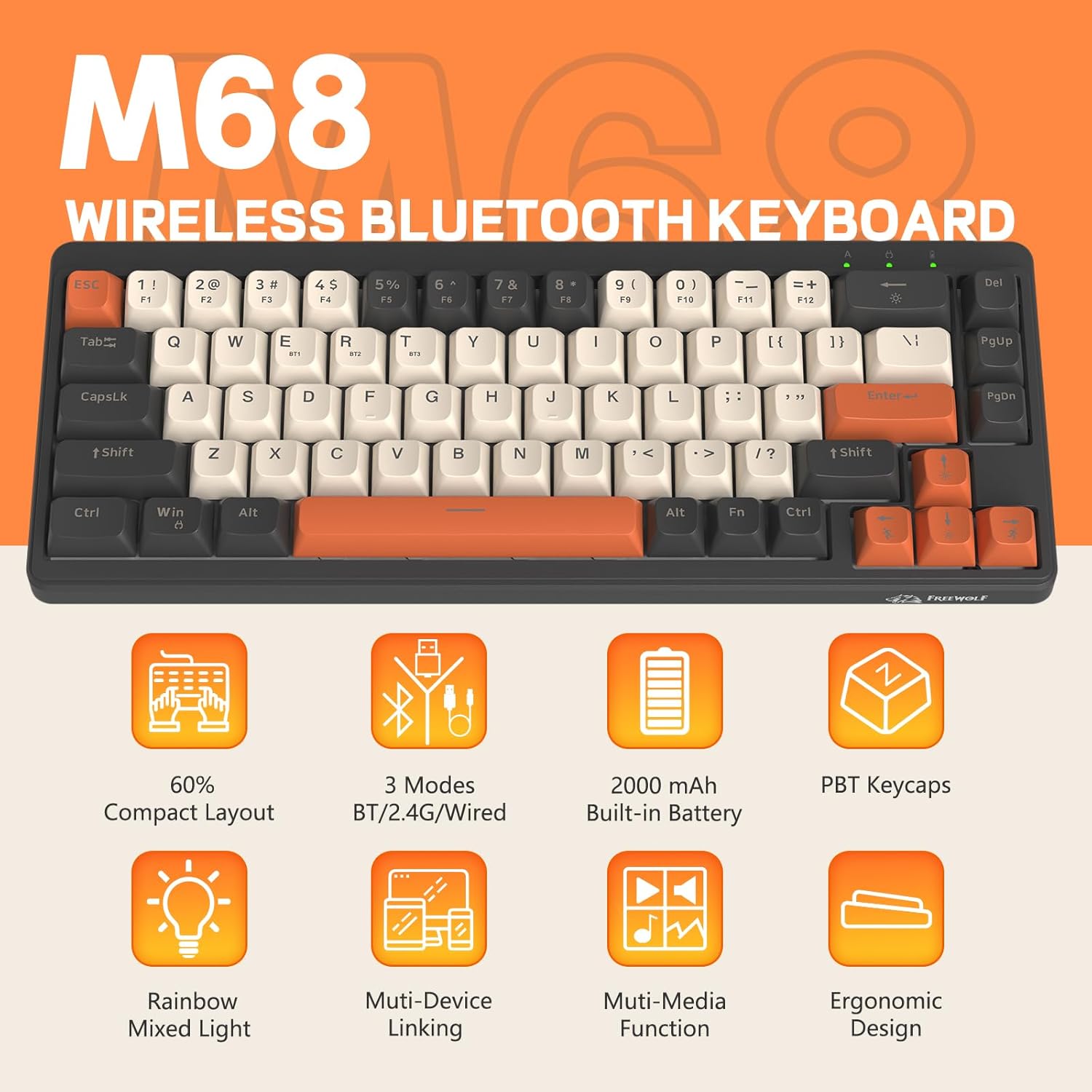
Figure 2: Overview of FREEWOLF M68 key features.
3. Setup and Connection
3.1. Tri-Mode Connection Overview
The M68 keyboard supports three connection methods: wired via USB-C, 2.4GHz wireless via a USB receiver, and Bluetooth 5.0. You can switch between these modes using the dedicated switch on the keyboard.

Figure 3: Detailed view of the 3-mode connection options.
3.2. Wired Connection
- Locate the USB-C port on the keyboard.
- Connect the provided USB-C cable to the keyboard and the other end to your computer's USB port.
- Ensure the mode switch on the keyboard is set to the wired (USB) position.
- The keyboard will be automatically recognized by your system.
3.3. 2.4GHz Wireless Connection
- Locate the 2.4GHz USB receiver (often stored in a compartment on the keyboard).
- Plug the USB receiver into an available USB port on your computer.
- Set the mode switch on the keyboard to the 2.4GHz wireless position.
- The keyboard should connect automatically. If not, press FN + R to initiate pairing.
3.4. Bluetooth Connection
The M68 can connect to up to three Bluetooth devices simultaneously.
- Set the mode switch on the keyboard to the Bluetooth position.
- To enter pairing mode for a specific channel (BT1, BT2, or BT3), press and hold FN + Q (for BT1), FN + W (for BT2), or FN + E (for BT3) until the corresponding indicator light flashes rapidly.
- On your device (PC, laptop, tablet, phone), open Bluetooth settings and search for "FREEWOLF M68".
- Select the keyboard to pair. The indicator light will become solid once connected.
- To switch between paired Bluetooth devices, press FN + Q/W/E briefly.
4. Operation
4.1. Backlight Control
The M68 features customizable rainbow LED backlighting.
- FN + Backspace: Toggle backlight on/off or switch between constant and breathing modes.
- FN + Left Arrow: Decrease backlight speed.
- FN + Right Arrow: Increase backlight speed.
- FN + Up Arrow: Increase backlight brightness.
- FN + Down Arrow: Decrease backlight brightness.

Figure 4: Backlight adjustment key combinations.
4.2. Ergonomic Adjustment
The keyboard includes double leg braces on the back to adjust the typing angle for comfort.
- Flip the keyboard over to access the leg braces.
- Adjust the two-stage leg braces to achieve your preferred typing angle (flat, one stage, or two stages).

Figure 5: Ergonomic angle adjustments.
4.3. Battery Management
The keyboard has a built-in 2000mAH rechargeable battery.
- Charging: Connect the keyboard via the USB-C cable to a power source (computer USB port or wall adapter). The charging indicator will show status.
- Battery Life: Up to 60 hours with backlight on, and up to 200 hours with backlight off.
- Power Saving: The keyboard will enter sleep mode after a period of inactivity to conserve battery. Press any key to wake it up.

Figure 6: Battery capacity information.
5. Maintenance
- Cleaning: Use a soft, dry cloth to clean the keyboard surface. For keycaps, you may use a slightly damp cloth. Avoid excessive moisture.
- Keycap Removal: If necessary, use a keycap puller to carefully remove PBT keycaps for deeper cleaning or replacement.
- Storage: Store the keyboard in a cool, dry place away from direct sunlight and extreme temperatures.
- Avoid Liquids: Do not expose the keyboard to liquids to prevent damage to internal components.
6. Troubleshooting
| Problem | Possible Cause | Solution |
|---|---|---|
| Keyboard not responding (Wired) | Loose cable connection, incorrect mode. | Ensure USB-C cable is securely connected. Check if the mode switch is set to wired. Try a different USB port. |
| Keyboard not responding (2.4GHz) | USB receiver not connected, incorrect mode, pairing issue. | Ensure USB receiver is plugged in. Set mode switch to 2.4GHz. Re-pair by pressing FN + R. Try a different USB port for the receiver. |
| Keyboard not responding (Bluetooth) | Not paired, incorrect mode, device Bluetooth off. | Ensure device Bluetooth is on. Set mode switch to Bluetooth. Enter pairing mode (FN + Q/W/E) and re-pair. Forget the device on your system and re-pair. |
| Backlight not working or stuck | Backlight off, low battery, software glitch. | Press FN + Backspace to toggle. Charge the keyboard. Try resetting the keyboard (refer to advanced functions if available, or disconnect/reconnect). |
| Keys not registering or double-typing | Dust/debris under keycap, switch issue. | Carefully remove keycap and clean. If issue persists, contact support. |
7. Specifications
| Model | M68 |
| Brand | FREEWOLF |
| Connectivity | Wired (USB-C), 2.4GHz Wireless, Bluetooth 5.0 |
| Key Layout | 60% (67 Keys) |
| Keycap Material | PBT (Polybutylene Terephthalate) |
| Backlighting | Rainbow LED (RGB) |
| Battery Capacity | 2000mAH |
| Compatible Devices | Laptop, PC, Tablet (Windows, Mac, Linux, iOS, Android) |
| Product Dimensions | 32.51 x 12.5 x 3.99 cm |
| Weight | 600 g |
| Special Features | Ergonomic (adjustable angles), Backlit |
8. Warranty and Support
For warranty information, technical support, or customer service inquiries, please refer to the contact information provided with your purchase or visit the official FREEWOLF website.
Please retain your proof of purchase for any warranty claims.


