Introduction
The Nokia FastMile 5G Gateway 3.2 is an advanced wireless router designed to provide high-speed internet connectivity by converting 5G, 4G, and LTE wireless signals into a reliable Wi-Fi 6 (802.11ax) connection. This manual provides essential information for setting up, operating, maintaining, and troubleshooting your device to ensure optimal performance.
Package Contents
Before you begin, please verify that all items are present in your package:
- Nokia FastMile 5G Gateway 3.2 Unit
- Power Adapter
- Ethernet Cable
- Quick Start Guide (if included)
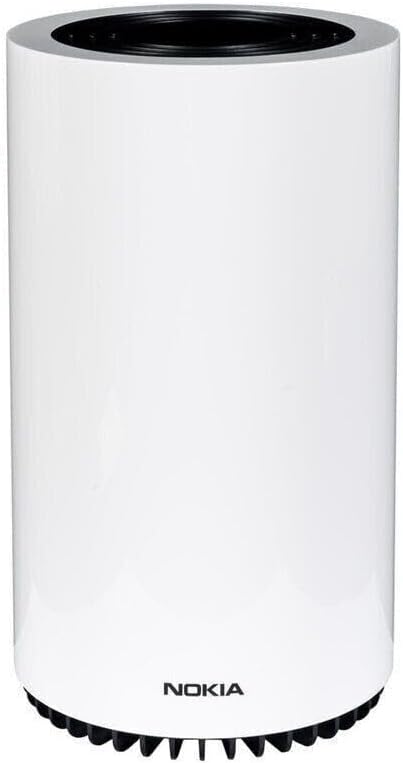
Image: The Nokia FastMile 5G Gateway 3.2 unit, a white cylindrical device.
Setup
1. Physical Placement
For optimal performance, place the Nokia FastMile 5G Gateway 3.2 in an open area, away from obstructions, and ideally near a window to improve 5G/4G signal reception. Avoid placing it near large metal objects, concrete walls, or other electronic devices that may cause interference.
2. SIM Card Insertion
- Locate the SIM card slot on the device.
- Insert your activated Nano-SIM card into the slot with the gold contacts facing down and the notched corner aligned correctly. Push until it clicks into place.
3. Power Connection
- Connect the provided power adapter to the power port on the back of the Gateway.
- Plug the other end of the power adapter into a wall outlet.
- The device will power on automatically. Wait for the indicator lights on the top of the device to stabilize.
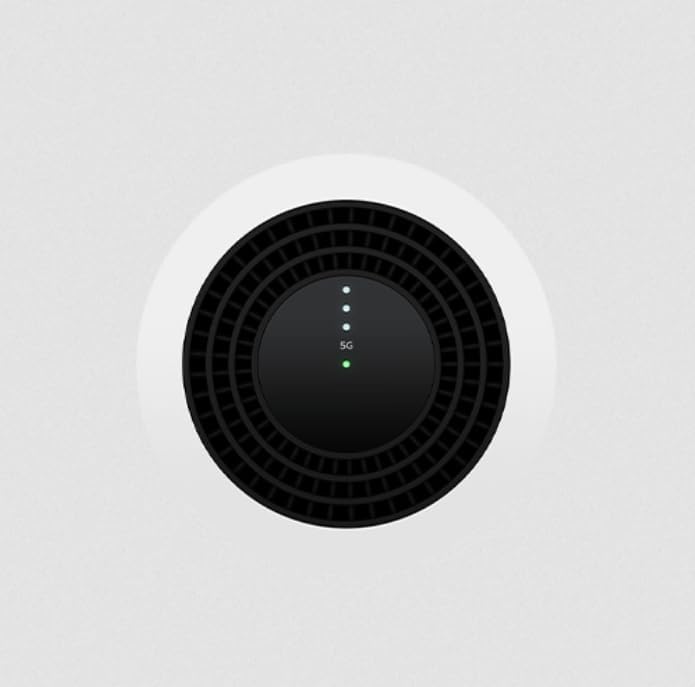
Image: Top view of the Nokia FastMile 5G Gateway 3.2, showing the circular vent and LED indicator lights for status and signal strength.
4. Initial Configuration (APN Settings)
In some cases, you may need to manually configure the Access Point Name (APN) settings to match your mobile network provider. This can typically be done via the device's web interface or a dedicated mobile application.
- Connect a computer or mobile device to the Gateway's Wi-Fi network (SSID and password are usually found on a sticker on the device).
- Open a web browser and enter the Gateway's default IP address (e.g., 192.168.1.1) to access the web interface.
- Log in using the default credentials (refer to the device sticker or quick start guide).
- Navigate to the network settings or mobile network section to find APN configuration.
- Enter the correct APN for your carrier. If unsure, contact your mobile network provider or search online for "[Your Carrier Name] APN settings".
Operating the Gateway
Connecting Devices
The Gateway supports both Wi-Fi and wired Ethernet connections.
- Wi-Fi Connection: On your device (smartphone, laptop, tablet), search for available Wi-Fi networks. Select the SSID broadcasted by your Nokia Gateway and enter the Wi-Fi password.
- Ethernet Connection: Use the provided Ethernet cable to connect devices like computers, smart TVs, or gaming consoles to the LAN ports on the back of the Gateway. The device has two Ethernet ports, one dedicated LAN and one configurable as WAN/LAN.
Understanding Indicator Lights
The LEDs on the top of the Gateway provide status information:
- Power LED: Indicates power status.
- Signal Strength LEDs: Multiple LEDs typically indicate the strength of the 5G/4G signal. More lit LEDs usually mean a stronger signal.
- Network Status LED: Indicates connectivity to the mobile network and internet.
Refer to the full user manual (if available from Nokia) for a detailed explanation of each LED's behavior (e.g., solid, blinking, color variations).
Advanced Features
The Nokia FastMile 5G Gateway 3.2 offers various advanced features accessible through its web interface or companion mobile app:
- Firewall Configuration: Manage network security rules, including explicit firewalling.
- DMZ Configuration: Set up a Demilitarized Zone for specific devices.
- Wi-Fi Settings: Customize Wi-Fi network names (SSIDs), passwords, security protocols, and channel settings.
- Parental Controls: Manage internet access for connected devices.
- Network Monitoring: View connected devices, data usage, and network status.
Maintenance
Cleaning the Device
To maintain optimal performance and appearance, regularly clean the exterior of the Gateway with a soft, dry, lint-free cloth. Do not use liquid cleaners or aerosol sprays directly on the device.
Firmware Updates
Nokia may release firmware updates to improve performance, add features, or address security vulnerabilities. It is recommended to keep your Gateway's firmware up to date. Check the device's web interface for available updates or enable automatic updates if the option is provided.
Power Considerations
While the device does not have an internal battery, connecting it to an Uninterruptible Power Supply (UPS) can provide continuous operation during brief power interruptions, ensuring uninterrupted internet connectivity.
Troubleshooting
| Problem | Possible Cause | Solution |
|---|---|---|
| No Internet Connection | Incorrect APN settings; Poor 5G/4G signal; SIM card issue; Network outage. |
|
| Slow Internet Speed | Weak signal; Network congestion; Too many connected devices; Device interference. |
|
| Wi-Fi Disconnects Frequently | Wi-Fi channel interference; Distance from Gateway; Firmware issue. |
|
Resetting the Device
If you encounter persistent issues, you may perform a factory reset. Locate the reset button (often a small pinhole) on the device. Use a paperclip to press and hold the button for approximately 10-15 seconds until the lights indicate a reset. Warning: A factory reset will erase all custom settings and restore the device to its default configuration.
Specifications
| Brand | Nokia |
| Model Name | FastMile 5G Gateway 3.2 |
| Model Number | 5G16-12W-A-cr |
| Connectivity Technology | 5G, 4G, LTE |
| Wi-Fi Standard | Wi-Fi 6 (802.11ax) |
| Number of Ports | 2 (Ethernet) |
| Included Components | Power Adapter, Ethernet Cable |
| Special Features | Internet Security |
| Color | White |
| Parcel Dimensions | 31.7 x 18.1 x 17 cm |
| Item Weight | 1.61 kg |
| UPC | 703670756399 |
Warranty and Support
This Nokia FastMile 5G Gateway 3.2 is a renewed product. Please refer to the specific warranty terms provided by the seller (Amazon Renewed) at the time of purchase. For technical support, troubleshooting beyond this manual, or warranty claims, please contact the seller or Nokia customer support channels as indicated in your purchase documentation.
For general information and support resources, you may visit the official Nokia support website or the Amazon Renewed support page.


