
HyperGear 16181
HyperGear Flip 2-in-1 Headphones + Speaker User Manual
Model: 16181
1. Introduction
Welcome to the HyperGear Flip 2-in-1 Headphones + Speaker user manual. This guide provides detailed instructions to help you get the most out of your device, which combines the functionality of over-ear headphones with a portable speaker. Featuring Bluetooth 5.0 connectivity and 40mm audio drivers, this device is designed for versatile audio experiences.
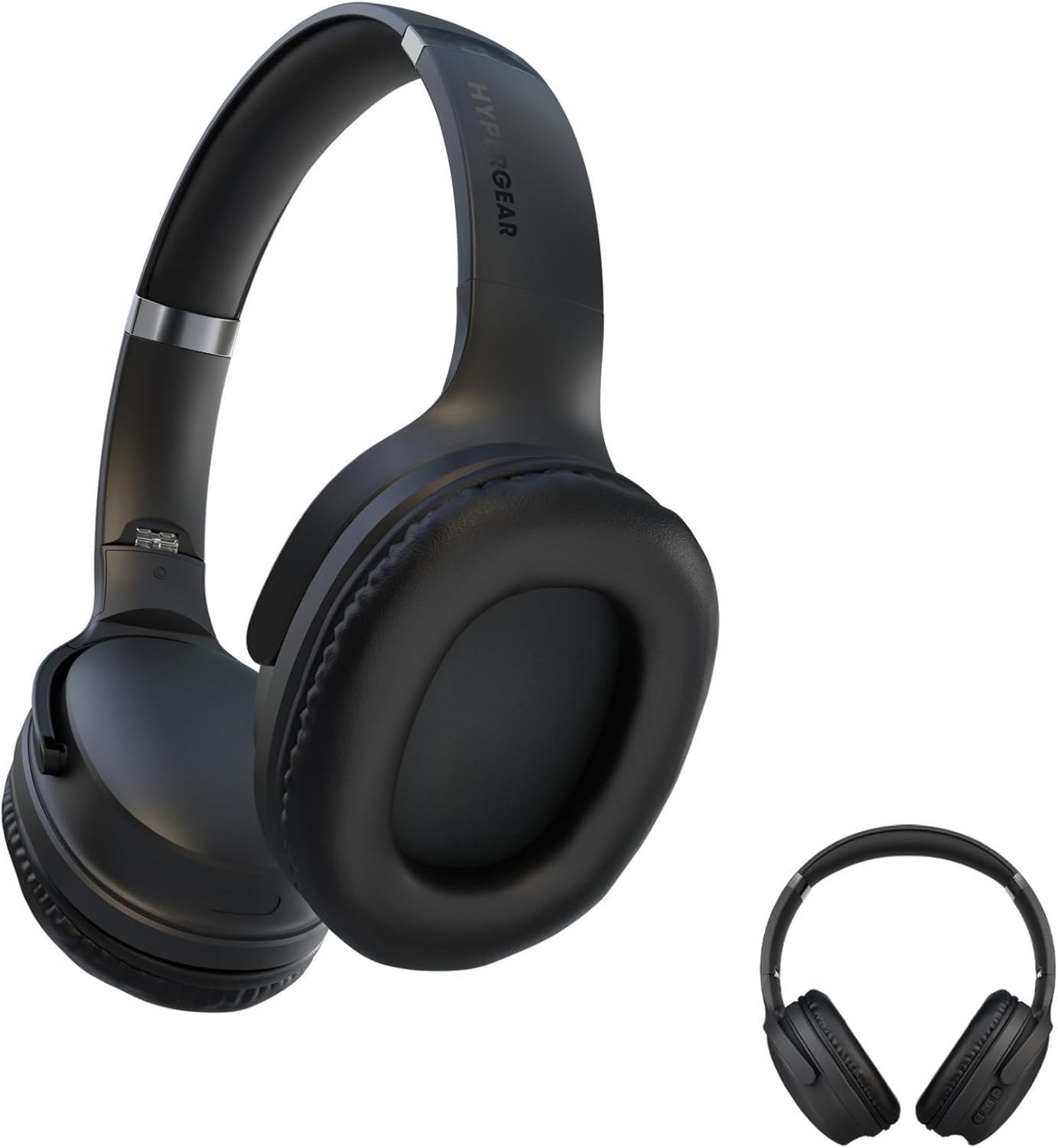
This image displays the HyperGear Flip 2-in-1 Headphones in their black finish, illustrating both the over-ear configuration for listening and the compact, folded state for portability.
2. Package Contents
Please check the box for the following items:
- HyperGear Flip 2-in-1 Headphones + Speaker
- USB-C Charging Cable
- User Manual (this document)
3. Product Overview
The HyperGear Flip 2-in-1 device features an adjustable headband, comfortable memory foam ear cups, and intuitive on-ear controls. The unique design allows the ear cups to flip outwards, transforming the headphones into a portable speaker.
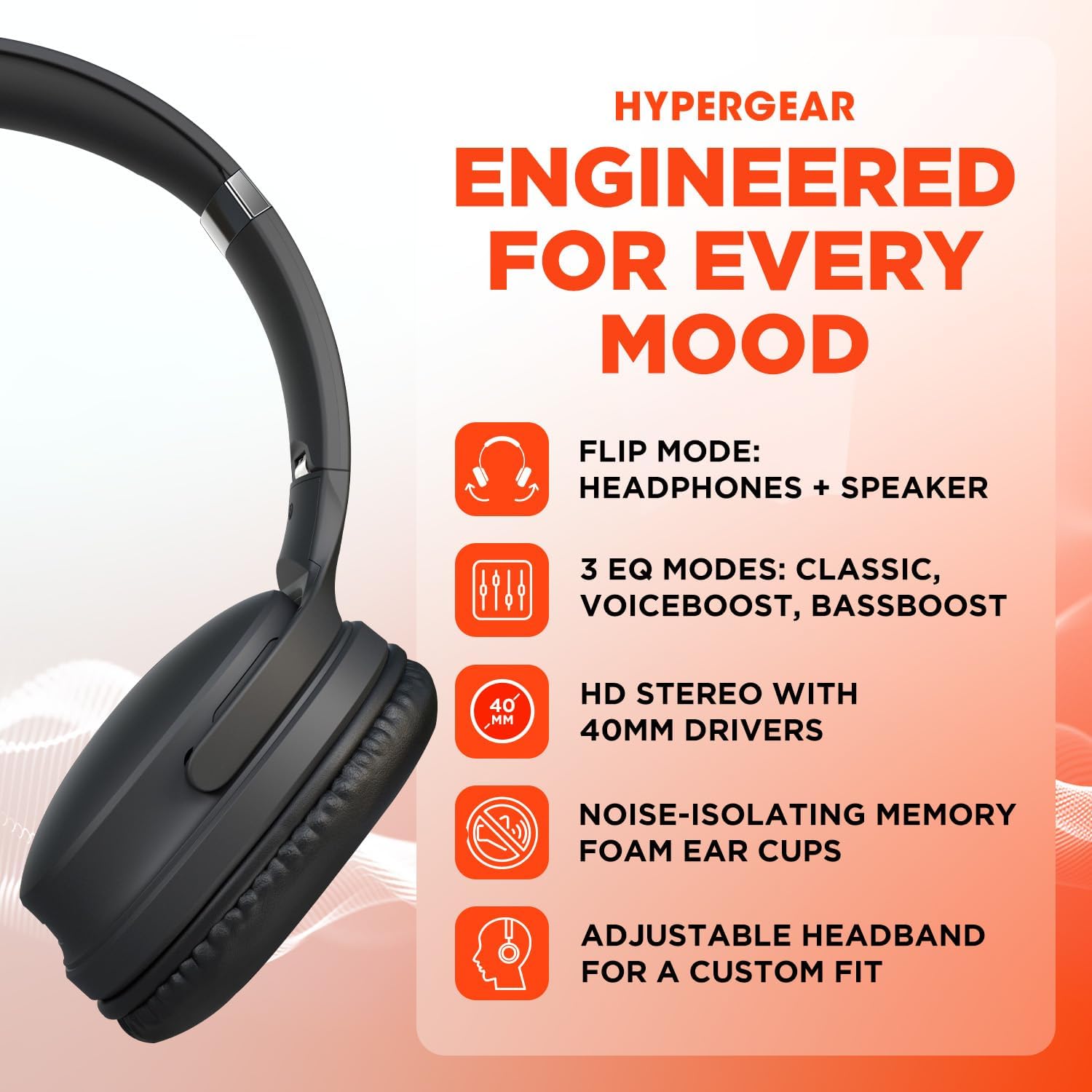
A visual representation of the HyperGear Flip 2-in-1 Headphones' main features, including its dual headphone and speaker functionality, multiple equalization modes, high-definition 40mm audio drivers, comfortable noise-isolating memory foam ear cups, and an adjustable headband for a customized fit.
On-Ear Controls
The right earcup houses the primary controls for power, volume, track navigation, and EQ mode selection.

This graphic illustrates the battery performance of the HyperGear headphones, indicating 10 hours of playtime in headphone mode and 4 hours in speaker mode. It also highlights the location of the on-ear controls and the availability of three distinct EQ modes.
4. Setup
4.1 Charging the Device
- Connect the provided USB-C charging cable to the charging port on the headphones.
- Connect the other end of the cable to a USB power adapter (not included) or a computer's USB port.
- The LED indicator will show charging status. A full charge typically takes approximately 2 hours.
4.2 Powering On/Off
- To Power On: Press and hold the Power button until the LED indicator lights up.
- To Power Off: Press and hold the Power button until the LED indicator turns off.
4.3 Bluetooth Pairing
The HyperGear Flip 2-in-1 Headphones use Bluetooth 5.0 for a stable wireless connection up to 10.06 meters (33 feet).
- Ensure the headphones are powered off.
- Press and hold the Power button for approximately 5 seconds until the LED indicator flashes blue and red, indicating pairing mode.
- On your device (smartphone, tablet, computer), enable Bluetooth and search for available devices.
- Select "HyperGear Flip" from the list of found devices.
- Once connected, the LED indicator will show a solid blue light.
- The headphones will automatically reconnect to the last paired device when powered on, if within range.
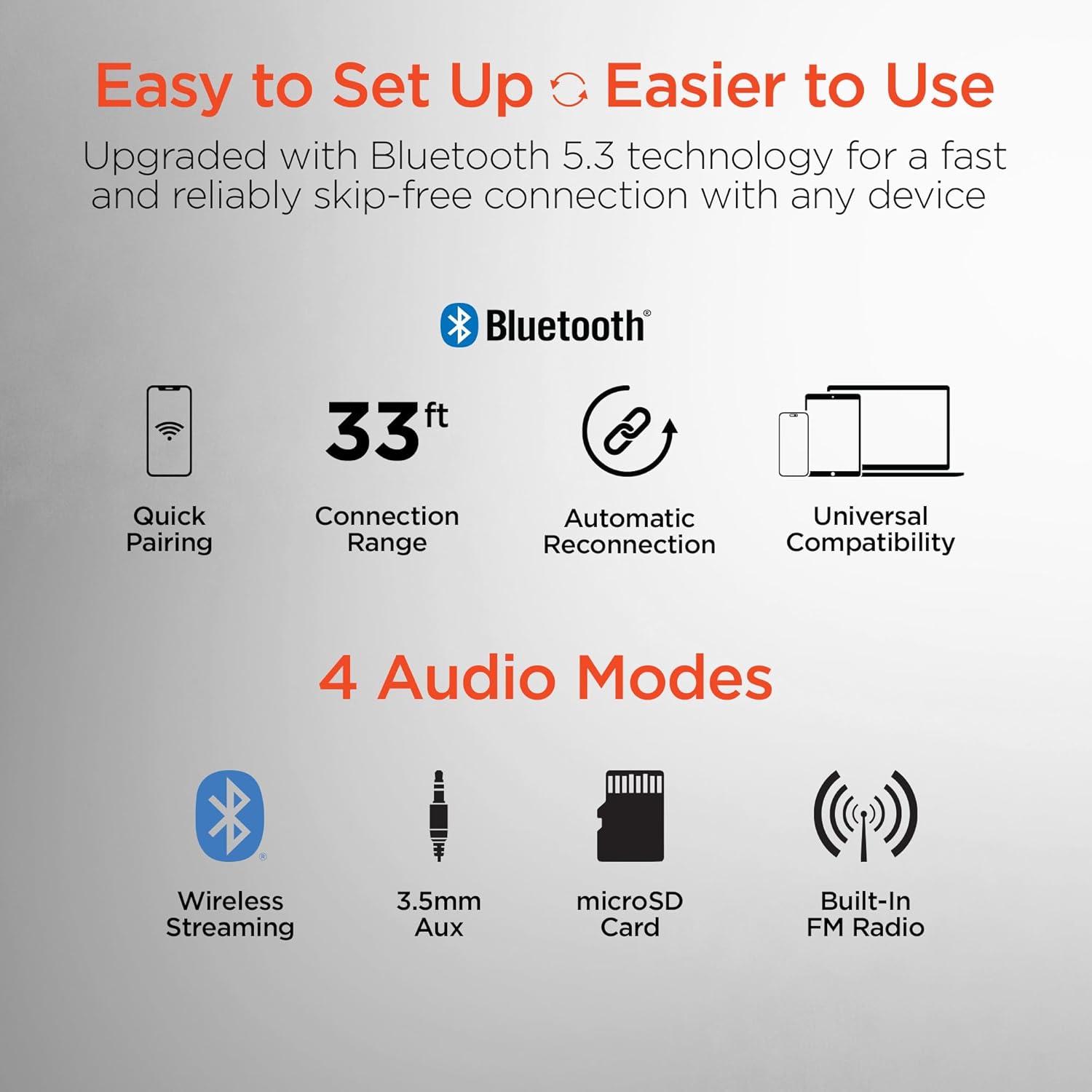
This image highlights the user-friendly aspects of the HyperGear headphones, detailing its Bluetooth 5.0 technology for quick pairing, a 33-foot connection range, automatic reconnection feature, and universal compatibility with various devices. It also lists the four available audio input modes: wireless streaming, 3.5mm auxiliary, microSD card, and built-in FM radio.
5. Operating Instructions
5.1 Switching Between Headphone and Speaker Mode
The HyperGear Flip offers two distinct audio modes:
- Headphone Mode: For private listening, ensure the ear cups are folded inwards, covering your ears. This mode provides immersive HD sound with up to 10 hours of playtime.
- Speaker Mode: To share your music, flip the ear cups outwards. The device will project powerful stereo sound, offering up to 4 hours of playtime.
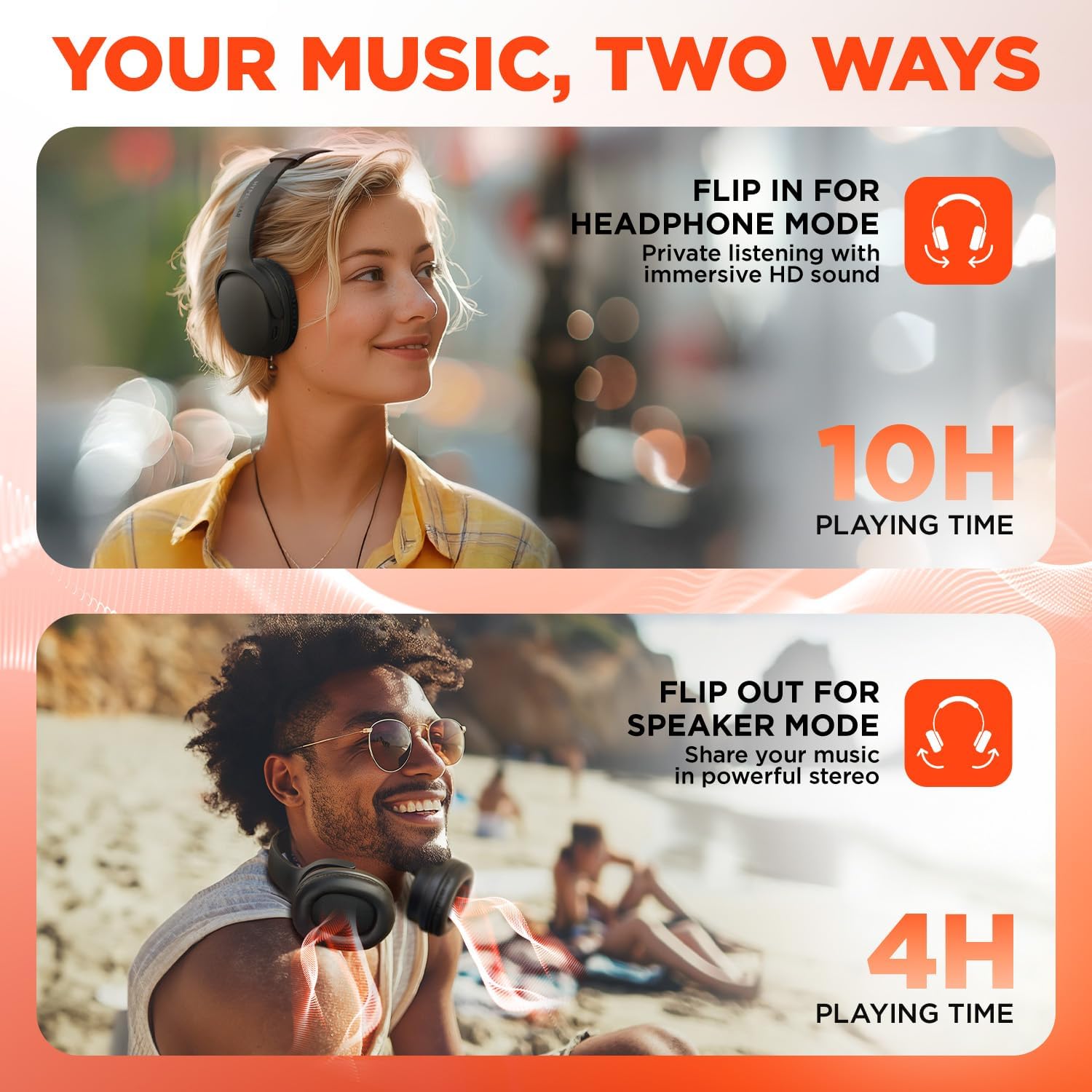
This visual demonstrates the dual functionality of the HyperGear headphones. The top image shows a woman wearing the headphones for private listening, while the bottom image shows a man with the earcups flipped out, utilizing the device as a portable speaker to share music.
5.2 On-Ear Control Functions
| Button/Action | Function |
|---|---|
| Power Button (Press & Hold) | Power On/Off |
| Power Button (Short Press) | Play/Pause music, Answer/End calls |
| Volume + / Next Track | Short press for Volume Up, Long press for Next Track |
| Volume - / Previous Track | Short press for Volume Down, Long press for Previous Track |
| EQ Button | Cycle through EQ Modes (Classic, Voiceboost, Bassboost) |
5.3 EQ Modes
Customize your audio experience with three distinct Equalizer (EQ) modes:
- Classic: Provides pure, balanced sound suitable for most music genres.
- Voiceboost: Enhances crisp, clear vocals with added detail, ideal for podcasts or audiobooks.
- Bassboost: Delivers deep, thumping bass for a more impactful listening experience.

A detailed view of the headphone earcup, focusing on the 'EQ' button. Text descriptions explain the three available sound modes: 'Classic' for balanced audio, 'Voiceboost' for clear vocals, and 'Bassboost' for enhanced low frequencies.
5.4 Additional Audio Modes
Beyond Bluetooth, the headphones support other audio input methods:
- 3.5mm Aux: Connect via a 3.5mm audio cable (not included) for wired listening.
- MicroSD Card: Insert a microSD card with audio files for direct playback.
- Built-In FM Radio: Tune into FM radio stations directly from the device.
6. Maintenance
6.1 Cleaning
- Wipe the headphones with a soft, dry cloth.
- Do not use abrasive cleaners, alcohol, or chemical solvents.
- Keep the charging port free of dust and debris.
6.2 Storage
- Store the headphones in a cool, dry place away from direct sunlight and extreme temperatures.
- When not in use, fold the ear cups for compact storage.
6.3 Battery Care
- To prolong battery life, avoid fully discharging the battery frequently.
- Charge the device regularly, even if not in frequent use.
7. Troubleshooting
| Problem | Possible Solution |
|---|---|
| Device does not power on | Ensure the battery is charged. Connect to a power source using the USB-C cable. |
| Cannot pair via Bluetooth | Ensure the headphones are in pairing mode (flashing blue/red LED). Turn off and on Bluetooth on your device. Move closer to the headphones. |
| No sound in headphone mode | Check volume levels on both the headphones and your connected device. Ensure ear cups are properly positioned over ears. |
| No sound in speaker mode | Ensure ear cups are fully flipped outwards. Check volume levels. |
| Poor audio quality | Move closer to your connected device to reduce interference. Ensure no physical obstructions are blocking the signal. |
| Battery drains quickly | Ensure the device is fully charged before use. Speaker mode consumes more power than headphone mode. |
8. Specifications
| Feature | Detail |
|---|---|
| Model Name | HyperGear Flip 2-in-1 Headphones + Speaker |
| Model Number | 16181 |
| Connectivity Technology | Wireless (Bluetooth 5.0) |
| Bluetooth Range | 10.06 Meters (33 feet) |
| Audio Driver Size | 40mm |
| Frequency Range | 20Hz - 20,000Hz |
| Control Method | Push Button |
| Earpiece Shape | Over-Ear |
| Noise Control | Sound Isolation |
| Headphone Playtime | Up to 10 hours |
| Speaker Playtime | Up to 4 hours |
| Charging Time | Approx. 2 hours |
| Charging Port | USB-C |
| Item Weight | 16 ounces (0.45 Kilograms) |
| Product Dimensions | 7.88 x 10.24 x 3.55 inches |
| Water Resistance Level | Not Water Resistant |
| Compatible Devices | Phones, Tablets, Computers, Gaming Consoles, Desktops, Laptops |
| UPC | 633755161803 |
9. Warranty and Support
9.1 Warranty Information
HyperGear products are designed for durability and performance. This product is covered by a limited manufacturer's warranty against defects in materials and workmanship under normal use. Please refer to the warranty card included with your purchase or visit the official HyperGear website for specific warranty terms and conditions.
9.2 Customer Support
For technical assistance, troubleshooting, or warranty claims, please contact HyperGear customer support:
- Website: www.hypergear.com (Please check the official website for the most current contact information)
- Email: support@hypergear.com (Example, please verify on official website)
- Phone: (Example, please verify on official website)
Related documents16181


Ask a question about this manual
Ask about setup, troubleshooting, compatibility, parts, safety, or missing instructions. Manuals+ will review the question and use this page’s manual context to help answer it.